
Keeping your Apple Watch updated is more than just a routine chore—it’s a crucial step in maintaining peak performance, security, and compatibility with your iPhone and other Apple devices. Many users delay updates due to concerns about data loss, failed installations, or unexpected glitches. However, when approached methodically, updating your Apple Watch can enhance speed, extend battery efficiency, and unlock new features designed to improve daily usability.
The process requires preparation, patience, and an understanding of how watchOS interacts with hardware limitations and personal usage patterns. By following a structured approach, you can avoid common pitfalls and ensure your device runs smoothly long after the update completes.
Back Up Your Data Before Updating
Before initiating any software update, safeguarding your data should be the top priority. While Apple Watch updates are generally stable, unforeseen interruptions—like power loss or connectivity issues—can corrupt system files or erase personalized settings.
Your Apple Watch automatically backs up to your paired iPhone whenever it's charging and within Bluetooth range. However, manually triggering a fresh backup ensures all recent health metrics, workout logs, app configurations, and watch face layouts are preserved.
- Open the Watch app on your iPhone.
- Navigate to the My Watch tab.
- Select All Watches at the top (if you use multiple watches).
- Tap the info icon (i) next to your current watch.
- Choose Back Up Now.
Prepare Your Devices for the Update
A successful update depends not only on the Apple Watch itself but also on its ecosystem partners: your iPhone and Wi-Fi network. Rushing into an update without proper preparation increases the risk of failure.
Check Compatibility and Requirements
Not all Apple Watch models support the latest version of watchOS. For example, watchOS 10 dropped support for Series 4 and earlier models. Always verify that your model is compatible before proceeding.
| Apple Watch Model | Max Supported watchOS Version |
|---|---|
| Series 4 and earlier | watchOS 9 |
| Series 5 | watchOS 10 |
| Series 6–9, Ultra, Ultra 2 | watchOS 10+ |
Ensure Sufficient Battery and Charging
Both your Apple Watch and iPhone must have at least 50% battery before starting the update. Connect both devices to their respective chargers during the process to prevent interruptions.
- Place the Apple Watch on its magnetic charger.
- Keep the iPhone nearby and connected to power if possible.
- Use a stable Wi-Fi connection; cellular data is not recommended for downloading large update files.
Step-by-Step Guide to Installing the Update
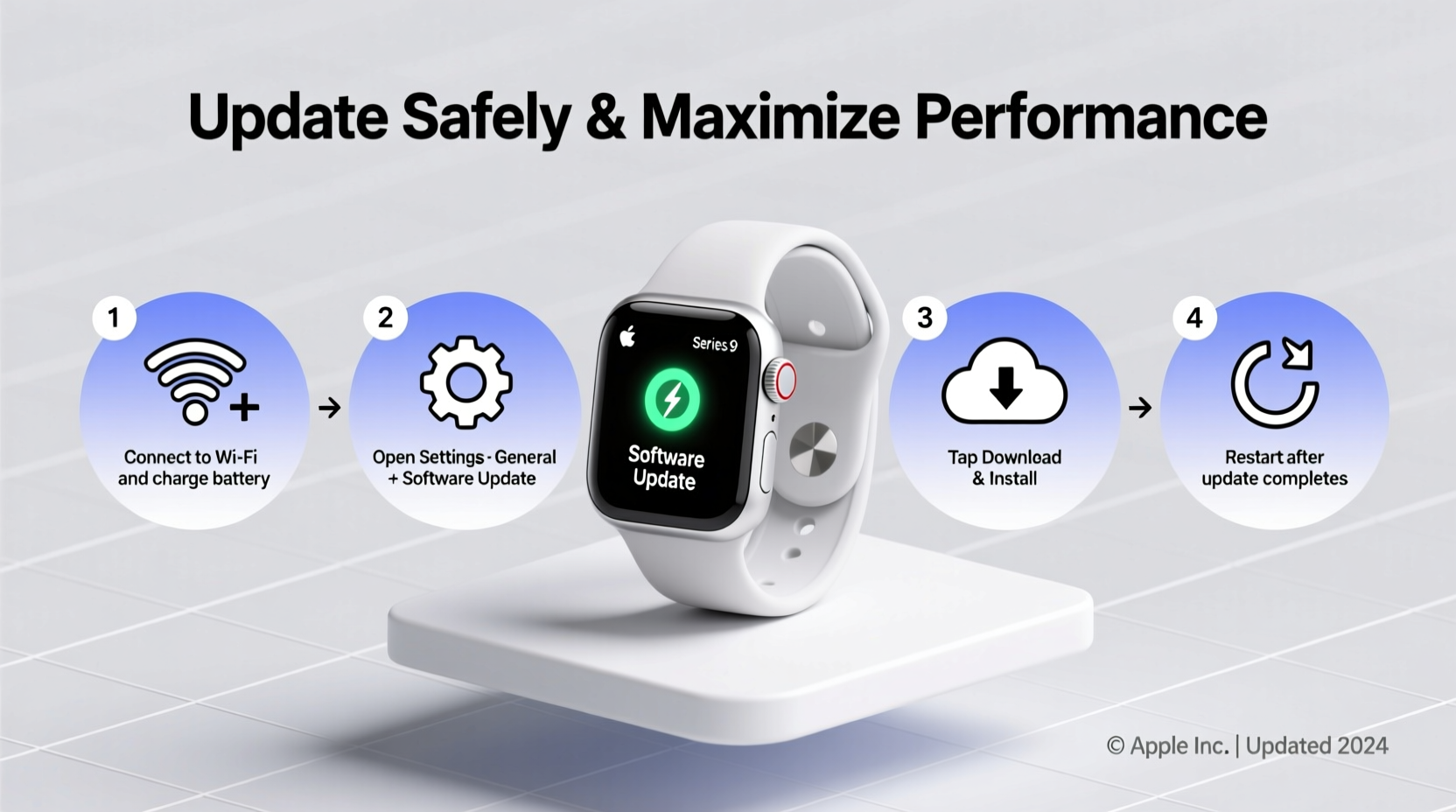
Once preparations are complete, follow this sequence to install the latest watchOS version safely and efficiently.
- Open the Watch app on your iPhone and go to the My Watch tab.
- Navigate to General > Software Update. If an update is available, you’ll see download options.
- Download the update—this may take several minutes depending on internet speed.
- Accept the license agreement and allow the installation to begin.
- Keep the Apple Watch on the charger and within range of the iPhone. The screen will display a rotating progress indicator.
- Wait for the restart—the update can take 15–45 minutes. Do not force restart or disconnect the device.
- Verify functionality once the watch reboots: check time sync, heart rate sensor, and app responsiveness.
Post-Update Optimization for Maximum Performance
An update isn’t the finish line—it’s the starting point for optimizing performance. New watchOS versions often include recalibrated background processes, refreshed UI animations, and updated privacy permissions that require post-installation tuning.
Clear Cache and Re-Enable Critical Apps
Some third-party apps may become sluggish or unresponsive after an update. Force-closing and relaunching them helps reset cached data.
- Press and hold the side button until the power slider appears.
- Swipe to turn off the watch.
- Press and hold the side button again to restart.
- After reboot, open frequently used apps like Strava, Spotify, or ECG to confirm they function correctly.
Review Background App Refresh Settings
Too many apps refreshing in the background drain battery and slow down response times.
“After every major update, I reset background refresh settings. It’s one of the fastest ways to regain snappiness on older Apple Watch models.” — Jordan Lee, iOS Systems Analyst
To adjust these settings:
- On your iPhone, open the Watch app.
- Go to General > Background App Refresh.
- Disable refresh for non-essential apps like social media or news.
Real-World Example: Recovering from a Failed Update
Sophia, a fitness coach in Portland, attempted to update her Series 6 to watchOS 10 while traveling. She used a hotel’s spotty Wi-Fi and skipped the backup step. Midway through installation, the connection dropped, leaving her watch stuck on a blank screen with a red lightning bolt.
She returned home, charged both devices fully, and opened the Watch app. No update option appeared. Following Apple Support guidelines, she unpaired her watch (which triggered an automatic backup), then re-paired it. The system recognized the missing update and downloaded it successfully over her home network. Since then, she schedules updates only at home and double-checks backups weekly.
This case illustrates why environment and preparation matter—even experienced users can encounter setbacks without proper safeguards.
Common Mistakes to Avoid
Certain habits undermine the safety and effectiveness of Apple Watch updates. Recognizing these early prevents frustration and potential data loss.
| Do’s | Don’ts |
|---|---|
| Back up before every major update | Assume your last iCloud backup is current |
| Update over Wi-Fi, not cellular | Download updates using limited or public networks |
| Keep both devices charged | Remove the watch from the charger mid-update |
| Wait patiently through restart cycles | Force restart unless absolutely necessary |
Frequently Asked Questions
How long does an Apple Watch update usually take?
From download to final restart, expect 20 to 60 minutes. Older models or larger updates (e.g., major OS releases) may take longer. Ensure uninterrupted charging throughout.
Can I use my Apple Watch while it’s updating?
No. During installation, the watch becomes non-functional. You won’t be able to track workouts, receive notifications, or use any features until the update completes and the device reboots.
What should I do if the update gets stuck?
If the progress wheel hasn’t moved in over an hour, try restarting your iPhone and ensuring Bluetooth is active. If the watch remains frozen, perform a force restart by pressing and holding both the side button and Digital Crown for at least 10 seconds until the Apple logo appears.
Final Steps: Maintain Long-Term Performance
Updating is just one part of a broader maintenance strategy. To keep your Apple Watch running efficiently over time:
- Install minor updates promptly—they often contain critical bug fixes and security patches.
- Limit complications and watch faces with excessive live data feeds, which increase CPU load.
- Uninstall unused apps to free up storage and reduce background activity.
- Restart your watch weekly to clear memory leaks and refresh system services.




 浙公网安备
33010002000092号
浙公网安备
33010002000092号 浙B2-20120091-4
Comments
No comments yet. Why don't you start the discussion?