
In today’s digital landscape, no website is immune to cyber threats. From small personal blogs to enterprise-level platforms, every online presence faces risks like data breaches, malware injections, and phishing attacks. Website security isn’t a luxury—it's a necessity. The good news is that most vulnerabilities can be prevented with consistent, proactive measures. This guide outlines the essential steps to secure a site, offering real-world strategies to protect your content, users, and reputation.
1. Keep Software Updated Regularly
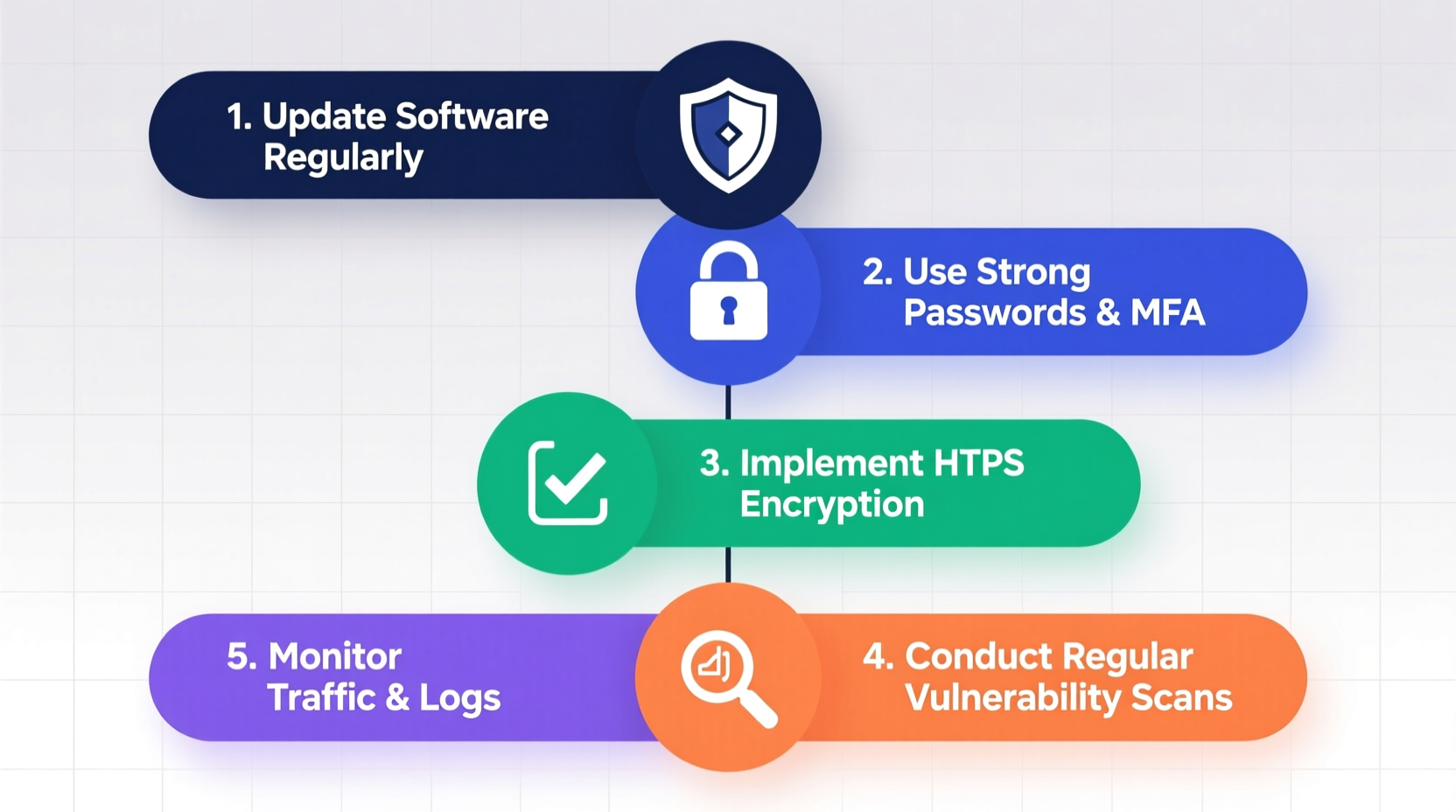
One of the most common entry points for attackers is outdated software. Content Management Systems (CMS) like WordPress, plugins, themes, and server-side scripts frequently release updates to patch known security flaws. Delaying these updates leaves your site exposed.
For example, in 2023, a critical vulnerability in a popular WordPress plugin allowed remote code execution. Sites that hadn’t updated within 48 hours of the patch were compromised at scale.
Regular audits of installed components help identify unused or abandoned plugins—common sources of risk. Remove anything not actively contributing to functionality.
2. Implement Strong Authentication Practices
Weak passwords remain a leading cause of unauthorized access. Even complex passwords can be compromised without additional layers of protection.
Enforce multi-factor authentication (MFA) for all administrative accounts. MFA requires users to verify their identity using two or more methods—something they know (password), something they have (a phone app or hardware token), or something they are (biometrics).
“Over 80% of hacking-related breaches stem from weak or stolen passwords.” — Verizon Data Breach Investigations Report
Additionally, limit login attempts to prevent brute-force attacks. Tools like fail2ban or CMS-specific security plugins can automatically block IP addresses after repeated failed logins.
Password Policy Checklist
- Minimum 12 characters with mixed case, numbers, and symbols
- No reuse across sites or services
- Rotation every 90 days (or use password managers to generate unique credentials)
- MFA enabled for admin and editor roles
- Account lockout after 5 failed attempts
3. Secure Your Hosting Environment
Your website is only as strong as its hosting foundation. Shared hosting environments increase exposure because one compromised site on the server can affect others. Opt for managed hosting providers that specialize in security, offer firewalls, DDoS protection, and regular backups.
Ensure your host supports HTTPS by default. SSL/TLS encryption protects data transmitted between users and your site, preventing eavesdropping and man-in-the-middle attacks.
| Hosting Feature | Why It Matters | Recommended Option |
|---|---|---|
| Automatic Backups | Enables quick recovery after an attack | Daily offsite backups retained for 30+ days|
| Web Application Firewall (WAF) | Filters malicious traffic before it reaches your site | Cloudflare, Sucuri, or provider-integrated WAF|
| SSH/SFTP Access | Secure file transfer and server management | Disabled FTP; use SFTP or SSH keys only|
| DDoS Protection | Prevents service disruption from traffic floods | Real-time mitigation with scalable bandwidth
4. Monitor and Respond to Threats Proactively
Security isn’t a one-time setup—it’s an ongoing process. Continuous monitoring helps detect suspicious behavior early, such as unexpected file changes, spikes in traffic from unknown regions, or unusual database queries.
Set up logging for access attempts, file modifications, and system errors. Centralize logs using tools like ELK Stack or hosted solutions like Datadog for easier analysis.
Mini Case Study: Recovering from a Malware Infection
A mid-sized e-commerce store noticed a sudden drop in organic traffic. An investigation revealed that hidden iframes had been injected into product pages, redirecting visitors to phishing sites. Google flagged the domain as unsafe.
The team took immediate action:
- Isolated the live site and restored from a clean backup
- Scanned all files for malicious code using ClamAV and specialized malware detectors
- Updated all software and revoked old admin sessions
- Submitted a reconsideration request to Google after cleaning
Within two weeks, the site was de-flagged and traffic returned to normal. The incident highlighted the need for continuous scanning and faster detection protocols.
5. Harden Core Security Configurations
Technical misconfigurations often open doors for attackers. Simple oversights—like leaving debug mode enabled or exposing directory listings—can reveal sensitive information.
Follow these hardening practices:
- Disable directory indexing to prevent file enumeration
- Restrict access to sensitive files (.htaccess, wp-config.php, config.json)
- Use security headers like Content-Security-Policy (CSP), X-Content-Type-Options, and X-Frame-Options
- Run databases with least-privilege user accounts
- Remove default usernames (e.g., “admin”) and change database prefixes
Security Headers Quick Reference
| Header | Purpose | Example Value |
|---|---|---|
| X-Frame-Options | Prevents clickjacking | SAMEORIGIN |
| Content-Security-Policy | Blocks unauthorized script execution | default-src 'self'; script-src 'self' https://trusted.cdn.com |
| Strict-Transport-Security | Enforces HTTPS connections | max-age=31536000; includeSubDomains |
“Security is not a feature. It’s a discipline that must be woven into every layer of your web infrastructure.” — Lina Chen, Cybersecurity Architect at OpenWeb Defense
Frequently Asked Questions
How often should I back up my website?
Daily backups are ideal for active sites. For smaller blogs or static pages, weekly backups may suffice. Always store backups in an offsite location or encrypted cloud storage to prevent loss during server compromise.
Are free security plugins effective?
Some free plugins, like Wordfence or Sucuri’s free scanner, provide solid baseline protection. However, premium versions often include real-time firewall protection, automated malware removal, and priority support—critical for business-critical sites.
What should I do if my site gets hacked?
Act immediately: take the site offline if necessary, identify the breach vector, clean infected files, update all credentials, and restore from a known-clean backup. Notify affected users if personal data was exposed, and report the incident to your hosting provider and relevant authorities if required by law (e.g., GDPR).
Conclusion: Take Action Before a Breach Occurs
Website security isn’t about achieving perfect invulnerability—it’s about reducing risk to an acceptable level through consistent, informed actions. The steps outlined here form a robust foundation: updating software, enforcing strong authentication, choosing secure hosting, monitoring activity, and hardening configurations. These aren’t optional extras; they’re fundamental responsibilities of any site owner.
Start today. Audit your current setup. Apply one improvement this week. Then another next week. Small, sustained efforts compound into powerful protection over time. Your visitors trust you with their data and attention—protecting that trust starts with securing your site.




 浙公网安备
33010002000092号
浙公网安备
33010002000092号 浙B2-20120091-4
Comments
No comments yet. Why don't you start the discussion?