
Keeping your Microsoft Office applications up to date is not just about gaining access to new features—it's a critical step in maintaining system security, ensuring compatibility with modern file formats, and avoiding productivity disruptions. Whether you're using Word, Excel, Outlook, or the entire Microsoft 365 suite, regular updates patch vulnerabilities, improve performance, and support seamless collaboration. Yet many users delay or overlook updates, risking instability and exposure to threats. This guide outlines the essential steps to update your Office apps efficiently and confidently.
Why Updating Microsoft Office Matters
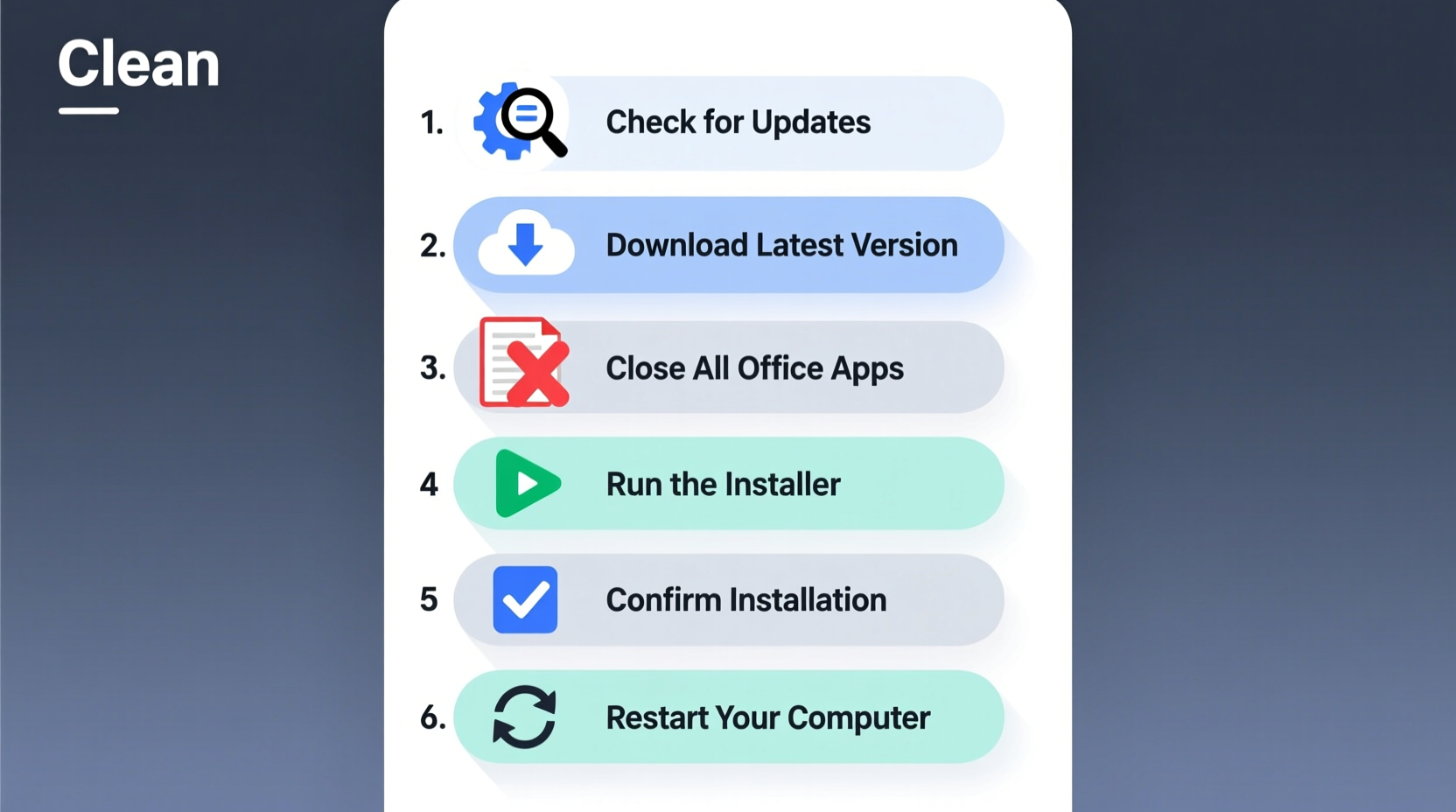
Microsoft consistently releases updates for its Office suite to address bugs, enhance functionality, and respond to emerging cybersecurity risks. Outdated software can become a liability—especially in environments where sensitive data is handled. Security patches included in updates often close loopholes exploited by malware and phishing attacks. Beyond protection, newer versions of Office introduce time-saving tools such as AI-powered editing suggestions, real-time co-authoring enhancements, and improved cloud integration.
Moreover, staying current ensures compatibility across devices and teams. If one user has an older version of Excel that doesn’t support dynamic arrays, for example, shared workbooks may display errors or fail to function properly. Consistent updating across an organization minimizes technical friction and supports smoother workflows.
“Regular software updates are the first line of defense against cyber threats. They’re not optional—they’re essential.” — Sarah Lin, Cybersecurity Analyst at TechShield Solutions
Step-by-Step Guide to Updating Microsoft Office
Updating Microsoft Office is typically straightforward, but knowing the correct sequence helps avoid interruptions and failed installations. Follow this logical process to ensure a smooth update experience.
- Check Your Current Version: Open any Office app (e.g., Word), go to File > Account, and look under \"Product Information\" to see your version number and update channel.
- Save All Work: Before initiating an update, save and close all Office documents to prevent data loss during installation.
- Connect to a Stable Internet Source: Updates require downloading files. Use a reliable Wi-Fi or wired connection to reduce the risk of interruption.
- Open the Update Tool: In any Office app, navigate to File > Account > Update Options > Update Now.
- Allow Admin Permissions if Prompted: On shared or managed devices, administrator rights may be required. Provide credentials when prompted.
- Wait for Completion: Do not shut down your device during the update. The process may take several minutes, depending on the size of the update.
- Restart Applications: Once complete, reopen your apps to confirm the update was applied successfully.
Common Update Challenges and How to Resolve Them
Even with careful preparation, issues can arise during the update process. Understanding common problems—and their solutions—can save time and frustration.
- Update Stuck at a Certain Percentage: Restart your computer and try again. If the issue persists, run the Microsoft Support and Recovery Assistant (SaRA) tool.
- \"Error 0x80080005\" or Installation Failure: This often relates to corrupted update components. Repair Office via Settings > Apps > Microsoft 365 > Modify > Quick Repair.
- Outlook Crashes After Update: Disable add-ins temporarily through File > Options > Add-ins to identify problematic extensions.
- Insufficient Disk Space: Free up space by deleting temporary files or moving large documents to cloud storage before retrying.
Do’s and Don’ts When Updating Office
| Do’s | Don’ts |
|---|---|
| Back up important documents before updating | Ignore pending updates for weeks or months |
| Use official Microsoft channels for updates | Download “update” tools from third-party websites |
| Check for updates monthly if auto-updates are off | Force shutdown during an active installation |
| Verify the update succeeded after restart | Assume everything works without testing key features |
Real-World Example: A Small Business Avoids Downtime
A regional accounting firm with 25 employees delayed Office updates for several months due to concerns about workflow disruption. When they finally attempted a batch update, multiple users encountered error codes, and two staff members lost unsaved client reports. Recognizing the urgency, the IT manager implemented a structured update plan: scheduling updates after business hours, enabling automatic patching, and conducting biweekly checks on all machines. Within a month, all systems were current, and no further issues occurred. The proactive approach not only restored stability but also improved report generation speed thanks to updated Excel optimizations.
Essential Tips for Ongoing Maintenance
Successful updating isn’t a one-time event—it requires ongoing attention. Integrate these habits into your routine to keep Office running smoothly.
- Monitor Update Channels: Microsoft 365 offers different update rings (e.g., Current Channel, Deferred). Choose the one that aligns with your need for stability vs. early feature access.
- Use Microsoft Endpoint Manager (Intune) for organizations managing multiple devices. It allows centralized control over update deployment timing and rollback options.
- Review Release Notes: Before major updates, review Microsoft’s official release notes to anticipate changes that might affect macros, templates, or plugins.
- Train Users on Post-Update Changes: New ribbon layouts or feature placements can confuse team members. A brief internal memo after updates helps maintain productivity.
Office Update Checklist
- ✅ Back up all critical documents
- ✅ Close all Office applications
- ✅ Confirm stable internet connection
- ✅ Run “Update Now” from File > Account
- ✅ Allow time for installation without interruption
- ✅ Reopen apps and verify version number
- ✅ Test key functions (e.g., printing, saving to cloud)
Frequently Asked Questions
How do I know if my Office is up to date?
In any Office application, go to File > Account. Under “Product Information,” click “About [App Name]” to view the version and build number. Compare it with the latest version listed on Microsoft’s official update history page.
Can I delay Office updates?
Yes, especially in enterprise environments. Microsoft 365 administrators can use Group Policy or Microsoft Intune to defer updates for up to several months. However, delaying too long increases security risks and compatibility issues.
What happens if I don’t update Microsoft Office?
You may miss critical security patches, encounter performance issues, or lose access to cloud services that require updated clients. Eventually, Microsoft may end support for outdated versions, leaving you unable to receive future fixes or feature improvements.
Conclusion: Stay Current, Stay Productive
Updating Microsoft Office is a small investment of time that yields significant returns in reliability, security, and functionality. By following a consistent process—checking versions, preparing your system, applying updates correctly, and verifying results—you protect your data and empower your daily work. Whether you're a solo professional or part of a larger team, making updates a routine practice ensures you get the most out of one of the world’s most widely used productivity suites.




 浙公网安备
33010002000092号
浙公网安备
33010002000092号 浙B2-20120091-4
Comments
No comments yet. Why don't you start the discussion?