
Gaming on a laptop has become increasingly common, but many players face frustrating lags, stutters, and low frame rates that disrupt immersion and competitiveness. While high-end desktops may offer superior raw power, modern laptops are capable of smooth gaming—provided they’re optimized correctly. With the right combination of hardware adjustments, software tweaks, and smart usage habits, you can significantly improve your laptop’s gaming performance. This guide outlines practical, tested strategies to help you get the most out of your system without immediately resorting to costly upgrades.
Optimize In-Game Graphics Settings
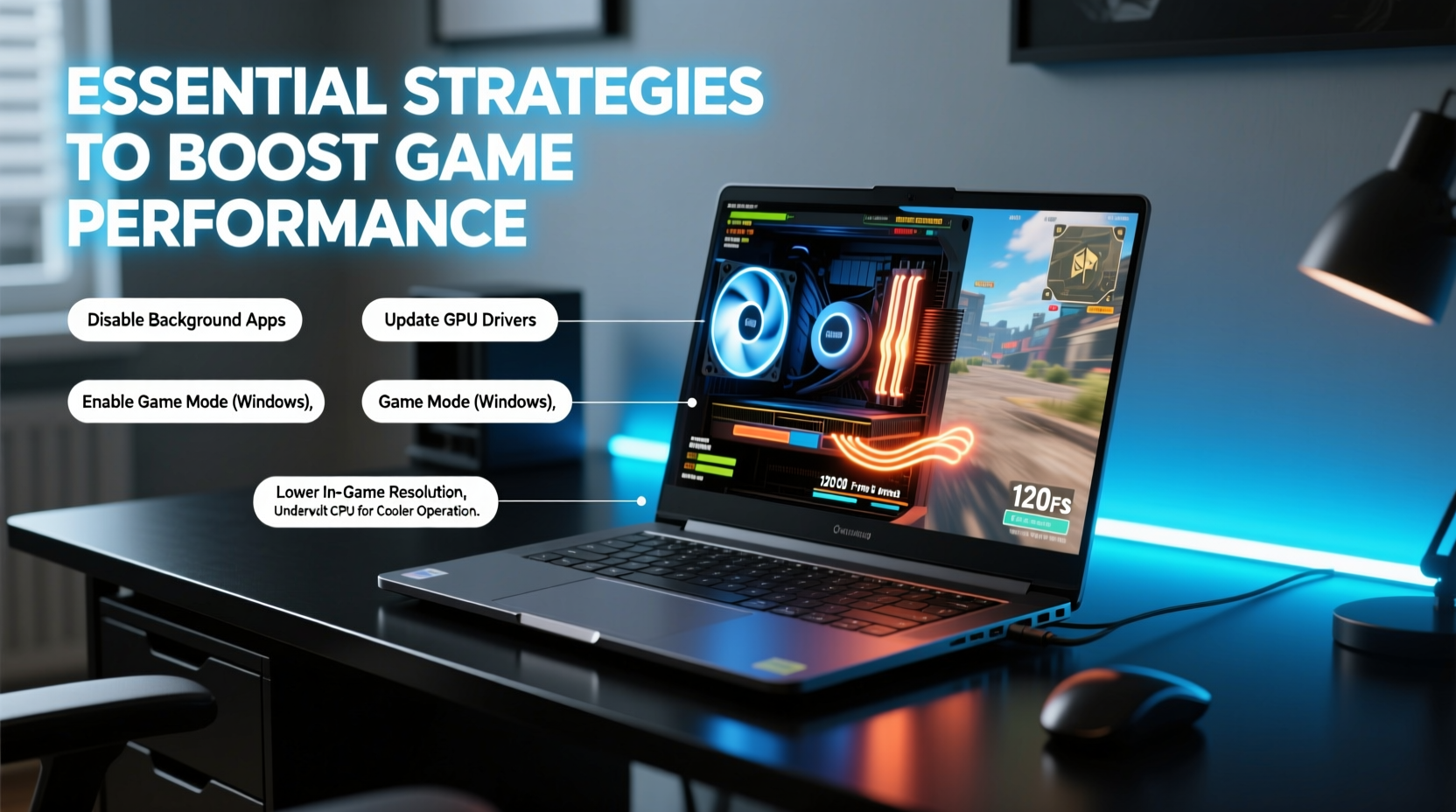
The most immediate way to boost performance is by adjusting in-game graphics settings. High-resolution textures, anti-aliasing, shadows, and post-processing effects consume substantial GPU resources. Lowering these can dramatically increase frame rates with minimal impact on visual enjoyment.
- Lower resolution scaling: Reducing render scale from 100% to 85–90% can yield noticeable FPS gains.
- Disable or reduce shadows: Shadow rendering is one of the most GPU-intensive tasks.
- Turn off motion blur and depth of field: These effects add little to gameplay and hurt performance.
- Use preset quality options: Start with “Low” or “Balanced” presets, then selectively re-enable key features like texture quality if your GPU allows.
Update Drivers and Firmware
Outdated graphics drivers are a common cause of poor performance and instability. GPU manufacturers like NVIDIA and AMD regularly release driver updates that include performance optimizations for new games, bug fixes, and improved power management.
- Visit the official website of your GPU manufacturer (NVIDIA, AMD, or Intel).
- Download the latest driver compatible with your model and operating system.
- Choose a clean installation option during setup to remove old configurations.
- Update BIOS and chipset drivers through your laptop manufacturer’s support page.
“Driver optimization can deliver up to 20% better performance in newer titles without any hardware change.” — Mark Reynolds, Senior Systems Engineer at TechFrame Labs
Manage Background Processes and System Resources
Laptops often run numerous background applications—antivirus scans, cloud sync tools, browser tabs—that consume CPU, RAM, and disk I/O. These processes compete directly with games for limited resources.
| Action | Benefit | Risk if Ignored |
|---|---|---|
| Close unused apps before launching a game | Releases RAM and CPU cycles | Stuttering and frame drops |
| Disable startup programs via Task Manager | Reduces boot time and idle load | Slower response during gameplay |
| Set power plan to \"High Performance\" | Prevents CPU throttling | Unnecessary downclocking |
| Pause Windows Update during sessions | Stops unexpected disk usage | Sudden freezes mid-game |
Step-by-Step: Free Up System Resources Before Gaming
- Press Ctrl + Shift + Esc to open Task Manager.
- Sort processes by CPU, Memory, and Disk usage.
- End non-essential tasks (e.g., Spotify, Discord overlay, OneDrive).
- Navigate to the Startup tab and disable unnecessary auto-launching apps.
- Switch your power plan: Control Panel > Hardware and Sound > Power Options > Select \"High Performance\".
Improve Thermal Management
Thermal throttling is a major bottleneck in laptops. When internal temperatures rise, CPUs and GPUs automatically reduce clock speeds to prevent damage, leading to sudden FPS drops during intense scenes.
Ensure your laptop has proper ventilation. Avoid using it on soft surfaces like beds or couches, which block intake vents typically located on the bottom. Instead, use a hard, flat surface or invest in a cooling pad with adjustable fans.
Monitor temperatures using tools like HWMonitor or MSI Afterburner. If your CPU consistently exceeds 90°C or GPU goes above 85°C under load, consider repasting thermal compounds—a more advanced step, but effective for older machines.
Mini Case Study: Recovering Performance on a 3-Year-Old Gaming Laptop
A user reported declining performance in Apex Legends, dropping from 60 FPS to below 35 during combat. The laptop was three years old, used daily on a bed. Upon inspection, dust had clogged the fan intake, and thermal paste had degraded. After cleaning the vents, replacing the thermal paste, and updating GPU drivers, average FPS returned to 58–62. Temperature peaks dropped by 18°C. This demonstrates how maintenance alone can restore near-original performance.
Upgrade Key Components When Possible
While not all laptops allow upgrades, many mid-range and higher models support RAM and storage expansion. These are cost-effective ways to enhance gaming responsiveness.
- Add more RAM: 16GB is ideal for modern gaming. Upgrading from 8GB can eliminate stuttering in memory-heavy titles like Microsoft Flight Simulator.
- Switch to an NVMe SSD: Faster storage reduces loading times and minimizes texture pop-in.
- Consider external GPU (eGPU): For laptops with Thunderbolt 3/4, an eGPU can provide desktop-level graphics, though with some bandwidth limitations.
Note: Always check your laptop’s service manual before purchasing components. Not all systems support additional RAM or M.2 drives.
Essential Pre-Gaming Checklist
- Update graphics drivers
- Close background applications
- Set power plan to \"High Performance\"
- Clean air vents and ensure proper ventilation
- Adjust in-game settings to balance visuals and FPS
- Verify game files via Steam/Epic launcher (fixes corruption)
- Restart the laptop to clear temporary cache
Frequently Asked Questions
Can I overclock my laptop GPU for better performance?
Some gaming laptops allow limited GPU overclocking through tools like MSI Afterburner. However, due to thermal constraints, gains are usually modest (5–10%) and can shorten hardware lifespan if not monitored carefully. Only attempt this if you have strong cooling and temperature awareness.
Why does my laptop slow down after 10 minutes of gaming?
This is typically due to thermal throttling. As internal components heat up, the system reduces performance to stay within safe temperature limits. Improving airflow, using a cooling pad, or repasting thermal compounds can resolve this issue.
Does lowering screen brightness improve gaming performance?
Not directly. Brightness affects battery life and eye comfort but doesn’t impact CPU/GPU performance. However, on battery power, lower brightness helps preserve energy, which may prevent the system from switching to power-saving modes that limit processing speed.
Conclusion: Take Control of Your Gaming Experience
Smooth gameplay isn’t solely dependent on having the latest hardware. By applying intelligent optimizations—from tweaking in-game settings to managing system resources and maintaining your device—you can unlock significant performance gains. Many of these strategies are free and take only minutes to implement. Don’t let a few overlooked settings rob you of a responsive, immersive gaming session.




 浙公网安备
33010002000092号
浙公网安备
33010002000092号 浙B2-20120091-4
Comments
No comments yet. Why don't you start the discussion?