
Hard surface notebooks—such as those made from polycarbonate, aluminum, or magnesium alloy—are prized for their durability, sleek design, and resistance to wear. However, even the most robust materials require proper care to maintain their appearance and functionality. Dust, oils, smudges, and accidental spills can degrade surfaces over time, especially on high-touch areas like keyboards and trackpads. Without a consistent maintenance routine, your notebook may lose its luster, develop scratches, or suffer performance issues due to clogged vents. The good news is that with the right techniques and tools, you can keep your device looking and performing like new for years.
Why Regular Maintenance Matters
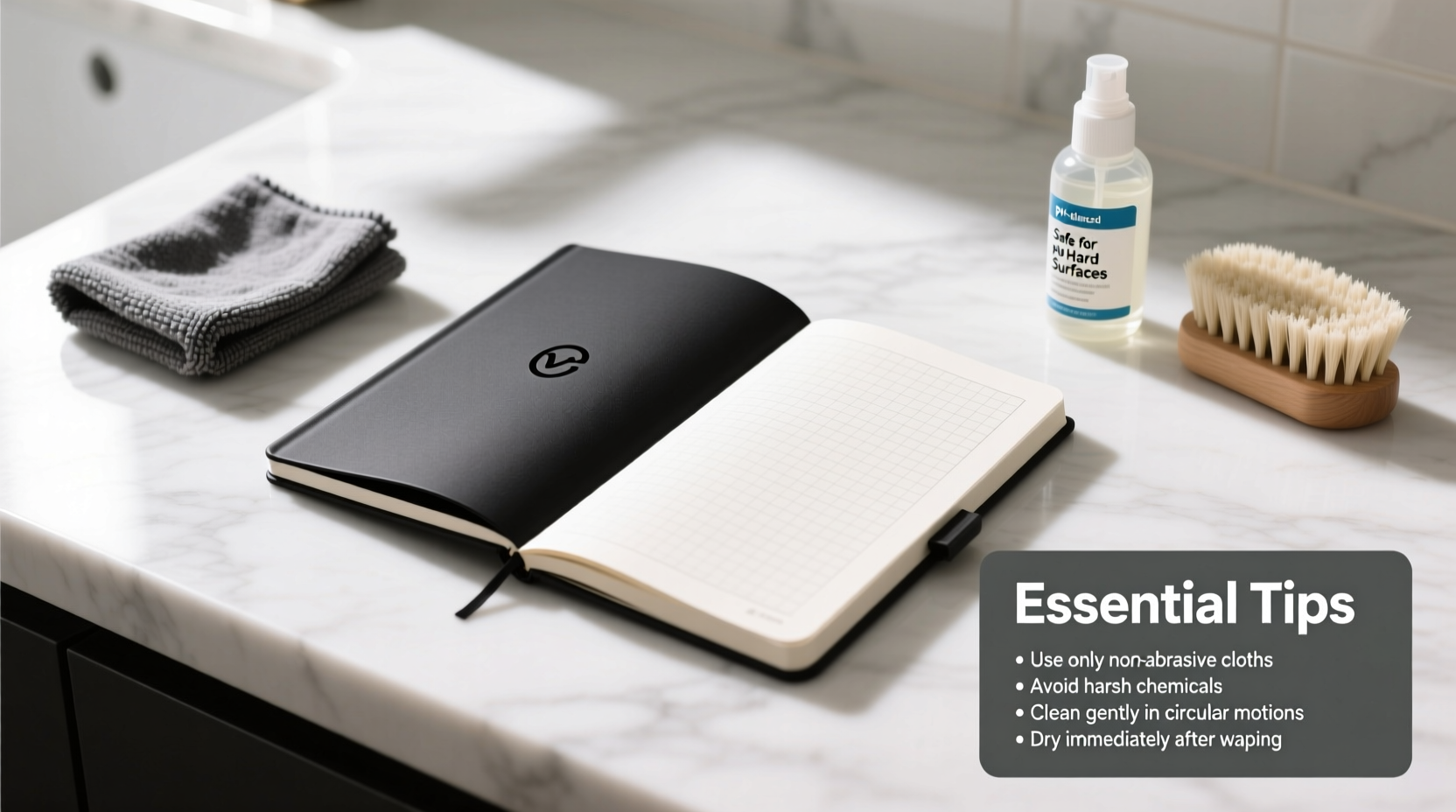
A clean notebook isn’t just about aesthetics—it directly impacts usability and longevity. Accumulated dust in cooling vents can cause overheating, while grime on the keyboard may lead to sticky keys or electrical shorts. Fingerprints and oils not only obscure visibility but can also break down protective coatings on screens and casings. Regular maintenance prevents these issues and preserves resale value. Most manufacturers recommend periodic cleaning, but few provide detailed guidance. Following safe, effective practices ensures you protect sensitive components without voiding warranties.
Step-by-Step Guide to Safe Cleaning
Cleaning a hard surface notebook requires precision and patience. Rushing the process or using inappropriate materials can do more harm than good. Follow this timeline-based approach for thorough, safe results:
- Power down and unplug: Shut your notebook completely and disconnect it from power sources and peripherals. This eliminates the risk of short circuits.
- Allow cooling: Wait at least 15 minutes after shutdown to ensure internal components are cool to the touch.
- Dust removal: Use a soft-bristled brush or compressed air to gently remove debris from ports, hinges, and keyboard gaps. Hold the can upright and use short bursts to avoid moisture buildup.
- Screen cleaning: Dampen a lint-free microfiber cloth with distilled water or a 50/50 mix of water and isopropyl alcohol (70%). Wipe the screen in gentle horizontal motions—never circular—to avoid streaks.
- Exterior wipe-down: Use the same solution on a separate section of the cloth to clean the lid, palm rest, and sides. Avoid abrasive cloths like paper towels.
- Keyboard detail: Fold a corner of the cloth to reach between keys. For stubborn grime, lightly dampen a cotton swab and carefully clean around keycaps.
- Dry thoroughly: Allow all surfaces to air-dry for 5–10 minutes before powering back on.
This routine should be performed weekly for heavy users and bi-weekly for casual ones. Deep cleaning every three months helps address buildup in less accessible areas.
Do’s and Don’ts of Notebook Care
| Do | Don't |
|---|---|
| Use microfiber cloths designed for electronics | Use paper towels or rough fabrics |
| Clean with distilled water or diluted isopropyl alcohol | Apply household cleaners like Windex or bleach |
| Store in a padded sleeve when traveling | Place heavy objects on top of the closed notebook |
| Keep food and drinks away from your workspace | Eat or drink near the notebook regularly |
| Wipe down surfaces after extended use | Ignore visible smudges or debris buildup |
Real Example: A Professional’s Wake-Up Call
Jamal, a freelance graphic designer, relied on his aluminum-clad notebook for client work. After two years of continuous use, he noticed sluggish performance and a yellowish tint on his screen bezel. Upon inspection, he discovered a thick layer of dust in the fan vent and oxidized oils along the palm rest. He had been wiping the screen with a kitchen towel and occasionally using window cleaner when smudges persisted. After consulting a technician, Jamal learned that improper cleaning had degraded the anti-reflective coating and caused thermal throttling. He adopted a disciplined cleaning regimen using recommended tools and saw immediate improvements in both appearance and performance. His experience underscores how small oversights compound into significant damage over time.
“Many users don’t realize that surface degradation starts long before visible scratches appear. Oils from skin alone can compromise finishes within months.” — Dr. Lena Park, Materials Scientist at TechDurability Labs
Essential Maintenance Checklist
To stay proactive, follow this monthly checklist to keep your notebook in peak condition:
- ✅ Power down and clean the screen with a microfiber cloth
- ✅ Remove dust from keyboard and ports using compressed air
- ✅ Wipe down the exterior casing and palm rest
- ✅ Inspect hinges and ports for looseness or debris
- ✅ Check cooling performance—listen for unusual fan noise
- ✅ Update software and run system diagnostics
- ✅ Store in a dry, temperature-controlled environment
Pair this with quarterly deep-cleaning sessions and annual professional inspections if under warranty. Consistency prevents sudden failures and extends service life by up to 40%, according to data from the International Association of Electronics Maintenance.
Frequently Asked Questions
Can I use disinfectant wipes on my notebook?
Only if they are specifically labeled safe for electronics and contain no more than 70% isopropyl alcohol. Avoid wipes with bleach, hydrogen peroxide, or high-acid content, as these can corrode metal finishes and strip protective layers. Even approved wipes should be used sparingly and never saturate the surface.
How do I remove stubborn stains from an aluminum case?
For light discoloration, gently rub the area with a microfiber cloth dampened with a 50/50 water-alcohol solution. For deeper stains, consult the manufacturer—some finishes cannot be restored without specialized treatments. Never use metal polish or abrasive erasers, as they will scratch the surface.
Is it safe to open the notebook for internal cleaning?
Unless you’re trained in hardware maintenance, avoid opening the chassis. Modern notebooks have tightly integrated components, and improper handling can damage connectors or void warranties. If internal dust is severe, seek authorized service centers equipped with ESD-safe tools.
Protect Your Investment with Smart Habits
Your hard surface notebook is more than a tool—it's a daily companion that supports productivity, creativity, and connectivity. Treating it with care doesn’t require expensive products or hours of effort. By integrating simple, science-backed habits into your routine, you preserve both form and function. From choosing the right cloth to respecting the limits of chemical exposure, every decision contributes to longer lifespan and better performance. Think of maintenance not as a chore, but as an investment in reliability and efficiency.




 浙公网安备
33010002000092号
浙公网安备
33010002000092号 浙B2-20120091-4
Comments
No comments yet. Why don't you start the discussion?