
In today’s digital workspace, Microsoft Word remains one of the most widely used tools for creating reports, proposals, letters, and collaborative documents. Yet, despite its familiarity, many users still make avoidable mistakes when saving their work—leading to lost data, version confusion, or security breaches. Saving a Word document properly isn’t just about clicking “Save.” It involves thoughtful organization, smart naming, secure storage, and proactive backup strategies. Whether you're preparing a sensitive contract or drafting a team project, mastering efficient and secure file-saving practices is essential.
1. Choose the Right File Format for Your Needs
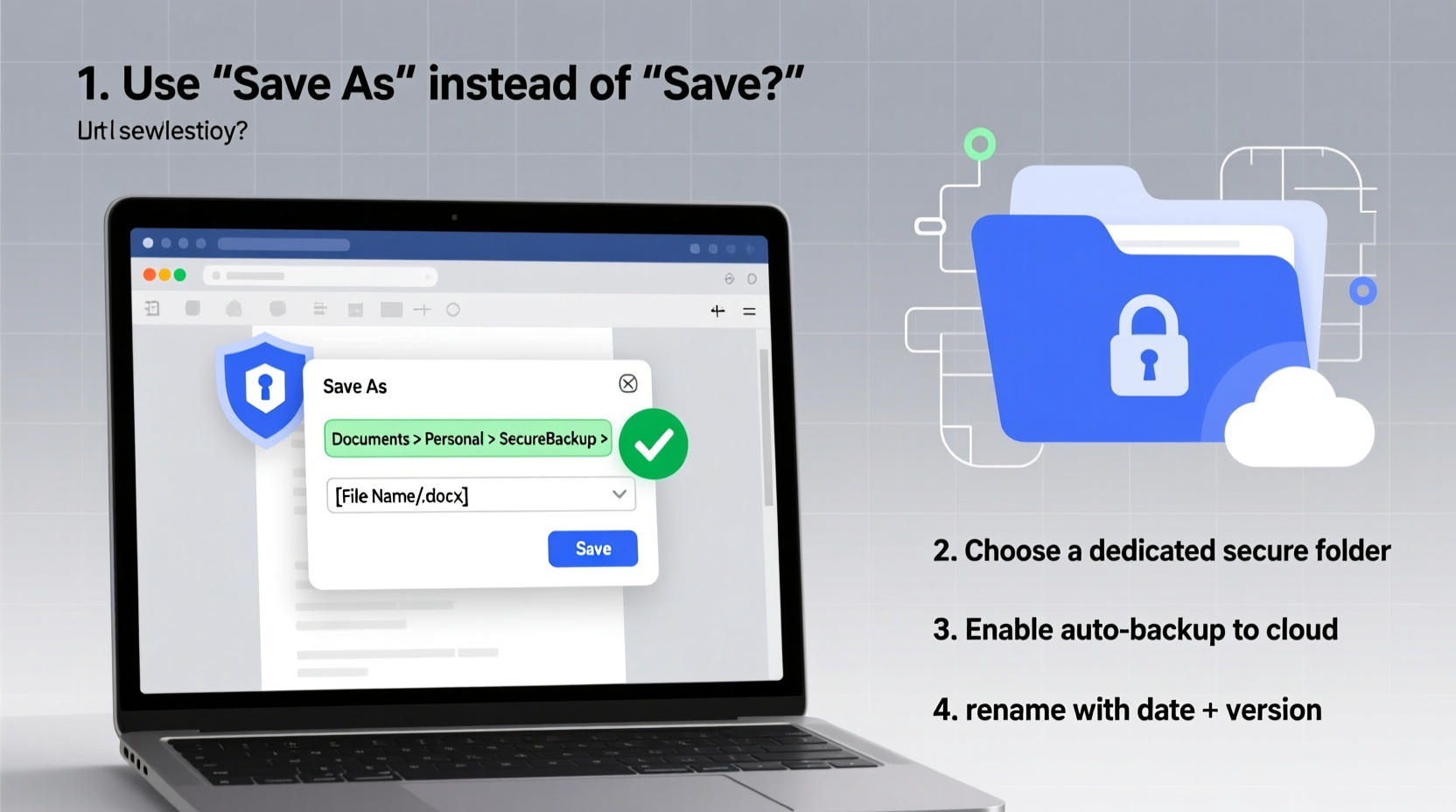
Before saving your document, consider which format best suits your purpose. While .docx is the default and most compatible with modern versions of Word, other formats offer specific advantages depending on your use case.
| File Format | Best For | Security & Compatibility Notes |
|---|---|---|
| .docx | Editing, collaboration, standard sharing | High compatibility; supports password protection |
| Final versions, printing, external sharing | Prevents editing; can be encrypted and password-protected | |
| .docm | Documents with macros (automation scripts) | Risky if macros are from untrusted sources; enable only when necessary |
| .dotx / .dotm | Templates for recurring documents | Reduces duplication; store securely to prevent unauthorized changes |
2. Implement a Consistent Naming Convention
A clear, logical naming system saves time and reduces errors. Without it, you risk overwriting files, losing track of versions, or sending outdated drafts. Use descriptive names that include key details such as date, project name, author, and status.
- Good: ProjectAlpha_Report_Final_2025-04-05_JSmith.docx
- Avoid: Document1.docx or Final_v3_updated_revised.docx
Adopt a standardized format across teams. For example:
“ProjectName_DocumentType_VersionDate_Author”
This ensures anyone can identify the content, context, and recency at a glance—especially important when retrieving files months later or during audits.
3. Save to Secure, Synced Locations
Where you save your file matters as much as how you save it. Local desktops are vulnerable to hardware failure, theft, or accidental deletion. Instead, leverage cloud-based services integrated with Word, such as OneDrive, SharePoint, or Google Drive (via Office Online).
Cloud platforms offer real-time syncing, version history, access controls, and encryption—critical for both efficiency and security. For sensitive documents, restrict access using permissions and avoid public sharing links unless absolutely necessary.
Step-by-Step: How to Save Securely Using OneDrive
- Open your Word document.
- Click File > Save As.
- Select OneDrive – Personal or OneDrive for Business.
- Navigate to the appropriate folder (e.g., Projects/ClientX).
- Name the file using your naming convention.
- Click Save. Auto-save will now keep it updated.
- Right-click the file in OneDrive online and set sharing permissions if collaborating.
This process ensures your file is backed up, accessible from any device, and protected by enterprise-grade security protocols.
4. Protect Sensitive Documents with Encryption and Passwords
Not all documents are meant for open access. Contracts, HR records, financial summaries, and personal data require additional safeguards. Word allows you to encrypt files with passwords or restrict editing rights.
To Add Password Protection:
- Go to File > Info > Protect Document.
- Select Encrypt with Password. <3>Enter a strong password (use a mix of uppercase, numbers, symbols).
- Re-enter to confirm.
- Save the document—now it cannot be opened without the password.
“Encryption is not optional for confidential business documents. A single unsecured file can lead to regulatory fines or reputational damage.” — David Lin, Cybersecurity Consultant at SecureEdge Solutions
Note: If you forget the password, Microsoft cannot recover it. Store passwords securely using a trusted password manager like Bitwarden or 1Password.
5. Maintain Version Control and Backup Systems
Version chaos is a common workplace inefficiency. Multiple \"final\" drafts floating around cause confusion and rework. To avoid this, adopt a disciplined approach to versioning and backups.
Mini Case Study: The Lost Contract Revision
A legal assistant at a mid-sized firm saved weekly updates to a client contract directly over the previous file. When a dispute arose, the team needed to prove what terms were discussed three weeks prior. Because no version history existed, they couldn't produce the correct draft. The oversight delayed negotiations and damaged client trust. After implementing automatic versioning via SharePoint, the firm reduced revision-related errors by 78% within six months.
Solutions include:
- Enable AutoSave + Version History in OneDrive or SharePoint.
- Manually save milestone versions with labels: v1.0_Draft, v2.0_Reviewed, v3.0_Approved.
- Use external backup tools like Backblaze or Carbonite for full-system redundancy.
Checklist: Secure and Efficient Word Saving Routine
Apply this checklist every time you finalize a document:
- ✅ Confirm the correct file format (.docx for editing, .pdf for distribution)
- ✅ Use a consistent, descriptive filename
- ✅ Save to a synced cloud location (OneDrive, SharePoint, etc.)
- ✅ Enable AutoSave and verify it’s active
- ✅ Apply password encryption for sensitive content
- ✅ Set sharing permissions appropriately
- ✅ Archive older versions systematically
- ✅ Verify backup status (local and cloud)
Frequently Asked Questions
Can I recover a Word document if I forgot to save it?
Yes, in most cases. Word has an AutoRecover feature that periodically saves temporary copies. Restart Word after a crash—it often prompts you to recover unsaved documents. You can also manually locate AutoRecover files via File > Manage Document > Recover Unsaved Documents.
What’s the difference between ‘Save’ and ‘Save As’?
Save updates the current file in its existing location. Save As creates a new copy, allowing you to change the name, format, or location. Use “Save As” when creating templates, exporting to PDF, or archiving milestones.
Is it safe to email Word documents with passwords?
No. Sending a password-protected file via regular email is risky because the password is often shared in the same thread, making it easy for attackers to intercept both. Instead, use secure file-sharing portals, encrypted email services, or communicate passwords through separate channels (e.g., phone call or secure messaging app).
Final Thoughts: Build Habits That Protect Your Work
Saving a Word document may seem like a minor task, but done poorly, it can compromise productivity, compliance, and data integrity. By choosing the right format, organizing files with discipline, leveraging cloud security, and maintaining backups, you turn a routine action into a strategic advantage. These habits don’t add time—they save it. They don’t complicate workflows—they prevent crises.
Start today: review your last five saved documents. Are they named clearly? Stored securely? Backed up? If not, refine your process now. Small improvements compound into significant gains in reliability and peace of mind.




 浙公网安备
33010002000092号
浙公网安备
33010002000092号 浙B2-20120091-4
Comments
No comments yet. Why don't you start the discussion?