
Getting a new phone is exciting, but the initial setup can determine how secure, efficient, and personalized your experience will be. Many users rush through the process, skipping critical steps that leave their devices vulnerable or poorly optimized. Taking time to configure your phone correctly ensures better privacy, longer battery life, and fewer frustrations down the line. Whether you're switching brands or upgrading to the latest model, these essential practices help you establish a strong digital foundation.
Start with a Clean Setup (Not a Restore)
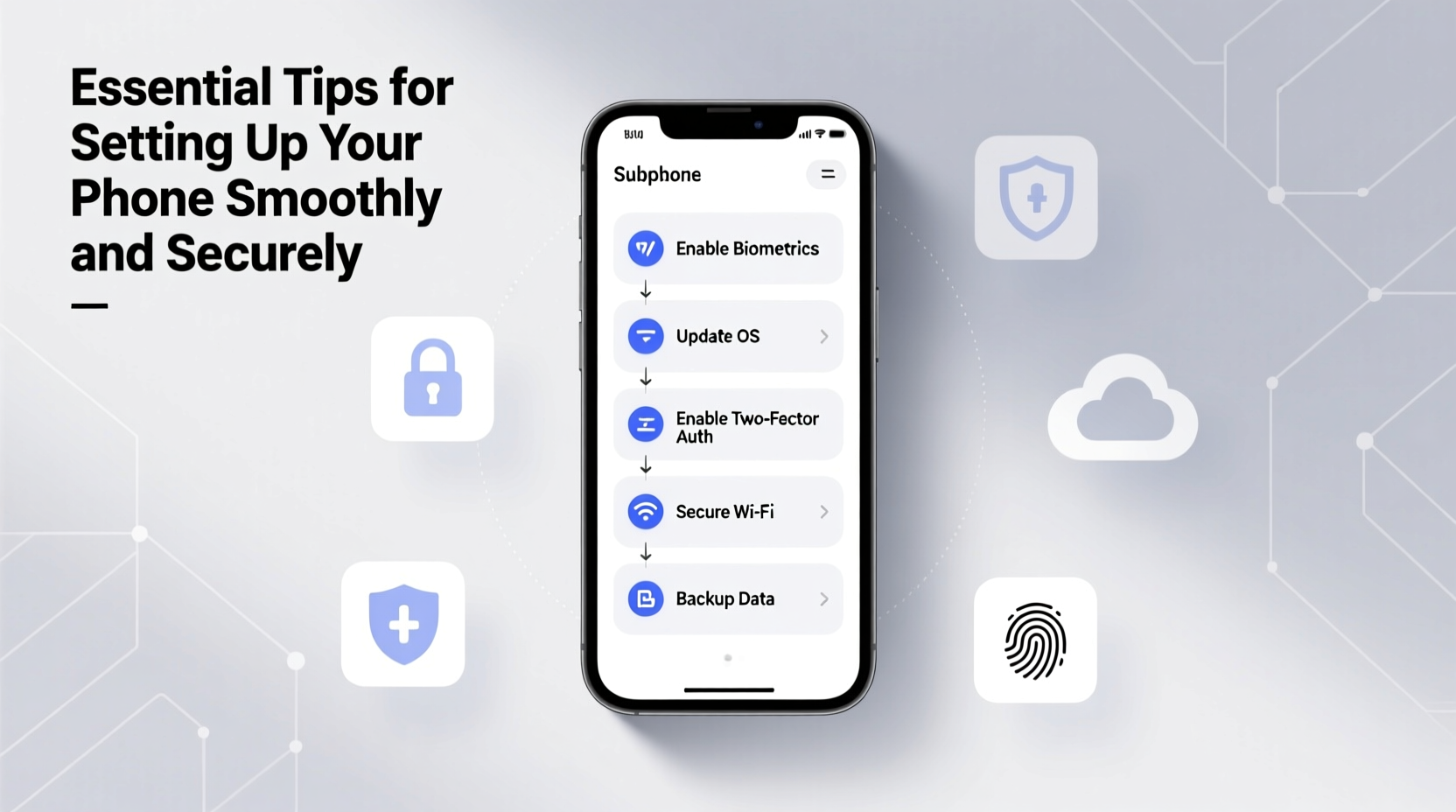
When prompted during setup, resist the urge to restore from an old backup immediately. While it seems convenient, this often carries over outdated app permissions, cluttered home screens, and even malware or tracking apps. Instead, opt for a fresh start. This gives you full control over what gets installed and which accounts are connected.
After completing the basic setup, manually reinstall only the apps you actively use. Log in to services individually, reviewing permissions as you go. You’ll likely discover how many apps were running in the background without adding real value.
Enable Security Features Immediately
Security should be your top priority from the first boot. Modern smartphones offer robust built-in protections, but they’re only effective if activated. Begin by setting up a strong passcode—preferably 6 digits or alphanumeric. Avoid simple patterns or four-digit PINs, which are easier to guess or bypass.
Next, enable biometric authentication such as fingerprint scanning or facial recognition. These provide quick access while maintaining high security. Ensure that “Find My Device” (Android) or “Find My iPhone” (iOS) is turned on. This feature allows remote tracking, locking, or erasing your phone if it’s ever lost or stolen.
“Over 70% of smartphone thefts involve devices without screen locks.” — Cybersecurity Report, National Institute of Standards and Technology (NIST)
Also, verify that encryption is enabled. Most modern phones encrypt data by default when a passcode is set, but double-checking under Security settings provides peace of mind.
Review Privacy Settings and Permissions
During setup, apps request access to location, camera, microphone, contacts, and more. Blindly granting these permissions compromises your privacy. Take time to evaluate each request.
For example, does a flashlight app really need your location or contact list? Probably not. Disable unnecessary permissions and revisit them periodically. Both iOS and Android now offer “approximate location” instead of precise GPS—opt for this when possible.
Adjust ad tracking settings too. On iOS, enable “Limit Ad Tracking” and opt out of Apple’s “Personalized Ads.” On Android, go to Google Ads Settings and disable ad personalization. This reduces profiling based on your behavior.
| Permission Type | Safe to Allow? | Common Risks if Overused |
|---|---|---|
| Location | Only for maps, rideshares, weather | Tracking movement patterns, targeted ads |
| Microphone | Rarely—only for voice assistants or calls | Potential eavesdropping, ambient data collection |
| Camera | Yes, for photos/video apps | Unauthorized photo capture |
| Contacts | Limited—messaging or social apps only | Data harvesting, spam invites |
Mini Case Study: The Unnoticed Permission Leak
Sarah downloaded a free puzzle game during her commute. She quickly tapped “Allow” when asked for location and contacts access. Weeks later, she noticed unfamiliar friend requests on social media and targeted ads for local stores she’d never visited. After checking her app permissions, she discovered the game had been collecting her location history and uploading her address book. Removing the app and revoking its permissions stopped the leaks—but the data was already shared.
This common scenario underscores why default permission acceptance is risky. A few seconds spent reviewing can prevent long-term exposure.
Step-by-Step Secure Setup Timeline
Follow this logical sequence to ensure no critical step is missed:
- Power on and select language/region. Avoid connecting to public Wi-Fi during setup.
- Disable automatic backups (temporarily) to avoid restoring unwanted data.
- Set up a strong passcode and biometric unlock method.
- Sign in to your primary account (Apple ID or Google Account), enabling two-factor authentication if not already active.
- Enable Find My Device / Find My iPhone.
- Update the operating system to the latest version for security patches.
- Install essential apps manually (email, banking, messaging).
- Review app permissions as you install each one.
- Configure privacy settings: limit ad tracking, disable Siri/Google Assistant wake words if undesired, turn off unnecessary sharing.
- Back up your new setup once everything is stable and secure.
Optimize Performance and Battery Life
A smooth setup isn’t just about security—it also affects daily usability. Poor configuration leads to sluggish performance and rapid battery drain. Start by disabling auto-play videos in social media apps and reducing screen brightness animations.
On both platforms, enable battery saver mode to activate automatically at 20%. Restrict background app refresh to only essential services like email or navigation. Apps constantly syncing in the background consume power and memory.
Organize your home screen intentionally. Keep frequently used apps visible and group others into folders. Remove default bloatware (if possible) or at least hide it from view. A clean interface reduces distractions and improves navigation speed.
Checklist: Must-Do Actions After Setup
- ✅ Enable two-factor authentication on your main account
- ✅ Verify that device encryption is active
- ✅ Update the operating system to the latest version
- ✅ Install a trusted mobile antivirus (optional but recommended)
- ✅ Review and adjust location services settings
- ✅ Disable unused sensors like NFC or Bluetooth when not needed
- ✅ Set up a secure cloud backup schedule
- ✅ Remove or disable pre-installed third-party apps
Frequently Asked Questions
Should I use a password manager on my phone?
Absolutely. Mobile password managers like Bitwarden, 1Password, or Apple Keychain generate and store strong, unique passwords for every app and website. They eliminate the temptation to reuse passwords—a major security flaw. Biometric unlocking makes them fast and convenient.
Is it safe to set up work email on a personal phone?
It can be, but proceed with caution. Work profiles often grant IT departments remote management rights, including the ability to wipe your entire device. If possible, use a dedicated work phone or enable a separate profile (available on Samsung Knox or Android Enterprise). Always clarify company policies before syncing corporate accounts.
How often should I review app permissions?
At minimum, review them quarterly. Both iOS and Android now send periodic summaries of app activity—use these alerts as reminders. Also, recheck permissions after major OS updates, as defaults may reset.
Final Thoughts
Setting up a phone goes far beyond choosing a wallpaper or transferring contacts. It's the foundation of your digital life—where security, efficiency, and personalization intersect. By taking deliberate steps during the initial configuration, you protect sensitive information, extend device longevity, and create a more intuitive user experience.
The few extra minutes invested upfront save hours of troubleshooting, privacy breaches, or data loss later. Your phone shouldn’t work against you—it should adapt to your needs safely and seamlessly.




 浙公网安备
33010002000092号
浙公网安备
33010002000092号 浙B2-20120091-4
Comments
No comments yet. Why don't you start the discussion?