
Disney wireless earbuds offer a fun, family-friendly way to enjoy music, podcasts, and Disney+ content with reliable connectivity and comfortable design. While they’re built for everyday use, many users overlook simple adjustments that can dramatically improve sound performance. With the right techniques, you can transform average audio into a rich, detailed listening experience—even without high-end audiophile gear. From fit and settings to environmental factors, every detail plays a role in how clearly you hear your favorite tunes or movie dialogues.
1. Ensure a Proper Fit for Optimal Sound Isolation
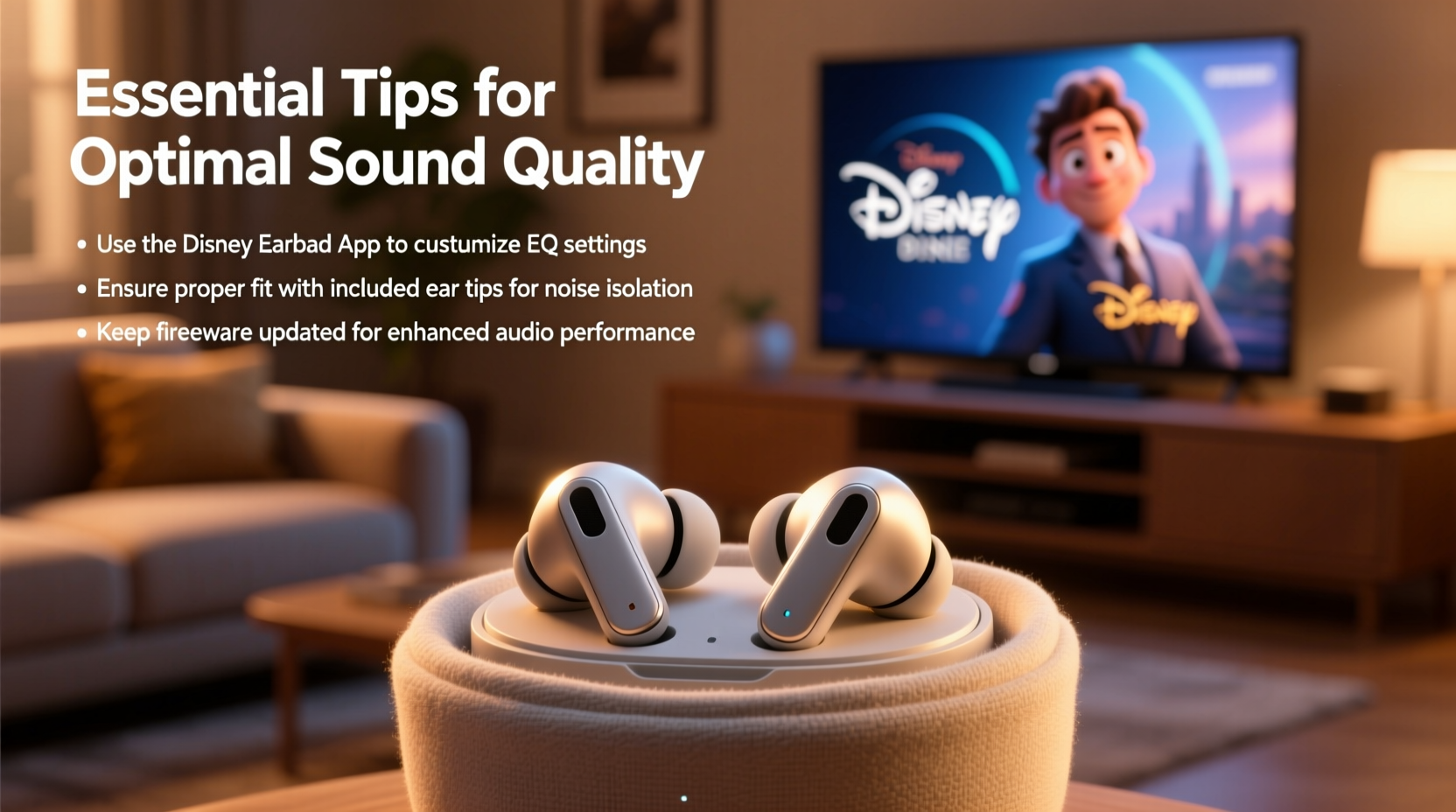
The foundation of great sound starts with fit. If your earbuds don’t sit securely in your ears, you’ll lose bass response, allow external noise in, and reduce overall audio clarity. Disney wireless earbuds typically come with multiple ear tip sizes. Choosing the correct size is critical—not just for comfort, but for acoustic sealing.
A proper seal blocks ambient noise passively, allowing you to hear low frequencies more clearly and reducing the need to crank up the volume. To test your fit, play a track with consistent bass and gently press the earbud deeper into your ear canal. If the bass increases noticeably, the original seal was weak.
2. Customize Audio Settings via Your Device
Most people use their earbuds with default audio settings, missing out on significant improvements available through built-in equalizer (EQ) tools. Whether you're using an iPhone, Android phone, or tablet, adjusting EQ can tailor the sound profile to your preferences and content type.
For example, boosting midrange frequencies enhances vocal clarity—ideal for podcasts or dialogue-heavy Disney films. Slight bass boosts add depth to musical numbers from Disney soundtracks, while a gentle treble lift can make high notes sparkle without becoming harsh.
“Even modest EQ adjustments can make a noticeable difference in perceived sound quality—especially on consumer-grade earbuds.” — Marcus Lin, Audio Calibration Specialist
Step-by-Step Guide: Adjusting EQ on Common Devices
- iPhone/iPad: Go to Settings > Music > EQ. Choose presets like “Acoustic,” “Classical,” or “Bass Booster” based on content. For movies, “Late Night” mode normalizes volume levels so quiet scenes are audible.
- Android: Open your music app (e.g., YouTube Music, Spotify), go to Settings > Playback > Equalizer. Adjust sliders manually or select a preset such as “Lounge” or “Flat” depending on preference.
- Windows/Mac: Use third-party apps like Boom 3D or built-in system enhancers to shape output before it reaches your earbuds.
3. Keep Earbuds Clean and Free of Debris
Dust, earwax, and pocket lint accumulate over time, especially on the speaker mesh. This buildup muffles sound, reduces volume, and distorts frequencies. A blocked driver can’t vibrate freely, which degrades both bass and treble response.
Cleaning should be part of regular maintenance. Use a dry, soft-bristled brush (like a clean toothbrush) or a microfiber cloth to gently wipe the exterior mesh. Avoid liquids or compressed air, which may force debris further inside or damage internal components.
4. Optimize Bluetooth Connection Stability
Poor Bluetooth performance doesn’t just cause dropouts—it can compress audio data, leading to lower sound fidelity. Disney wireless earbuds use standard Bluetooth 5.0 or later, which supports decent bandwidth, but interference from Wi-Fi routers, microwaves, or crowded signal environments can degrade transmission quality.
To maintain a strong connection:
- Keep your device within 3 feet when possible, especially during critical listening.
- Avoid placing your phone in a back pocket while walking—body mass can block signals.
- Limit the number of active Bluetooth devices nearby.
- Forget and re-pair your earbuds periodically to reset connection glitches.
Do’s and Don’ts for Bluetooth Performance
| Do | Don’t |
|---|---|
| Reboot your earbuds by placing them in the case and closing the lid for 30 seconds | Use them near large metal objects or microwave ovens |
| Update firmware through the companion app if available | Stream lossless audio over Bluetooth expecting studio quality |
| Store the charging case away from magnets or electronics | Assume all dropouts are due to earbud defects—check source first |
5. Match Audio Output to Content Type
Not all media is mastered the same way. A Pixar film soundtrack requires different sonic emphasis than a lo-fi study playlist or a spoken-word audiobook. Adapting your setup to the content maximizes enjoyment.
For instance, animated films often have wide dynamic ranges—soft whispers followed by explosive action sequences. Enabling dynamic range compression (available in some devices under accessibility or audio settings) ensures you don’t miss quiet lines while protecting your ears during loud moments.
Music lovers benefit from disabling any artificial “enhancements” in apps that promise “surround sound” but often muddy the mix. Instead, rely on accurate EQ tuning and good source material.
Mini Case Study: Enhancing a Family Movie Night
Sarah, a mother of two, noticed her kids were constantly asking, “What did they say?” during nighttime Disney+ sessions using her Disney wireless earbuds. After testing several fixes, she adjusted her iPhone’s EQ to “Late Night” mode, which automatically balances volume across quiet and loud scenes. She also switched to medium-sized ear tips for a better seal. The result? Clearer dialogue, fewer interruptions, and a more immersive experience—all without upgrading hardware.
Checklist: Maximize Your Disney Wireless Earbud Sound Quality
- ✅ Test different ear tip sizes for optimal seal
- ✅ Clean speaker grilles every 7–10 days
- ✅ Adjust device EQ based on content (music, movie, podcast)
- ✅ Enable volume normalization or “night mode” for films
- ✅ Re-pair earbuds monthly to refresh Bluetooth connection
- ✅ Store in a cool, dry place away from direct sunlight
- ✅ Keep software and connected devices updated
FAQ
Can I use third-party apps to boost sound quality?
Yes—apps like Poweramp (Android) or Equalizer+ (iOS) offer advanced EQ controls and audio enhancement features. However, avoid excessive boosting, which can distort sound or strain drivers.
Why does one earbud sound quieter than the other?
This is often due to uneven wax buildup or a partial blockage. Clean both sides thoroughly. If the issue persists, check your device’s audio balance settings under Accessibility to ensure output is centered.
Do Disney wireless earbuds support spatial audio or Dolby Atmos?
No—current models do not support advanced audio formats like Dolby Atmos. However, playing Atmos-enabled content on a compatible device (e.g., iPhone with AirPods-like processing) may simulate some depth effects, though results vary.
Conclusion
Great sound isn’t reserved for expensive gear. By paying attention to fit, cleanliness, settings, and environment, you can unlock the full potential of your Disney wireless earbuds. Small changes—like switching ear tips or tweaking an EQ preset—can lead to surprisingly big improvements in clarity, balance, and immersion. Whether you're reliving classic Disney songs or watching the latest Marvel series, these optimizations ensure every note and line hits just right.




 浙公网安备
33010002000092号
浙公网安备
33010002000092号 浙B2-20120091-4
Comments
No comments yet. Why don't you start the discussion?