
Modern smartphones are more than just communication tools—they're personal assistants, productivity hubs, and social connectors. For Android users, Google’s native Phone and Messages apps offer powerful features that enhance calling and texting experiences. Yet, many people use these apps at only a fraction of their potential. Setting up Google’s calling and messaging ecosystem correctly can eliminate missed calls, streamline conversations, and bring AI-powered convenience into daily communication.
This guide walks through the essential setup steps, hidden settings, and best practices to ensure your Google Phone and Messages apps work seamlessly across devices and situations.
Enable and Configure Google Voice Integration
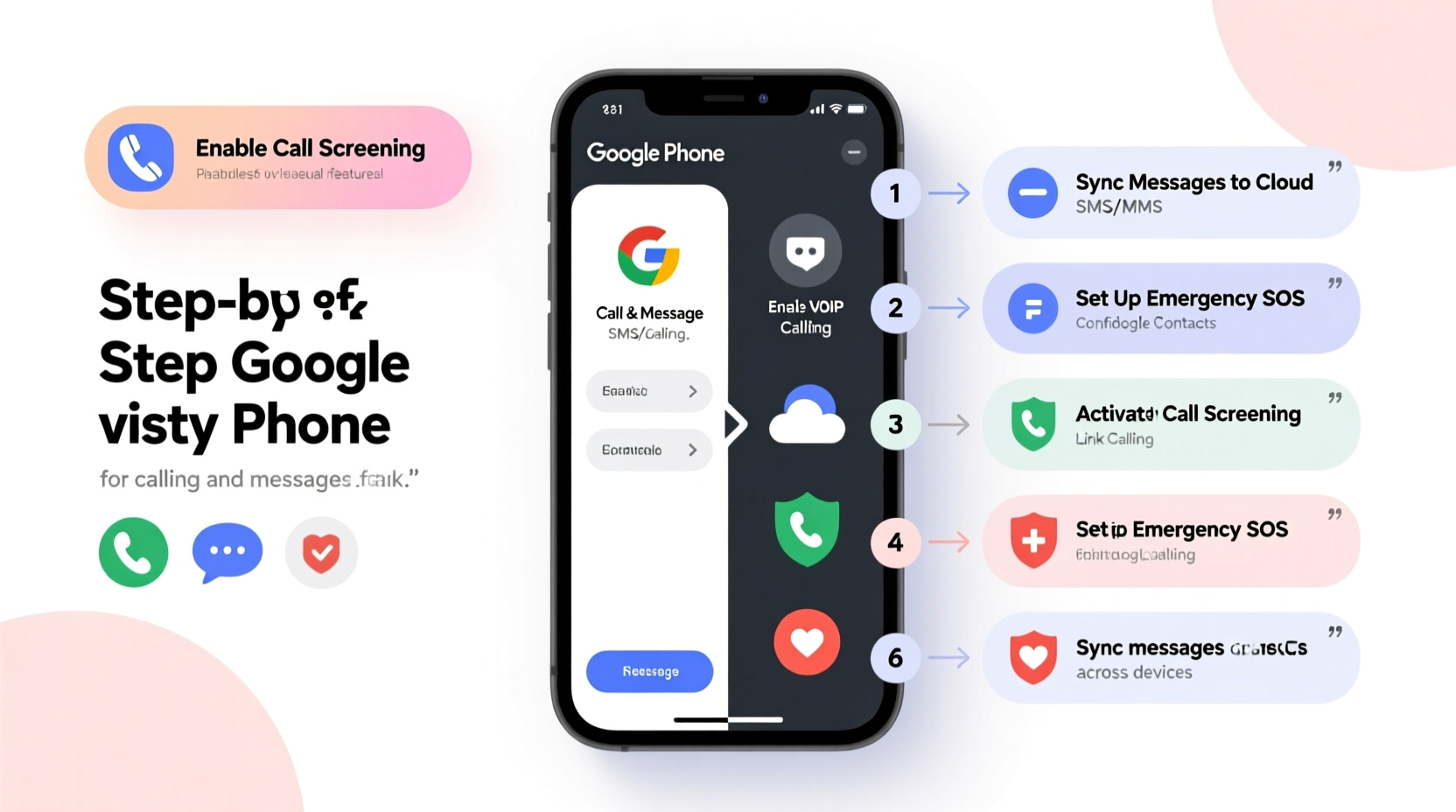
Google Voice is a cornerstone of unified calling on Android. It allows you to make and receive calls using a single number across multiple devices—even on tablets or computers. While not enabled by default on all carriers, it's available in the U.S. and integrates tightly with the Google Phone app.
To get started:
- Download the Google Voice app from the Play Store.
- Sign in with your Google account and select a Google Voice number (or port an existing one).
- In the Google Phone app, go to Settings > Calls > Preferred calling app and ensure “Phone by Google” is selected.
- Under Settings > Calls > Calling accounts, choose Google Voice as your default for outgoing calls.
Once configured, incoming calls to your Google Voice number will ring on all linked devices. This is especially useful if you frequently switch between phone, tablet, or Chromebook.
Optimize Call Screen and Spam Protection
One of Google’s most underrated features is Call Screen, which uses AI to answer suspected spam calls and transcribe what the caller says in real time. This lets you decide whether to pick up, send to voicemail, or report the call—all without touching your phone.
To activate Call Screen:
- Open the Phone app and tap your profile icon (top right).
- Go to Settings > Spam and Call Screen.
- Toggle on “Enable enhanced spam detection” and “See caller and spam ID.”
- Turn on “Call Screen” to handle suspicious calls automatically.
When a suspected spam call comes in, you’ll see an option to “Screen call.” Tap it, and Google Assistant answers, asks the caller to state their purpose, and displays a live transcription. You can even reply with pre-written messages like “I’m busy, please text me.”
“Call Screen reduces unwanted interruptions by over 70% in high-spam areas. It’s not just convenient—it’s a privacy tool.” — Dr. Lena Torres, Mobile Security Researcher at OpenCom Lab
Seamless Messaging with RCS and Google Messages
SMS is outdated. Rich Communication Services (RCS) is the modern replacement, offering read receipts, typing indicators, high-resolution media sharing, and end-to-end encryption when chatting with other Google Messages users. Unlike SMS, RCS runs over Wi-Fi or data, so you don’t need cellular service to send messages.
To enable RCS:
- Install or open Google Messages (ensure it’s updated).
- Open the app and tap your profile picture > Messages settings.
- Tap “Chat features” and toggle on “Enable chat features.”
- Verify your phone number when prompted.
Once activated, you’ll see “Chat” next to contact names when RCS is active. If a contact doesn’t support RCS, the app falls back to SMS/MMS automatically.
| Feature | RCS | SMS/MMS |
|---|---|---|
| Read Receipts | ✅ Yes | ❌ No |
| Typing Indicators | ✅ Yes | ❌ No |
| High-res Media | ✅ Up to 100MB | ⚠️ Limited (~500KB) |
| End-to-End Encryption | ✅ Yes (peer-to-peer) | ❌ No |
| Data Required | ✅ Yes | ❌ No (uses cellular) |
Sync Messages Across Devices
Google Messages now supports web and desktop access. This means you can reply to texts from your laptop during a meeting or while charging your phone.
To link your device:
- On your computer, go to messages.google.com/web.
- Open Google Messages on your phone.
- Tap your profile picture > Devices > Pair new device.
- Scan the QR code displayed on your computer screen.
After pairing, your recent conversations appear instantly. All replies sync in real time. Note: RCS chats remain end-to-end encrypted even on linked devices.
Real Example: Staying Connected During Travel
Sophie, a freelance designer based in Denver, travels frequently for client meetings. On a recent trip to Europe, her local SIM had limited data, but she needed to stay in touch with clients and family. By enabling RCS and linking her Messages to her MacBook, she continued sending high-quality design previews via text—even in low-connectivity hotels. When spam calls flooded her line due to a public listing, Call Screen filtered them out, notifying her only of verified contacts. Her entire communication flow remained uninterrupted, despite changing networks.
This is the power of a properly configured Google Phone and Messages setup: continuity, clarity, and control.
Essential Setup Checklist
Follow this checklist to ensure full optimization of your calling and messaging experience:
- ✅ Install and set Google Phone and Google Messages as default apps
- ✅ Enable Google Voice and link your preferred number
- ✅ Activate Call Screen and spam protection
- ✅ Turn on RCS chat features in Google Messages
- ✅ Link Messages to web and desktop devices
- ✅ Review blocked numbers and adjust filters monthly
- ✅ Ensure backup & sync is on in Google One settings for message recovery
Frequently Asked Questions
Does RCS work internationally?
Yes, RCS works in over 100 countries, but availability depends on your carrier and the recipient’s setup. Google Messages handles fallback to SMS automatically if RCS isn’t supported on either end.
Can I use Google Voice for international calls?
Absolutely. Google Voice offers low-cost international calling rates. Just open the Voice app, enter the number with country code, and place the call. Rates are listed transparently in-app, often cheaper than carrier roaming charges.
Are my RCS messages secure?
When chatting with another Google Messages user, RCS includes end-to-end encryption. Look for the lock icon next to the contact’s name. Standard SMS/MMS messages are not encrypted, which is why enabling RCS is strongly recommended.
Final Thoughts: Take Control of Your Communication Flow
The true value of a smartphone lies not in its hardware specs, but in how well it connects you—to people, information, and peace of mind. Google’s calling and messaging tools, when properly configured, remove friction from daily communication. From AI-powered spam filtering to cross-device syncing and richer conversations via RCS, these features work quietly in the background to save time, reduce stress, and keep you reachable on your terms.
Don’t settle for basic calling and fragmented texts. Invest 15 minutes to follow this guide, check each setting, and unlock the full potential of your Android device. Once set up, these features run seamlessly—requiring no maintenance, just smarter communication.




 浙公网安备
33010002000092号
浙公网安备
33010002000092号 浙B2-20120091-4
Comments
No comments yet. Why don't you start the discussion?