
In today’s hyper-connected world, a reliable and fast Wi-Fi network is no longer a luxury—it’s a necessity. Whether you're streaming 4K content, attending video conferences, or gaming online, poor signal strength and network congestion can derail your experience. One of the most overlooked yet powerful tools in optimizing your wireless network is selecting the right Wi-Fi channel. By choosing the least congested and most efficient channel, you can dramatically improve both speed and stability.
Most users rely on their router’s default automatic channel selection, which often leads to suboptimal performance due to overlapping networks from neighbors and interference from household devices. Understanding how Wi-Fi channels work and how to pick the best ones empowers you to take control of your home network and unlock its full potential.
Understanding Wi-Fi Channels and Frequency Bands
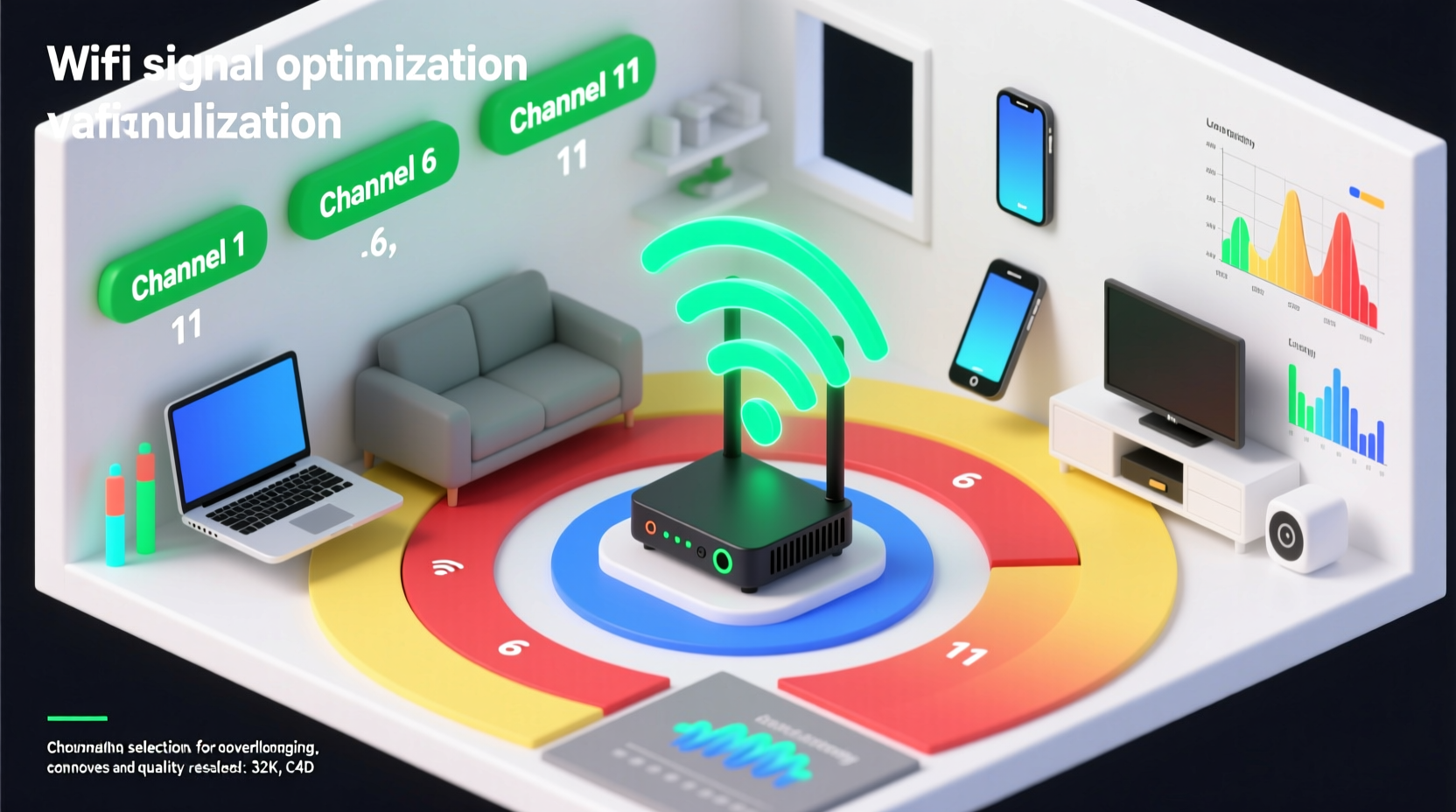
Wi-Fi operates on two primary frequency bands: 2.4 GHz and 5 GHz. Each band is divided into multiple channels—like lanes on a highway—that allow data to be transmitted simultaneously without collision. However, unlike physical roads, these channels can interfere with one another if not properly managed.
The 2.4 GHz band has only 11 channels (in most regions), but due to bandwidth overlap, only three of them—channels 1, 6, and 11—are non-overlapping. This means that even if neighboring networks use different numbers, they may still interfere if they’re too close in frequency. On the other hand, the 5 GHz band offers significantly more channels—up to 25 non-overlapping ones—and less congestion, making it ideal for high-speed applications.
“Channel selection is the single most impactful setting change a user can make to improve Wi-Fi performance.” — Dr. Alan Park, Wireless Network Engineer at NetSignal Labs
Best Channels for 2.4 GHz and 5 GHz Bands
Selecting the best channel depends on your environment, device compatibility, and usage needs. Here's a breakdown of optimal choices:
For 2.4 GHz Band
- Channels 1, 6, and 11: These are the only non-overlapping options. Choose the one with the least nearby traffic.
- Avoid intermediate channels like 3, 4, 8, or 9—they bleed into adjacent frequencies and increase interference.
- Use this band primarily for older devices, smart home gadgets, or when wall penetration is needed (due to better range).
For 5 GHz Band
- Channels 36–48 (Lower U-NII-1): Ideal for general use; widely supported and low-interference.
- Channels 149–161 (U-NII-3): Great for high-throughput tasks like streaming and gaming; fewer networks use these.
- Avoid DFS (Dynamic Frequency Selection) channels (e.g., 52–144) unless necessary, as radar detection can cause interruptions.
Step-by-Step Guide to Optimizing Your Wi-Fi Channel
Follow this practical sequence to find and set the best Wi-Fi channel for your setup:
- Download a Wi-Fi Analyzer App: Tools like NetSpot (Windows/Mac), Wi-Fi Analyzer (Android), or AirPort Utility (iOS) show all nearby networks and their channels.
- Scan Your Environment: Walk through your home during peak usage hours to capture accurate interference data.
- Identify Congestion: Look for channels with minimal overlapping signals. Prioritize those with weaker competing networks.
- Log Into Your Router: Open a browser and enter your router’s IP (often 192.168.1.1 or 192.168.0.1). Log in using admin credentials.
- Navigate to Wireless Settings: Find the 2.4 GHz and 5 GHz sections under “Wireless” or “Network Settings.”
- Change the Channel Manually: Disable auto-selection and set your preferred channel based on your scan results.
- Save and Reboot: Apply changes and restart the router to ensure new settings take effect.
- Test Performance: Run a speed test before and after to measure improvements in latency and throughput.
Comparison Table: 2.4 GHz vs 5 GHz Channel Performance
| Feature | 2.4 GHz Band | 5 GHz Band |
|---|---|---|
| Number of Channels | 11 (only 3 non-overlapping) | Up to 25+ non-overlapping |
| Interference Level | High (microwaves, Bluetooth, neighbors) | Low to moderate |
| Max Speed | Up to 150 Mbps (typical) | 600 Mbps – 1 Gbps+ |
| Range & Penetration | Excellent (walls, floors) | Moderate (weaker through obstacles) |
| Best Use Case | IoT devices, basic browsing | Streaming, gaming, large file transfers |
| Recommended Channels | 1, 6, 11 | 36, 40, 44, 48, 149, 153, 157, 161 |
Real-World Example: Fixing a Laggy Home Office Connection
Mark, a remote software developer in Chicago, struggled with frequent Zoom call drops and slow downloads despite having a gigabit internet plan. His router was placed centrally, but performance varied room to room. After downloading a Wi-Fi analyzer, he discovered that his 2.4 GHz network was on channel 6—but so were five other nearby networks. The 5 GHz band was set to auto and had switched to a DFS channel that intermittently shut down due to radar detection.
He manually changed the 2.4 GHz band to channel 1 (least used in his area) and switched the 5 GHz band to channel 149. He also enabled band steering on his dual-band router to encourage devices to connect to 5 GHz by default. The result? Latency dropped from 80 ms to 18 ms, and video calls became consistently clear. His download speeds increased from 120 Mbps to over 800 Mbps on capable devices.
Checklist: Optimize Your Wi-Fi Channels in 7 Steps
- ✅ Use a Wi-Fi analyzer to assess channel congestion
- ✅ Identify the least crowded non-overlapping channel
- ✅ Access your router’s admin interface
- ✅ Disable auto-channel selection
- ✅ Set optimal channels for 2.4 GHz and 5 GHz bands
- ✅ Reboot your router after saving changes
- ✅ Test speed and stability across multiple devices
Frequently Asked Questions
Can changing my Wi-Fi channel really improve speed?
Yes. Switching from a congested or overlapping channel to a cleaner one reduces interference, leading to lower latency, fewer dropouts, and higher effective throughput—especially in dense urban environments.
Should I leave my router on auto-channel mode?
Not always. While modern routers have improved auto-selection algorithms, they may still switch to suboptimal or DFS channels. If you live in an apartment building or high-density area, manual tuning typically yields better long-term stability.
Why does my 5 GHz signal seem weaker than 2.4 GHz?
The 5 GHz band has shorter wavelength, which doesn’t penetrate walls and obstacles as effectively as 2.4 GHz. However, it compensates with faster speeds and less interference. For best results, position your router centrally and consider using a mesh system for whole-home coverage.
Final Recommendations for Long-Term Wi-Fi Health
Optimizing your Wi-Fi channel is not a one-time fix. As neighbors upgrade equipment or move in and out, the wireless landscape changes. Reassess your channel selection every few months, especially if you notice performance dips. Pair this practice with other best practices: updating router firmware, using Quality of Service (QoS) settings, and upgrading to Wi-Fi 6 or Wi-Fi 6E hardware when possible.
If you're using an older router that lacks 5 GHz support or advanced configuration options, consider investing in a modern dual- or tri-band system. These support additional features like multi-user MIMO and OFDMA, which further enhance efficiency when combined with proper channel planning.




 浙公网安备
33010002000092号
浙公网安备
33010002000092号 浙B2-20120091-4
Comments
No comments yet. Why don't you start the discussion?