
Screen recording has become an essential skill across education, remote work, software development, and content creation. Whether you're demonstrating a workflow, teaching a digital skill, or reporting a bug, capturing what happens on your screen can communicate more clearly than words alone. Fortunately, high-quality screen recording no longer requires expensive software. A growing number of free tools deliver robust functionality without cost, making professional-grade captures accessible to everyone.
The challenge isn’t finding tools—it’s choosing the right one. Free doesn’t always mean feature-rich, and some apps come with hidden limitations like watermarks, time caps, or poor export options. This guide examines the most reliable free screen recorders available today, highlighting their strengths, trade-offs, and ideal use cases so you can make an informed decision.
Top Free Screen Recording Tools Compared
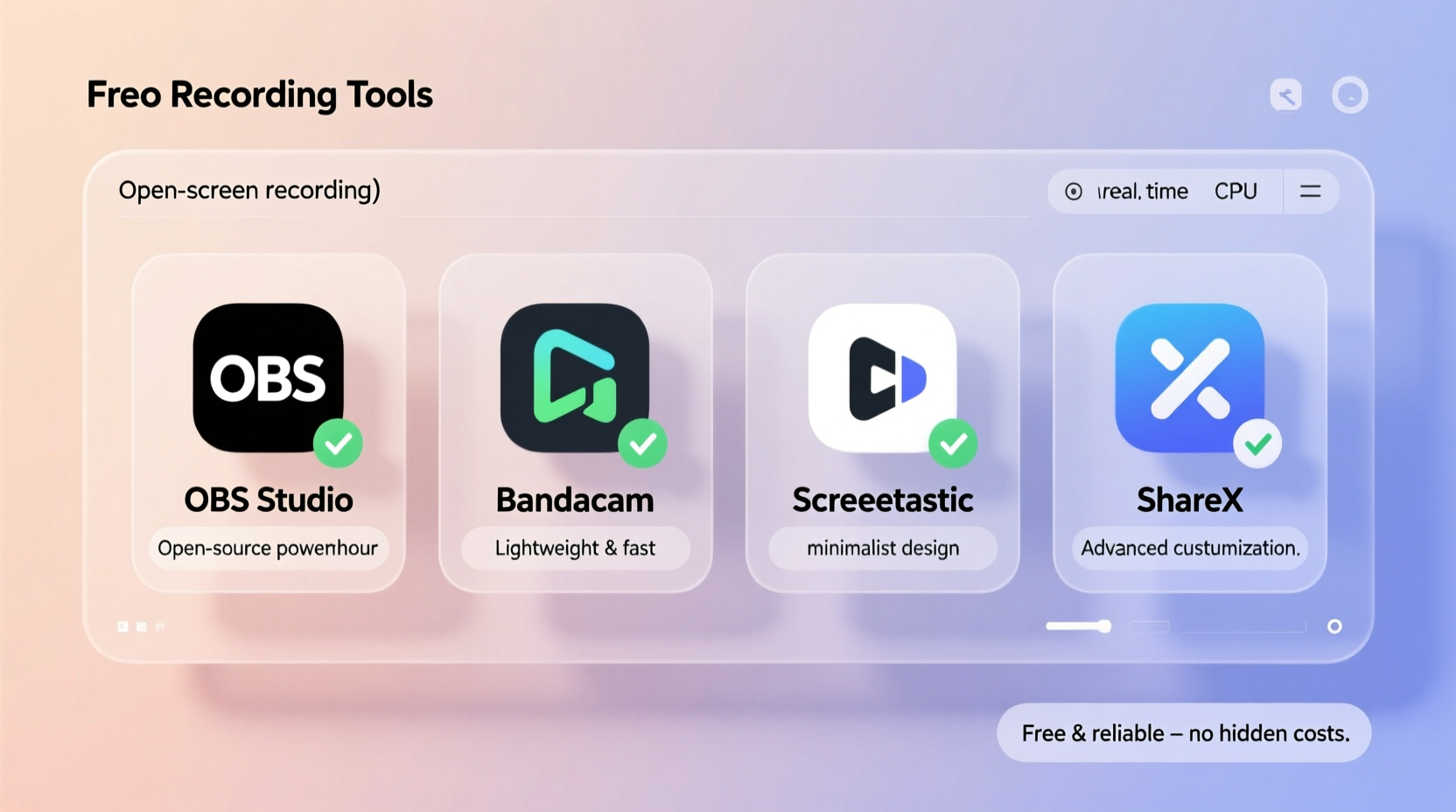
Not all screen recorders are built the same. Some excel in simplicity, others in editing capabilities or format support. Below is a detailed comparison of five standout free tools that balance performance, usability, and freedom from restrictive limitations.
| Tool | Platform | Max Duration | Audio Support | Watermark | Export Formats |
|---|---|---|---|---|---|
| OBS Studio | Windows, macOS, Linux | Unlimited | System + Mic | No | MP4, FLV, MOV |
| ShareX | Windows | Unlimited | System + Mic | No | MP4, GIF, WebM |
| FlashBack Express | Windows | Unlimited | System + Mic | No | MP4, AVI |
| Screencast-O-Matic | Web, Windows, macOS | 15 minutes (free) | Mic only | Yes (in free version) | MP4, YouTube upload |
| QuickTime Player | macOS only | Unlimited | Mic only | No | MOV |
How to Choose the Right Tool for Your Needs
Selecting a screen recorder should depend on your specific goals. Ask yourself: What kind of content am I creating? Who is my audience? Do I need voiceover, system audio, or webcam integration?
For educators and trainers, a simple interface with quick sharing options matters most. Screencast-O-Matic offers direct YouTube publishing but limits recordings to 15 minutes and adds a watermark in the free tier. For developers or tech professionals documenting bugs or workflows, ShareX provides precision controls, annotation tools, and GIF export—ideal for internal documentation.
Content creators aiming for polished videos benefit from OBS Studio’s advanced scene composition and real-time preview, though it comes with a steeper learning curve. Meanwhile, Mac users who want zero setup can rely on QuickTime Player, which integrates seamlessly with macOS and requires no downloads beyond what’s already installed.
“Free tools have closed the gap with premium software. With OBS or ShareX, you get studio-level control without spending a dollar.” — Dana Reyes, Digital Media Instructor at TechEd Academy
Step-by-Step Guide to Recording Your First Video
Getting started doesn’t require technical expertise. Follow this universal process to create a clean, professional screen recording using any free tool.
- Define the purpose: Know whether you’re explaining a process, giving feedback, or creating a tutorial. This shapes your script and structure.
- Close unnecessary apps: Reduce background noise, notifications, and visual clutter that could distract viewers.
- Test audio input: Speak into your microphone and adjust levels to ensure clarity. Avoid echo-prone rooms.
- Select recording area: Choose between full screen, a single window, or a custom region depending on your focus.
- Start with a brief intro: State your name, the topic, and what viewers will learn. Keep it under 15 seconds.
- Record in short segments: Break complex tasks into smaller clips. It’s easier to edit and re-record if needed.
- Stop cleanly: End with a clear conclusion or call to action, then stop the recording.
- Review and trim: Remove pauses, mistakes, or redundant sections before exporting.
- Export in MP4: This format ensures compatibility across platforms and devices.
- Store backups: Save original files in a dedicated folder for future edits.
Avoid These Common Screen Recording Mistakes
- Recording with a cluttered desktop: Icons, open tabs, and personal files can look unprofessional and raise privacy concerns.
- Ignoring audio quality: Muffled or inconsistent sound undermines even the clearest visuals. Use a quiet space and test beforehand.
- Overloading the viewer: Don’t rush through steps. Allow time for on-screen actions to register.
- Skipping a script: Even a bullet-point outline keeps you focused and reduces retakes.
- Using low-resolution settings: Record at native resolution when possible. Upscaling later won’t improve quality.
Real Example: How a Teacher Uses FlashBack Express
Sarah Lin, a high school math teacher in Portland, switched to remote instruction during a district-wide outage. She needed a way to record daily lessons without relying on her school’s limited LMS tools. After trying several apps, she settled on FlashBack Express because it was free, fast to install, and didn’t require an account.
Each morning, Sarah records a 10-minute lesson walking through problem sets using her tablet and stylus. She shares the exported MP4 files via email and Google Classroom. “Students said the videos helped them study better than live lectures,” she said. “And I don’t have to worry about running out of time or paying for upgrades.”
Essential Checklist Before You Record
- ✅ Close unused browser tabs and applications
- ✅ Test microphone and speakers
- ✅ Choose recording area (full screen, window, or region)
- ✅ Enable system audio if showing app sounds
- ✅ Disable notifications on all devices
- ✅ Prepare a simple script or outline
- ✅ Clean desktop and remove sensitive files
- ✅ Set recording format to MP4 (or MOV for Mac)
- ✅ Verify sufficient disk space (HD video uses ~1–2 GB per hour)
- ✅ Do a 30-second test recording and playback
Frequently Asked Questions
Are free screen recorders safe to download?
Most reputable tools like OBS Studio, ShareX, and FlashBack Express are open-source or developed by trusted companies with transparent privacy policies. Always download from official websites to avoid bundled malware. Avoid third-party download portals that may inject adware.
Can I record system audio on Windows for free?
Yes, but not all tools support it out of the box. OBS Studio and ShareX allow system audio capture on Windows through proper audio device selection. Ensure \"Stereo Mix\" is enabled in your sound settings, or use WASAPI loopback in OBS for direct output capture.
Why does my recording lag or drop frames?
Performance issues usually stem from insufficient hardware resources. Close memory-heavy programs before recording. Lower the frame rate (15–24 fps is fine for tutorials) and avoid recording at ultra-high resolutions unless necessary. Encoding settings also matter—H.264 is widely supported and efficient.
Final Thoughts and Next Steps
The best screen recording tool isn’t the fanciest one—it’s the one that fits your workflow, platform, and goals. Whether you value simplicity, customization, or cross-platform access, there’s a capable free option ready to use today. The barrier to entry has never been lower, and the ability to share knowledge visually has never been more powerful.
Start small: pick one tool, run a test, and share the result with a colleague or friend for feedback. Refine your approach over time. With practice, screen recording becomes second nature—an indispensable part of your digital toolkit.




 浙公网安备
33010002000092号
浙公网安备
33010002000092号 浙B2-20120091-4
Comments
No comments yet. Why don't you start the discussion?