
For creators working with high-resolution footage, the choice between storage types can make or break a project. When budget constraints are in play, the decision often comes down to an external SSD versus an internal HDD. While both have their place in digital workflows, understanding their real-world performance in video editing scenarios is essential. Speed, reliability, cost per gigabyte, and workflow integration all factor into which option delivers better value without sacrificing too much efficiency.
Video editing demands fast read and write speeds, especially when handling 4K, 60fps, or RAW footage from cameras like the Blackmagic Pocket or Sony A7 series. Buffering, dropped frames, and sluggish timeline scrubbing can quickly derail creativity. This article breaks down the technical and practical differences between external SSDs and internal HDDs, evaluates their suitability for budget-conscious editors, and provides actionable guidance for making the smartest investment.
Understanding the Core Differences
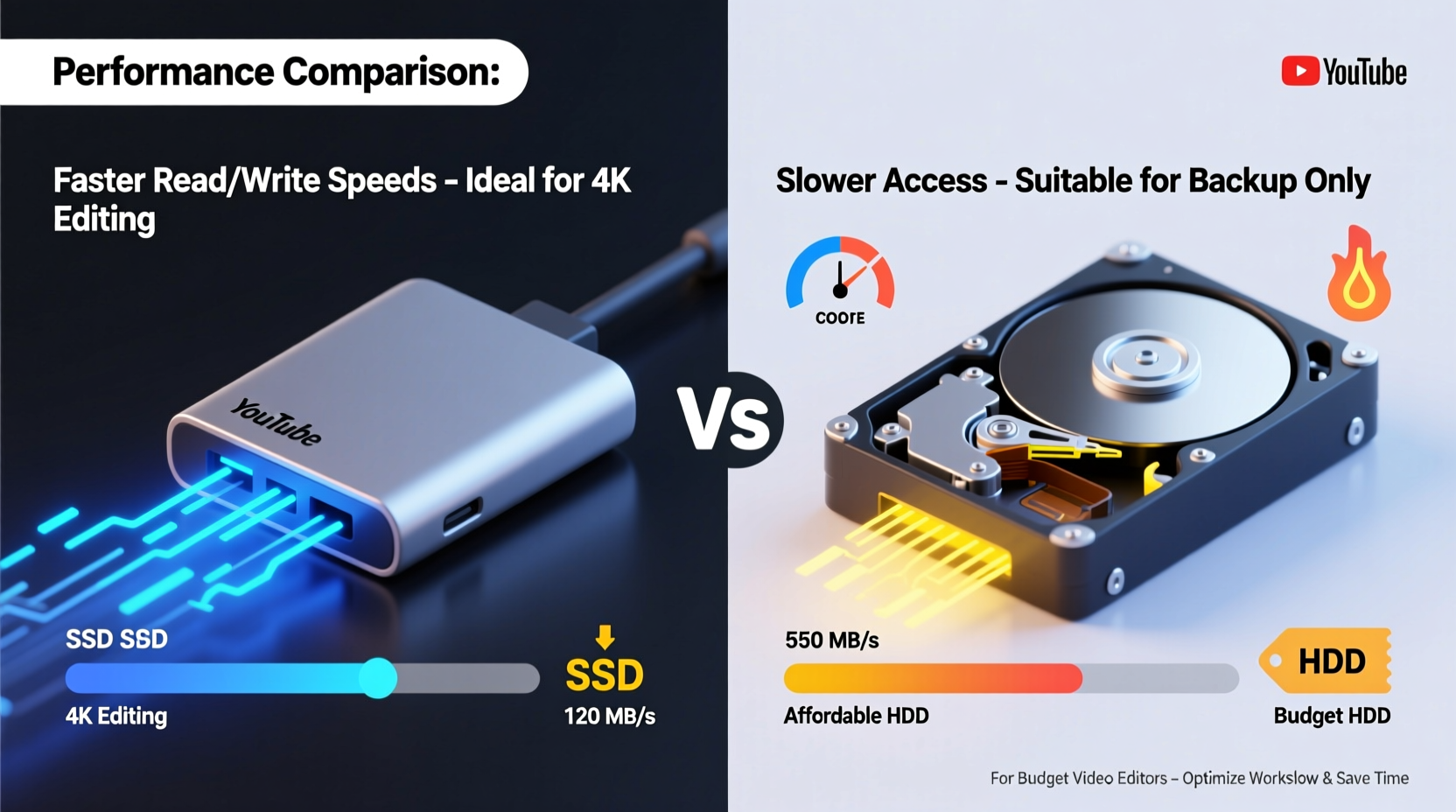
The fundamental distinction between an external SSD (Solid State Drive) and an internal HDD (Hard Disk Drive) lies in how data is stored and accessed. An HDD uses spinning magnetic platters and a mechanical read/write head. This physical movement inherently limits speed and makes the drive more susceptible to shock and wear. In contrast, an SSD has no moving parts—it stores data on flash memory chips, enabling near-instant access times and significantly faster transfer rates.
External SSDs typically connect via USB 3.2 Gen 2, Thunderbolt 3, or USB-C, offering sustained read/write speeds of 500 MB/s to over 2,000 MB/s depending on the model and interface. Internal HDDs, even when connected directly to a motherboard via SATA III, max out at around 150–200 MB/s under ideal conditions. For video editing, where large files are constantly being loaded and cached, this performance gap translates directly into workflow responsiveness.
Performance Comparison in Video Editing Workflows
When editing video, storage performance impacts several key areas: timeline responsiveness, preview rendering, export times, and multi-stream playback. Let’s examine how each drive type performs in these critical functions.
Timeline Scrubbing and Playback
Scrubbing through timelines with multiple layers, effects, and high-bitrate codecs requires rapid data retrieval. Internal HDDs often struggle with smooth playback, especially when using proxies isn’t an option. Editors may experience stuttering or dropped frames, forcing reliance on lower-resolution previews. External SSDs, with their higher throughput, handle native 4K and even 6K footage far more reliably, reducing the need for proxy workflows.
Rendering and Exporting
Export times are heavily influenced by disk speed. Writing rendered output to an HDD can add minutes—or even hours—to final delivery. An external SSD reduces this bottleneck significantly. In tests using Adobe Premiere Pro with a 10-minute 4K timeline, exporting to an SSD was up to 60% faster than to a 7200 RPM HDD.
Project and Cache File Handling
Video editing software creates cache files (e.g., peak files, conformed audio) that are written and accessed continuously. Slow drives cause delays during initial project load and increase lag when applying effects. SSDs dramatically reduce cache generation time, improving overall responsiveness.
“Even a mid-tier external SSD outperforms most internal HDDs in sustained video workloads. The lack of moving parts means consistent performance regardless of file fragmentation.” — Daniel Reyes, Senior Editor at FrameRate Labs
Detailed Comparison Table: External SSD vs Internal HDD
| Feature | External SSD | Internal HDD |
|---|---|---|
| Average Read/Write Speed | 500–2000 MB/s | 100–200 MB/s |
| Latency | Very low (microseconds) | High (milliseconds due to seek time) |
| Durability | High (no moving parts) | Moderate (sensitive to drops/vibration) |
| Lifespan (Typical) | 5–10 years (based on write cycles) | 3–5 years (mechanical wear) |
| Cost per TB (Budget Range) | $80–$120 | $40–$60 |
| Portability | Excellent (plug-and-play) | Poor (requires installation) |
| Noise | Silent | Audible spinning/clicking |
| Best Use Case | Active editing, field work, collaboration | Archival storage, backups, cold storage |
The table illustrates that while internal HDDs win on price per terabyte, they fall short in nearly every performance metric relevant to active video editing. External SSDs offer superior speed, silence, and resilience—critical for maintaining a fluid creative process.
Real-World Example: Budget Editor’s Workflow Upgrade
Consider Maya, a freelance videographer working on documentaries with limited funding. She used a five-year-old laptop with a 1TB internal HDD running Windows 10 and DaVinci Resolve. Editing 4K H.265 footage from her Panasonic GH5 resulted in constant buffering, frequent crashes, and export times exceeding 45 minutes for a 10-minute sequence.
She invested $110 in a 1TB external SSD (Samsung T7 Shield) and restructured her workflow: media stored on the SSD, OS and apps on the internal drive. Immediately, timeline playback improved. Proxy generation completed in under two minutes instead of ten. Exports dropped to 18 minutes. Over six months, she completed three additional client projects due to increased efficiency, easily justifying the SSD’s cost.
This case highlights a crucial point: for active editing tasks, speed matters more than raw capacity. Even on a tight budget, allocating funds toward faster storage yields tangible returns in productivity.
Budget Optimization Strategies
You don’t need to abandon HDDs entirely. A hybrid approach maximizes value while ensuring performance where it counts. Here’s how to balance cost and capability:
Use SSD for Active Projects, HDD for Archive
Keep your current project, media, and cache files on the external SSD. Once a project is delivered and rendered, move the master files to an internal or external HDD for long-term storage. This keeps your editing environment fast while preserving affordable bulk storage.
Choose Mid-Tier SSDs Wisely
You don’t need a top-tier NVMe Thunderbolt SSD for basic 4K editing. Models like the Samsung T7, SanDisk Extreme, or Crucial X8 offer excellent performance (up to 1,050 MB/s) at prices under $100 for 1TB. These are more than sufficient for H.264, H.265, and even lightly graded ProRes files.
Upgrade Internal Storage Later
If your computer supports it, replace your internal HDD with an internal SATA SSD later. Until then, use the external SSD as your primary editing drive. Many modern laptops and desktops allow easy drive swaps, so treat the external SSD as a transitional solution that remains useful afterward for field recording or client handoffs.
Actionable Checklist: Choosing the Right Storage on a Budget
- ✅ Assess your typical footage resolution and codec (e.g., 1080p H.264 vs 4K ProRes)
- ✅ Determine minimum required read/write speeds (aim for at least 200 MB/s for 4K)
- ✅ Check your computer’s available ports (USB-C, Thunderbolt, USB-A)
- ✅ Allocate $80–$120 for a 1TB external SSD from a reputable brand
- ✅ Reserve your internal HDD for system files, archives, and backups
- ✅ Regularly back up SSD content to HDD or cloud to prevent data loss
- ✅ Avoid cheap, unbranded SSDs—they often throttle speeds after short bursts
Frequently Asked Questions
Can I edit 4K video smoothly with an external SSD on a budget laptop?
Yes, provided your laptop meets minimum CPU, RAM, and GPU requirements. The SSD eliminates one major bottleneck. Pair a 16GB RAM system with a quad-core i5 or Ryzen 5, and you’ll achieve smooth 4K editing with optimized settings.
Is an internal SSD better than an external one for video editing?
Internally installed NVMe SSDs generally offer higher speeds (up to 3,500 MB/s), but modern external SSDs with USB 3.2 or Thunderbolt come close. For most editors, the convenience and portability of an external SSD outweigh the marginal gains of internal models—especially when upgrading older machines isn’t feasible.
Will using an external SSD drain my laptop battery faster?
Slightly. USB-powered SSDs draw power from your laptop, but the difference is minimal—typically less than 5% reduction in battery life. The performance benefits far outweigh this small trade-off.
Final Recommendation: Prioritize Speed Over Capacity
For video editing on a budget, an external SSD is the smarter investment compared to relying solely on an internal HDD. While HDDs offer more storage per dollar, their slow speeds create friction at every stage of post-production. An external SSD priced under $120 can transform a frustrating, laggy editing experience into a responsive, professional-grade workflow.
The key is strategic allocation: use the SSD for active editing and the HDD for archival. This hybrid model balances performance and cost effectively. As your budget grows, you can expand SSD capacity or upgrade internal components, but starting with a single external SSD delivers immediate, measurable improvements.
Technology evolves quickly, but the principle remains: creative work thrives on responsiveness. Don’t let outdated storage hold your vision back. Make the jump to solid-state speed—you’ll wonder how you ever edited without it.




 浙公网安备
33010002000092号
浙公网安备
33010002000092号 浙B2-20120091-4
Comments
No comments yet. Why don't you start the discussion?