
Face ID is one of the most seamless and secure ways to unlock your iPhone, authorize payments, and access sensitive apps. But when it stops responding—failing to recognize your face or prompting repeated attempts—it disrupts your daily routine and raises concerns about device reliability. The good news: most Face ID issues can be resolved without visiting a service center. Whether the problem stems from software glitches, hardware interference, or environmental factors, this guide walks you through comprehensive, step-by-step fixes that restore functionality quickly and safely.
Understanding Why Face ID Fails
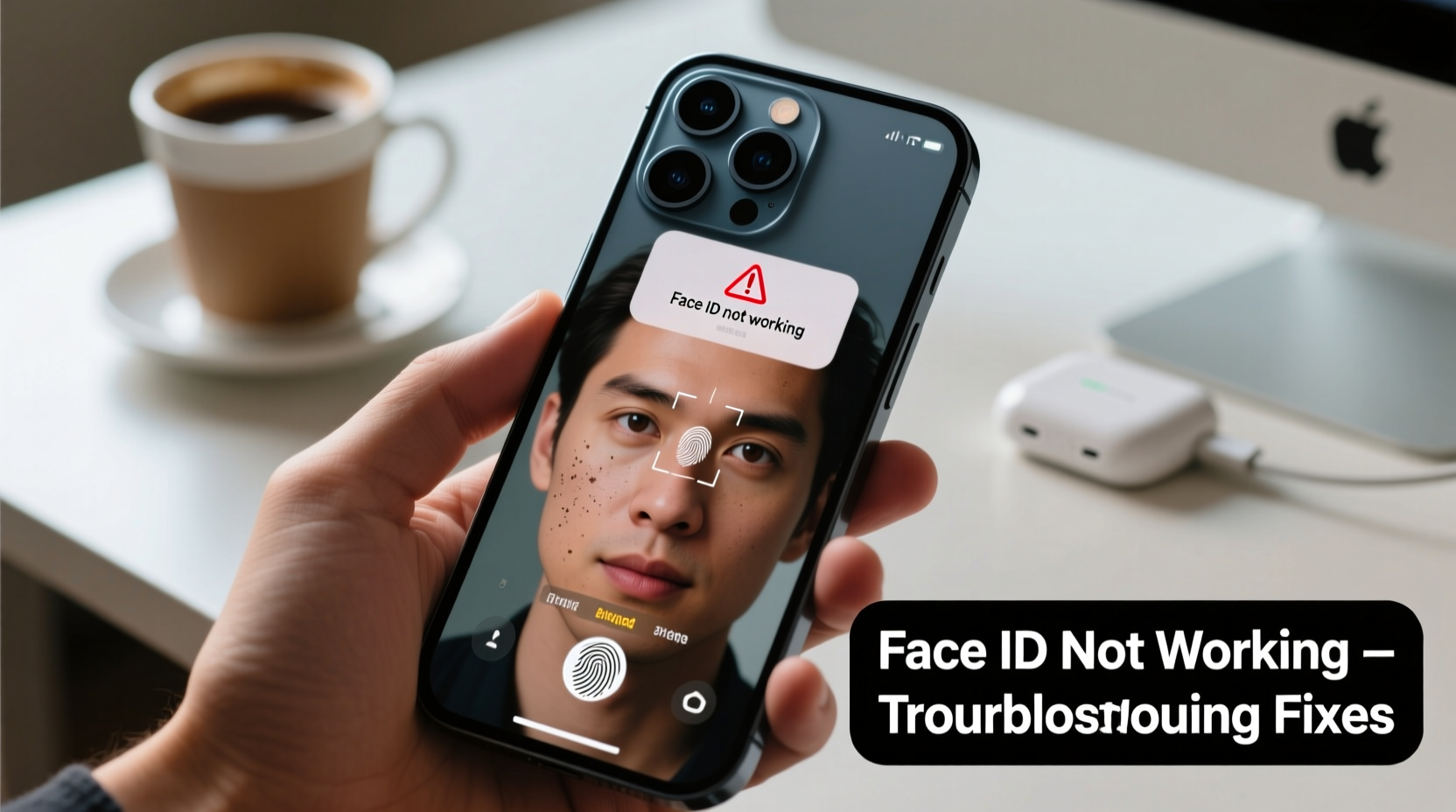
Face ID uses a complex array of sensors—the TrueDepth camera system—including the infrared camera, dot projector, and flood illuminator—to create a detailed 3D map of your face. When any part of this system is obstructed, misaligned, or compromised by software bugs, recognition fails. Common triggers include:
- Screen protectors or cases blocking the sensor area
- Dirt, smudges, or moisture on the front camera
- Software bugs after an iOS update
- Wearing accessories like hats, masks, or sunglasses
- Hardware damage from drops or liquid exposure
- Inaccurate facial data due to aging or significant appearance changes
Before jumping to conclusions about permanent damage, rule out simple causes with targeted troubleshooting.
Step-by-Step Troubleshooting Guide
Follow this logical sequence to identify and resolve the root cause of Face ID failure. Start with the simplest fixes and progress to more involved solutions.
- Check for Physical Obstructions
Clean the front sensor area gently with a soft, lint-free cloth. Remove any screen protector that covers the notch or claims full coverage—many third-party models interfere with the TrueDepth system. - Restart Your iPhone
A soft reboot clears temporary memory glitches. Press and hold the side button and either volume button until the power slider appears. Slide to power off, wait 30 seconds, then turn the device back on. - Ensure Unobstructed Use
Use Face ID in adequate lighting. Avoid extreme backlighting or total darkness. Position the phone at eye level, about 10–20 inches from your face. - Verify Face ID Settings
Go to Settings > Face ID & Passcode. Confirm that “iPhone Unlock” and relevant functions (Apple Pay, AutoFill) are enabled. If prompted, re-enter your passcode. - Re-Register Your Face
Delete your current Face ID data and set it up again. In Face ID & Passcode, tap “Reset Face ID,” then “Set Up Face ID.” Follow the on-screen instructions slowly, moving your head in a complete circle. - Update iOS
Apple frequently releases patches for biometric bugs. Navigate to Settings > General > Software Update and install any available updates. - Check for Case Interference
Rigid cases or magnetic mounts may shift the alignment of internal sensors. Temporarily remove the case and test Face ID bare.
Advanced Fixes for Persistent Issues
If basic steps fail, consider deeper system-level adjustments or hardware diagnostics.
Reset All Settings
This restores system preferences—like network, keyboard, and privacy settings—without deleting personal data. It often resolves conflicts affecting Face ID.
Navigate to Settings > General > Transfer or Reset iPhone > Reset > Reset All Settings. Enter your passcode and confirm. After reboot, reconfigure Face ID.
Test in Safe Conditions
Place your iPhone on a stable surface in natural light. Sit directly in front of it and attempt unlock. If Face ID works here but not elsewhere, the issue may be motion-related or environmental.
Check for Hardware Damage
Inspect the front camera and notch area for cracks, discoloration, or debris. If you’ve recently repaired the screen unofficially, the TrueDepth system might not have been properly calibrated. Apple warns that unauthorized repairs can permanently disable Face ID.
“Aftermarket screen replacements often disconnect or misalign the proximity sensors needed for accurate facial mapping. Only Apple or authorized providers can guarantee full functionality post-repair.” — David Lin, Senior Mobile Technician at iSupport Labs
Troubleshooting Checklist
✅ Quick Fix Checklist: Resolve Face ID Issues in 10 Minutes
- Clean the front sensor with a microfiber cloth
- Remove screen protector or case temporarily
- Restart the iPhone
- Ensure proper lighting and viewing angle
- Check Face ID settings are enabled
- Re-register your face data
- Install pending iOS updates
Do’s and Don’ts: Face ID Maintenance Table
| Do | Don’t |
|---|---|
| Use official Apple-certified screen protectors | Use thick, non-transparent film protectors over the notch |
| Register Face ID in consistent lighting | Try setting it up in direct sunlight or pitch darkness |
| Keep the sensor area dry and clean | Expose the front camera to steam or water frequently |
| Update iOS promptly | Delay critical system updates for weeks |
| Visit Apple Support if hardware is damaged | Attempt DIY internal repairs on the TrueDepth module |
Real Example: Recovering Face ID After a Screen Replacement
Sarah, a freelance designer in Austin, dropped her iPhone 13 and cracked the display. She opted for a quick fix at a local repair shop that promised “original parts.” After the repair, Face ID stopped working entirely—even after multiple resets. Alarmed, she visited an Apple Store, where diagnostics revealed the technician had used a non-compatible flex cable for the TrueDepth system. Apple replaced the entire front module under warranty extension, restoring Face ID. Her experience underscores a vital lesson: even if a screen looks perfect, internal sensor compatibility is non-negotiable for Face ID functionality.
Frequently Asked Questions
Why does Face ID suddenly stop working after an iOS update?
Occasionally, iOS updates introduce bugs that affect sensor calibration or background processes. Apple typically releases hotfixes within days. In the meantime, resetting Face ID or reinstalling the update often helps. Ensure your device is running the latest patch version.
Can wearing glasses or a mask break Face ID?
No—but they can reduce accuracy. iOS 15.4 and later include “Face ID with Mask” support, allowing recognition using the upper half of your face. For best results, wear consistent eyewear during setup and enable the mask-compatible mode in Settings > Face ID & Passcode.
Is it safe to use third-party apps that claim to fix Face ID?
No. Apps outside the App Store cannot access the Secure Enclave or TrueDepth system. Any app requesting such permissions is likely malicious. Stick to built-in iOS tools and Apple-approved procedures.
Conclusion: Regain Confidence in Your iPhone’s Security
Face ID not working on iPhone is a common but usually solvable issue. By methodically eliminating physical obstructions, refreshing software configurations, and verifying hardware integrity, most users restore full functionality within minutes. The key is patience and precision—don’t skip foundational steps like cleaning the sensor or restarting the device. And remember: when in doubt, trust Apple’s ecosystem over third-party fixes. Your iPhone’s biometric security is designed to be both convenient and impenetrable when maintained correctly.




 浙公网安备
33010002000092号
浙公网安备
33010002000092号 浙B2-20120091-4
Comments
No comments yet. Why don't you start the discussion?