
If your FaceTime camera displays a black screen during calls, you're not alone. This common issue affects many iPhone and iPad users and can disrupt video chats, work meetings, or staying in touch with loved ones. While the problem may seem technical, most causes are simple to diagnose and resolve—often without needing professional repair. Understanding why the camera fails and knowing the right fixes can save time and frustration.
Common Causes of a Black Screen on FaceTime
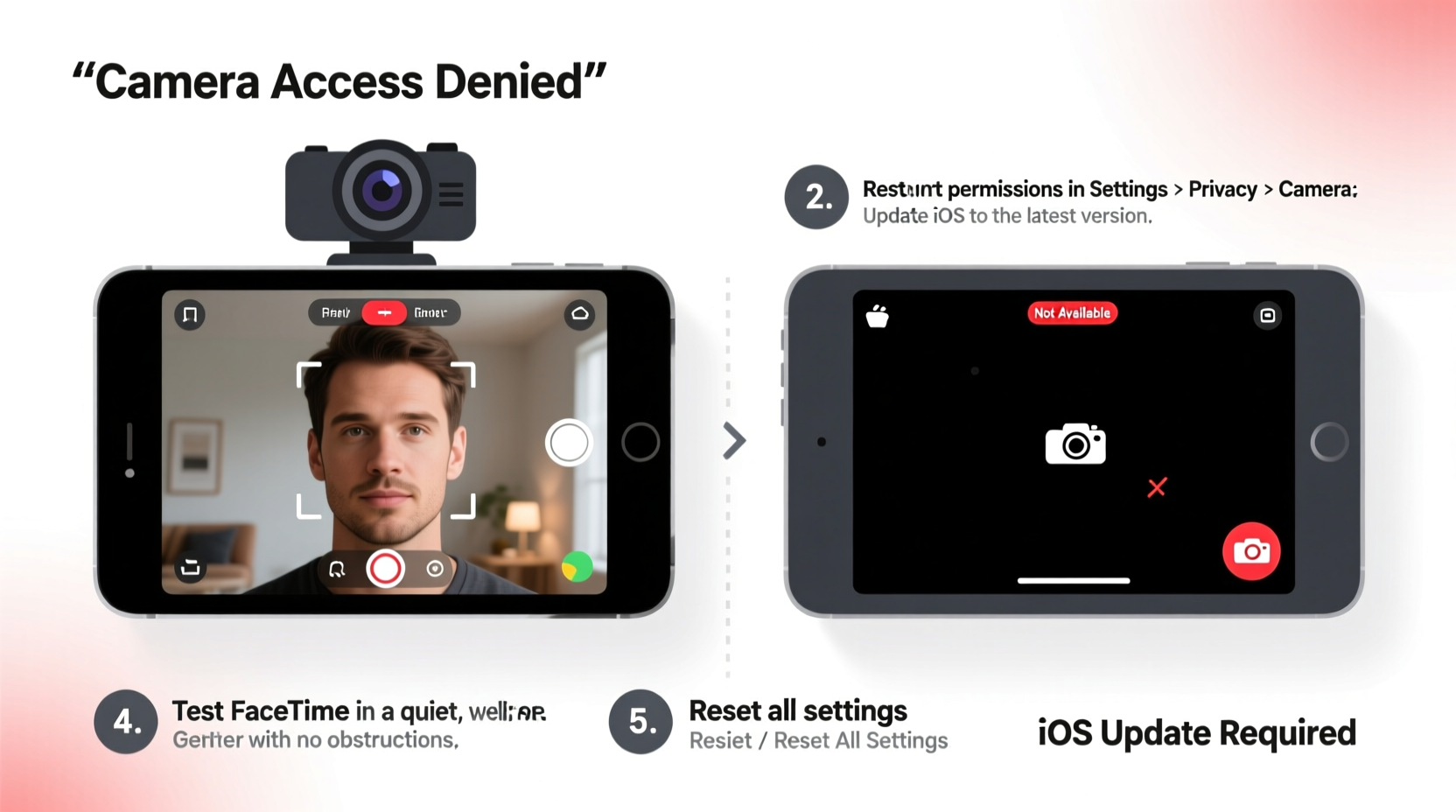
A black screen during a FaceTime call doesn’t always mean your camera is broken. The issue could stem from software glitches, permissions, hardware interference, or outdated settings. Identifying the root cause is the first step toward an effective fix.
- Camera permissions disabled: FaceTime might be blocked from accessing the camera.
- Software bugs: iOS updates can introduce temporary camera malfunctions.
- App-specific glitch: FaceTime itself may have crashed or frozen.
- Physical obstruction: A case, screen protector, or dirt may be covering the lens.
- Hardware failure: Rarely, the front-facing camera module may be damaged.
Step-by-Step Troubleshooting Guide
Follow this logical sequence to identify and eliminate potential problems. Start with the simplest solutions before moving to advanced options.
- Check for physical obstructions. Ensure the front camera lens is clean and unobstructed by cases, films, or smudges.
- Restart your iPhone or iPad. Hold the power button (and volume button on newer models), slide to power off, then turn it back on.
- Test the camera in another app. Open the Camera app and switch to the front-facing lens. If it’s also black, the issue isn’t exclusive to FaceTime.
- Ensure FaceTime has camera access. Go to Settings > Privacy & Security > Camera, and confirm FaceTime is enabled.
- Update iOS. Outdated software can cause compatibility issues. Navigate to Settings > General > Software Update.
- Reset FaceTime. Disable FaceTime (Settings > FaceTime), wait 30 seconds, then re-enable it.
- Reinstall FaceTime (if possible). While FaceTime can't be deleted, resetting all settings can refresh system apps.
Do’s and Don’ts When Fixing a Black Camera Screen
| Do’s | Don’ts |
|---|---|
| Keep your iOS updated regularly | Ignore persistent error messages |
| Clean the camera lens gently with a microfiber cloth | Use harsh chemicals or abrasive materials on the lens |
| Verify app permissions monthly | Assume hardware failure immediately |
| Restart your device weekly as maintenance | Download third-party “camera repair” apps—they’re scams |
Real Example: Resolving a Persistent Black Screen
Sarah, a remote worker from Portland, noticed her FaceTime front camera showed only a black screen during client calls. She tried restarting her iPad multiple times with no success. First, she checked the Camera app—same black screen. That ruled out FaceTime being the sole culprit. She then went to Settings > Privacy & Security > Camera and found that several apps, including FaceTime, had lost permission after a recent iOS update. After toggling camera access back on, the front camera worked instantly.
Sarah’s experience highlights how automatic system updates can reset app permissions without warning. Regular checks after updates prevent such surprises.
Expert Insight on Camera Performance
“Over 70% of reported camera issues are software-related, not hardware failures. Always check permissions and perform a soft reset before assuming damage.” — James Lin, Senior iOS Support Technician at Apple Authorized Service Center
This insight underscores the importance of methodical troubleshooting. Most users jump to worst-case conclusions when a quick setting adjustment would suffice.
Advanced Fixes if Basic Steps Fail
If the camera remains unresponsive, consider these deeper interventions:
- Reset all settings: Go to Settings > General > Transfer or Reset iPhone > Reset > Reset All Settings. This clears network, privacy, and system configurations without deleting data.
- Check for pending carrier updates: Sometimes carrier settings affect multimedia functions. Inserting the SIM card in another device can help isolate the issue.
- Boot into safe mode alternatives: While iOS doesn’t have a traditional safe mode, starting in recovery mode via a computer can help restore stability.
- Restore from backup: Use Finder (Mac) or iTunes (PC) to back up, then restore your device. This often resolves deep-seated software conflicts.
Frequently Asked Questions
Why does my FaceTime show a black screen but the rear camera works?
This usually indicates a software conflict affecting the front camera specifically. It could be due to permission issues, a bug in the camera driver, or a third-party app interfering with facial recognition features. Try resetting settings or updating iOS.
Can a screen protector cause the front camera to go black?
Yes. Low-quality or misaligned screen protectors can cover part of the front camera or proximity sensor, tricking the system into thinking the phone is covered. Remove the protector temporarily to test camera function.
Does a black screen mean my front camera is broken?
Not necessarily. Hardware failure is rare unless the device has suffered water damage or a significant impact. Rule out software causes first—permissions, updates, and app glitches are far more common.
Preventive Checklist for Future Camera Issues
Maintain reliable camera performance with these proactive habits:
- ✅ Check camera permissions quarterly
- ✅ Install iOS updates promptly
- ✅ Clean lenses weekly with a dry microfiber cloth
- ✅ Avoid using cracked cases that press against sensors
- ✅ Restart your device once a week
- ✅ Test both front and rear cameras monthly
Conclusion: Take Control of Your Device’s Performance
A black screen on FaceTime is frustrating, but rarely permanent. With systematic troubleshooting—from checking permissions to resetting settings—you can restore full camera functionality in minutes. Most fixes require no technical skill, just attention to detail. Don’t rush to replace your device or visit a service center until you’ve ruled out simple causes. By understanding how iOS manages camera access and maintaining regular device hygiene, you’ll minimize future disruptions.




 浙公网安备
33010002000092号
浙公网安备
33010002000092号 浙B2-20120091-4
Comments
No comments yet. Why don't you start the discussion?