
FaceTime allows users to take high-quality photos during video calls using the “Take Photo” feature. However, many iPhone and iPad users have reported that these photos aren’t appearing in their Camera Roll or Photos app afterward. If you’ve tapped the camera icon mid-call only to find the image missing later, you’re not alone. This issue can stem from software glitches, permission settings, storage problems, or misunderstood functionality. Below, we break down the most common causes and provide reliable fixes to ensure your FaceTime screenshots are saved properly.
Why FaceTime Photos Might Not Be Saving
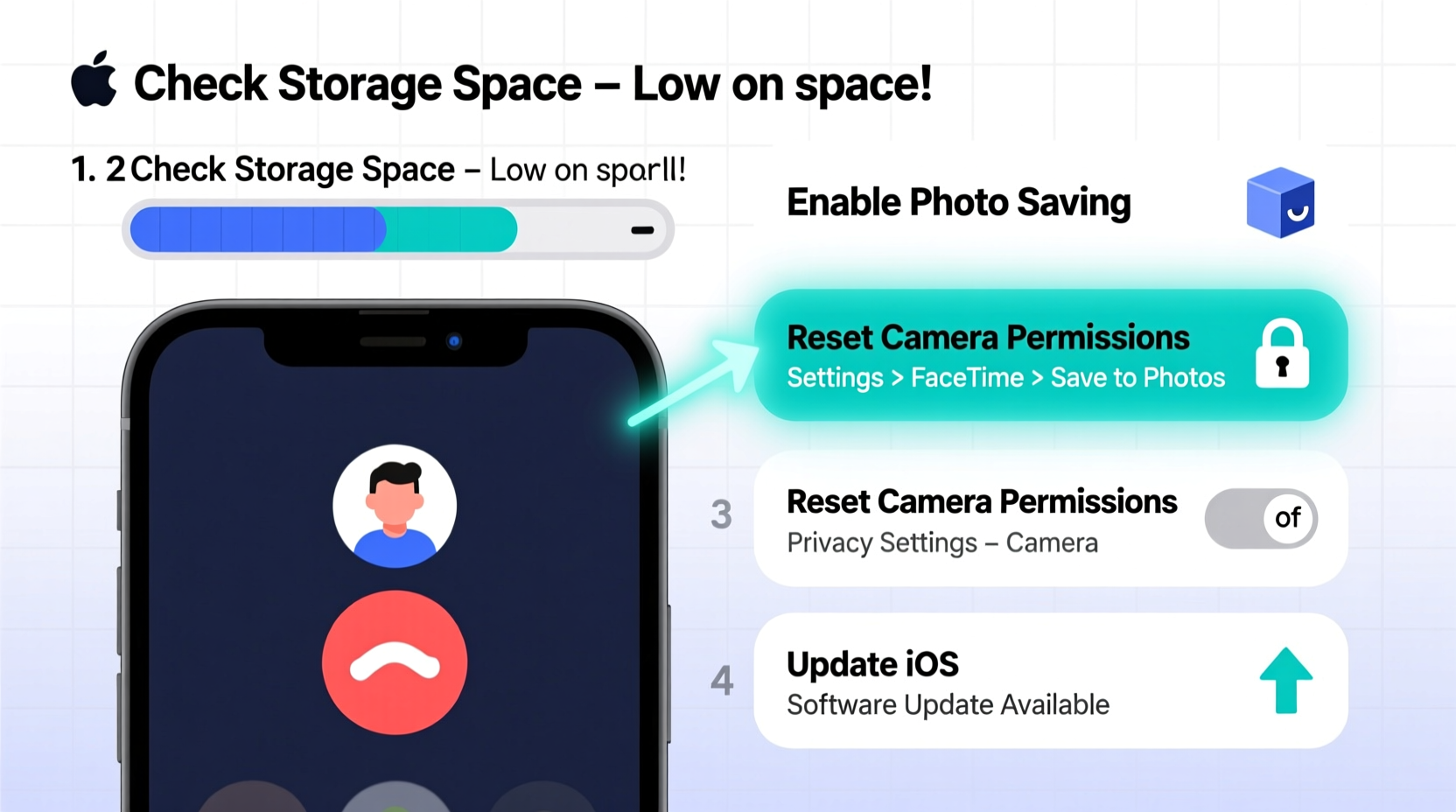
The “Take Photo” function in FaceTime is designed to capture still images directly from a live video call. Unlike screen recordings or regular screenshots, these photos are processed differently by iOS and stored within the Photos app—provided everything is functioning correctly. When they don’t save, the root cause typically falls into one of several categories:
- iCloud Photos syncing issues
- Insufficient device storage
- Disabled photo permissions for FaceTime
- Software bugs in older iOS versions
- User misunderstanding about where photos are saved
Understanding which factor applies to your situation is key to resolving the problem efficiently.
Step-by-Step Guide to Fix FaceTime Photos Not Saving
Follow this structured troubleshooting process to identify and resolve the issue:
- Verify iCloud Photos Settings
Go to Settings > [Your Name] > iCloud > Photos. If \"iCloud Photos\" is enabled, ensure your device has a stable internet connection. A paused or failed sync may delay photo appearance. Disable and re-enable the setting if needed. - Check Available Storage
Navigate to Settings > General > iPhone Storage. If your device is nearly full, iOS may prevent new media from being written. Delete unused apps, old messages, or offload large videos to free up space. - Confirm FaceTime Photo Permissions
Open Settings > FaceTime, then scroll down and tap Photos. Ensure FaceTime has permission to \"Add Photos\" or \"Read and Write.\" If set to \"None,\" it cannot save images. - Restart Your Device
A simple reboot clears temporary system caches that might interfere with background processes like photo saving. Hold the power button (and volume button on newer models), slide to power off, wait 30 seconds, then restart. - Update iOS to the Latest Version
Bugs affecting FaceTime photo capture have been patched in recent updates. Check for updates under Settings > General > Software Update. Install any available version, especially if you're running iOS 15 or earlier. - Test FaceTime Photo Capture
Start a test call with a friend or family member. Tap the camera icon during the call. Wait a few moments after ending the call, then open the Photos app and search for “Screenshots” or browse the “Recents” album.
Do’s and Don’ts: Managing FaceTime Photo Capture
| Do’s | Don’ts |
|---|---|
| Enable iCloud Photos with enough storage | Ignore low storage warnings |
| Grant FaceTime full photo access | Assume the photo was taken instantly without checking later |
| Use Wi-Fi during long calls for better stability | Disable background app refresh for Photos |
| Regularly back up your device | Store sensitive FaceTime photos without encryption or passcode protection |
Real Example: How Sarah Fixed Her Missing FaceTime Photos
Sarah, a remote worker based in Portland, frequently uses FaceTime to connect with her elderly mother. During one call, she took a photo of her mom smiling but couldn’t find it afterward. She checked her gallery multiple times over two days, growing increasingly frustrated.
After reading online forums, she realized her iCloud Photos was turned on, but her iPhone had only 200MB of storage left. She deleted an old podcast app and cleared her browser cache, freeing up 3GB. Upon restarting her phone, the previously missing FaceTime photo appeared in her Recents album—synced late due to storage constraints.
This case illustrates how limited storage can delay or block photo saves—even when features seem enabled.
“We’ve seen a spike in FaceTime-related photo issues tied to iCloud sync bottlenecks, especially on devices near capacity.” — Jordan Lee, Apple Support Technician, Bay Area Regional Hub
Troubleshooting Checklist
- ✅ Confirm FaceTime has photo write permissions
- ✅ Ensure iCloud Photos is enabled and synced
- ✅ Verify at least 1GB of free storage
- ✅ Reboot your iPhone or iPad
- ✅ Update to the latest iOS version
- ✅ Test photo capture during a new FaceTime call
- ✅ Search 'Screenshots' album or Recently Deleted folder
Frequently Asked Questions
Are FaceTime photos saved automatically?
Yes, when you tap the camera icon during a FaceTime call, the photo should be automatically saved to your device’s Photos app—specifically in the Recents or Screenshots album. It does not require manual confirmation, but saving may be delayed if iCloud syncing is active and slow.
Can I recover a FaceTime photo that didn’t save?
If the system failed to save the image, recovery isn’t possible because no file was created. However, if the photo was saved but later deleted, check the Recently Deleted album in the Photos app. Items remain there for 30 days before permanent removal unless restored manually.
Does taking a photo during FaceTime notify the other person?
No, iOS does not send a notification to the other participant when you take a photo during a FaceTime call. While ethical considerations suggest informing others, especially in private conversations, Apple does not include a built-in alert mechanism for this action.
Expert Tips for Preventing Future Issues
To avoid recurring problems with unsaved FaceTime photos, adopt these best practices:
- Maintain at least 10% free storage – This ensures iOS has room for temporary files and background operations.
- Use local backups regularly – Even with iCloud enabled, periodic iTunes or Finder backups protect against data loss from sync errors.
- Monitor app permissions quarterly – System updates sometimes reset permissions. Review them under Settings > Privacy & Security > Photos.
- Avoid third-party tweaks or jailbreaking – These modifications can interfere with native iOS functions, including FaceTime and photo management.
Additionally, consider disabling Low Power Mode during important calls. While it conserves battery, it may throttle background services responsible for saving media.
Conclusion: Take Control of Your FaceTime Experience
FaceTime photos not saving is a frustrating but often solvable issue. By systematically checking permissions, storage, software updates, and sync settings, most users can restore normal functionality quickly. The key is understanding that the photo capture depends on multiple interconnected systems—Photos access, iCloud, available space, and OS stability—all of which must align for seamless operation.




 浙公网安备
33010002000092号
浙公网安备
33010002000092号 浙B2-20120091-4
Comments
No comments yet. Why don't you start the discussion?