
If you've ever started a FaceTime call only to find that the other person’s photo or video isn’t loading, you’re not alone. This issue affects countless iPhone and iPad users across iOS versions and device models. While frustrating, most causes are simple to diagnose and resolve. Whether it's a software glitch, privacy setting, network issue, or hardware malfunction, understanding the root cause is the first step toward restoring smooth FaceTime functionality.
This guide walks through the most common reasons FaceTime photos don’t appear—and provides actionable solutions to get your calls back on track.
Why FaceTime Photos Fail to Appear
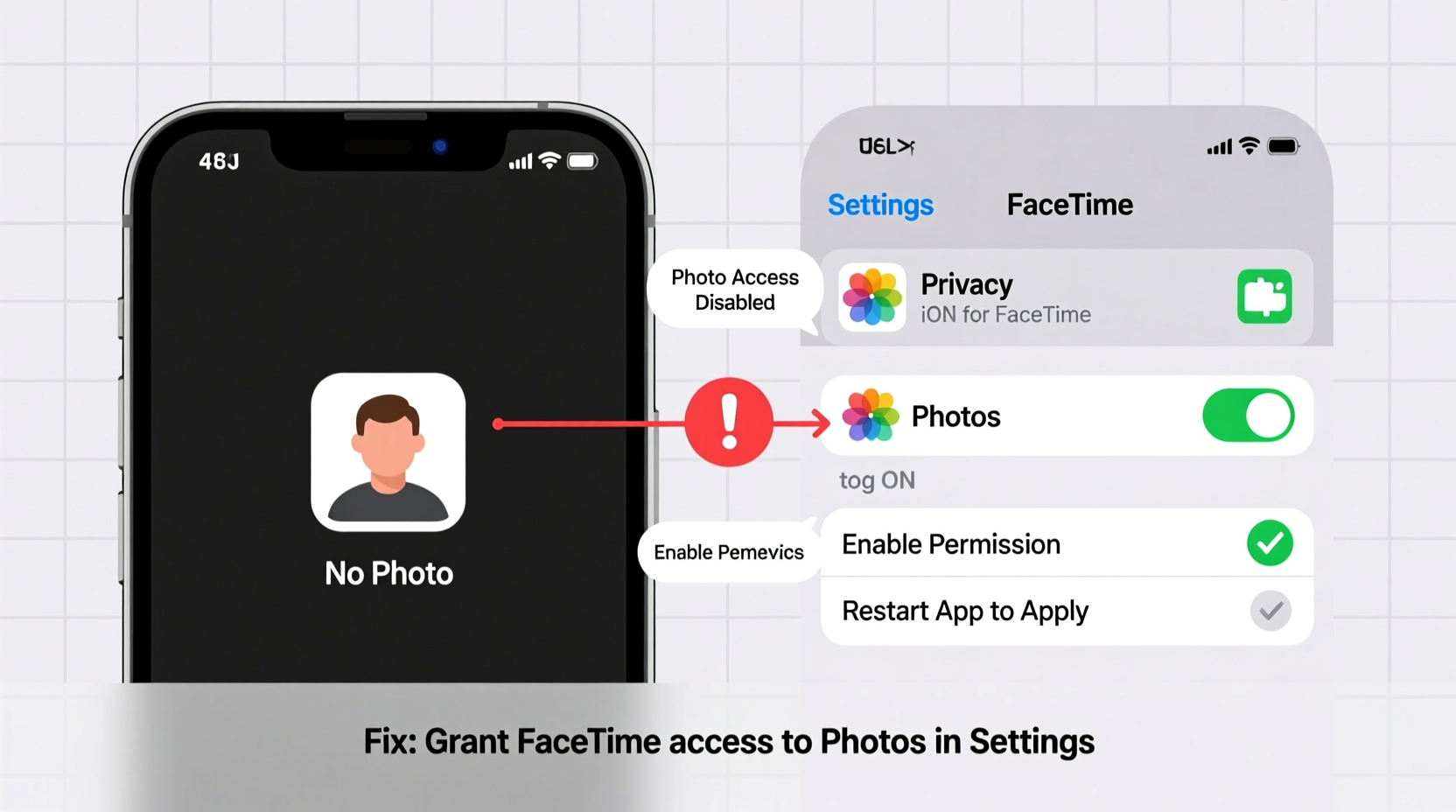
FaceTime relies on a combination of hardware, software, internet connectivity, and permissions to display live video. When any one of these components fails, the result is often a blank screen, a frozen image, or no incoming video at all. Common culprits include:
- Disabled camera access in settings
- Poor Wi-Fi or cellular connection
- Outdated iOS version
- Blocked or restricted contacts
- Hardware issues with the front-facing camera
- iCloud sign-in problems
Before jumping into complex fixes, start by identifying whether the problem is on your end, the recipient’s, or mutual.
Step-by-Step Troubleshooting Guide
Follow this logical sequence to isolate and fix the issue efficiently.
- Check Network Connection
Weak or unstable internet is the most frequent cause. Ensure both parties have a stable Wi-Fi or cellular signal. Try switching between networks or restarting the router. - Restart the Device
A simple reboot clears temporary glitches. Press and hold the side button and either volume key until the power slider appears. Slide to power off, wait 30 seconds, then turn it back on. - Verify Camera Functionality
Open the Camera app and switch to the front-facing lens. If the preview is black, frozen, or shows an error, the camera may be blocked or damaged. - Ensure FaceTime Is Enabled
Go to Settings > FaceTime and confirm the toggle is green. If disabled, enable it and wait a few moments for activation. - Grant Camera Permissions
Navigate to Settings > Privacy & Security > Camera. Make sure FaceTime has permission to access the camera. If not, toggle it on. - Sign Out and Back Into iCloud
FaceTime uses your Apple ID. Go to Settings > [Your Name] > Sign Out, then sign in again. This refreshes your account services.
Do’s and Don’ts: Handling FaceTime Video Issues
| Do’s | Don’ts |
|---|---|
| ✅ Restart your device regularly | ❌ Ignore persistent camera errors |
| ✅ Check for iOS updates monthly | ❌ Use third-party apps to \"fix\" FaceTime |
| ✅ Test FaceTime with multiple contacts | ❌ Cover the front camera during calls |
| ✅ Keep your lens clean and unobstructed | ❌ Disable essential permissions like camera access |
Real Example: When a Software Update Fixed the Problem
Sarah, a freelance designer from Portland, noticed her clients couldn’t see her during FaceTime consultations. Her screen showed only a gray placeholder. She tried restarting her iPad, checking Wi-Fi, and even reinstalled apps—but nothing worked. After contacting Apple Support, she learned her iPad was running iOS 15.3, while the latest update was 15.7.1. The older version had a known bug affecting FaceTime camera initialization.
After updating to the latest iOS version, Sarah’s camera worked instantly. Her case highlights how seemingly complex issues can stem from outdated software—a fix that takes less than 15 minutes.
“Over 60% of FaceTime video issues reported to our support team are resolved with a software update or permission reset.” — Jordan Lee, Apple Authorized Service Technician
Advanced Fixes for Persistent Problems
If basic steps fail, consider deeper system-level adjustments.
Reset All Settings
This restores system preferences (like network and privacy settings) without deleting personal data. Go to Settings > General > Transfer or Reset iPhone > Reset > Reset All Settings. You’ll need to re-enter Wi-Fi passwords and reconfigure some options, but it often resolves hidden configuration conflicts.
Check for Screen Time Restrictions
If Screen Time is enabled with content restrictions, it may block camera use. Navigate to Settings > Screen Time > Content & Privacy Restrictions > Allowed Apps. Ensure Camera and FaceTime are enabled.
Test with Another Apple ID
Create a temporary Apple ID on the device and try FaceTime with it. If video works, the issue is tied to your primary account—possibly due to sync errors or iCloud corruption.
When Hardware Might Be the Issue
If every software fix fails and the front camera doesn’t work in any app—not just FaceTime—the problem could be physical. Signs of hardware failure include:
- A black screen even in the Camera app
- Visible damage near the camera lens
- Faulty camera switching (front to rear)
- Error messages like “Camera Unavailable”
In such cases, visit an Apple Store or authorized repair center. Do not attempt DIY repairs, as this may void warranty coverage.
FAQ: Common Questions About FaceTime Photo Issues
Why does FaceTime show a still photo instead of live video?
This usually happens when the call starts as a picture message before transitioning to video. Some older devices or weak connections default to sending a static image. Once the connection stabilizes, tap the screen to resume live video—or restart the call.
Can someone block my FaceTime camera without telling me?
No. The other party cannot disable your camera remotely. However, they can choose not to turn on their own video. If your camera isn’t working, the issue is local to your device or network.
Does low storage affect FaceTime performance?
Indirectly, yes. When your device is nearly full, background processes—including camera buffering and video encoding—can slow down or fail. Free up space by deleting unused apps, photos, or messages to improve overall responsiveness.
Prevent Future Issues: Best Practices
Maintaining reliable FaceTime performance requires ongoing care. Follow these habits to minimize disruptions:
- Update iOS promptly – Enable automatic updates under Settings > General > Software Update.
- Clean the camera lens weekly – Use a microfiber cloth to remove smudges or dust.
- Monitor app permissions – Periodically check that critical apps have necessary access.
- Use FaceTime in well-lit environments – Low light can cause blurry or dark video, making it appear broken.
“Think of FaceTime like any communication tool—it needs maintenance. Just like you’d charge your phone, you should also maintain its software health.” — Dr. Lisa Tran, Digital Communication Specialist
Conclusion: Restore Clarity to Your Calls
FaceTime is more than just a calling app—it’s a vital link to family, colleagues, and friends. When photos or video fail to load, it disrupts connection and trust in the technology we rely on daily. The good news is that most issues are fixable with a methodical approach. From checking permissions to updating software, the solutions are within reach of every user.
Start with the simplest fixes—restart your device, verify your internet, and ensure camera access. Work your way through the steps outlined here, and chances are high you’ll restore full functionality quickly. And if hardware is truly at fault, knowing when to seek professional help saves time and frustration.




 浙公网安备
33010002000092号
浙公网安备
33010002000092号 浙B2-20120091-4
Comments
No comments yet. Why don't you start the discussion?