
Apple’s Find My Friends app has long been a trusted tool for staying connected with family, friends, and colleagues by sharing real-time locations. However, many users report frustration when the app fails to update someone’s location—showing “No Location Found,” “Location Not Available,” or outdated data. This issue can stem from device settings, network problems, or user permissions. Understanding the root causes and applying targeted solutions ensures seamless location sharing.
Why Find My Friends Fails to Update Location
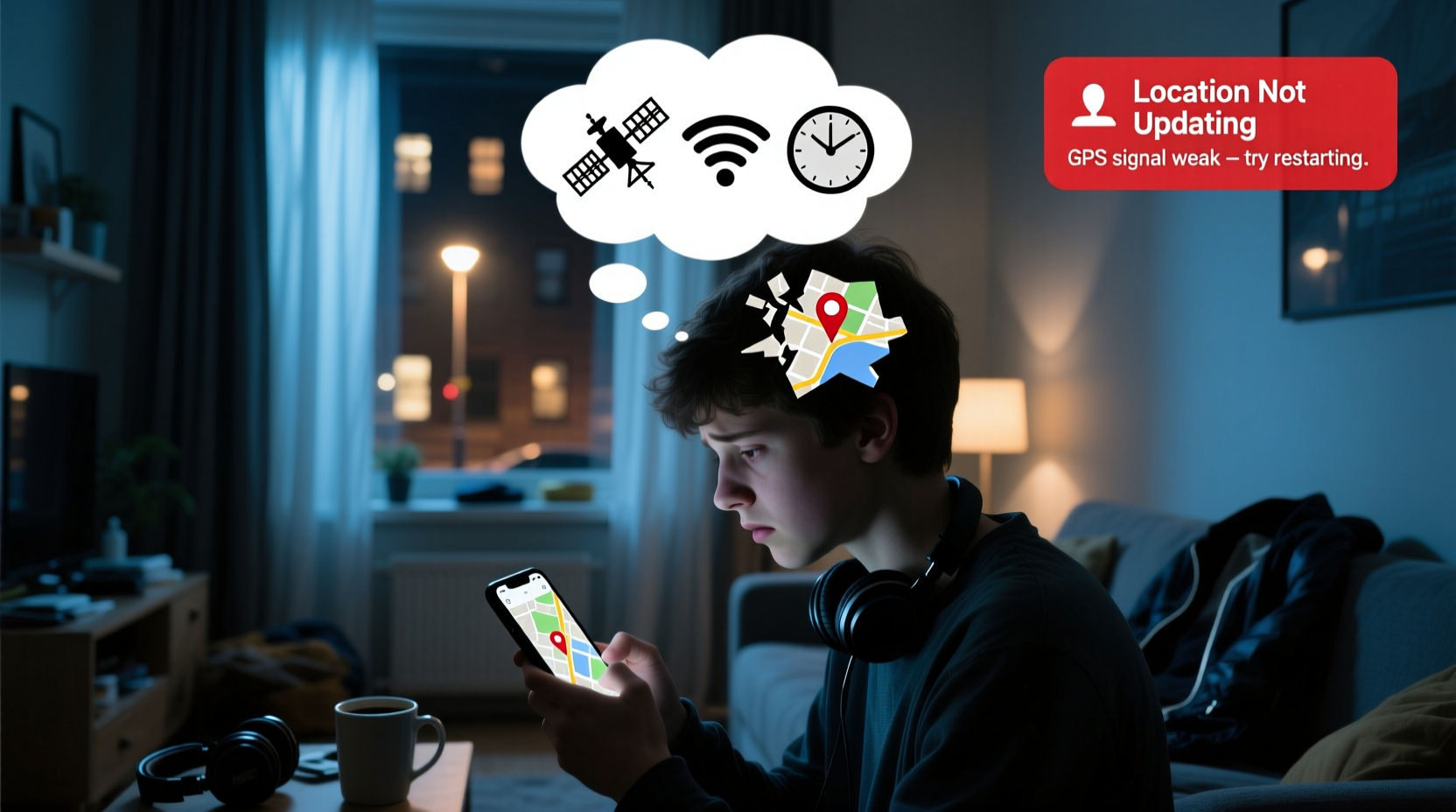
The most frequent reason for delayed or missing location updates is misconfigured privacy or location services settings. Apple prioritizes user privacy, meaning location sharing is never automatic—it must be explicitly enabled and maintained. When location data doesn’t refresh, it’s usually because one party has disabled sharing, lost connectivity, or restricted background app activity.
Other contributing factors include software bugs, low battery mode, or hardware limitations on older devices. Unlike third-party apps that may force background tracking, Apple’s ecosystem respects user control, which means interruptions are more likely but also more fixable through proper configuration.
Common Causes and How to Diagnose Them
Before attempting fixes, identify whether the problem lies with your device, the other person’s device, or mutual settings. Below is a breakdown of the most prevalent issues:
- Inactive Location Sharing: The contact may have paused or stopped sharing their location.
- Disabled Location Services: GPS or location access might be turned off on the friend’s device.
- Low Power Mode: This setting disables background app refresh, preventing location updates.
- No Internet Connection: Without Wi-Fi or cellular data, location cannot be transmitted.
- Outdated iOS Version: Older software may lack critical bug fixes for Find My functionality.
- Background App Refresh Disabled: Prevents the app from updating when not in use.
- Incorrect Date & Time Settings: Can interfere with iCloud syncing and location accuracy.
“Location sharing depends on a chain of settings—from GPS to iCloud to network access. Break one link, and the whole system fails.” — James Lin, iOS Systems Analyst
Step-by-Step Guide to Fix Location Updates
Follow this systematic approach to resolve the issue efficiently:
- Verify Location Sharing Status
Open the Find My app > Tap \"People\" > Check if the contact is still sharing their location. If not, request a new share invitation. - Confirm Your Own Settings
Go to Settings > Privacy > Location Services > Ensure it's enabled. Then scroll to \"Find My\" and set it to \"While Using the App\" or \"Always.\" - Check the Friend’s Device
Ask them to confirm:- Find My is enabled (Settings > [Name] > Find My > Find My iPhone)
- Location Services is on (Settings > Privacy > Location Services)
- They haven’t paused sharing (in Find My app under People)
- Disable Low Power Mode
On both devices, go to Settings > Battery and turn off Low Power Mode. This restores background processes essential for live updates. - Enable Background App Refresh
Navigate to Settings > General > Background App Refresh > Ensure it’s on and that Find My is allowed. - Ensure Accurate Date & Time
Go to Settings > General > Date & Time > Enable “Set Automatically.” Incorrect time disrupts iCloud sync. - Restart the Device
A simple reboot clears temporary glitches affecting GPS or network modules. - Update iOS
Install the latest iOS version via Settings > General > Software Update to patch known bugs.
Troubleshooting Table: Do’s and Don’ts
| Action | Do | Don’t |
|---|---|---|
| Location Settings | Set Find My to “Always” for accurate tracking | Use “Never” or disable Location Services entirely |
| Battery Mode | Turn off Low Power Mode during active sharing | Keep Low Power Mode on for extended periods while sharing |
| Network | Use Wi-Fi or strong cellular signal | Rely on spotty or no connection |
| Software | Keep iOS updated to the latest stable version | Ignore software update notifications |
| Sharing Duration | Select “Share Indefinitely” for continuous updates | Choose “For One Hour” or “Until End of Day” unintentionally |
Real-World Example: Family Tracking During Travel
Sarah planned a weekend trip with her parents and used Find My to monitor their arrival. As they neared the destination, her mother’s location froze two hours outside the city. Sarah first checked her own settings—everything was correct. She then called her mom and guided her through the troubleshooting steps. Her mother had unknowingly enabled Low Power Mode after her battery dropped below 20%. Once disabled, and after restarting the phone, the location refreshed within minutes. The incident highlighted how easily a single setting can disrupt the entire experience—even among tech-savvy users.
Essential Checklist for Reliable Location Sharing
To prevent future issues, use this checklist regularly—especially before relying on location tracking for coordination:
- ✅ Both parties have Find My enabled in iCloud settings
- ✅ Location Services is ON and set to “Always” for Find My
- ✅ Background App Refresh is enabled for Find My
- ✅ Low Power Mode is OFF
- ✅ Date & Time is set to “Set Automatically”
- ✅ Device is connected to Wi-Fi or cellular data
- ✅ iOS is up to date (iOS 15 or later recommended)
- ✅ Location sharing is set to “Share Indefinitely”
Frequently Asked Questions
Why does Find My Friends say “Location Not Available”?
This message appears when the person’s device is powered off, out of range, offline, or if they’ve stopped sharing their location. It can also occur if Location Services is disabled or if the Find My app isn’t permitted to run in the background.
Can someone see if I check their location?
No. Apple does not notify users when you view their shared location. However, they will know you have access if they review their list of people they’re sharing with.
How often does Find My update location?
Updates occur in real time when both devices are online and properly configured. Delays happen due to poor connectivity, power-saving modes, or infrequent device movement. Under optimal conditions, updates are nearly instantaneous.
Conclusion
When Find My Friends stops updating location, the solution is rarely complex—but it requires attention to detail across multiple settings. From disabling Low Power Mode to confirming background app permissions, each step plays a role in maintaining reliable tracking. By understanding the interplay between privacy controls, network access, and device health, users regain confidence in one of Apple’s most useful features. Don’t wait for a missed meetup or safety concern to act—audit your settings today and keep connections live and accurate.




 浙公网安备
33010002000092号
浙公网安备
33010002000092号 浙B2-20120091-4
Comments
No comments yet. Why don't you start the discussion?