
When “Find My Location” fails, it can disrupt everything from navigation to safety checks. Whether you're using Apple’s Find My app or Google’s equivalent on Android, inaccurate or missing location data is frustrating—especially in emergencies. The good news: most issues are fixable with targeted troubleshooting. This guide walks through the most effective solutions, explains why problems occur, and helps you regain reliable location access across devices.
Why Location Services Fail
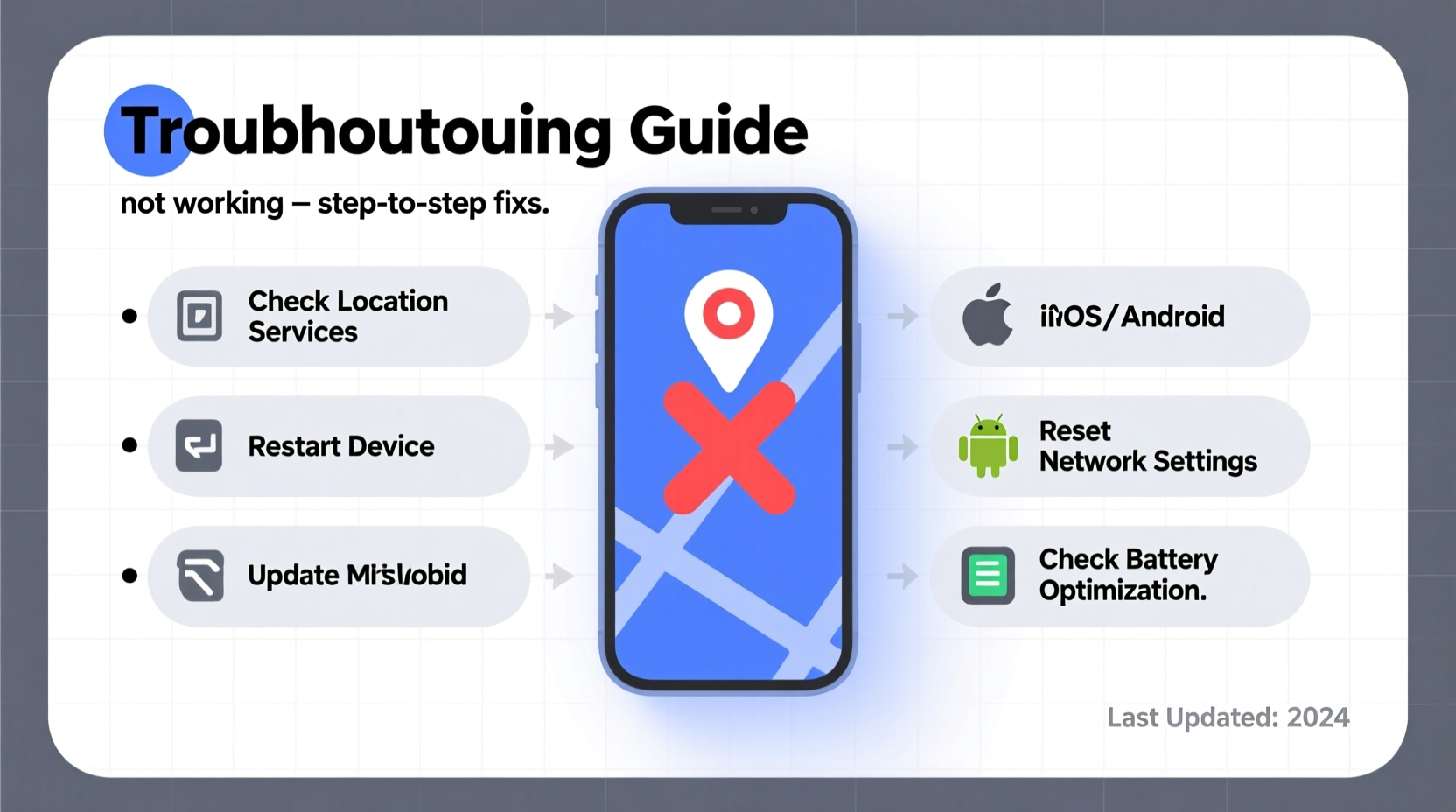
Location services rely on a combination of GPS, Wi-Fi, Bluetooth, and cellular signals. When any part of this system malfunctions, your device may fail to report its position accurately—or at all. Common causes include software bugs, disabled permissions, outdated operating systems, hardware limitations, or interference from settings like Low Power Mode.
Apple and Google both prioritize user privacy, which means location access must be explicitly granted per app. If permissions were denied or reset during an update, apps like Maps or Find My won’t function correctly. Additionally, physical obstructions (like thick walls or tunnels) and poor satellite visibility can temporarily impair GPS accuracy.
“Over 70% of location service issues stem from misconfigured settings rather than hardware failure.” — David Lin, Mobile Systems Engineer at TechInsight Labs
Step-by-Step Troubleshooting Guide
Follow this logical sequence to identify and resolve the root cause of your location problems. Start with basic checks before moving to advanced fixes.
- Check if Location Services Are Enabled
On iPhone: Go to Settings > Privacy & Security > Location Services. Ensure it’s turned on.
On Android: Open Settings > Location. Toggle on “Use Location.” - Verify App Permissions
Make sure the specific app (e.g., Find My, Google Maps) has permission to access your location.
iPhone: Settings > Privacy & Security > Location Services > [App Name] > Set to “While Using” or “Always.”
Android: Settings > Apps > [App Name] > Permissions > Location > Allow. - Restart Your Device
A simple reboot clears temporary glitches affecting GPS modules and network stacks. - Check Date & Time Settings
Incorrect time zones or manual time entries interfere with location authentication.
Enable “Set Automatically” under Settings > General > Date & Time (iOS) or Settings > System > Date & Time (Android). - Toggle Airplane Mode On/Off
This resets all wireless connections, including GPS and cellular radios. - Reset Network Settings
Warning: This erases saved Wi-Fi passwords and Bluetooth pairings.
iOS: Settings > General > Transfer or Reset iPhone > Reset > Reset Network Settings.
Android: Settings > System > Reset Options > Reset Wi-Fi, mobile & Bluetooth.
Advanced Fixes for Persistent Issues
If basic steps don’t resolve the problem, deeper intervention may be needed.
Update Your Operating System
Outdated software often contains bugs that affect location accuracy. Check for updates:
- iOS: Settings > General > Software Update
- Android: Settings > System > System Update
Calibrate the Compass and GPS
On iPhones, open the Compass app and move your phone in a figure-eight motion. This recalibrates internal sensors. For Android, download a free GPS Status & Toolbox app from the Play Store and use its “Manage A-GPS State” feature to reset and re-download satellite data.
Sign Out and Back Into Your Account
For Apple users: If Find My isn’t showing your device, sign out of iCloud and back in:
Settings > [Your Name] > Sign Out (ensure you know your password). Restart, then sign back in.
Android users: Remove and re-add your Google account under Settings > Accounts.
Test in a Different Environment
Sometimes signal obstruction is the culprit. Move outdoors, away from tall buildings or underground areas, and test again. GPS requires line-of-sight to multiple satellites; indoor use often defaults to less accurate Wi-Fi triangulation.
Do’s and Don’ts: Location Troubleshooting Table
| Action | Do | Don't |
|---|---|---|
| Location Access | Enable for essential apps like Maps and Find My | Disable globally unless troubleshooting |
| System Updates | Install promptly to fix known bugs | Ignore updates for months |
| Network Reset | Use after failed connection attempts | Perform daily without cause |
| Battery Saver Mode | Use when needed but disable for navigation | Leave on permanently—it restricts background location |
| Third-Party Apps | Use trusted tools like GPS Test or Network Cell Info Lite | Install unknown \"GPS booster\" apps—they don’t work |
Real-World Example: Lost Phone Recovery Restored
Sarah, a college student in Seattle, misplaced her iPhone at a coffee shop. She opened Find My from a friend’s phone but saw only a gray dot labeled “No Location Found.” Panicked, she tried calling, but it went straight to voicemail.
Instead of giving up, she followed a structured approach: first confirming Location Services were on, then restarting her iCloud account. When that didn’t work, she toggled Airplane Mode and waited two minutes. Upon disabling it, her phone suddenly appeared on the map—still inside the café, two blocks away. Staff had turned it off and placed it behind the counter.
The key was persistence and methodical troubleshooting. One step alone wouldn’t have worked, but combining them restored connectivity.
Troubleshooting Checklist
- Ensure Location Services are enabled
- Confirm app-specific location permissions
- Restart your device
- Enable automatic date and time
- Toggle Airplane Mode off and on
- Check for OS updates
- Reset network settings (if necessary)
- Move to an open outdoor area
- Verify internet connection (Wi-Fi or cellular)
- Sign out and back into your Apple ID or Google account
Frequently Asked Questions
Why does Find My show “Location Unavailable” even though my phone is on?
This usually means the device has no active internet connection, Location Services are disabled, or the battery is dead. It can also happen if the phone is in Airplane Mode or inside a Faraday bag (signal-blocking case).
Can someone turn off Find My remotely?
No. Disabling Find My requires physical access to the device and entry of the Apple ID password (on iOS). On Android, removing the Google account or factory resetting the device will disable Find My Device—but both actions trigger warnings and require authentication.
Does low battery affect location tracking?
Yes. When battery drops below 20%, many phones limit background activity, including location pings. Some enter Low Power Mode automatically, which restricts GPS usage to conserve energy. Once charged, the device typically resumes normal operation.
Conclusion: Regain Control Over Your Digital Location
“Find My Location not working” is a common but solvable issue. By understanding how location services operate and following systematic fixes, you can restore functionality in most cases. Don’t jump to conclusions about hardware damage—start with settings, permissions, and connectivity. Most failures are temporary and rooted in software or configuration.
Keep your operating system updated, maintain proper permissions, and test your setup periodically. These habits ensure you’re never left stranded when you need location access most.




 浙公网安备
33010002000092号
浙公网安备
33010002000092号 浙B2-20120091-4
Comments
No comments yet. Why don't you start the discussion?