
If your Fitbit has stopped charging, you're not alone. Thousands of users encounter this issue every year—sometimes without warning. A non-charging Fitbit disrupts tracking, sleep monitoring, and heart rate data collection, turning a helpful wellness companion into a silent paperweight. The good news is that most charging problems stem from simple, fixable causes. From dirty connectors to firmware glitches, understanding the root cause can save time, money, and frustration.
This guide walks through the most common reasons why a Fitbit won’t charge, offers step-by-step fixes, and shares real-world insights from users and technicians alike. Whether you own a Fitbit Charge, Versa, Sense, or Inspire series, these solutions apply across models.
Common Causes of Fitbit Charging Failure
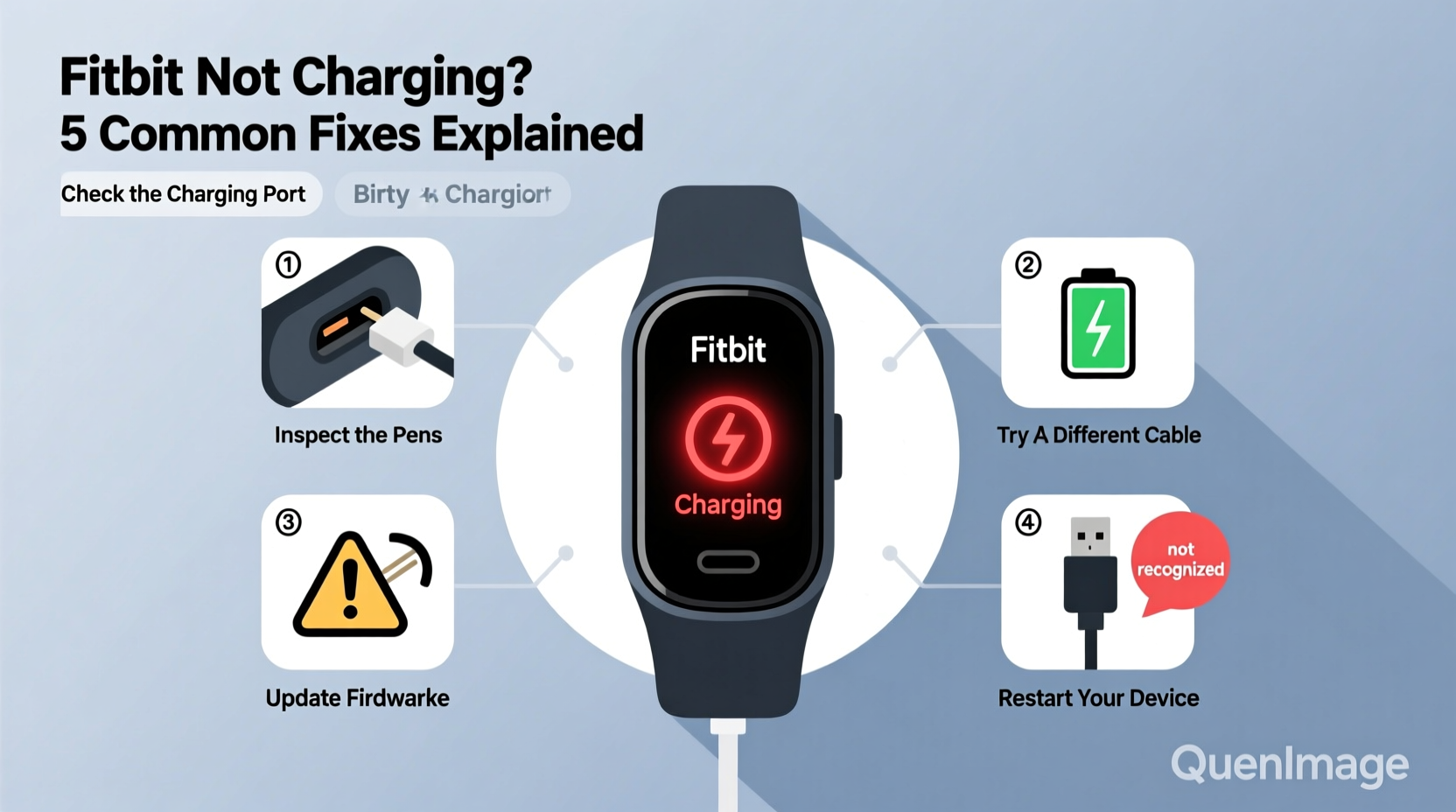
Before diving into fixes, it’s essential to understand what might be going wrong. While Fitbits are built for durability, their compact design makes them sensitive to environmental factors and wear over time. The following are the most frequent culprits behind charging failures:
- Dirt, sweat, or moisture buildup on charging contacts
- Faulty or worn-out charging cable/adapter
- Software or firmware glitches preventing power recognition
- Battery degradation due to age or overcharging
- Incompatible or third-party chargers
- Loose connection between tracker and charger
Identifying which factor applies to your situation is the first step toward resolution.
Step-by-Step Troubleshooting Guide
Follow this systematic approach to diagnose and resolve your Fitbit charging issue. Start at the beginning—even seemingly minor oversights can prevent successful charging.
- Inspect the Charging Contacts: Examine both the pins on the back of your Fitbit and the metal connectors on the charger. Look for grime, corrosion, or residue. Use a dry cotton swab or soft cloth to gently clean the surfaces. Avoid liquids unless absolutely necessary—dampen a swab slightly with rubbing alcohol, then let all parts dry completely before reconnecting.
- Ensure Proper Alignment: Fitbit devices require precise contact with the charger. Place the tracker firmly onto the magnetic clips until it snaps into place. For devices like the Charge series, ensure the charging port (located under the rubber flap) aligns perfectly with the prongs.
- Use the Correct Power Source: Plug the charging cable into a high-quality USB wall adapter—not a computer port or car charger, which may provide inconsistent voltage. Test multiple outlets to rule out power supply issues.
- Try a Different Cable or Adapter: Even if your current cable looks fine, internal damage can occur. If possible, test with an original Fitbit replacement cable. Third-party cables often fail due to substandard materials or lack of proper voltage regulation.
- Force Restart the Device: Sometimes, a frozen system prevents charging detection. To restart:
- Charge/Inspire series: Press and hold the button for 10–15 seconds until the screen flashes or vibrates.
- Versa/Sense series: Hold the left-bottom button and the top-right button simultaneously for 12 seconds.
- Check for Firmware Updates: After rebooting, connect to the Fitbit app. If the device powers on but still won't charge, check for pending updates. Outdated software can interfere with battery management.
- Leave It Charging Overnight: If the battery is fully drained, it may take up to 30 minutes before any sign of life appears. Let it sit connected for several hours—even overnight—to see if a slow trickle charge begins.
Do’s and Don’ts When Charging Your Fitbit
Avoid making small mistakes that lead to long-term damage. This table outlines best practices versus harmful habits:
| Do’s | Don’ts |
|---|---|
| Clean charging contacts monthly with a dry cloth | Use wet wipes or liquid cleaners directly on the device |
| Charge using the original Fitbit-certified cable | Plug into low-power sources like laptops or power banks |
| Store the device in a ventilated area after workouts | Leave the tracker in direct sunlight or hot cars |
| Replace damaged cables immediately | Force the device onto the charger if alignment feels off |
| Update firmware regularly via the Fitbit app | Ignore persistent charging warnings or error messages |
Real User Case: Recovering a “Dead” Fitbit Charge 5
Sarah M., a fitness instructor from Portland, noticed her Fitbit Charge 5 wouldn’t turn on after a weekend hike. She tried multiple cables and outlets, but the screen remained black. Assuming the battery had died, she considered buying a replacement. Instead, she followed a forum-recommended method: cleaning the charging port with a toothpick wrapped in a microfiber cloth, then using compressed air to remove debris. After aligning the device carefully on a known-good charger, she left it plugged in for eight hours. The next morning, the logo appeared faintly—then gradually powered up. Within two days, full functionality returned. Sarah credits patience and proper contact cleaning for saving her device.
This case illustrates how physical obstructions—not hardware failure—are often the real issue.
“Over 70% of ‘dead’ Fitbits we receive for repair are actually suffering from poor contact hygiene or temporary software lockups.” — Jordan Lee, Senior Technician at Wearable Repair Lab, Austin TX
Troubleshooting Checklist
Use this quick-reference checklist to verify each potential fix:
- ✅ Clean charging pins and ports with a dry or alcohol-dampened swab
- ✅ Confirm secure magnetic or pin connection
- ✅ Use a wall adapter (not a computer USB port)
- ✅ Try a different charging cable (preferably original Fitbit)
- ✅ Perform a force restart based on your model
- ✅ Leave the device charging for 6–8 hours uninterrupted
- ✅ Check the Fitbit app for signs of life or update prompts
- ✅ Inspect for visible damage (cracks, water exposure, bent pins)
Frequently Asked Questions
Why does my Fitbit show no light when I plug it in?
No indicator light usually means the device isn’t receiving power. First, verify the charger is working by testing it with another Fitbit or measuring output with a multimeter. Then inspect the charging contacts for blockages. A completely drained battery may also take longer than expected to display any sign of charging—wait at least 30 minutes before concluding it's not working.
Can water damage prevent my Fitbit from charging?
Yes. Although Fitbits are water-resistant, prolonged exposure to moisture—especially saltwater or chlorinated pools—can corrode internal contacts over time. If your device was recently submerged or used during intense sweating, allow it to dry upright for 24 hours before attempting to charge. Never use heat sources like hairdryers, as they can warp components.
How long should a Fitbit battery last before needing replacement?
Most Fitbit batteries are designed to retain up to 80% capacity after 2 years of regular use. Beyond that, charging times increase and runtime decreases. If your device is older than 2–3 years and exhibits rapid drainage or refuses to hold a charge despite troubleshooting, the battery may need professional replacement—or it could be time to upgrade.
When to Seek Professional Help or Replacement
If you’ve completed all troubleshooting steps and your Fitbit still won’t charge, the issue may lie deeper—such as a failed battery, damaged circuit board, or water-induced short. At this point, consider the following options:
- Contact Fitbit Support for warranty claims (if within one year of purchase).
- Visit an authorized repair center for diagnostics.
- Evaluate whether upgrading to a newer model is more cost-effective than repair.
Note: Opening the device yourself voids any remaining warranty and risks permanent damage due to its sealed construction.
Final Thoughts: Prevent Problems Before They Happen
Prevention is far more effective than repair. Make cleaning the charging contacts part of your weekly routine, especially if you wear your Fitbit during workouts. Store the device in a dry space and avoid exposing it to extreme temperatures. Using genuine Fitbit accessories ensures compatibility and safety. Most importantly, act quickly at the first sign of charging hesitation—a small intervention today can extend your device’s life by months or even years.




 浙公网安备
33010002000092号
浙公网安备
33010002000092号 浙B2-20120091-4
Comments
No comments yet. Why don't you start the discussion?