
When your iPhone fails to appear in the Find My app with a “No Active Device” message, it can be alarming—especially if you're trying to locate a lost or misplaced device. This error suggests that Apple’s servers aren’t recognizing your iPhone as an active, trackable device, which undermines one of the core features of iOS security. The issue isn’t always a hardware failure; more often, it stems from software misconfigurations, connectivity problems, or account settings. Fortunately, most cases are fixable with methodical troubleshooting.
This guide walks through proven solutions to restore your device’s presence in Find My, ensuring you regain full access to location tracking, remote locking, and data protection features.
Understanding the 'No Active Device' Error
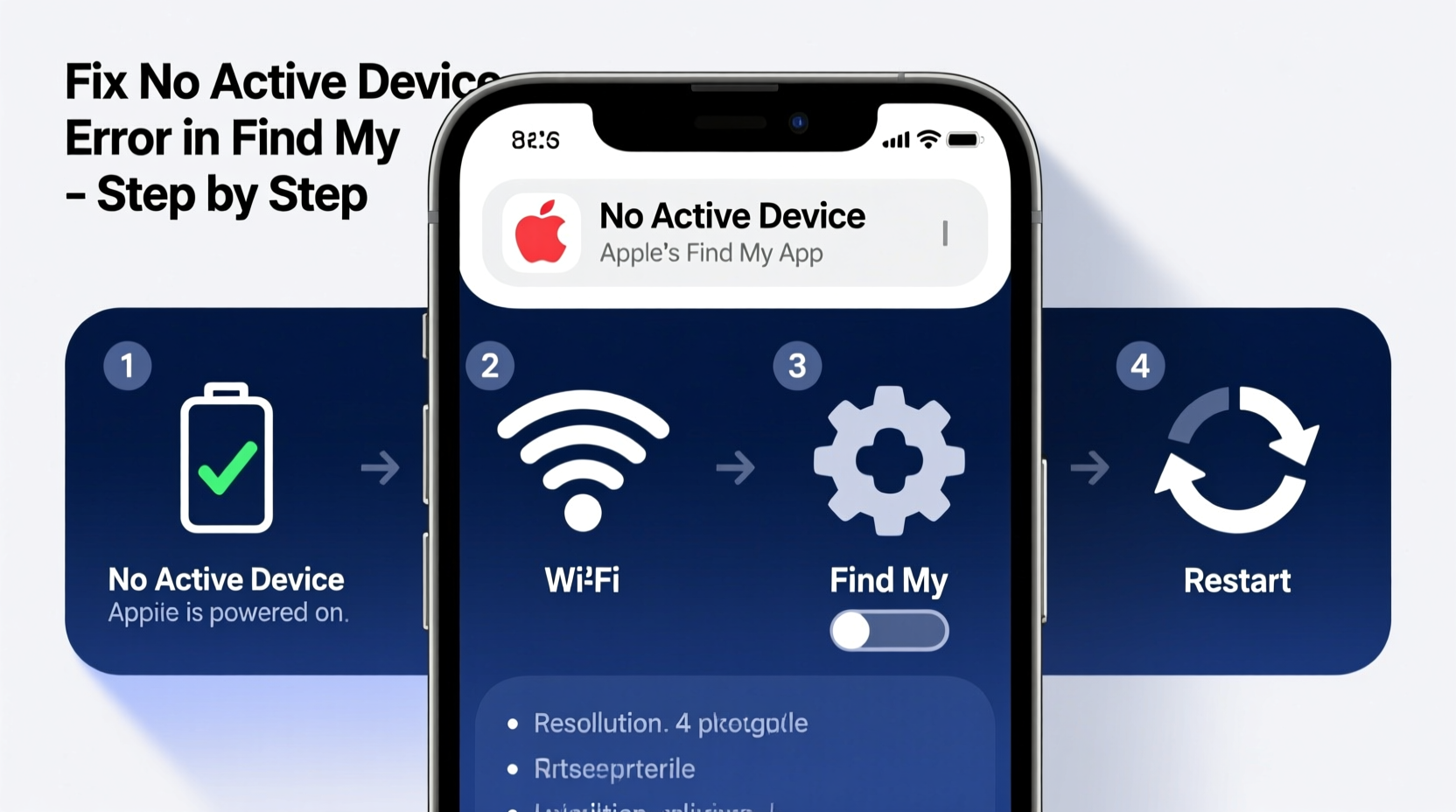
The “No Active Device” error typically appears when opening the Find My app and selecting the Devices tab. Instead of showing your iPhone, iPad, or other Apple devices, the screen displays a message indicating no devices are currently linked or active under your Apple ID for tracking.
This doesn’t necessarily mean your device is gone—it may still be functional but disconnected from iCloud services required for Find My to operate. Common causes include:
- iCloud sign-out or sync failure
- Find My setting disabled accidentally
- Poor or no internet connection
- Outdated iOS version
- Apple ID authentication issues
- Device powered off or in Lost Mode without network access
Before assuming the worst, verify whether the device is simply offline or truly missing. A device can be offline temporarily due to battery drain or poor signal but still reappear once connected.
Step-by-Step Troubleshooting Guide
Follow this structured approach to diagnose and resolve the “No Active Device” error efficiently.
- Verify Internet Connection
Ensure your iPhone has an active Wi-Fi or cellular connection. Without internet, Find My cannot report its location. Test by loading a webpage or sending a message. - Check Find My Settings
On the affected iPhone, go to:
Settings → [Your Name] → Find My → Find My iPhone
Confirm that both “Find My iPhone” and “Send Last Location” are enabled. - Sign In to iCloud
Open Settings and tap your name at the top. If you’re signed out, sign back in using your Apple ID and password. Wait a few minutes for iCloud services to sync. - Restart the Device
A simple reboot can resolve temporary glitches. Press and hold the side button and either volume button, then slide to power off. Turn it back on after 30 seconds. - Update iOS
Outdated software may prevent proper iCloud integration. Go to Settings → General → Software Update and install any available updates. - Check Another Apple Device
Open the Find My app on another iPhone, iPad, or Mac logged into the same Apple ID. Sometimes the issue is app-specific rather than device-wide. - Visit iCloud.com
Use a computer to visit iCloud.com, sign in, and click “Find iPhone.” If the device appears here but not in the app, the issue may be local to the Find My app cache.
Advanced Fixes When Basic Steps Fail
If the above steps don’t resolve the issue, consider deeper system-level checks.
Reset Network Settings
Corrupted network configurations can block iCloud connectivity. Reset them via:
Settings → General → Transfer or Reset iPhone → Reset → Reset Network Settings.
Note: This erases saved Wi-Fi passwords and Bluetooth pairings.
Re-enable Find My After Disabling
Sometimes toggling the feature resets its registration with Apple’s servers:
- Go to Settings → [Your Name] → Find My → Find My iPhone
- Turn it off, enter your Apple ID password when prompted
- Wait 10 seconds, then turn it back on
This forces the device to re-authenticate with iCloud’s location services.
Check Activation Lock Status
If the device was previously erased remotely or sold, Activation Lock might interfere. Visit activationlock.apple.com and sign in to verify if your device is still linked to your account.
“Many ‘missing’ device reports stem from users unknowingly disabling Find My before troubleshooting. Always double-check the settings menu first.” — James Lin, Apple Support Specialist
Do’s and Don’ts: Quick Reference Table
| Action | Do | Don't |
|---|---|---|
| Updating Software | Install iOS updates promptly to maintain service compatibility | Ignore update notifications for extended periods |
| Account Management | Ensure consistent Apple ID sign-in across devices | Switch Apple IDs frequently without signing out properly |
| Network Use | Use trusted Wi-Fi networks to ensure stable syncing | Rely solely on spotty public Wi-Fi for critical functions |
| Find My Settings | Enable “Send Last Location” to capture final position before shutdown | Disable Find My unless performing a factory reset |
Real-World Example: Recovering a Missing iPhone
Sophie, a freelance photographer in Portland, misplaced her iPhone after a shoot. She opened Find My on her iPad but saw “No Active Device.” Panicked, she assumed it was stolen.
Instead of giving up, she followed these steps:
- Called her number from a friend’s phone—no answer, but she heard it ringing nearby.
- Checked Settings on her iPad and noticed her Apple ID had been signed out due to a recent password change.
- She signed back in, waited five minutes, and refreshed the Find My app.
- Her iPhone appeared instantly, showing it was just two rooms away—wedged between couch cushions.
The issue wasn’t hardware failure but an unnoticed iCloud sign-out. By methodically verifying her account status, she avoided unnecessary stress and potential data loss.
Essential Checklist for Preventing Future Errors
Use this checklist monthly to maintain reliable Find My functionality:
- ✅ Confirm Find My iPhone is enabled in Settings
- ✅ Verify your Apple ID is signed in and up to date
- ✅ Ensure “Send Last Location” is turned on
- ✅ Keep iOS updated to the latest stable version
- ✅ Test Find My by pinging your device from another Apple product
- ✅ Avoid third-party tools claiming to enhance Find My—they often cause conflicts
Frequently Asked Questions
Why does Find My say \"no active device\" even though I’m holding my iPhone?
This usually means the device isn’t communicating with iCloud. Check internet connectivity, ensure Find My is enabled, and confirm you’re signed in to your Apple ID. A restart often resolves temporary sync issues.
Can I track my iPhone if it’s turned off?
Not in real time. However, if “Send Last Location” is enabled, Find My will show the last known location before shutdown. Once powered back on and connected, it will reappear.
Does resetting all settings fix the Find My error?
Resetting all settings (Settings → General → Reset → Reset All Settings) can help if misconfigured options are blocking iCloud services. It preserves data but restores system preferences to default, which may resolve hidden bugs.
Final Thoughts and Action Plan
The “No Active Device” error in Find My is frustrating but rarely permanent. Most fixes involve basic account verification, connectivity checks, and enabling the right settings. The key is staying calm and working through each possibility systematically.
Don’t wait until your phone is lost to test Find My. Proactively verify its functionality while your device is in hand. Regular maintenance prevents emergencies.




 浙公网安备
33010002000092号
浙公网安备
33010002000092号 浙B2-20120091-4
Comments
No comments yet. Why don't you start the discussion?