
The flashlight on your smartphone is more than a convenience—it’s a lifeline in emergencies, a tool for late-night navigation, and a quick aid when searching under furniture. When it suddenly stops working, the frustration can be immediate. The good news: most flashlight malfunctions are fixable without replacing your device. Whether the issue stems from a software glitch, app conflict, or physical damage, this guide walks you through every realistic step to restore functionality.
Common Causes of Flashlight Failure
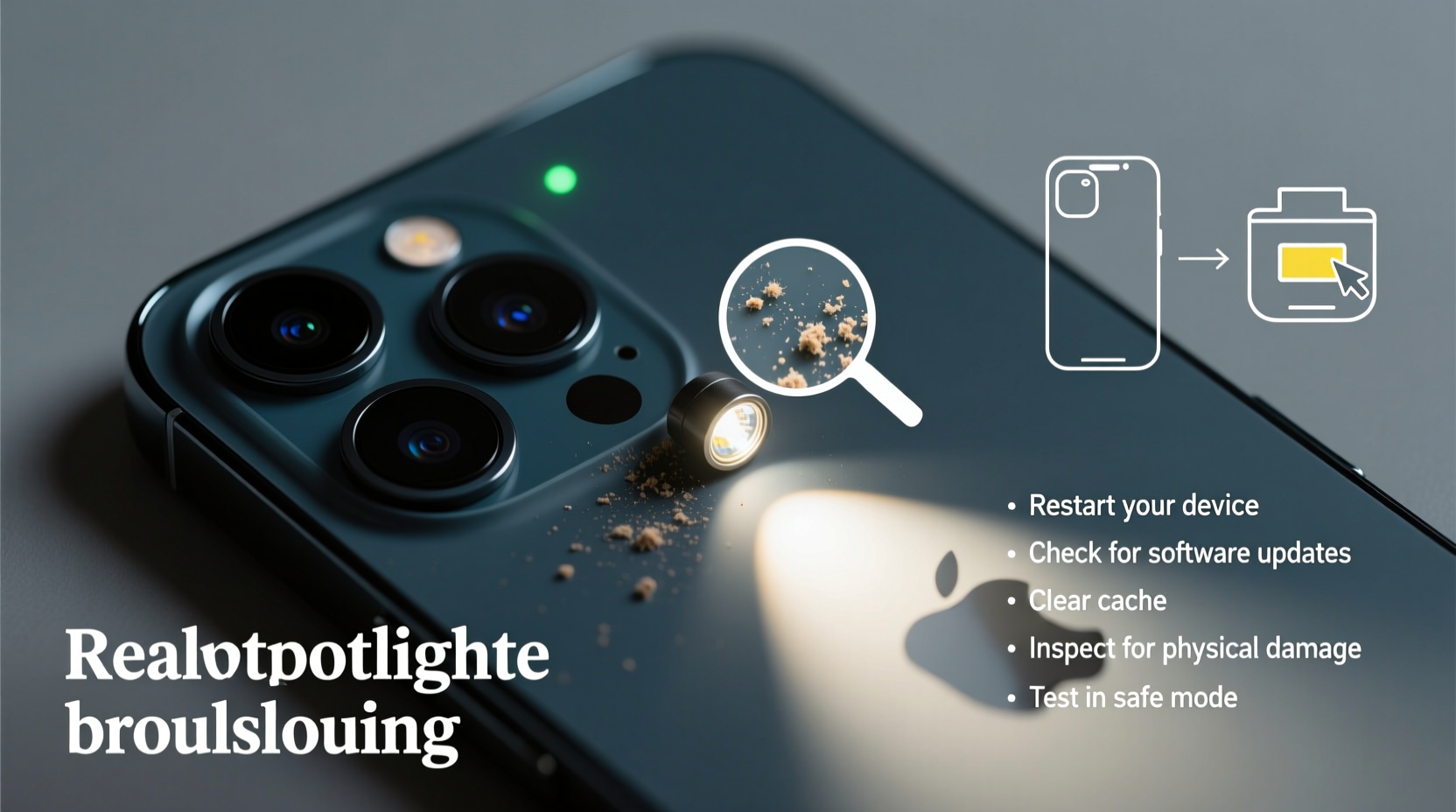
A non-functional flashlight isn’t always due to a broken LED. Many users assume hardware failure immediately, but software issues are far more common. Understanding the root cause helps determine the right fix.
- Software bugs: Operating system updates or corrupted cache files can interfere with camera-related functions.
- App conflicts: Third-party apps may restrict access to the camera or flashlight module.
- Camera permissions: If the flashlight relies on the camera API (common on Android), denied permissions can disable it.
- Overheating protection: Some phones disable flashlights when internal temperatures rise.
- Physical damage: A cracked lens, water exposure, or impact can impair the LED or its circuitry.
Step-by-Step Troubleshooting Guide
Follow this logical sequence to isolate and resolve the issue efficiently. Begin with the simplest solutions and progress to advanced diagnostics.
- Restart your phone. A reboot clears temporary memory and resets background processes that may be blocking the flashlight.
- Check for physical obstructions. Dirt, smudges, or phone case coverage over the LED can block light output.
- Test using different methods: Try turning on the flashlight via Control Center (iOS), Quick Settings (Android), voice assistant (e.g., “Hey Google, turn on flashlight”), and third-party apps.
- Update your operating system. Manufacturers often release patches that fix known bugs affecting hardware components.
- Clear camera app cache (Android): Go to Settings > Apps > Camera > Storage > Clear Cache. This removes corrupted data that might interfere with flashlight activation.
- Check app permissions: Ensure the camera app has permission to access the flashlight. On Android: Settings > Apps > Camera > Permissions > Camera (must be allowed). On iOS: Settings > Privacy & Security > Camera > ensure Camera app is enabled.
If the Flashlight Works in One App But Not Another
This indicates a permissions or compatibility issue rather than hardware failure. For example, if a third-party flashlight app works but the native one doesn’t, the built-in app may be corrupted.
“Flashlight functionality is often tied to the camera subsystem. If the camera app is malfunctioning, the flashlight will likely fail too.” — David Lin, Mobile Hardware Engineer at TechInsight Labs
Do’s and Don’ts When Fixing Flashlight Issues
| Action | Recommended? | Reason |
|---|---|---|
| Restart the phone | ✅ Yes | Resolves temporary software hangs |
| Use compressed air to clean the LED area | ✅ Yes | Safely removes dust without scratching |
| Install unknown flashlight apps | ❌ No | Potential malware or privacy risks |
| Apply excessive pressure to the back panel near the LED | ❌ No | Risk of damaging internal circuits |
| Reset all settings (iOS/Android) | ✅ Yes (if other steps fail) | Restores default configurations without erasing data |
Real-World Case: Sarah’s Sudden Flashlight Failure
Sarah, a nurse working night shifts, relied on her iPhone’s flashlight during power outages at home and while checking patient rooms. One evening, the flashlight stopped responding from the Control Center. She tried swiping up and tapping the icon repeatedly, but nothing happened.
She first restarted her phone—no change. Then she noticed a recent iOS update had installed overnight. After checking online forums, she discovered others reported similar issues post-update. She tried opening the Camera app: it froze. That was the clue. She reset her iPhone settings (Settings > General > Reset > Reset All Settings). The flashlight returned immediately. The issue wasn’t the LED; it was a misconfigured system setting after the update.
Sarah’s experience highlights why systematic troubleshooting matters. Jumping to conclusions about hardware failure could have led her to unnecessary repairs.
Advanced Fixes for Persistent Problems
If basic steps don’t work, consider these deeper interventions.
Safe Mode Test (Android)
Boot into Safe Mode to disable all third-party apps temporarily. If the flashlight works here, a downloaded app is interfering. Uninstall recently added apps one by one to identify the culprit.
Check for Overheating
Some phones disable the flashlight when internal sensors detect high temperatures. Let the device cool down for 15–20 minutes, then test again. Avoid using the flashlight continuously for more than 5 minutes on older models.
Hardware Diagnostics
Both Apple and Android manufacturers provide built-in diagnostic tools:
- iOS: Use Apple Support app > Devices > [Your iPhone] > Run Diagnostics.
- Android: Dial
*#0*#to enter the hidden test menu (works on Samsung, LG, and some others). Tap “RGB” or “Front/Rear Camera” to test flash functionality.
Factory Reset (Last Resort)
If software corruption persists, back up your data and perform a factory reset. After restoring only essential apps, test the flashlight early to see if the issue returns. This helps identify whether a specific app is causing the conflict.
When It’s Time to Seek Professional Help
If none of the above steps restore the flashlight, the issue may be hardware-related. Signs include:
- No response from any method (Control Center, apps, voice commands).
- Visible damage to the LED lens or surrounding area.
- Water exposure history followed by sudden failure.
- Flashing or flickering light, indicating electrical instability.
In such cases, visit an authorized service center. Attempting DIY repairs on modern smartphones risks further damage due to sealed batteries and sensitive internal components. Technicians can test the flash IC (integrated circuit), replace the LED module, or repair motherboard connections.
Frequently Asked Questions
Why does my flashlight turn off automatically after a few seconds?
This is usually a safety feature to prevent overheating or battery drain. Most phones limit continuous use to 3–5 minutes. If it shuts off instantly, check for thermal throttling or software bugs.
Can a screen protector or phone case block the flashlight?
Yes. Thick or poorly designed cases may cover the LED. Similarly, full-coverage screen protectors on some models can interfere with proximity sensors, indirectly affecting flashlight behavior. Remove accessories temporarily to test.
Does using the flashlight drain the battery quickly?
The LED itself uses minimal power, but prolonged use adds up. On average, 30 minutes of flashlight use consumes about 5–8% of battery on modern smartphones. However, running it while charging can generate excess heat, potentially damaging the battery over time.
Final Checklist: Restore Your Flashlight in 7 Steps
- Restart your phone.
- Ensure no physical blockage covers the LED.
- Test flashlight via multiple methods (Control Center, app, voice command).
- Check and re-enable camera permissions.
- Clear camera app cache (Android) or reinstall problematic apps (iOS).
- Update your OS to the latest version.
- If all else fails, run hardware diagnostics or contact support.
Conclusion: Act Now Before You’re Left in the Dark
Your phone’s flashlight is a small feature with outsized importance. Ignoring early signs of failure could leave you unprepared during critical moments. Most issues are solvable with simple, logical steps—no technical expertise required. Start with a restart, verify permissions, and eliminate software conflicts. If problems persist, leverage built-in diagnostics or professional help.




 浙公网安备
33010002000092号
浙公网安备
33010002000092号 浙B2-20120091-4
Comments
No comments yet. Why don't you start the discussion?