
Fortnite remains one of the most popular games in the world, but nothing ruins the experience faster than unexpected crashes on your PC. Whether the game fails to launch, freezes mid-match, or closes without warning, these issues can stem from hardware limitations, outdated drivers, corrupted files, or background interference. The good news is that most crashes are fixable with systematic troubleshooting. This guide walks you through actionable solutions to get back into the battle royale action—quickly and reliably.
Common Causes of Fortnite Crashes on PC
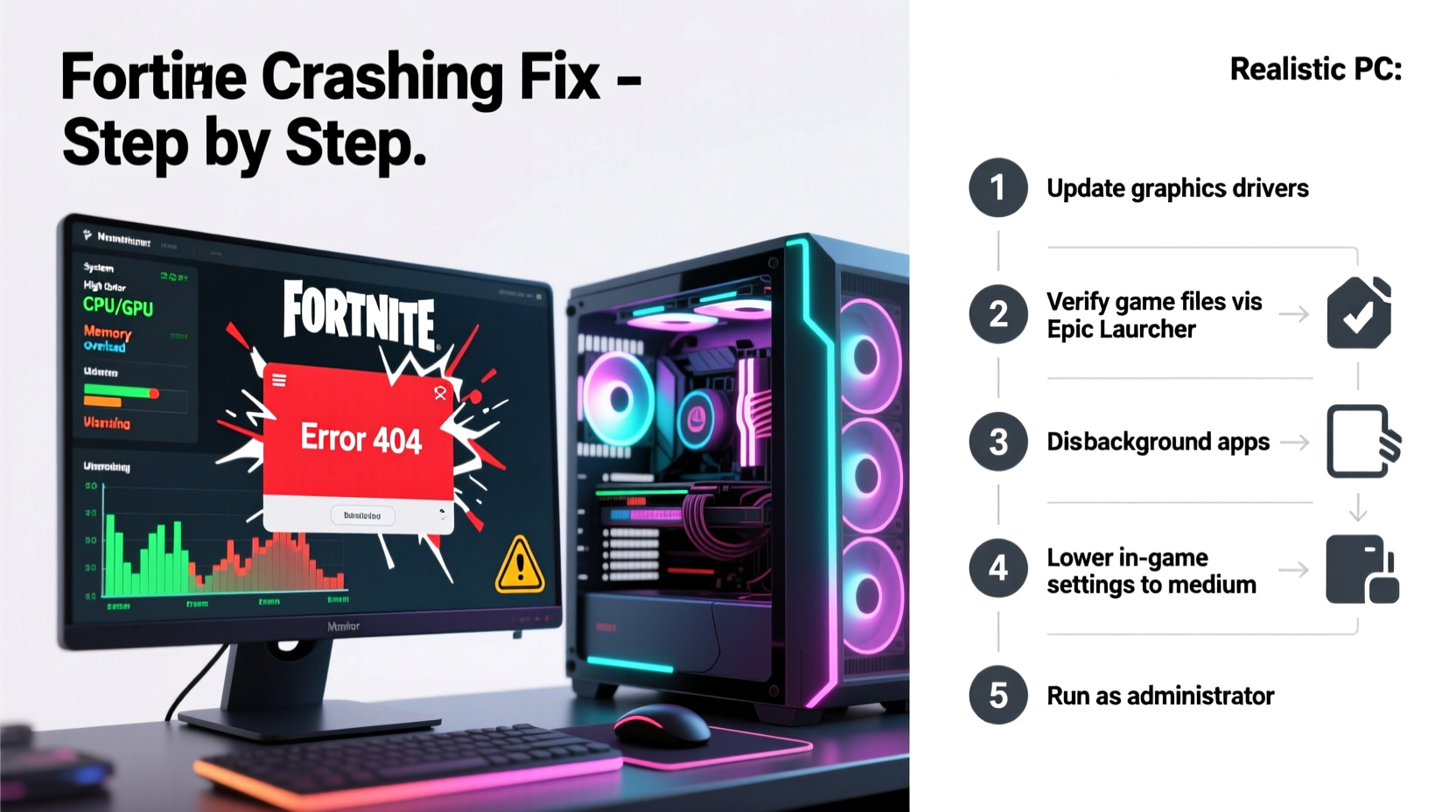
Before diving into fixes, it’s essential to understand what typically causes Fortnite to crash. Identifying the root cause saves time and prevents repeated issues. Common culprits include:
- Incompatible or outdated graphics drivers – GPU drivers not optimized for Unreal Engine 4/5 can lead to instability.
- Insufficient system resources – Low RAM, high CPU usage, or limited VRAM during gameplay.
- Corrupted game files – Missing or damaged assets due to incomplete updates or disk errors.
- Background applications interfering – Overlays (Discord, Steam), antivirus software, or recording tools consuming memory.
- Overheating components – Thermal throttling or GPU/CPU shutdowns under load.
- Windows settings conflicts – Fullscreen optimizations, HDR, or Game Mode causing display glitches.
Step-by-Step Troubleshooting Guide
Follow this structured approach to diagnose and resolve crashes efficiently. Start with basic checks before moving to advanced fixes.
- Restart your PC and router – A simple reboot clears temporary memory leaks and resets network connections that may affect online stability.
- Verify internet connection – High latency or packet loss can cause disconnections mistaken for crashes. Use a wired connection when possible.
- Update Windows – Ensure your OS is up-to-date. Navigate to Settings > Update & Security > Windows Update and install all pending patches.
- Run the game as administrator – Right-click the Fortnite shortcut or launcher and select \"Run as administrator\" to avoid permission-related crashes.
- Disable fullscreen optimizations – Right-click the Fortnite executable (.exe), go to Properties > Compatibility, and check “Disable fullscreen optimizations.”
Update or Reinstall Graphics Drivers
Your GPU driver plays a critical role in rendering Fortnite smoothly. Outdated or buggy drivers are among the top reasons for crashes.
NVIDIA, AMD, and Intel regularly release performance-enhancing updates for gaming titles. Follow these steps:
- Visit NVIDIA's website, AMD Support, or Intel Driver & Support Assistant.
- Download and install the latest WHQL-certified driver for your model.
- Use DDU (Display Driver Uninstaller) in Safe Mode to completely remove old drivers before reinstalling if crashes persist.
“Over 60% of reported Fortnite crashes are resolved simply by updating to the latest GPU driver version optimized for Unreal Engine games.” — Tech Support Lead, NVIDIA Community Forums
Optimize In-Game and System Settings
Even powerful PCs can struggle if settings aren’t tuned correctly. Balancing visual fidelity with performance reduces strain on your hardware.
| Setting | Recommended Value | Purpose |
|---|---|---|
| Graphics Quality | Medium or High (not Epic) | Reduces GPU load while maintaining clarity |
| Frame Rate Limit | Match your monitor’s refresh rate | Prevents overheating from excessive FPS |
| Resolution | Native display resolution | Avoid scaling artifacts |
| VSync | Off (unless screen tearing occurs) | Reduces input lag |
| View Distance | High or Medium | Balances detail and draw calls |
Repair Game Files and Reinstall When Necessary
Corrupted or missing game files are a frequent cause of sudden crashes. The Epic Games Launcher includes a built-in tool to verify integrity.
To repair Fortnite files:
- Open the Epic Games Launcher.
- Go to your Library.
- Click the three dots below “Fortnite” and select “Manage.”
- Choose “Verify” under the Installation section.
- Wait for the process to complete (may take 10–20 minutes).
If verification fails or crashes continue, consider a clean reinstall:
- Uninstall Fortnite via the launcher or Windows Apps settings.
- Delete leftover folders in
C:\\Program Files\\Epic Games\\FortniteorC:\\Users\\[YourName]\\AppData\\Local\\FortniteGame. - Reinstall from the Epic Games Launcher.
Real Example: Recovering from Persistent Crashes
Mark, a competitive player from Ohio, experienced daily crashes during Chapter 5 Season 3 matches. His rig was high-end (RTX 3080, i7-12700K), ruling out hardware inadequacy. After testing multiple fixes, he discovered that Discord’s in-game overlay was conflicting with the Vulkan renderer. Disabling all overlays in both Discord and GeForce Experience immediately stabilized gameplay. He also reduced shadow quality and enabled V-Sync, eliminating thermal spikes. Since then, he hasn’t had a single crash—even during 4-hour streaming sessions.
Essential Performance Checklist
Use this checklist to ensure your system is optimized for Fortnite stability:
- ✅ Updated Windows and BIOS firmware
- ✅ Latest GPU drivers installed (NVIDIA/AMD/Intel)
- ✅ Fortnite game files verified through Epic Launcher
- ✅ Background apps (especially overlays) disabled
- ✅ Sufficient free SSD space (at least 50 GB recommended)
- ✅ Power plan set to “High Performance” in Windows
- ✅ Overclocking temporarily disabled (if applicable)
- ✅ Antivirus exclusions added for Fortnite and Epic folders
Frequently Asked Questions
Why does Fortnite crash on startup?
Startup crashes are often caused by missing Visual C++ Redistributables, DirectX issues, or GPU driver conflicts. Reinstall Microsoft Visual C++ packages via the official Microsoft website and ensure DirectX 12 is supported and updated.
Can too many background apps cause Fortnite to crash?
Yes. Applications like Discord, OBS, Chrome, or RGB control software consume RAM and CPU cycles. Close unnecessary programs before launching Fortnite. Use Task Manager to identify high-usage processes.
Does overclocking cause Fortnite crashes?
Unstable overclocks on the CPU, GPU, or RAM can lead to system crashes under gaming load. Reset to default clock speeds to test stability. If crashes stop, gradually reapply overclocks with stress testing.
Final Steps: Monitor and Maintain Stability
Once you’ve applied the fixes, monitor your system during gameplay. Use tools like MSI Afterburner or HWMonitor to track temperatures, clock speeds, and usage. Ideally:
- CPU temperature stays below 85°C
- GPU temperature remains under 80°C
- RAM usage doesn’t exceed 90% capacity
Regular maintenance prevents future crashes. Schedule monthly driver updates, dust internal components, and verify game files every major patch.




 浙公网安备
33010002000092号
浙公网安备
33010002000092号 浙B2-20120091-4
Comments
No comments yet. Why don't you start the discussion?