
Creating professional-looking gift cards doesn’t require graphic design experience or expensive software. With Google Docs, you can access and customize free gift card templates that are elegant, functional, and ready to personalize in minutes. Whether you're a small business owner rewarding loyal customers, an event planner organizing a giveaway, or someone preparing a heartfelt homemade present, these templates offer flexibility, accessibility, and clean design—all without spending a dime.
Google Docs may not be the first tool that comes to mind for designing gift cards, but its simplicity, collaboration features, and compatibility across devices make it surprisingly effective. More importantly, countless designers and educators have shared free, editable templates online that you can copy directly into your Google Drive and adapt to your needs.
Why Use Google Docs for Gift Card Design?
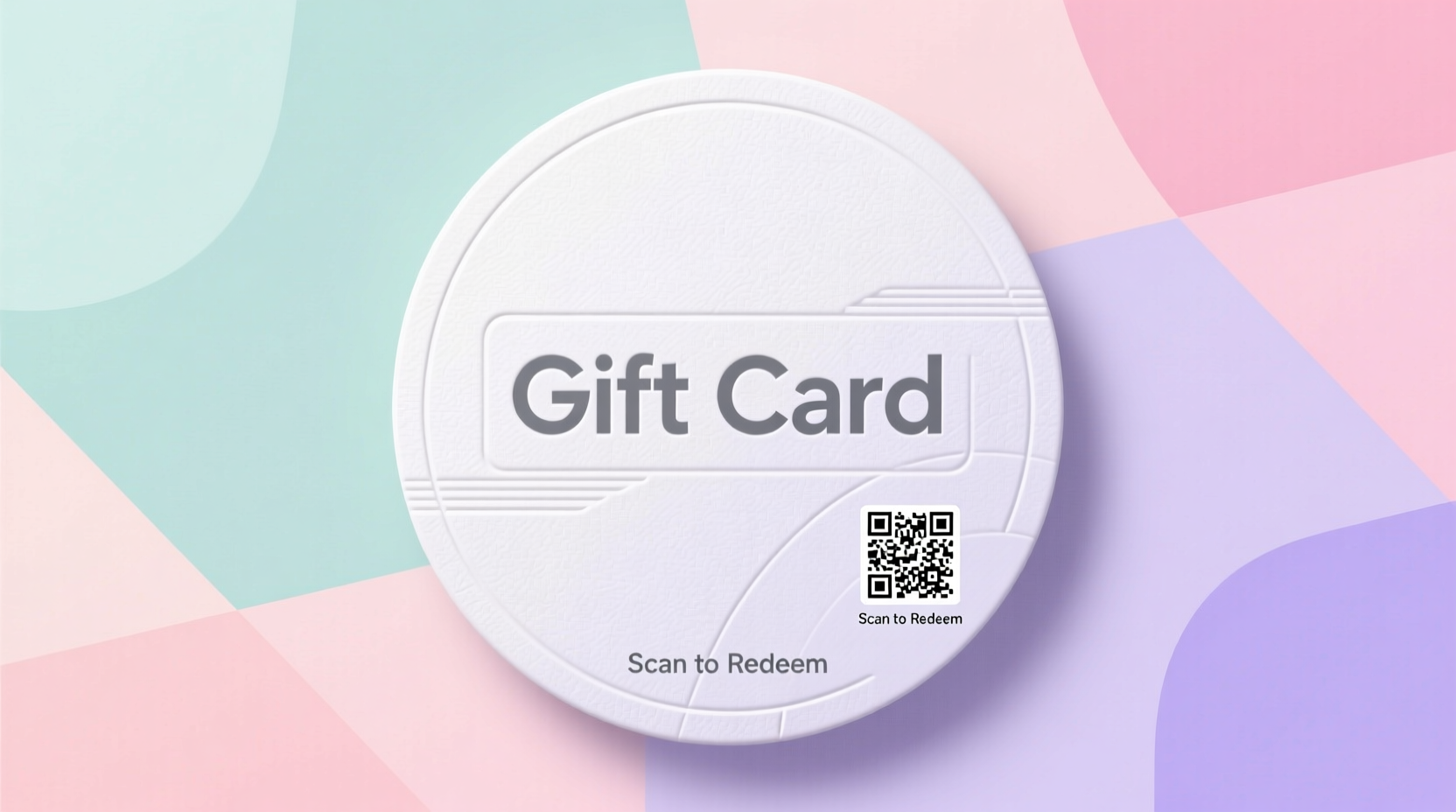
While dedicated design platforms like Canva or Adobe Express offer advanced tools, Google Docs remains a powerful option—especially when ease of access and collaboration are priorities. It’s browser-based, requires no downloads, and supports real-time editing with team members or family.
Using Google Docs for gift card creation is ideal if you:
- Need a quick, no-frills design solution
- Want to share templates easily via link or email
- Prefer working on any device, including tablets and smartphones
- Are creating text-heavy gift cards (e.g., spa vouchers, class passes)
- Value version control and automatic saving
How to Find Free Gift Card Templates for Google Docs
Finding high-quality, truly free templates takes a little research. Not all search results lead to usable files—some redirect to paid services or outdated links. Here’s where to look and what to watch for:
- Google Docs Template Gallery (via third-party sites): While Google doesn’t host an official public template gallery for Docs like it does for Sheets, many educational and productivity websites curate collections. Sites like Template.net, Vertex42, and Smartsheet offer downloadable Google Docs links.
- Google Drive Public Sharing Links: Search queries like “free gift card template Google Docs” often return templates hosted on Google Drive. Look for files shared with “Anyone with the link can view” permissions.
- Educational Institutions & Nonprofits: Some schools and community organizations publish templates for fundraising events. These are typically simple, printable, and donation-friendly.
When selecting a template, ensure it allows full editing rights. Avoid templates embedded in ZIP files unless you’re certain they contain only .docx or direct Google Docs links.
Step-by-Step Guide to Customizing Your Template
Once you’ve found a suitable template, follow this process to tailor it to your brand or occasion:
- Make a Copy: Open the template and click “File > Make a copy” to save it to your own Google Drive. This prevents accidental edits to the original file.
- Edit Text Elements: Replace placeholder text such as “[Recipient Name]”, “[Value]”, and “[Business Name]” with your details. Use consistent font styles and sizes for professionalism.
- Add Your Branding: Insert your logo by going to “Insert > Image > Upload from computer” or URL. Resize it to fit neatly in a corner or header area.
- Adjust Colors and Borders: Highlight text boxes or tables and change text color, background fill, or border lines using the toolbar options.
- Include Terms and Conditions: Add a small section at the bottom stating expiration policies, redemption instructions, or non-transferability clauses.
- Preview and Print: Use “Print layout” view to check alignment. If printing, test on plain paper first to confirm positioning.
“Simple, well-branded gift cards increase perceived value—even when handmade.” — Laura Kim, Small Business Marketing Consultant
Top 5 Design Tips for Professional-Looking Gift Cards
A polished gift card reflects thoughtfulness and credibility. Follow these best practices to elevate your design:
| Tips | Do | Avoid |
|---|---|---|
| Typography | Use two complementary fonts (e.g., one for headings, one for body) | Using more than three different fonts |
| Color Scheme | Stick to brand colors or seasonal palettes | Bright clashing combinations (e.g., red text on yellow) |
| Layout | Align elements using invisible tables or drawing guides | Centering everything—can appear disorganized |
| Security | Add unique codes or serial numbers for tracking | Leaving blank spaces where values can be altered |
| Printing | Use cardstock (110 lb or higher) for durability | Standard printer paper—it tears easily |
Real Example: A Bakery’s Holiday Gift Card Campaign
Sweet Rise Bakery, a local artisan shop, wanted to launch a holiday gift card promotion without hiring a designer. The owner searched for “free gift card template Google Docs bakery” and found a minimalist red-and-gold template shared by a teacher for a school fundraiser.
She made a copy, uploaded her logo, changed the color scheme to match her packaging, and added a festive message: “Redeem for one dozen seasonal cupcakes.” Each card included a handwritten serial number and a note about January expiration.
The cards were printed on matte cardstock, tied with twine, and displayed near the register. Within three weeks, gift card sales increased by 38% compared to the previous year. Customers praised the personal touch and clarity of design.
This example shows how accessible tools like Google Docs can support small businesses in creating effective marketing materials with minimal investment.
Checklist: Preparing Your Gift Card for Use
Before distributing your gift cards, go through this checklist to ensure quality and functionality:
- ✅ All text is spelled correctly and uses consistent formatting
- ✅ Logo is clear and properly sized
- ✅ Value or service description is unambiguous
- ✅ Redemption instructions are included
- ✅ Expiration date (if applicable) is visible
- ✅ Unique identifier (number or code) is added per card
- ✅ Test print looks good on final paper type
- ✅ File is saved and backed up in Google Drive
FAQ
Can I password-protect a Google Docs gift card template?
No, Google Docs doesn’t allow password protection on individual documents. However, you can restrict sharing settings to “Specific people” to limit access. For sensitive data, consider exporting to PDF and adding a password via third-party tools.
Are these templates mobile-friendly?
Yes, Google Docs adjusts layout automatically on phones and tablets. However, complex formatting may shift slightly. Always preview on multiple devices before finalizing.
Can I turn my Google Docs gift card into a digital voucher?
Absolutely. After customizing, download the file as PDF (File > Download > PDF) and email it directly to recipients. Pair it with a personalized message for added impact.
Conclusion
Free gift card templates in Google Docs offer a smart, cost-effective way to create attractive, customizable vouchers for any occasion. With basic editing skills and attention to detail, anyone can produce professional-grade results. From holiday promotions to personal gifts, these templates empower individuals and businesses alike to deliver meaningful value with minimal effort.




 浙公网安备
33010002000092号
浙公网安备
33010002000092号 浙B2-20120091-4
Comments
No comments yet. Why don't you start the discussion?