
Digital note taking has evolved from a niche productivity hack into a mainstream habit among students, professionals, and creatives. With high-resolution displays, responsive styluses, and powerful apps, tablets now rival — and often surpass — traditional pen-and-paper workflows. Two of the most popular devices in this space are the Samsung Galaxy Tab S10 and the Apple iPad Air. Both promise seamless writing experiences, but they take different approaches to hardware, software, and ecosystem integration. Choosing between them isn’t just about brand loyalty — it’s about matching device strengths to your personal workflow.
This comparison dives deep into how each tablet performs specifically for digital note taking, evaluating factors like stylus precision, palm rejection, app versatility, screen comfort, and long-term usability. Whether you're a student annotating lecture slides, a designer sketching ideas, or a professional organizing daily tasks, understanding these differences can help you make an informed decision.
Stylus Performance and Writing Feel
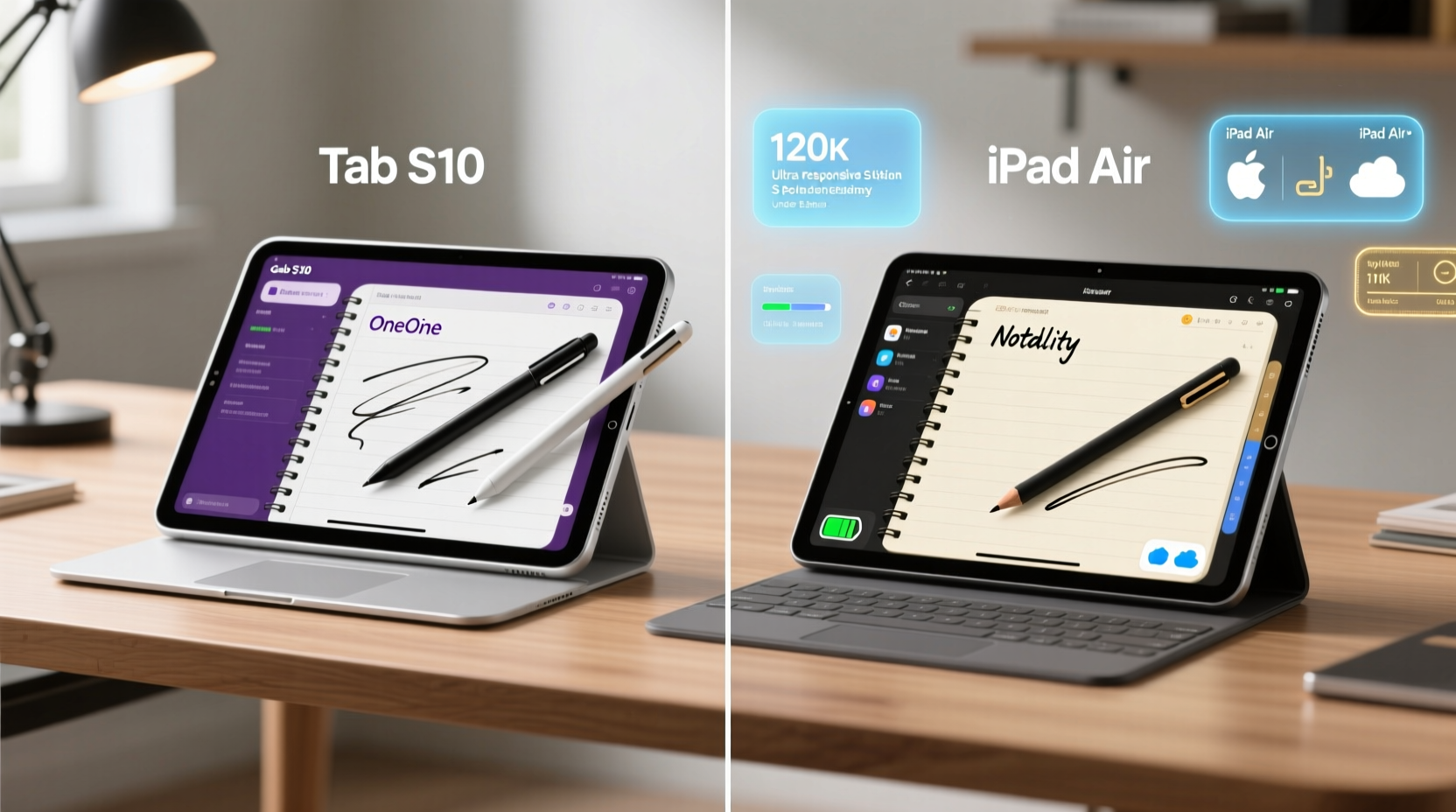
The stylus is the heart of any digital note-taking experience. How it feels in hand, how accurately it tracks movement, and how naturally it responds to pressure all contribute to whether writing on glass feels like a substitute for paper — or a superior alternative.
The Galaxy Tab S10 comes with the S Pen included in the box, magnetically attached to the back of the device. This is a major advantage over the iPad Air, where the Apple Pencil (2nd generation) must be purchased separately — adding $129 to the total cost. The S Pen supports 4,096 levels of pressure sensitivity and features ultra-low latency, making strokes appear instantly as you write. Its fine 0.7mm tip mimics the feel of a mechanical pencil, and the matte screen coating enhances friction, creating a tactile sensation closer to real paper.
The Apple Pencil, while sold separately, is widely praised for its smooth gliding motion and pixel-perfect accuracy. It pairs seamlessly via magnetic attachment and charges wirelessly on the side of the iPad Air. However, its glossy finish on the default screen can feel too slick for some users, especially during extended writing sessions. Third-party matte screen protectors can mitigate this, but they may slightly reduce touch sensitivity.
Latency is nearly indistinguishable on both devices, thanks to optimized hardware-software integration. In real-world use, neither shows visible lag during fast handwriting or sketching. However, the Galaxy Tab S10’s built-in stylus storage gives it an edge in convenience — no risk of misplacing the pen or forgetting to charge it.
Note-Taking Apps and Ecosystem Flexibility
A great stylus means little without capable software. The availability, functionality, and cross-device sync of note-taking apps can make or break the user experience.
Samsung’s native Samsung Notes is one of the most robust note-taking apps available. It supports handwriting-to-text conversion, shape recognition, audio-linked notes (where audio recordings sync with written timestamps), and PDF annotation with full markup tools. Handwriting search allows users to find specific notes by keywords even when written entirely by hand. Best of all, Samsung Notes syncs across Galaxy phones, tablets, and even Windows PCs via Link to Windows, making it ideal for multi-device users.
iPad Air runs on iPadOS, which opens access to a mature ecosystem of third-party apps. While Apple Notes has improved significantly — supporting handwriting, sketches, and basic organization — many power users prefer alternatives like Notability, GoodNotes, or MyScript Nebo. These apps offer advanced features such as slide-to-convert handwriting to text, dynamic notebooks, and presentation modes. Notability and GoodNotes are particularly popular among students due to their lecture-recording integration and organizational structure.
“GoodNotes transformed how I take class notes — being able to search my handwritten equations saved me hours during exam prep.” — Maya Tran, Graduate Student in Engineering
However, reliance on third-party apps comes at a cost. Notability and GoodNotes operate on subscription models ($15–$20/year), whereas Samsung Notes is completely free with no paywalls. Additionally, file format compatibility varies; GoodNotes uses proprietary formats that don’t always transfer cleanly to other platforms.
Screen Quality and Ergonomics for Long Sessions
Note taking often involves prolonged screen time, so display quality directly impacts comfort and focus.
The Galaxy Tab S10 features a 10.4-inch or 11-inch Dynamic AMOLED display (depending on model), offering deep blacks, vibrant colors, and excellent contrast. AMOLED technology also enables true blacks and per-pixel lighting, reducing eye strain in low-light environments. The screen supports a 120Hz refresh rate, resulting in buttery-smooth ink flow that feels responsive and natural.
The iPad Air, meanwhile, uses a 10.9-inch Liquid Retina IPS LCD display. While bright and sharp, it lacks the contrast depth of AMOLED and runs at a standard 60Hz refresh rate. On paper, this means slightly less fluid motion when writing quickly, though most casual users won’t notice the difference. The iPad’s anti-reflective coating helps reduce glare, which is beneficial in classrooms or outdoor settings.
| Feature | Galaxy Tab S10 | iPad Air (5th Gen) |
|---|---|---|
| Display Type | Dynamic AMOLED 2X | Liquid Retina IPS LCD |
| Refresh Rate | 120Hz | 60Hz |
| Stylus Included? | Yes (S Pen) | No (Apple Pencil sold separately) |
| Battery Life (Note Taking) | ~10–12 hours | ~9–10 hours |
| Native Note App | Samsung Notes (free, full-featured) | Apple Notes (basic), third-party apps recommended |
Ergonomics matter too. The Galaxy Tab S10 is lighter than the iPad Air (approx. 480g vs. 461g), but its design allows for better grip and balance when held vertically for extended writing. The iPad Air, while sleek, can feel top-heavy when used without a case or stand — crucial for desk-based note takers.
Productivity Workflow and Cross-Device Integration
Digital note taking doesn’t exist in isolation. It’s part of a broader workflow that includes research, file management, cloud syncing, and collaboration.
If you’re embedded in the Samsung ecosystem — using a Galaxy phone, wearing a Galaxy Watch, or working on a Galaxy Book laptop — the Tab S10 integrates seamlessly. You can hand off notes between devices, use your phone as a remote presenter, or even respond to messages without lifting your tablet. DeX mode transforms the interface into a desktop-like environment, enabling split-screen multitasking ideal for referencing documents while taking notes.
The iPad Air shines in the Apple ecosystem. Using Universal Clipboard, AirDrop, and iCloud Drive, notes created on the iPad can instantly appear on your iPhone or Mac. Handoff lets you start a note on one device and continue on another. For educators and business professionals using MacBooks and iPhones, this continuity is invaluable.
However, outside their respective ecosystems, both tablets face limitations. Samsung Notes exports primarily to PDF or image formats, with limited two-way sync outside Android. Meanwhile, iPad note apps often rely on iCloud, making them less accessible to Windows or Android users. If you frequently switch between operating systems, consider export flexibility and file compatibility before committing.
Real-World Use Case: A Law Student’s Experience
Jessica Kim, a third-year law student at the University of Toronto, switched from paper notebooks to digital note taking during her second year. She tested both the Galaxy Tab S10 and iPad Air before settling on the iPad Air with GoodNotes.
“I chose the iPad because most of my classmates use it, and sharing annotated case briefs is easier when we’re on the same app,” she explains. “GoodNotes’ folder system mirrors our course structure perfectly. I can record lectures, write notes, and later search for ‘contract breach’ to pull up every relevant page.”
Despite liking the iPad’s ecosystem, Jessica acknowledges drawbacks. “The Apple Pencil cost extra, and I cracked my screen twice — repairs are expensive. If I were starting over and used a Samsung phone, I’d seriously consider the Tab S10. The built-in pen alone would’ve saved me stress during exams.”
Her story illustrates a key point: the best device depends not only on technical specs but also on social and academic context. Peer compatibility, institutional resources, and existing tech investments all influence real-world usability.
Step-by-Step Guide to Choosing Your Device
Follow this practical checklist to determine which tablet suits your needs:
- Assess your current devices: Do you use Android/Windows or iPhone/Mac? Stick with the same ecosystem for smoother integration.
- Determine your budget: Factor in the cost of the stylus. The iPad Air + Apple Pencil often exceeds $800, while the Galaxy Tab S10 includes the S Pen and starts around $730.
- Test handwriting feel: Visit a store if possible. Write for several minutes to evaluate palm rejection, latency, and grip comfort.
- Check app requirements: Are you reliant on GoodNotes or Notability? Or do you prefer a free, all-in-one solution like Samsung Notes?
- Consider durability and portability: Will you carry it daily? Look for rugged cases and lightweight designs.
- Evaluate long-term file access: Ensure your chosen app allows exporting in open formats (PDF, TXT) to avoid lock-in.
Frequently Asked Questions
Can I use the S Pen with iPad or Apple Pencil with Galaxy Tab?
No. The S Pen only works with Samsung devices, and the Apple Pencil is exclusive to iPads. Neither stylus is cross-compatible due to differing Bluetooth pairing and electromagnetic resonance technologies.
Which tablet has better palm rejection?
Both perform excellently in this area. The Galaxy Tab S10 uses Samsung’s Wacom-based AES protocol, which reliably ignores palm contact. The iPad Air uses Apple’s proprietary algorithm, also highly accurate. Users rarely report accidental touches on either device when resting their hand on the screen.
Is handwriting search reliable on both platforms?
Yes, but implementation differs. Samsung Notes indexes handwritten content locally and searches across all notes instantly. iPad apps like GoodNotes and Nebo offer strong handwriting recognition, but results depend on writing clarity and language support. English recognition is excellent on both; non-Latin scripts may vary.
Conclusion: Making the Right Choice for Your Workflow
The Galaxy Tab S10 and iPad Air are both exceptional tools for digital note taking, but they cater to different priorities. The Tab S10 wins on value, inclusion of the S Pen, superior display technology, and seamless integration within the Android ecosystem. Its free, feature-rich Samsung Notes app removes barriers to entry and delivers everything most users need out of the box.
The iPad Air excels in ecosystem cohesion for Apple users, offers access to polished third-party apps like GoodNotes, and benefits from a vast educational user base. However, the additional cost of the Apple Pencil and potential subscription fees for premium apps add up quickly.
Your choice ultimately hinges on three factors: your existing tech stack, your budget, and your preferred way of working. If you want a complete, ready-to-use note-taking machine with minimal extra costs, the Galaxy Tab S10 is hard to beat. If you're already invested in Apple’s world and rely on collaborative or specialized apps, the iPad Air remains a top contender.




 浙公网安备
33010002000092号
浙公网安备
33010002000092号 浙B2-20120091-4
Comments
No comments yet. Why don't you start the discussion?