
When selecting a mouse for everyday computing—browsing, document editing, email management, or multitasking across applications—the choice between a gaming mouse and a productivity mouse can be surprisingly consequential. While both types serve the basic function of cursor control, their underlying technologies, design philosophies, and performance characteristics differ significantly. One of the most critical factors in this decision is tracking accuracy: how precisely the mouse translates hand movement into on-screen motion. Contrary to popular belief, higher specifications don’t always equate to better performance in routine use. This article examines the tracking capabilities of gaming and productivity mice in the context of daily workflows, helping you make an informed decision based on actual needs rather than marketing claims.
Sensor Technology: DPI Isn’t Everything
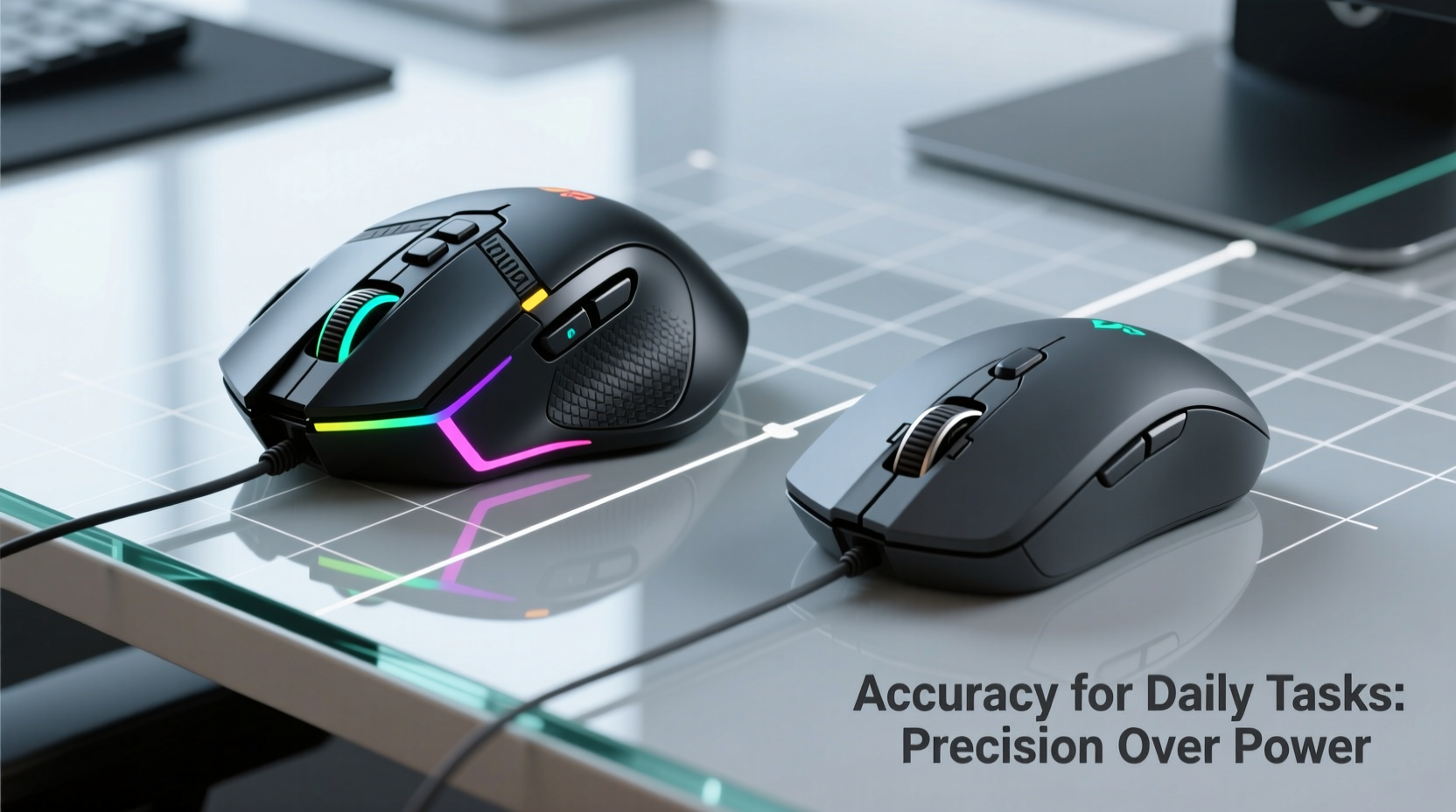
The core component responsible for tracking accuracy is the optical or laser sensor inside the mouse. Gaming mice are often advertised with extremely high DPI (dots per inch) ratings—sometimes exceeding 20,000—while productivity models typically range from 800 to 3,200 DPI. However, DPI alone is not a reliable indicator of accuracy. What matters more is sensor consistency, polling rate, lift-off distance, and surface compatibility.
Gaming mice use high-end sensors such as the PixArt PMW3389 or the newer PAW3395, designed for pixel-perfect responsiveness and minimal acceleration artifacts. These sensors offer excellent raw performance, but much of that capability is overkill for standard desktop environments. In contrast, productivity mice like those from Logitech’s MX series employ tuned versions of similar sensors, optimized for stability and low power consumption rather than peak speed.
High DPI settings can actually reduce perceived accuracy in daily tasks because small hand tremors become amplified on screen. A 16,000 DPI mouse moving across a glass desk may register micro-movements that cause jittery cursor behavior—especially noticeable when highlighting text or resizing windows. Productivity mice mitigate this by limiting maximum DPI and applying intelligent smoothing algorithms that filter out noise without introducing lag.
Ergonomics and Real-World Usability
Tracking accuracy isn’t solely about hardware—it’s also influenced by how comfortably and consistently you can control the device. A mouse that feels awkward in your hand will lead to inconsistent movements, reducing effective precision regardless of sensor quality.
Gaming mice often prioritize aggressive shapes, textured grips, and side buttons for quick access during fast-paced gameplay. While these features enhance performance in games, they can introduce fatigue during long work sessions. The added weight (often 100g or more) and raised profile may encourage wrist strain, leading to less stable tracking over time.
Productivity mice, on the other hand, emphasize neutral postures and lightweight designs. Models like the Logitech MX Master 3S or Microsoft Surface Mouse are sculpted to support relaxed grip styles, minimizing muscle engagement during extended use. This ergonomic advantage translates into smoother, more predictable hand motion—directly improving perceived tracking accuracy for office tasks.
“Even the best sensor can't compensate for poor ergonomics. Consistent hand placement is key to accurate pointer control.” — Dr. Lena Torres, Human-Computer Interaction Researcher at MIT Media Lab
Comparison Table: Key Tracking Features
| Feature | Gaming Mice | Productivity Mice |
|---|---|---|
| Typical DPI Range | 1,600 – 26,000 | 800 – 3,200 |
| Polling Rate | 500 Hz – 4,000 Hz | 125 Hz – 1,000 Hz |
| Lift-Off Distance | Low (1–2 mm), adjustable | Moderate (2–3 mm), fixed |
| Surface Compatibility | Broad, including glass (with advanced sensors) | Optimized for cloth pads and desks |
| Movement Smoothing | Minimal (raw input preferred) | Active filtering for stability |
| Average Weight | 80–120 g | 70–100 g |
| Battery Life (Wireless) | Up to 70 hours | Up to 70 days |
This table highlights a fundamental trade-off: gaming mice deliver maximum responsiveness and customization, while productivity models focus on reliability, efficiency, and comfort. For tasks involving precise selection (e.g., spreadsheet cells, photo cropping, or UI design), consistent low-latency tracking matters—but so does fatigue resistance and natural hand motion.
Real-World Performance: A Day-in-the-Life Example
Consider Sarah, a financial analyst who spends eight hours a day navigating complex spreadsheets, managing multiple browser tabs, and attending video calls. She initially used a high-DPI gaming mouse, attracted by its RGB lighting and programmable buttons. However, she found herself frequently overshooting cells, struggling with accidental clicks due to sensitive side buttons, and experiencing wrist discomfort by mid-afternoon.
After switching to a productivity-focused mouse with a 1,200 DPI sensor and contoured shape, her workflow improved noticeably. The cursor moved smoothly without jitter, and the absence of aggressive button placement reduced input errors. Although the specs appeared “lower,” the real-world tracking felt more accurate because it matched her usage patterns. Her hand remained steady, and she could perform fine adjustments—like dragging formula handles across rows—without constant correction.
This case illustrates that tracking accuracy must be evaluated in context. Technical superiority doesn’t guarantee better outcomes if the tool doesn’t align with the task. For non-gaming scenarios, smoothness, predictability, and comfort often outweigh raw speed and sensitivity.
Do You Need Customization or Consistency?
Gaming mice excel in environments requiring rapid directional changes and split-second reactions. Their sensors are engineered to detect minute movements and report them instantly, with minimal smoothing or prediction. This makes them technically superior in controlled tests measuring latency and positional fidelity. However, in typical productivity settings, excessive sensitivity introduces instability.
Productivity mice apply subtle software enhancements—such as angle snapping correction and motion filtering—to ensure straight-line tracking even with slight hand wobble. These corrections are imperceptible during normal use but significantly improve usability when drawing lines in presentations or aligning elements in documents. Additionally, many productivity models support multi-device pairing and gesture navigation (e.g., swipe wheels for scrolling through PDFs), enhancing overall efficiency beyond mere cursor control.
- Choose a gaming mouse if: You value full customization, use multiple surfaces (including glass), or want future-proof specs.
- Choose a productivity mouse if: You prioritize comfort, battery life, and seamless integration with office applications.
Action Checklist: Selecting the Right Mouse for Daily Tasks
- Evaluate your primary tasks: Do they require pixel-level precision or general navigation?
- Test DPI settings between 800 and 1600 to find your sweet spot.
- Assess ergonomics: Can you use the mouse for two hours without strain?
- Check surface compatibility: Will you use it on a desk, pad, or laptop tray?
- Determine connectivity needs: Prefer wireless with long battery life or wired for zero latency?
- Look for adjustable lift-off distance if you frequently reposition the mouse.
- Consider additional features like gesture controls or app-specific shortcuts.
Common Misconceptions About Mouse Accuracy
One widespread myth is that higher DPI automatically means better accuracy. In reality, accuracy refers to how faithfully the mouse reports movement—not how far the cursor travels per inch. A poorly calibrated 16,000 DPI mouse can be *less* accurate than a well-tuned 1,000 DPI model.
Another misconception is that all optical sensors behave the same across surfaces. While modern gaming sensors handle glossy desks and glass better than ever, they can still suffer from \"angle clipping\" or inconsistent lift detection. Productivity mice avoid these issues by limiting extreme performance modes and focusing on common desktop materials.
Finally, some users assume wireless mice inherently lag behind wired ones. With modern Bluetooth LE and 2.4 GHz dongles, the difference in polling rate and latency is negligible for non-gaming tasks. Many productivity mice now offer sub-1ms response times, rivaling dedicated gaming gear.
Frequently Asked Questions
Can a gaming mouse be used effectively for office work?
Yes, but with caveats. High sensitivity may require lowering DPI settings, and extra buttons could trigger unintended actions. If you adjust settings appropriately and don’t mind the heavier build, a gaming mouse can perform well—but it won’t necessarily outperform a purpose-built productivity model in comfort or efficiency.
Is there a measurable difference in tracking accuracy between the two types?
In lab conditions using specialized equipment, gaming mice often show marginally better raw data consistency. However, in real-world office environments, the difference is rarely perceptible. Factors like mousepad quality, hand stability, and software optimization play larger roles in daily experience.
What should I look for in a mouse for graphic design or photo editing?
For creative professionals, balanced performance is key. Look for a mouse with a high-quality sensor (PixArt 3395 or equivalent), adjustable DPI, low lift-off distance, and ergonomic design. Both high-end productivity mice and mid-tier gaming models can serve well here, depending on preference for weight and button layout.
Conclusion: Accuracy Is Contextual
The question of whether gaming mice or productivity mice track more accurately for daily tasks doesn’t have a one-size-fits-all answer. Technically, gaming mice possess superior sensors and faster reporting rates. But accuracy in practice depends on how well the device supports consistent, comfortable, and intuitive interaction.
For most knowledge workers, students, and creatives engaged in routine computing, a well-designed productivity mouse offers better overall tracking performance. Its emphasis on stability, ergonomic fit, and intelligent motion processing results in fewer corrections, less fatigue, and smoother navigation. Gaming mice, while impressive in specification, often sacrifice usability for peak performance that goes unused outside competitive scenarios.
Ultimately, the best mouse is the one that disappears into your workflow—responding exactly as expected, every time, without drawing attention to itself. Whether labeled “gaming” or “productivity,” choose based on how it feels in your hand and how seamlessly it integrates into your day.




 浙公网安备
33010002000092号
浙公网安备
33010002000092号 浙B2-20120091-4
Comments
No comments yet. Why don't you start the discussion?