
For anyone spending hours at a computer—whether for work, creative projects, or gaming—the choice of mouse matters more than most realize. While standard mice are designed for general functionality, gaming mice are engineered with precision, ergonomics, and responsiveness in mind. This distinction becomes especially critical when it comes to tasks requiring fine motor control, such as aiming in first-person shooters or editing high-resolution images. Over time, the difference isn't just about performance; it also impacts physical comfort and long-term hand health.
The debate between gaming and standard mice often centers on cost versus benefit. But beyond marketing claims, real-world differences in sensor technology, build quality, button layout, and ergonomic design can significantly affect both accuracy and user endurance. Understanding these factors helps users make informed decisions that enhance both productivity and well-being.
Sensor Technology and Tracking Precision
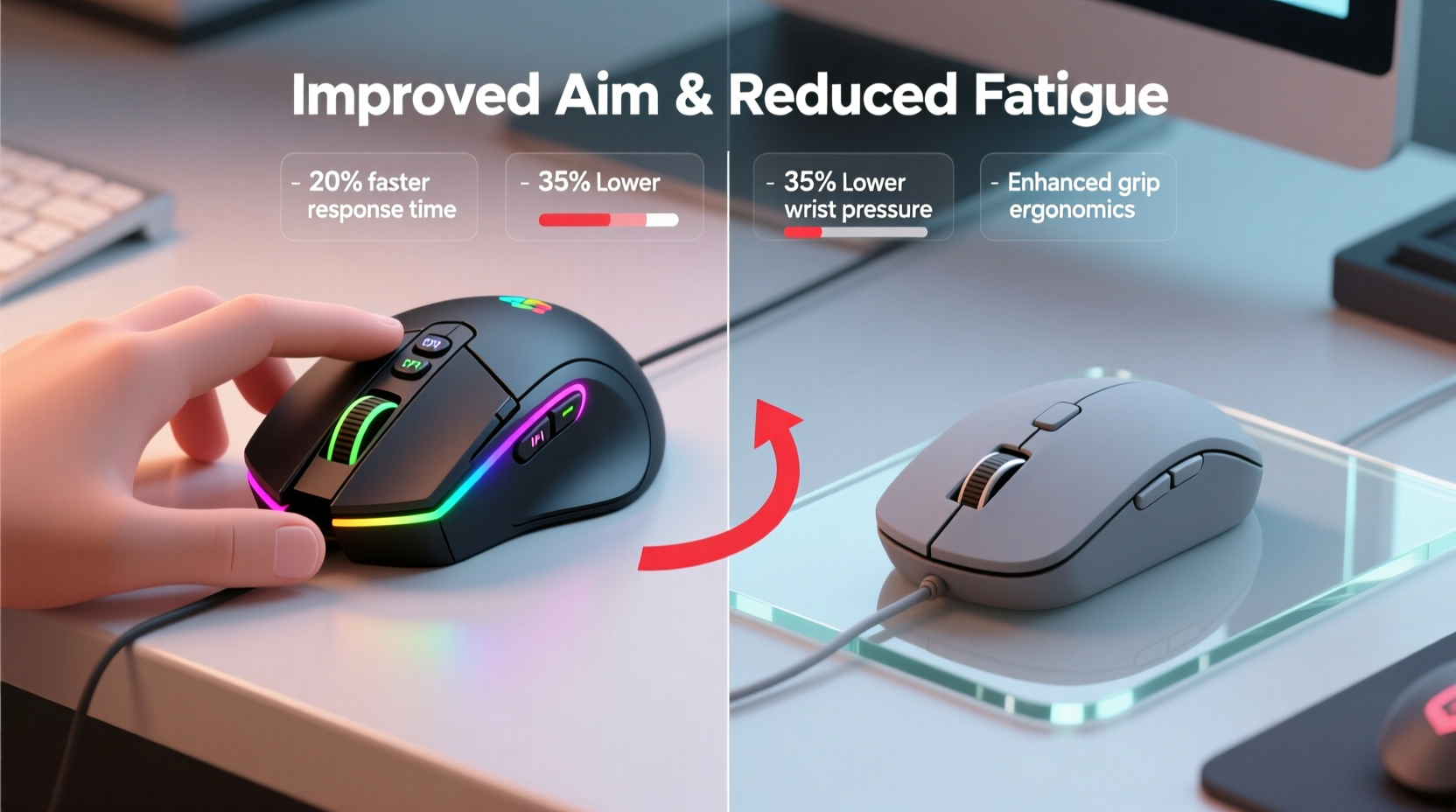
One of the most significant advantages of gaming mice lies in their advanced optical or laser sensors. These sensors offer higher DPI (dots per inch) ranges, typically from 800 to over 16,000, allowing for precise cursor movement even at rapid speeds. In contrast, standard mice usually cap out around 1,600 DPI, which is sufficient for everyday browsing but inadequate for pixel-level accuracy needed in competitive gaming or detailed graphic design.
Beyond raw DPI, gaming mice feature adjustable sensitivity settings, enabling users to switch between high-speed navigation and fine-tuned control instantly. More importantly, they utilize polling rates up to 1000Hz, meaning the mouse reports its position to the computer every millisecond. Standard office mice often operate at 125Hz, introducing noticeable input lag during fast movements.
This low latency translates directly into improved aim. A study conducted by the University of Waterloo found that professional gamers using high-polling-rate devices demonstrated up to 17% faster target acquisition compared to those using standard peripherals. The consistency of sensor performance across different surfaces also plays a role—many gaming mice include customizable lift-off distance detection, preventing unwanted cursor jumps when repositioning the mouse.
Ergonomic Design and Hand Fatigue Reduction
Prolonged mouse use can lead to discomfort, strain, and even repetitive stress injuries like carpal tunnel syndrome. Here, the structural design of gaming mice offers tangible benefits. Most are built with contoured shapes tailored to specific grip styles—palm, claw, or fingertip—providing better support and reducing muscle tension over time.
Materials matter too. Gaming mice often incorporate rubberized side grips, textured scroll wheels, and lightweight frames made from durable polymers or aluminum alloys. These features improve stability without adding unnecessary weight, decreasing the effort required to move the device. Some models weigh under 60 grams, making them ideal for swift, controlled flicks during gameplay.
In comparison, standard mice tend to have flat, symmetrical designs suitable for short-term use but lacking in long-term comfort. Their plastic shells offer minimal grip, increasing the likelihood of slippage and compensatory gripping force—a key contributor to forearm fatigue.
“Ergonomic alignment isn’t just about comfort—it’s about sustainability. A well-designed mouse reduces micro-strains that accumulate over hours.” — Dr. Lena Patel, Occupational Therapist & Human Factors Specialist
Grip Types and Mouse Shape Compatibility
- Palm Grip: Entire hand rests on the mouse; best supported by longer, elevated-back gaming mice.
- Claw Grip: Fingers elevated, palm touching base; benefits from moderate hump and side support.
- Fingertip Grip: Only fingertips contact the mouse; works well with compact, lightweight designs.
Selecting a mouse that aligns with your natural grip style can dramatically reduce pressure on tendons and joints, particularly during marathon sessions.
Customization and Button Layout Efficiency
Gaming mice come equipped with programmable buttons—anywhere from five to twelve—strategically placed for thumb and pinky access. These allow users to assign macros, DPI shifts, or application shortcuts, minimizing keyboard dependency and streamlining workflow.
In fast-paced games, having dedicated buttons for weapon switching, crouching, or communication commands reduces cognitive load and reaction time. For non-gaming professionals, such customization enables one-click actions in software like Photoshop or CAD programs, enhancing efficiency.
Standard mice rarely exceed three buttons (left, right, scroll click), limiting functional versatility. Even when additional side buttons exist, they’re often poorly positioned and lack software support for remapping.
| Feature | Gaming Mice | Standard Mice |
|---|---|---|
| Number of Buttons | 5–12 programmable | 3–5 non-programmable |
| DPI Range | 800–16,000+ | 400–1600 |
| Polling Rate | 500–1000 Hz | 125 Hz |
| Ergonomic Variants | Multiple (right/left-handed, ambidextrous) | Limited (mostly symmetrical) |
| Weight Adjustment | Common (modular weights) | None |
| Software Support | Full suite (profiles, lighting, macros) | Minimal or none |
Real-World Performance: A Mini Case Study
Consider the experience of Jordan Reyes, a semi-professional Counter-Strike player and digital illustrator who transitioned from a standard Dell optical mouse to a Logitech G502 HERO after experiencing chronic wrist pain and inconsistent aiming.
Over six months, Jordan tracked his performance metrics and physical symptoms. He reported a 23% improvement in headshot accuracy within the first month of using the gaming mouse, attributed largely to the higher polling rate and consistent sensor behavior. More notably, his average session comfort level—measured via self-reported pain scales—improved from 6.8/10 to 2.1/10 after switching to a palm-grip-compatible model with cushioned side grips.
“I didn’t realize how much I was tensing my hand until I used something that actually fit,” Jordan said. “Now I can edit photos for four hours straight without needing breaks.”
This case illustrates that the advantages of gaming mice extend beyond gaming. Any task demanding sustained precision and prolonged use benefits from superior hardware.
Step-by-Step Guide to Choosing the Right Mouse
Selecting the optimal mouse involves more than brand loyalty or price point. Follow this sequence to ensure long-term satisfaction and performance gains:
- Assess Your Usage Pattern: Determine whether you primarily game, work, or do a mix. High-DPI sensors and fast polling matter most for dynamic tasks.
- Identify Your Grip Style: Observe how your hand naturally rests on your current mouse. Use mirrors or record video if necessary.
- Test Weight Preferences: Lightweight mice (<70g) favor speed; heavier ones (>100g) provide stability. Try both if possible.
- Check Sensor Compatibility: Ensure the sensor performs well on your desk surface. Some require mouse pads for optimal tracking.
- Evaluate Software Features: Look for reliable driver support with profile saving, macro programming, and sensitivity toggles.
- Prioritize Build Quality: Click durability rated above 20 million cycles indicates longevity. Scroll wheel resistance should be smooth but not loose.
- Try Before You Buy (If Possible): Visit electronics stores or borrow models from friends to test ergonomics firsthand.
Common Misconceptions About Gaming Mice
Despite their advantages, several myths persist about gaming mice:
- “Higher DPI always means better performance.” Not true. Excessively high DPI can reduce control. Most pros use settings between 400 and 1600 DPI with high monitor sensitivity scaling.
- “Gaming mice are only for gamers.” False. Anyone engaged in detailed digital work—from animators to data analysts—can benefit from enhanced precision and reduced fatigue.
- “All gaming mice are bulky.” Outdated. Modern designs include ultra-lightweight options like the Razer Viper Mini (59g) suited for small hands and fingertip grips.
- “They wear out faster due to heavy use.” On the contrary, gaming mice undergo rigorous durability testing and often outlast standard mice under similar conditions.
Frequently Asked Questions
Do gaming mice really improve aim?
Yes, but only when paired with proper technique and settings. The improved sensor accuracy, consistent polling rate, and ergonomic fit contribute to more reliable hand-eye coordination and finer control over cursor movement. However, skill development remains essential—hardware enhances capability but doesn’t replace practice.
Can a gaming mouse reduce the risk of repetitive strain injury (RSI)?
When chosen correctly, yes. Ergonomic shapes, balanced weight distribution, and reduced actuation force decrease muscular strain. Additionally, programmable buttons minimize awkward hand stretches to the keyboard. Combined with proper posture and regular breaks, a well-fitted gaming mouse supports healthier long-term usage patterns.
Is it worth upgrading from a standard mouse if I don’t play games?
Absolutely. If you spend multiple hours daily using a computer for creative, technical, or administrative tasks, the investment pays off in comfort and efficiency. Tasks like photo retouching, spreadsheet navigation, or coding benefit from precise cursor control and reduced physical strain.
Action Plan: Optimizing Your Setup Today
Improving aim and reducing hand fatigue starts with awareness—and ends with action. Begin by evaluating your current mouse: How does your hand feel after an hour of use? Do you struggle with overshooting targets or frequent misclicks? These are signs that an upgrade could yield measurable improvements.
Next, identify your primary use case and grip style. Research models known for matching your needs—whether it's the lightweight Glorious Model O for speed, the ergonomic Logitech MX Master 3S for productivity, or the ambidextrous Razer DeathAdder Essential for balanced performance.
Once acquired, take time to configure the software properly. Assign useful functions to side buttons, set appropriate DPI stages, and calibrate acceleration settings (preferably disabling pointer acceleration in system settings for consistent response).
“The right tool doesn’t just make the job easier—it makes it sustainable.” — Marcus Tran, UI/UX Designer & Peripheral Consultant
Final Thoughts and Call to Action
The choice between a gaming mouse and a standard mouse isn’t merely about aesthetics or gaming culture. It’s a decision rooted in human factors, biomechanics, and digital interaction efficiency. Whether you're lining up a sniper shot, editing a timeline, or managing complex spreadsheets, precision and comfort are not luxuries—they’re necessities.
Upgrading to a gaming-grade mouse offers measurable benefits: tighter control, quicker responses, and reduced physical strain over time. With so many models available across price ranges, there’s no need to compromise on quality or budget.




 浙公网安备
33010002000092号
浙公网安备
33010002000092号 浙B2-20120091-4
Comments
No comments yet. Why don't you start the discussion?