
In today’s digital workspace, the monitor you use is no longer just a window into your computer—it's a critical tool that shapes how efficiently you work, how clearly you see information, and how seamlessly you switch between tasks. With the rise of hybrid work and multitasking-heavy roles, professionals are increasingly evaluating their hardware choices with fresh eyes. Two popular contenders stand out: gaming monitors and ultrawide displays. While both offer high-resolution visuals and immersive experiences, they serve different purposes—and one may significantly outperform the other when it comes to boosting workflow efficiency.
The debate isn’t about raw power alone. It’s about ergonomics, screen real estate, task management, eye strain, and long-term usability. A gaming monitor might dazzle with fast refresh rates and deep blacks, but does it help you draft reports, manage spreadsheets, or edit video timelines more effectively? On the flip side, an ultrawide monitor stretches your desktop across a panoramic view—ideal for side-by-side applications—but can it handle dynamic content without compromising clarity?
This article breaks down the functional differences between gaming monitors and ultrawide displays in professional settings, evaluates their impact on daily productivity, and provides actionable insights to help you make an informed decision based on your specific workflow needs.
Understanding the Core Differences
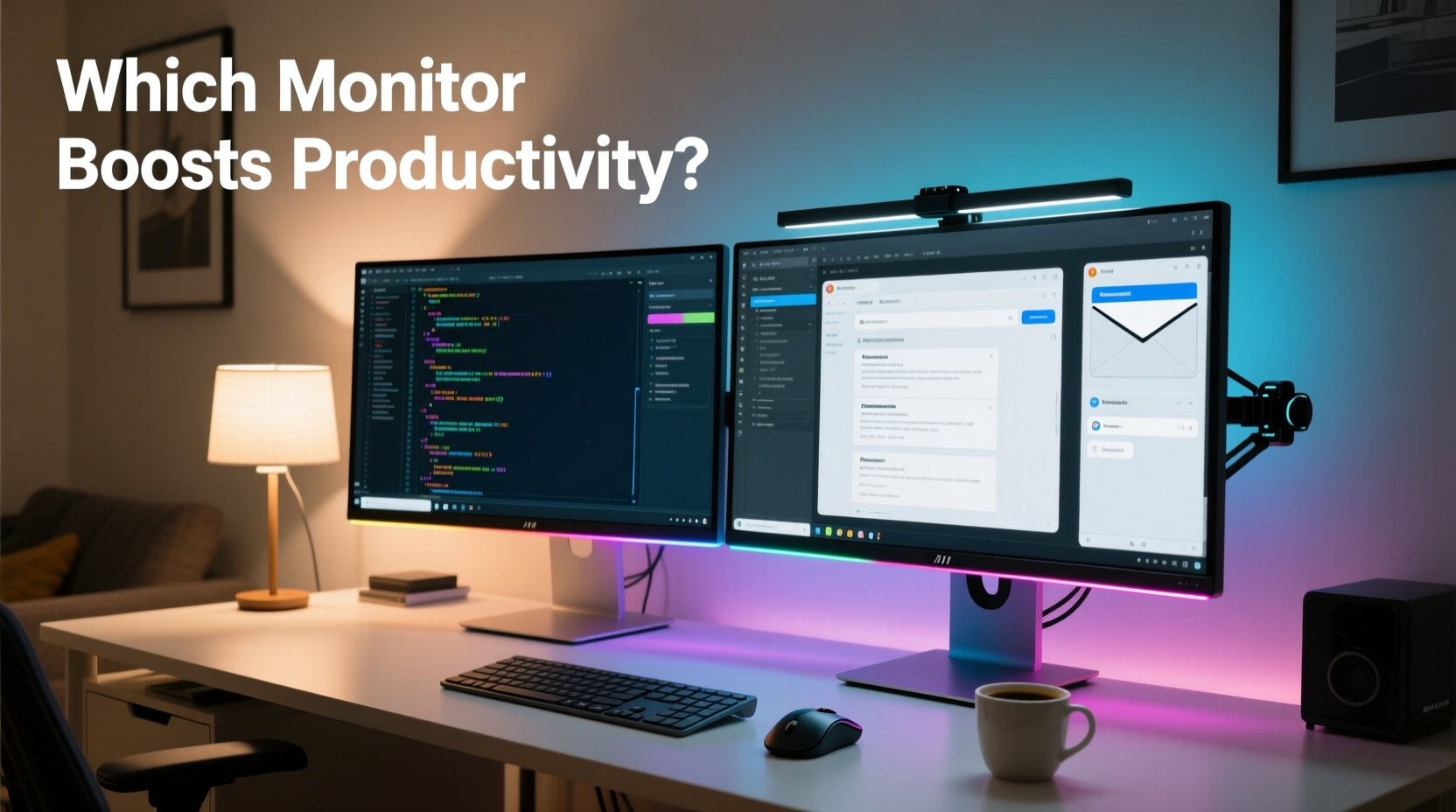
At first glance, gaming monitors and ultrawide monitors may seem interchangeable—both often feature high resolutions, curved screens, and premium build quality. However, their design philosophies diverge sharply.
Gaming monitors prioritize performance metrics like refresh rate (typically 144Hz or higher), response time (1ms or lower), and adaptive sync technologies (such as G-Sync or FreeSync). These features minimize motion blur and screen tearing during fast-paced gameplay. Most gaming monitors come in standard 16:9 aspect ratios, with sizes ranging from 24 to 32 inches. Their strength lies in delivering smooth, responsive visuals for interactive content.
Ultrawide monitors, by contrast, emphasize horizontal screen space. With aspect ratios like 21:9 or even 32:9, these displays extend far beyond traditional formats, offering expansive real estate ideal for multitasking. Common resolutions include 2560x1080 (WFHD) or 3440x1440 (WQHD). They’re designed not for speed, but for breadth—allowing users to run multiple windows simultaneously without constant tab switching.
The key distinction lies in purpose: gaming monitors optimize for temporal performance (how quickly pixels change), while ultrawides optimize for spatial performance (how much content fits on-screen).
Productivity Metrics: Screen Real Estate vs. Visual Fluidity
When measuring productivity gains, researchers consistently point to screen real estate as a primary factor. A study by the University of Utah found that increasing display area led to measurable improvements in task completion speed—up to 35% faster in some cases. The ability to view email, documents, and reference materials side by side reduces cognitive load and minimizes disruptive window toggling.
Ultrawide monitors excel here. For example, a 34-inch WQHD ultrawide can comfortably split into three full-sized windows: a browser on the left, a spreadsheet in the center, and communication tools like Slack or Teams on the right—all visible at once. This kind of layout mirrors dual-monitor setups but without the bezel interruption, creating a seamless visual flow.
Gaming monitors, while capable of running multiple windows, are constrained by their narrower field of view. Even a 32-inch 4K gaming display doesn’t match the lateral span of a 34-inch ultrawide. As a result, professionals using gaming monitors often rely on virtual desktops or alt-tabbing, which introduces micro-delays and mental friction over time.
However, there’s a caveat: visual fluidity matters in certain workflows. Video editors scrubbing through timelines, animators previewing motion, or data analysts interacting with live dashboards benefit from smoother rendering. In such cases, the low input lag and high refresh rate of gaming monitors provide a subtle yet tangible advantage in responsiveness.
“Screen real estate directly correlates with reduced task-switching fatigue. Professionals who spend hours managing multiple streams of information gain more from width than from speed.” — Dr. Lena Torres, Human-Computer Interaction Researcher, MIT Media Lab
Comparative Analysis: Gaming Monitor vs Ultrawide
| Feature | Gaming Monitor | Ultrawide Monitor |
|---|---|---|
| Aspect Ratio | 16:9 | 21:9 or 32:9 |
| Typical Size | 24–32 inches | 34–49 inches |
| Resolution | 1080p, 1440p, 4K | WFHD (2560x1080), WQHD (3440x1440) |
| Refresh Rate | 120Hz–240Hz | 60Hz–120Hz |
| Response Time | 0.5ms–5ms | 4ms–10ms |
| Multitasking Suitability | Moderate (requires window snapping) | High (native multi-window support) |
| Eyestrain Risk | Low (if brightness/contrast adjusted) | Moderate (due to wide peripheral stretch) |
| Best For | Dynamic content, real-time interaction | Document-heavy tasks, coding, financial analysis |
This comparison reveals a clear pattern: if your workflow revolves around static or semi-static content—writing, coding, accounting, project management—an ultrawide monitor delivers superior utility. Conversely, if you're working with rapidly changing visuals, such as animation previews, simulation software, or interactive data modeling, a high-performance gaming monitor may offer better responsiveness.
Real-World Workflow Scenarios
Case Study: Financial Analyst Using Dual Monitors vs. Single Ultrawide
Sarah Kim, a senior financial analyst at a mid-sized investment firm, previously used a dual-monitor setup: two 27-inch 1440p displays side by side. While functional, she struggled with alignment issues, glare differences, and cable clutter. After switching to a single 34-inch ultrawide WQHD monitor, her workflow transformed.
She now runs Bloomberg Terminal on the left third, Excel models in the center, and news feeds or internal communications on the right—all within a single, uninterrupted view. “I used to lose focus every time I moved my eyes across the bezel gap,” she says. “Now, panning between data feels natural. I estimate I save at least 45 minutes per day in reduced scrolling and resizing.”
Notably, Sarah did not require high refresh rates or rapid pixel transitions. Her productivity gain came purely from improved spatial organization and fewer interruptions in visual continuity.
Counter Example: Motion Graphics Designer Prefers Gaming Monitor
On the other hand, Diego Mendez, a freelance motion graphics artist, relies heavily on frame-by-frame precision in Adobe After Effects. He uses a 27-inch 165Hz gaming monitor because the smooth playback allows him to judge timing and easing more accurately. “When I’m previewing a 60fps animation, any stutter throws off my sense of rhythm,” he explains. “The ultrawide I tested felt sluggish—even though it had more space, I couldn’t trust what I was seeing.”
For Diego, accuracy in motion outweighed the benefits of extra width. His workflow involves fewer concurrent applications and more focused, linear editing—making screen real estate less critical.
Optimizing for Long-Term Efficiency: A Step-by-Step Guide
Choosing the right monitor shouldn’t be guesswork. Follow this structured approach to determine which display type aligns best with your daily tasks.
- Map Your Daily Tasks: List all core activities you perform in a typical workday (e.g., writing emails, analyzing data, editing videos).
- Categorize by Content Type: Classify each task as static (documents, code) or dynamic (video, simulations).
- Assess Multitasking Frequency: Count how many times per hour you switch between unrelated applications.
- Evaluate Window Layouts: Note whether you frequently need two or more apps visible simultaneously.
- Test Both Setups (If Possible): Spend a full work session on a gaming monitor and another on an ultrawide. Track completion time, focus level, and comfort.
- Consider Ergonomic Fit: Ensure your desk depth and viewing distance accommodate the chosen monitor size without neck strain.
- Make a Decision Based on Primary Use Case: Prioritize ultrawide for multitasking; gaming monitor for interactivity.
Actionable Checklist: Choosing Your Productivity Display
- ☐ Determine whether your main tasks involve multitasking or real-time interaction
- ☐ Measure available desk space—ultrawides require deeper clearance
- ☐ Verify GPU compatibility—some ultrawides require DisplayPort 1.4 or newer
- ☐ Check software scaling support—especially important for high-resolution ultrawides
- ☐ Evaluate built-in speakers and USB hubs—convenience features that reduce clutter
- ☐ Test color accuracy if doing design or photo editing work
- ☐ Consider adding a vertical secondary monitor for chat logs or documentation
Frequently Asked Questions
Can I use an ultrawide monitor for gaming too?
Yes, many ultrawide monitors support gaming, especially those with 100Hz+ refresh rates and adaptive sync. However, they typically don’t reach the peak performance of dedicated gaming monitors. Gamers prioritizing competitive edge should still opt for high-refresh 16:9 panels. But for casual or story-driven games, ultrawides offer an immersive experience with minimal compromise.
Do ultrawide monitors cause eye strain?
Some users report mild eye fatigue when first adapting to ultrawides, particularly due to increased head movement required to scan the full width. Proper positioning—centered with the user, slightly angled inward—can mitigate this. Additionally, taking regular breaks and using dark mode themes helps reduce visual stress over long sessions.
Is resolution more important than aspect ratio for productivity?
Resolution affects sharpness and detail, but aspect ratio determines usable layout. For most knowledge workers, a 3440x1440 ultrawide provides greater practical benefit than a sharper but narrower 4K 16:9 display. The horizontal spread enables efficient window tiling, which directly impacts workflow continuity.
Final Recommendation: Match the Tool to the Task
There is no universal winner in the gaming monitor versus ultrawide debate. The optimal choice depends entirely on your dominant workflow patterns. For professionals whose days revolve around managing information—writers, developers, analysts, administrators—the ultrawide monitor offers unmatched advantages in reducing cognitive overhead and streamlining multitasking.
Gaming monitors, while impressive in their responsiveness, serve a niche where motion fidelity trumps spatial capacity. Unless your work demands split-second visual feedback, the benefits of high refresh rates are marginal compared to the tangible gains from expanded screen real estate.
Ultimately, productivity isn’t just about doing things faster—it’s about doing them with less friction. An ultrawide monitor reduces the number of actions needed to complete complex tasks. Fewer clicks, fewer switches, fewer distractions. That cumulative reduction in micro-interruptions is where true efficiency emerges.
“The best monitor isn’t the one with the highest specs—it’s the one that disappears into your workflow.” — Mark Roberge, UX Design Lead at Figma
Take Action Today
If you're still juggling windows across a cramped screen, consider upgrading to an ultrawide setup tailored for productivity. Start by auditing your current workflow, then test configurations that prioritize width and layout flexibility. Small changes in display technology can yield outsized returns in focus, speed, and job satisfaction.




 浙公网安备
33010002000092号
浙公网安备
33010002000092号 浙B2-20120091-4
Comments
No comments yet. Why don't you start the discussion?