
When it comes to maximizing productivity through multitasking, the monitor you choose can make a significant difference. As remote work, digital content creation, and hybrid workflows become standard, professionals are increasingly evaluating their display setups with greater scrutiny. Two popular options often compared are high-refresh-rate gaming monitors and ultrawide displays. While both offer compelling advantages, they serve different needs—and understanding their strengths is key to optimizing your workspace.
Gaming monitors typically feature fast refresh rates (144Hz, 240Hz), low response times, and full HD or QHD resolution, prioritizing smooth visuals and responsiveness. Ultrawide monitors, on the other hand, boast extended horizontal space—often 21:9 or even 32:9 aspect ratios—mimicking dual-monitor setups in a single seamless panel. But when it comes to juggling multiple applications, spreadsheets, video editing timelines, or coding environments, which truly supports superior multitasking?
Understanding the Core Differences
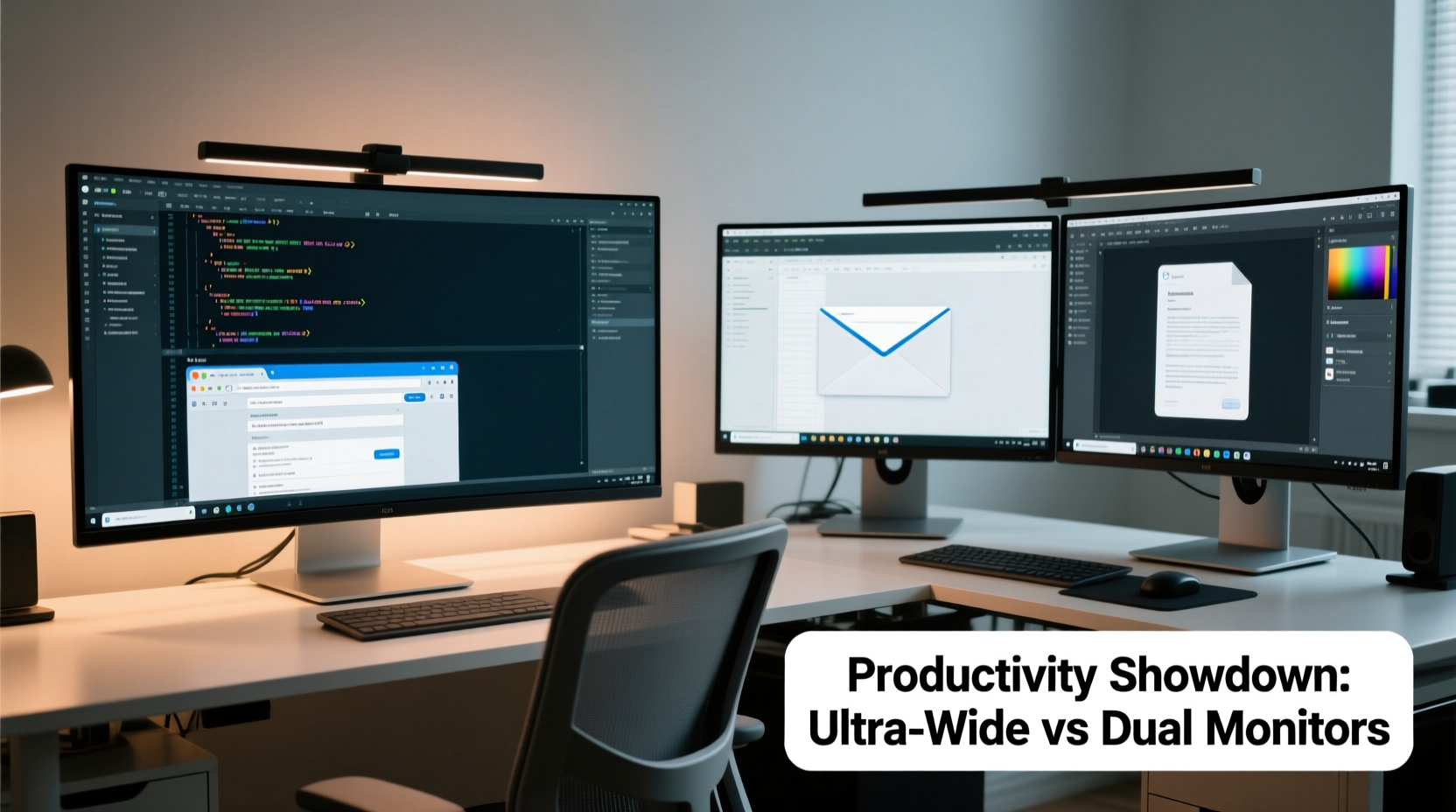
The fundamental distinction between gaming monitors and ultrawide monitors lies in their design philosophy. Gaming monitors are engineered for performance: rapid pixel transitions, minimal input lag, and vibrant color reproduction under dynamic conditions. They’re ideal for competitive play and media consumption but aren’t necessarily optimized for sustained productivity tasks.
Ultrawide monitors, by contrast, prioritize screen real estate. A typical 34-inch ultrawide with a 3440x1440 resolution offers nearly 50% more horizontal pixels than a standard 27-inch 1440p monitor. This expansive canvas allows users to place multiple windows side-by-side without overlapping—critical for tasks like financial modeling, video editing, or software development.
Screen Real Estate and Multitasking Efficiency
Multitasking isn’t just about having many apps open—it’s about accessing them efficiently. Cognitive load increases when users must constantly minimize, maximize, or switch between windows. A monitor that minimizes this friction enhances focus and throughput.
Ultrawide displays excel here. Their elongated format enables natural division of the workspace into three functional zones: primary application (e.g., code editor), secondary reference (e.g., documentation), and tertiary communication (e.g., Slack or email). This layout mirrors how many knowledge workers organize their digital environment, reducing reliance on virtual desktops or alt-tabbing.
Gaming monitors, while sharp and responsive, usually stick to 16:9 aspect ratios. Even at 1440p or 4K, they lack the lateral breadth to comfortably host more than two full-sized windows. For example, placing a web browser next to a spreadsheet often forces one or both into cramped dimensions, leading to excessive horizontal scrolling—a known productivity drain.
“Spatial continuity matters in cognitive tasks. An uninterrupted panoramic view reduces mental context switching.” — Dr. Lena Torres, Human-Computer Interaction Researcher, MIT Media Lab
Performance vs. Practicality: A Comparative Table
| Feature | Gaming Monitor (27\" 1440p 165Hz) | Ultrawide Monitor (34\" 3440x1440 100Hz) |
|---|---|---|
| Aspect Ratio | 16:9 | 21:9 |
| Horizontal Pixels | 2560 | 3440 |
| Vertical Pixels | 1440 | 1440 |
| Refresh Rate | 144–240Hz | 60–120Hz |
| Response Time | 1ms (GTG) | 4–5ms (GTG) |
| Ideal For | Gaming, media playback, fast-paced UI interaction | Spreadsheets, coding, video editing, multitasking |
| Multitasking Score (1–10) | 6 | 9 |
Note: While ultrawides generally have lower refresh rates than premium gaming panels, most office and creative applications don’t benefit from beyond 60–75Hz. The marginal gain in motion clarity rarely offsets the loss of usable workspace in productivity contexts.
Real-World Workflow Example: The Content Creator’s Setup
Consider Sarah, a freelance video editor and copywriter who works across Premiere Pro, Audition, Google Docs, and client emails daily. She previously used a 27-inch 144Hz gaming monitor, sufficient for rendering previews smoothly but limiting her ability to manage timelines and scripts simultaneously.
After switching to a 34-inch ultrawide, she restructured her workspace: timeline and preview on the left, audio track and effects panel in the center, script and chat windows on the right. The result? A 30% reduction in time spent resizing or toggling windows, according to her self-tracked workflow logs over six weeks. She noted fewer instances of losing focus during exports or missing incoming messages.
While she occasionally misses the snappier response time during scrubbing, she found that modern ultrawides with IPS or OLED panels provide more than adequate visual fidelity for professional editing. The trade-off was clearly in favor of spatial efficiency.
Ergonomics and Long-Term Usability
Prolonged screen time demands thoughtful ergonomics. One concern with ultrawide monitors is head movement: users may need to turn their heads frequently to scan from edge to edge, potentially causing neck strain. However, this issue is largely mitigated when the monitor is positioned correctly—centered, at eye level, and within 24–30 inches of the user.
Modern ultrawides often include curved panels (typically 1500R curvature), which align the edges closer to the viewer’s peripheral vision, reducing angular deviation. In contrast, gaming monitors—even curved ones—are usually designed for immersive viewing angles suited to entertainment, not continuous data scanning.
Additionally, ultrawide monitors integrate better with operating system features like macOS Stage Manager or Windows Snap Layouts. These tools automatically divide the screen into logical sections, enhancing organization. Gaming monitors, despite supporting similar features, lack the width to make multi-zone layouts truly effective without sacrificing app usability.
Hybrid Use Cases: Can You Have Both?
For users who game and work, the dilemma isn't always binary. Some professionals want responsiveness for leisure and real estate for labor. Fortunately, several monitors now bridge the gap.
Emerging models like the LG 38GN950 or Dell Alienware AW3821DW combine ultrawide 3840x1600 resolution with 144Hz+ refresh rates and G-Sync compatibility. These hybrid panels deliver both expansive workspace and gaming-grade performance, albeit at a premium price point ($1,200+).
Alternatively, a dual-monitor setup—one ultrawide for productivity, one smaller gaming panel for entertainment—offers flexibility. Though this introduces bezel interruptions and potential color calibration mismatches, it remains a cost-effective way to separate use cases.
Step-by-Step: Optimizing Your Monitor Choice for Multitasking
- Assess your primary workload: Do you spend most of your day in spreadsheets, IDEs, or design tools? Prioritize screen width.
- Map your app ecosystem: List the top 3–5 applications you use concurrently. Test how they fit side-by-side on different aspect ratios.
- Check GPU compatibility: Ultrawides at high resolutions require robust graphics output (DisplayPort 1.4 recommended).
- Simulate the experience: Use online screen size calculators or cardboard cutouts to visualize field-of-view impact.
- Test before investing: Visit a retailer or borrow a unit for a trial day to evaluate comfort and workflow integration.
Expert Recommendations and Industry Trends
A growing number of tech-forward companies are adopting ultrawide monitors as standard issue for developers, analysts, and creatives. Atlassian, for instance, reported a 22% increase in Jira ticket resolution speed after transitioning engineering teams to 21:9 displays.
According to display analyst Mark Chen of Display Supply Chain Consultants, “The productivity ROI of ultrawide monitors is becoming undeniable. We’re seeing enterprise adoption rise faster than consumer gaming segments in North America and Western Europe.”
Meanwhile, gaming monitor innovation continues to push boundaries in latency and HDR, but these gains matter less in non-interactive environments. Unless your job involves real-time animation rendering or VR development, raw speed is less impactful than spatial capacity.
FAQ: Common Questions About Monitors and Multitasking
Can I use an ultrawide monitor for gaming too?
Yes, many ultrawides support adaptive sync (FreeSync or G-Sync) and high refresh rates. However, some older games don’t properly support 21:9 resolutions, resulting in stretching or black bars. Modern AAA titles and emulators handle ultrawides well, but competitive esports players may still prefer 16:9 for consistent aiming.
Do ultrawide monitors cause eye strain?
Not inherently. Eye strain is more closely linked to brightness, blue light exposure, and improper viewing distance than aspect ratio. Curved ultrawides can actually reduce eye movement and improve focus across the screen. Using dark mode interfaces and taking regular breaks (following the 20-20-20 rule) helps maintain comfort.
Is 4K better than ultrawide for productivity?
It depends. A 4K 16:9 monitor offers higher pixel density and sharper text, ideal for photo editing or detailed CAD work. But for window-based multitasking, ultrawide’s horizontal expansion provides more practical space. Many users find a 3440x1440 ultrawide more functional than a 3840x2160 standard display for everyday workflows.
Final Verdict: What’s Best for Multitasking?
For pure multitasking performance, ultrawide monitors hold a decisive advantage. Their ability to display multiple full-sized applications in a continuous, bezel-free environment directly translates to reduced cognitive load, fewer distractions, and faster task execution. While gaming monitors deliver unmatched responsiveness and visual fluidity, these traits contribute little to document editing, data analysis, or collaborative work.
That said, the best choice ultimately hinges on your specific workflow. If you split your time evenly between intensive gaming and deep work, consider a hybrid ultrawide with high refresh rates. If productivity dominates your day, investing in a quality 21:9 or 32:9 display will likely yield measurable returns in efficiency and comfort.
Conclusion: Choose Based on Workload, Not Hype
The allure of high-performance gaming monitors is understandable—vibrant colors, buttery-smooth motion, and aggressive aesthetics appeal to our desire for cutting-edge tech. But true productivity gains come not from specs on a box, but from how well a tool integrates into your daily rhythm.
If your work involves constant context switching, managing complex datasets, or creative layering, the expansive canvas of an ultrawide monitor is unmatched. It transforms your desktop from a constrained viewport into a dynamic workspace where ideas flow freely across panes.




 浙公网安备
33010002000092号
浙公网安备
33010002000092号 浙B2-20120091-4
Comments
No comments yet. Why don't you start the discussion?