
In today’s hybrid work environment—where video calls, document editing, spreadsheet navigation, and occasional after-hours gaming coexist—the choice of mouse can significantly impact both productivity and comfort. While gaming mice are engineered for speed, precision, and responsiveness, productivity mice prioritize ergonomics, battery life, and seamless multi-device integration. But when your desk serves as both a professional workspace and a personal command center, how do you decide which type of mouse delivers superior performance?
The answer isn’t always straightforward. Each category has strengths that align with different aspects of hybrid work. Understanding their core differences—and where they overlap—can help professionals make an informed decision based on actual usage patterns rather than marketing hype.
Design Philosophy: Performance vs. Practicality
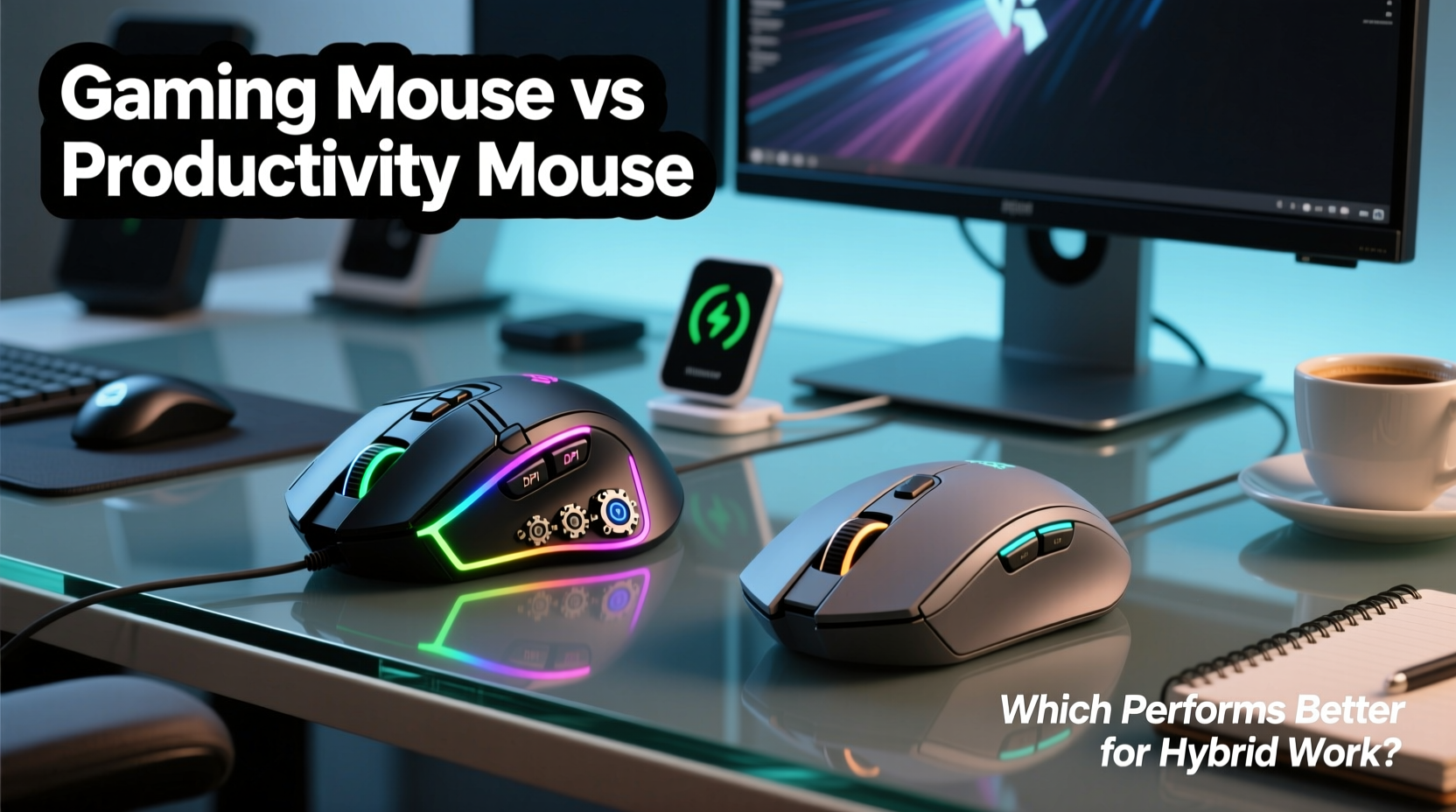
Gaming mice are built with high-intensity use in mind. They typically feature aggressive ergonomic shapes, customizable buttons (often six or more), high DPI sensors (up to 26,000+), and RGB lighting. These features enhance control during fast-paced gameplay but may not translate directly to office efficiency.
Productivity mice, by contrast, emphasize long-term comfort and low-maintenance usability. Brands like Logitech, Microsoft, and Apple design these devices with subtle curves, silent clicks, extended battery life (some lasting over a year), and cross-platform compatibility. Their goal is to reduce fatigue during eight-hour workdays, not dominate leaderboards.
However, modern hybrid users often blur the line between work and play. A developer might code all day and unwind with strategy games at night. A designer could edit visuals in Adobe Suite and then stream gameplay on Twitch. In such cases, the ideal mouse must balance precision, durability, and adaptability.
“Hybrid workers need peripherals that support cognitive flow—not just physical movement. The right mouse reduces friction between tasks.” — Dr. Lena Torres, Human-Computer Interaction Researcher, MIT Media Lab
Performance Comparison: Key Metrics That Matter
To evaluate which mouse performs better in a hybrid setting, several technical and experiential factors should be weighed:
- DPI and Sensitivity: Gaming mice offer ultra-high DPI settings, allowing minimal hand movement for large cursor travel. For creative professionals using high-resolution monitors, this can improve accuracy. However, most office tasks don’t require more than 1200–1600 DPI, making extreme sensitivity unnecessary.
- Polling Rate: Measured in Hz, polling rate determines how often the mouse reports position to the computer. Gaming mice typically support 500Hz to 1000Hz (every 1–2ms), while productivity models usually operate at 125Hz (8ms). The difference is imperceptible in everyday browsing or email management.
- Button Customization: Programmable side buttons on gaming mice can streamline workflows—assigning copy/paste, switching tabs, or launching apps. Productivity mice often have fewer buttons, but some premium models include gesture controls or thumb wheels for scrolling through documents.
- Battery Life: Wireless gaming mice now rival productivity models, with some offering 70+ hours per charge. Still, productivity-focused devices like the Logitech MX Master series boast up to 70 days on a single charge—ideal for remote workers avoiding constant recharging.
- Ergonomics: Prolonged typing and clicking demand supportive design. Many productivity mice follow natural hand contours, reducing strain. Gaming mice, especially those designed for claw grip, may cause wrist discomfort over time if used primarily for office tasks.
Feature Showdown: Gaming vs. Productivity Mice
| Feature | Gaming Mouse | Productivity Mouse |
|---|---|---|
| DPI Range | 800 – 26,000+ | 800 – 4000 |
| Polling Rate | 500–1000 Hz | 125–500 Hz |
| Battery Life (Wireless) | 30–80 hours | 30 days – 1 year |
| Programmable Buttons | 6–12+ | 2–6 |
| Ergonomic Design | Varies; often aggressive angles | Consistently optimized for comfort |
| Multi-Device Pairing | Limited (some newer models support it) | Common (Bluetooth + USB receiver) |
| Noise Level | Louder clicks (tactile feedback) | Silent or soft-click options |
| Price Range | $50–$150+ | $60–$100 |
This comparison reveals that while gaming mice outperform in raw specs, productivity mice excel in sustainability and user experience—especially for knowledge workers who spend hours navigating digital interfaces without needing pixel-perfect aim.
Real-World Scenario: A Developer’s Dilemma
Consider Alex, a full-stack developer working remotely three days a week and in-office two days. During the day, Alex writes code, reviews pull requests, attends Zoom meetings, and manages project timelines across multiple platforms. At night, Alex enjoys playing competitive multiplayer games requiring quick reflexes and precise targeting.
Initially, Alex used a high-end gaming mouse (DPI: 16,000, 11 programmable buttons, RGB lighting) for all tasks. Within weeks, wrist fatigue became noticeable after long coding sessions. The mouse’s tall profile forced an awkward grip, and accidental button presses triggered unwanted macros during meetings.
Switching to a productivity mouse improved daily comfort, but gaming performance suffered. Seeking balance, Alex tested a hybrid model—the Logitech MX Vertical for work and the Razer Basilisk X for evenings. Alternatively, Alex explored the Logitech G700s, a legacy device blending programmable buttons, moderate ergonomics, and dual-mode connectivity.
The lesson: context-specific needs matter. For pure productivity, a dedicated ergonomic mouse wins. For mixed use, a versatile middle-ground device may offer the best return on investment.
Choosing the Right Tool: A Step-by-Step Guide
Selecting the optimal mouse for hybrid work doesn’t have to be overwhelming. Follow this structured approach to match your device to your lifestyle:
- Assess Your Daily Workflow: Track how much time you spend on typing, reading, designing, coding, or presenting. If more than 70% involves document interaction, lean toward productivity.
- Evaluate Physical Comfort: Try holding both types. Does the mouse fit naturally in your hand? Can your wrist remain neutral? Discomfort after 10 minutes is a red flag.
- Check Connectivity Needs: Do you use multiple devices (laptop, desktop, tablet)? Prioritize Bluetooth or multi-pairing capability if so.
- Test Button Utility: Will extra buttons save time (e.g., browser back/forward, mute/unmute)? Or will they trigger errors accidentally?
- Review Battery and Charging Habits: Are you likely to forget charging? Choose a model with months-long battery life or fast-charging support.
- Set a Realistic Budget: High-end gaming mice often cost more without adding value for office tasks. Mid-range productivity models frequently deliver better ROI.
- Try Before You Buy: Visit electronics stores or borrow from colleagues. Hands-on testing trumps spec sheets.
Action Checklist: How to Optimize Your Mouse Choice
Before finalizing your purchase or adjusting your current setup, complete this checklist:
- ✅ Determine primary use case: >70% work = productivity mouse; balanced use = hybrid-capable model
- ✅ Measure desk space: Larger gaming mice need ample room; compact productivity mice suit small setups
- ✅ Verify OS compatibility: Some gaming software lacks macOS or Linux support
- ✅ Enable DPI switching: Set lower sensitivity for spreadsheets, higher for design work
- ✅ Customize side buttons: Assign shortcuts like Ctrl+Z, Alt+Tab, or meeting mute
- ✅ Adjust pointer speed in system settings: Match mouse behavior to personal preference
- ✅ Clean regularly: Dust buildup affects sensor accuracy on any mouse
Frequently Asked Questions
Can a gaming mouse damage my computer during office work?
No, a gaming mouse cannot harm your system. However, misconfigured macros or overly sensitive settings might lead to accidental actions (e.g., closing tabs, deleting text). Proper driver configuration minimizes these risks.
Are wireless gaming mice reliable for video conferencing?
Yes, modern wireless gaming mice use 2.4GHz RF or Bluetooth with near-zero latency. As long as the battery is charged and interference is low, performance remains stable—even during screen sharing or collaborative editing.
Do productivity mice lack precision for detailed work like photo editing?
Not necessarily. Most productivity mice offer sufficient DPI (up to 4000) and smooth tracking for graphic design, CAD, or UI layout. Unless you're doing frame-by-frame animation or competitive esports, the precision gap is negligible.
Expert Insight: Bridging the Gap Between Domains
As workplace technology evolves, the distinction between \"work\" and \"play\" gear is fading. According to industry analyst Rajiv Mehta of TechTrend Insights:
“The future of peripheral design lies in adaptive functionality. We’re seeing more ‘prosumer’ mice that combine ergonomic excellence with programmable intelligence—devices that know whether you’re in a boardroom or battling online.” — Rajiv Mehta, Senior Analyst, TechTrend Insights
This shift is evident in products like the Logitech MX Master 3S (quiet, precise, customizable) and the Razer Pro Click (a gaming-grade sensor in a business-friendly shell). These hybrids acknowledge that modern professionals aren’t confined to a single role—they’re creators, collaborators, and sometimes competitors—all within the same week.
Conclusion: Matching Tools to Lifestyle, Not Labels
The debate between gaming and productivity mice ultimately hinges on usage, not superiority. For hybrid workers, the best choice reflects a nuanced understanding of daily demands. If your routine centers on writing, communication, and data management, a well-designed productivity mouse enhances endurance and reduces distraction. If your workflow includes frequent design, simulation, or evening gaming, a mid-to-high-tier gaming mouse—with attention to ergonomics—can serve dual roles effectively.
But the smartest move may be embracing convergence. Newer devices blur the categories entirely, offering silent switches, rechargeable batteries, customizable buttons, and cross-platform syncing—all wrapped in comfortable shells. Whether you choose a dedicated tool or a hybrid solution, the goal remains the same: seamless, efficient interaction with the digital world.




 浙公网安备
33010002000092号
浙公网安备
33010002000092号 浙B2-20120091-4
Comments
No comments yet. Why don't you start the discussion?