
For years, the debate has simmered in tech circles: can a gaming mouse outperform a regular office mouse when it comes to productivity work? With high DPI ratings, customizable buttons, and premium sensors, gaming mice seem like overkill for typing emails or managing spreadsheets. Yet, many professionals—especially developers, designers, and multitaskers—are making the switch. The central question often revolves around one spec: DPI (dots per inch). Is it truly critical for productivity, or just marketing fluff aimed at gamers?
The answer isn’t straightforward. While DPI plays a role in cursor precision and speed, its real-world impact on daily work depends on screen resolution, workflow complexity, and personal preference. To understand whether a gaming mouse is worth it for non-gaming use, we need to compare both types across functionality, ergonomics, software, and actual task performance.
Understanding DPI: What It Means for Your Workflow
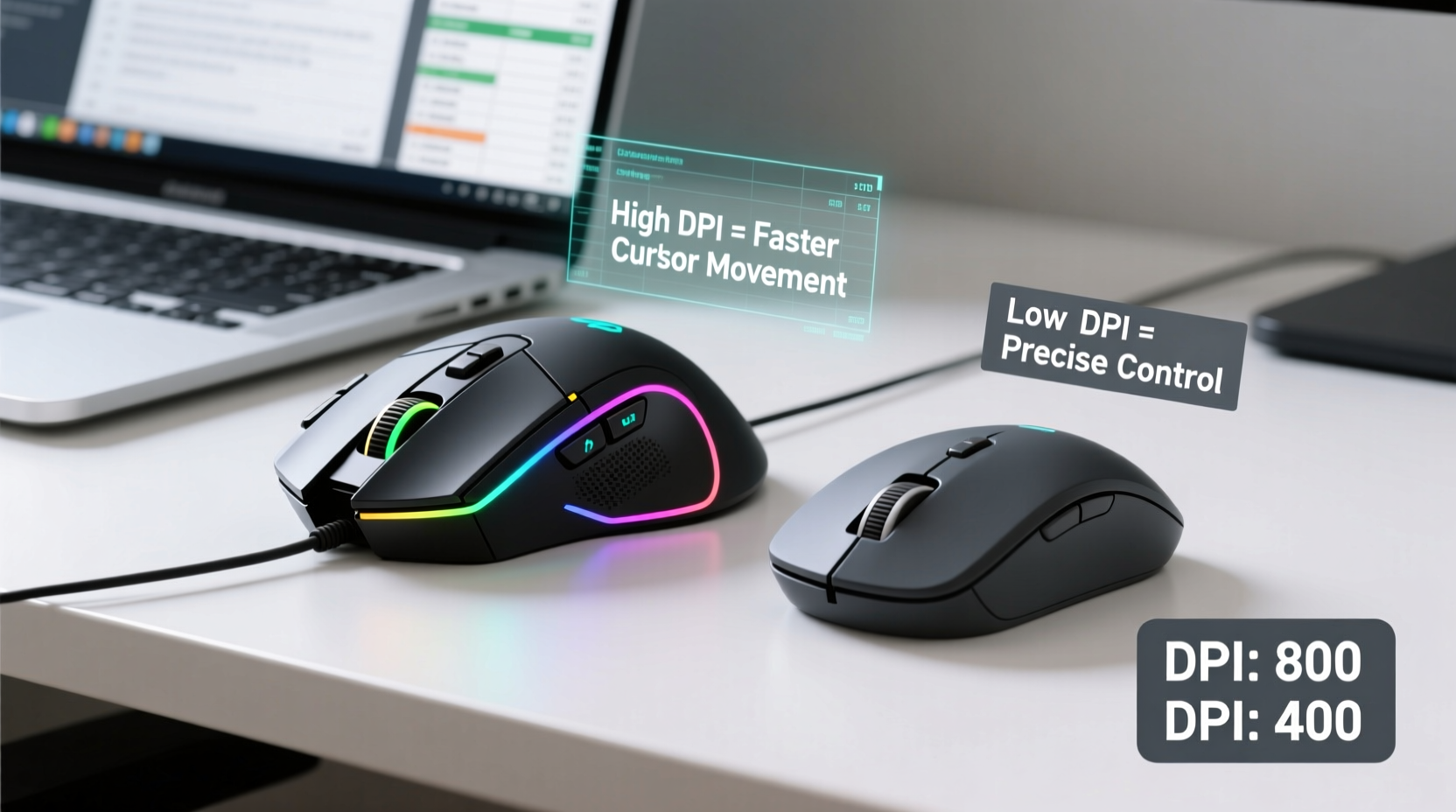
DPI measures how sensitive a mouse is to movement. A higher DPI means the cursor travels farther across the screen with less physical motion. For example, a 1600 DPI mouse will move the cursor twice as far as an 800 DPI mouse with the same hand movement.
In gaming, high DPI (often 3200–16,000) allows rapid aiming and quick repositioning. But in productivity settings, extreme sensitivity can be counterproductive. Imagine trying to highlight a single cell in Excel and overshooting by three columns because your cursor flew across the screen. Precision matters more than speed when editing documents or navigating complex UIs.
Most office tasks perform well between 800 and 1600 DPI. This range offers a balance: enough sensitivity for smooth navigation on high-resolution displays, but not so much that fine control becomes difficult. Many modern gaming mice allow on-the-fly DPI switching—a feature useful if you toggle between multiple monitors or applications requiring different levels of accuracy.
“DPI is only one part of the equation. Sensor quality, polling rate, and acceleration behavior matter just as much for consistent pointer control.” — Dr. Lena Torres, Human-Computer Interaction Researcher, MIT Media Lab
Gaming Mouse vs Regular Mouse: Key Differences That Matter
Let’s dissect the core differences between gaming and standard mice to see which features actually benefit productivity.
| Feature | Gaming Mouse | Regular Mouse |
|---|---|---|
| Sensor Quality | High-precision optical/laser sensors with low latency | Adequate for basic navigation; may lag on glass surfaces |
| DPI Range | 400–16,000+, adjustable in real time | Usually fixed at 800–1200 DPI |
| Button Customization | Programmable side buttons, macros, profiles | Typically two primary buttons + scroll wheel |
| Ergonomics | Designed for long sessions; varied shapes (ergo, ambidextrous) | Often flat and lightweight; less support for extended use |
| Software Support | Advanced configuration apps (e.g., Logitech G Hub, Razer Synapse) | Limited or no customization software |
| Build Quality | Durable materials, mechanical switches rated for millions of clicks | Plastic housing, shorter lifespan under heavy use |
| Price | $50–$150+ | $10–$40 |
The table shows that gaming mice aren't just about speed—they offer tangible advantages in durability, customization, and responsiveness. However, these benefits must be weighed against cost and practicality. If you spend eight hours a day coding, editing video timelines, or managing multiple browser tabs, the extra buttons and precise tracking might justify the investment. For casual email and web browsing, a standard mouse remains sufficient.
Real-World Productivity Benefits of Gaming Mice
Beyond specs, the true value lies in how a device enhances your daily routine. Consider Sarah, a UX designer working across Figma, Slack, Zoom, and Chrome with dual 27-inch 4K monitors. Her old wireless office mouse struggled with cursor jitter and required constant recalibration. After switching to a mid-tier gaming mouse (Logitech MX Master 3S, technically pro-productivity but sensor-grade comparable to gaming models), she noticed immediate improvements:
- Faster panning and zooming in design tools using programmable thumb buttons.
- Reduced hand fatigue due to ergonomic shape and smoother scroll wheel.
- Better cursor stability on high-DPI screens without micro-jumps or lag.
This isn’t anecdotal magic—it’s engineering. High-end sensors in gaming mice typically have lower lift-off distance (how high you can raise the mouse before it stops tracking), reducing inaccuracies during repositioning. Polling rates of 500Hz or 1000Hz mean the cursor updates more frequently, leading to smoother motion. These subtleties add up over hours of use.
Similarly, software integration allows users to assign actions like “Ctrl+Tab” (switch browser tabs), “Alt+Tab” (switch apps), or even launch specific programs with a single button press. For writers, researchers, or data analysts juggling dozens of windows, this reduces reliance on keyboard shortcuts and streamlines workflows.
When a Regular Mouse Still Wins
Despite these perks, there are scenarios where a standard mouse is preferable:
- Portability: Small, lightweight office mice fit easily into laptop bags.
- Battery Life: Wireless office mice often last months on a single charge; gaming models may need weekly charging.
- Simplicity: No drivers, no profiles, no learning curve.
- Cost: Budget constraints make $20 mice appealing for secondary devices.
If you're using a single 1080p monitor and rarely exceed basic tasks, upgrading to a gaming mouse won’t transform your efficiency. The gains are marginal unless you push your hardware limits.
Optimizing Your Setup: A Step-by-Step Guide
Whether you choose a gaming or regular mouse, proper setup maximizes performance. Follow this sequence to get the most from your device:
- Assess Your Monitor Setup: Note resolution and number of screens. Higher resolutions benefit from higher DPI (but not excessively).
- Select Appropriate DPI: Start at 800 DPI for 1080p, 1200–1600 for 1440p or 4K. Adjust slightly based on comfort.
- Disable Mouse Acceleration: Found in system settings (Windows: Pointer Options > Enhance Pointer Precision; macOS: Trackpad/Mouse settings). This ensures consistent movement mapping.
- Customize Buttons: Use manufacturer software to assign frequent actions (e.g., back/forward in browser, copy/paste, mission control).
- Test Across Applications: Try scrolling in PDFs, selecting text, dragging files. Refine DPI or button mappings as needed.
- Evaluate Ergonomics: After a full workday, check for strain. Consider vertical or ambidextrous designs if discomfort persists.
Checklist: Choosing the Right Mouse for Productivity
Before purchasing, ask yourself the following:
- ✅ Do I use multiple monitors or high-resolution displays?
- ✅ Do I frequently switch between apps or browser tabs?
- ✅ Am I experiencing hand fatigue or cursor inaccuracy?
- ✅ Would programmable buttons save me keystrokes daily?
- ✅ Is build quality and longevity a priority?
If you answered “yes” to three or more, a gaming or high-end productivity mouse is likely a worthwhile upgrade. Look for models with reliable sensors (PixArt PMW3389 or similar), at least five buttons, and driver support.
FAQ: Common Questions About Mice and DPI in Productivity
Does higher DPI improve accuracy?
Not necessarily. Accuracy depends more on sensor quality and surface calibration than raw DPI. Extremely high DPI can reduce control, especially on large screens. Optimal accuracy comes from balanced settings tailored to your workspace.
Can I use a gaming mouse for office work without issues?
Absolutely. Most gaming mice function seamlessly in office environments. Some may have RGB lighting (which you can disable), but core navigation, clicking, and scrolling perform excellently. Brands like Logitech, Razer, and SteelSeries offer quiet-click variants suitable for shared spaces.
Is DPI the same as sensitivity?
In practice, yes—users often refer to DPI as sensitivity. Technically, DPI is a hardware measurement, while sensitivity can also be adjusted via software (e.g., Windows pointer speed). For best results, set OS sensitivity to default (100%) and adjust only through DPI or hardware settings.
Conclusion: Rethinking the Role of Gaming Mice Beyond Games
The line between gaming peripherals and productivity tools is blurring. While DPI grabs headlines, it's merely one component of a broader ecosystem that includes sensor fidelity, button utility, ergonomics, and software intelligence. For knowledge workers dealing with complex digital environments, a gaming mouse isn’t excess—it’s empowerment.
You don’t need 16,000 DPI to write a report, but having precise, responsive control across four monitors while launching macros with a thumb press? That’s where modern mice shine. The key is alignment: match your tool to your workload. If your job demands speed, precision, and endurance, investing in a capable mouse—whether labeled “gaming” or not—is a smart move.




 浙公网安备
33010002000092号
浙公网安备
33010002000092号 浙B2-20120091-4
Comments
No comments yet. Why don't you start the discussion?