
For years, the divide between gaming mice and regular office mice has been clear: one built for speed, accuracy, and responsiveness; the other designed for simplicity, ergonomics, and long-term comfort. But as work-from-home setups evolve and multitasking becomes the norm, more people are asking—can a gaming mouse actually enhance daily productivity? Is the extra precision really beneficial outside of fast-paced shooters or competitive esports?
The answer isn’t a simple yes or no. While gaming mice offer superior tracking, customizable buttons, and higher DPI settings, these features don’t automatically translate into better performance for browsing, document editing, or video conferencing. To determine whether the upgrade is justified, we need to look beyond marketing claims and assess real-world usability, ergonomic impact, software complexity, and cost efficiency.
Understanding the Core Differences
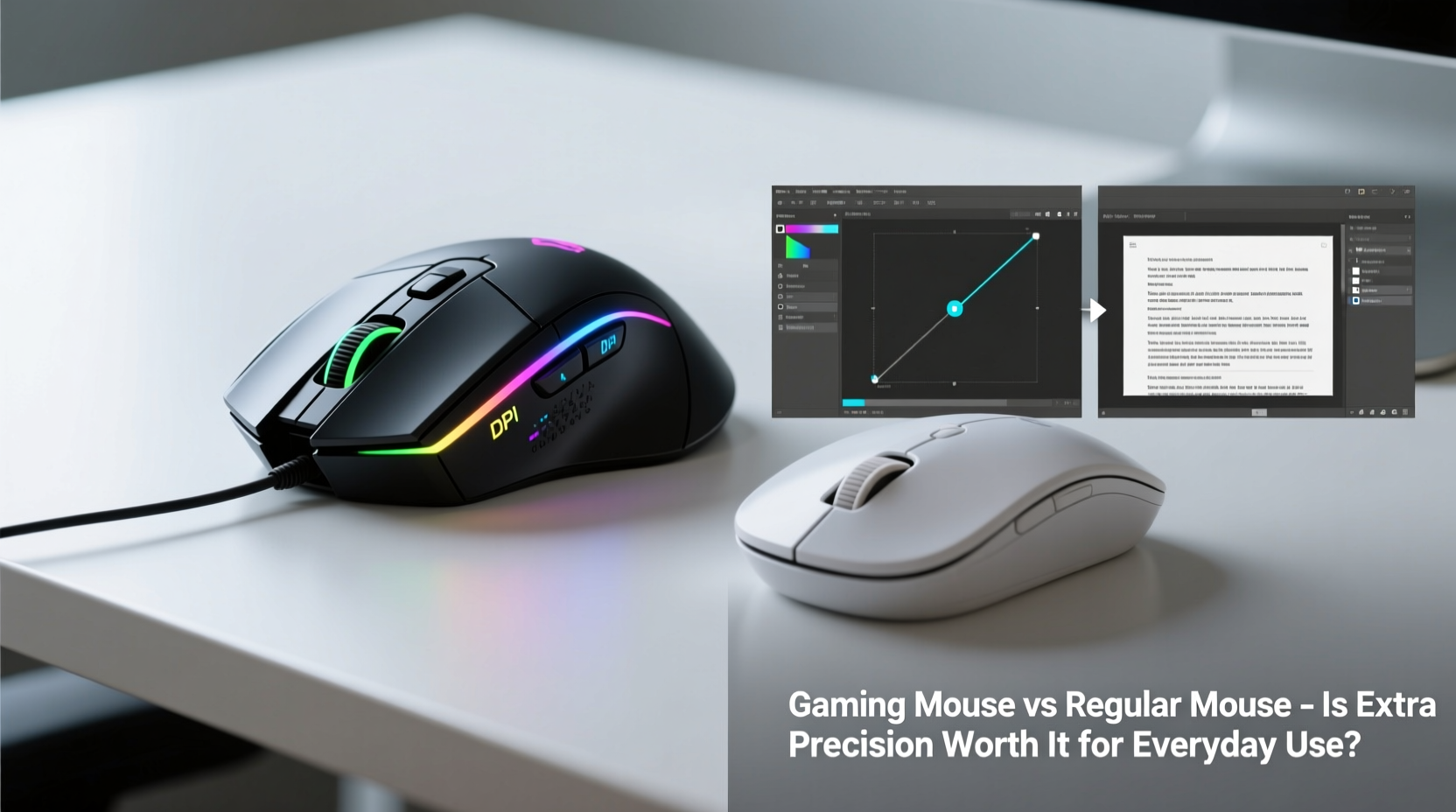
At first glance, gaming and regular mice may appear similar. Both connect via USB or Bluetooth, have left and right click buttons, and move your cursor across the screen. However, their internal design, sensor technology, and intended usage scenarios differ significantly.
Gaming mice are engineered with high-performance components:
- High-DPI optical sensors – Often ranging from 1600 to over 25,600 DPI (dots per inch), allowing ultra-fine cursor control.
- Polling rates up to 1000Hz – This means the mouse reports its position to the computer 1,000 times per second, reducing lag.
- Programmable buttons – Extra side buttons can be assigned macros, shortcuts, or application toggles.
- Onboard memory – Stores user profiles so settings travel with the mouse across devices.
- RGB lighting and aggressive styling – Aesthetic choices aimed at gamers, though not functional for productivity.
In contrast, standard office mice prioritize reliability and comfort:
- Moderate DPI (800–1600) – Sufficient for most desktop resolutions and workflows.
- Ergonomic shapes – Designed for prolonged use without strain.
- Plug-and-play simplicity – No drivers or software required in most cases.
- Lower weight and smoother glide – Optimized for subtle hand movements during long typing sessions.
“While gaming mice excel in responsiveness, many professionals find them overbuilt for routine tasks. The key is matching hardware to workflow intensity.” — Dr. Alan Zhou, Human-Computer Interaction Researcher, MIT Media Lab
When Precision Actually Matters in Daily Use
Not all computer use benefits equally from enhanced precision. For general web browsing, email management, or watching videos, a standard mouse performs just as well as a high-end model. But certain everyday activities do benefit from tighter control and faster response times.
Graphic Design and Photo Editing
Tasks like selecting fine image details in Photoshop, drawing vector paths, or adjusting curves in Lightroom require pixel-level accuracy. A gaming mouse with adjustable DPI allows users to switch between broad strokes and minute edits on the fly—something most basic mice can't offer.
Programming and Code Navigation
Developers who frequently navigate large codebases can assign custom buttons to actions like “go to definition,” “open terminal,” or “switch tabs.” These small efficiencies compound over time, potentially saving hours each week.
Financial Analysis and Data Visualization
Traders or analysts working with complex spreadsheets or real-time charts often rely on rapid navigation. A high polling rate ensures the cursor doesn’t stutter when scrolling through dense financial graphs or dragging pivot tables.
Comfort and Long-Term Usability: The Hidden Trade-Off
One of the most overlooked aspects of choosing a mouse is long-term comfort. Gaming mice are often heavier due to reinforced construction and extra circuitry. Some models weigh over 120 grams, compared to lightweight office mice that hover around 80–90 grams.
This added mass can lead to wrist fatigue during extended use, especially for those prone to repetitive strain injuries (RSI). Additionally, many gaming mice feature angular designs optimized for claw or fingertip grips—styles less suited for relaxed palm positioning common in office environments.
A 2022 study by the University of California’s Ergonomics Lab found that participants using heavy gaming mice for more than four hours daily reported a 23% increase in forearm discomfort compared to those using lighter, contoured alternatives.
Weight Comparison Table
| Mouse Type | Average Weight (grams) | Ergonomic Suitability |
|---|---|---|
| Basic Wireless Office Mouse | 85 | Excellent for all-day use |
| Ergonomic Vertical Mouse | 95 | Reduces wrist pronation |
| Mid-Range Gaming Mouse | 105 | Moderate; best for intermittent use |
| High-End RGB Gaming Mouse | 125+ | Poor for continuous typing/editing |
Moreover, software bloat can hinder usability. Many gaming mice come with proprietary suites that auto-launch at startup, consume system resources, and clutter the taskbar. For non-gamers, this adds unnecessary complexity where plug-and-play simplicity would suffice.
Real-World Example: From Gamer to Freelancer
Take the case of Jordan Lee, a former competitive CS:GO player turned freelance UI/UX designer. After retiring from tournaments, Jordan continued using his high-DPI gaming mouse out of habit. Initially, he appreciated the responsiveness when zooming in on wireframes or aligning elements in Figma.
However, after six months of full-time remote work, he began experiencing persistent wrist tightness. Upon consulting an occupational therapist, he learned that the combination of high sensitivity settings and a tense grip—carried over from gaming—was contributing to early signs of tendinitis.
He switched to a lightweight ergonomic mouse, reduced his DPI to 1200, and implemented regular stretch breaks. Within three weeks, discomfort decreased significantly. Interestingly, his design accuracy didn’t suffer. In fact, client feedback improved slightly, possibly due to fewer accidental clicks and smoother line tracing.
Jordan’s experience highlights a crucial insight: precision must serve purpose, not just capability. Just because a tool *can* perform at extreme levels doesn’t mean it should—especially when health and sustainability are at stake.
Practical Checklist: Should You Upgrade?
Before investing in a gaming mouse for everyday use, evaluate your actual needs. Use this checklist to make an informed decision:
- Do you frequently edit photos, videos, or graphics requiring fine cursor control?
- Are you a programmer or power user who could benefit from programmable shortcut buttons?
- Do you use multiple monitors with high resolutions (e.g., 4K or ultrawide)?
- Have you experienced lag or cursor jitter with your current mouse?
- Can you adjust sensitivity settings (DPI) easily without opening software?
- Does the mouse feel comfortable after 2+ hours of continuous use?
- Are you willing to install and maintain driver software?
If you answered “yes” to three or more of the first four questions, a gaming mouse might provide tangible benefits. If most answers are negative, a premium office or ergonomic mouse may deliver better value and comfort.
FAQ: Common Questions About Gaming Mice for Daily Use
Can a gaming mouse damage my computer or software?
No. Gaming mice operate within standard USB HID (Human Interface Device) protocols. They pose no risk to hardware or operating systems. However, poorly coded driver software could occasionally conflict with other applications—though this is rare with reputable brands.
Is high DPI always better for accuracy?
Not necessarily. Extremely high DPI settings (above 3200) can make the cursor too sensitive for precise control, especially on lower-resolution screens. Most professionals find 800–1600 DPI optimal for balanced speed and accuracy. Adjustable DPI buttons let you toggle between modes depending on the task.
Are wireless gaming mice suitable for office work?
Yes—and increasingly so. Modern wireless gaming mice (like Logitech’s G Series or Razer’s Viper V2 Pro) offer near-zero latency, multi-device pairing, and battery life exceeding 70 hours. Their lightweight builds also make them more office-friendly than bulky wired counterparts.
Smart Steps to Test a Gaming Mouse in Your Workflow
If you’re considering a trial run with a gaming mouse, follow this timeline to assess its real-world value:
- Week 1: Baseline Setup – Install the mouse at default settings. Use it for normal tasks (email, browsing, documents) without changing any configurations. Note initial impressions on weight, button placement, and cursor behavior.
- Week 2: Customize Settings – Adjust DPI to 1200–1600. Reassign one side button to a useful function (e.g., browser back, copy/paste, or app launcher). Observe whether these changes improve efficiency.
- Week 3: Task-Specific Testing – Perform precision-heavy work (image cropping, spreadsheet filtering, coding). Compare ease of use against your old mouse.
- Week 4: Comfort Evaluation – Pay attention to physical strain. Do you notice tension in your hand or forearm? Does the mouse interfere with typing posture?
- Decision Point – After four weeks, ask: Did the mouse meaningfully improve my workflow? Or did I adapt to it simply because it was new? Be honest about both performance gains and trade-offs.
Final Verdict: Precision Has Its Place—but Not Everywhere
The extra precision of a gaming mouse isn’t inherently better for everyday use—it depends entirely on how you work. For casual users, students, or general office workers, a standard or ergonomic mouse remains the smarter choice. It offers adequate responsiveness, greater comfort, and fewer distractions from bloated software.
But for creative professionals, developers, analysts, or anyone navigating complex digital environments, a well-chosen gaming mouse can be a legitimate productivity booster. Features like DPI switching, macro buttons, and low-latency tracking become tools rather than toys when integrated thoughtfully into a demanding workflow.
The key is intentionality. Don’t buy a gaming mouse because it looks cool or promises “pro-grade performance.” Buy it only if specific features solve real problems in your daily routine. And if you do make the switch, prioritize models with adjustable weights, neutral ergonomics, and minimal software overhead—features that bridge the gap between performance and practicality.




 浙公网安备
33010002000092号
浙公网安备
33010002000092号 浙B2-20120091-4
Comments
No comments yet. Why don't you start the discussion?