
In an era where every millisecond counts in competitive play, gamers are often drawn to high-end peripherals promising peak performance. Among them, the gaming mouse stands out—not just for its flashy design, but for its advertised precision, customizable DPI settings, and advanced sensor technology. But does that extra sensitivity actually make you better? Or is it just marketing smoke and mirrors? The truth lies somewhere between hardware capability and human skill. To answer this question thoroughly, we need to examine what sets gaming mice apart, how sensitivity impacts real-world performance, and whether upgrading from a regular mouse delivers measurable gains.
Understanding Sensitivity: DPI and CPI Explained
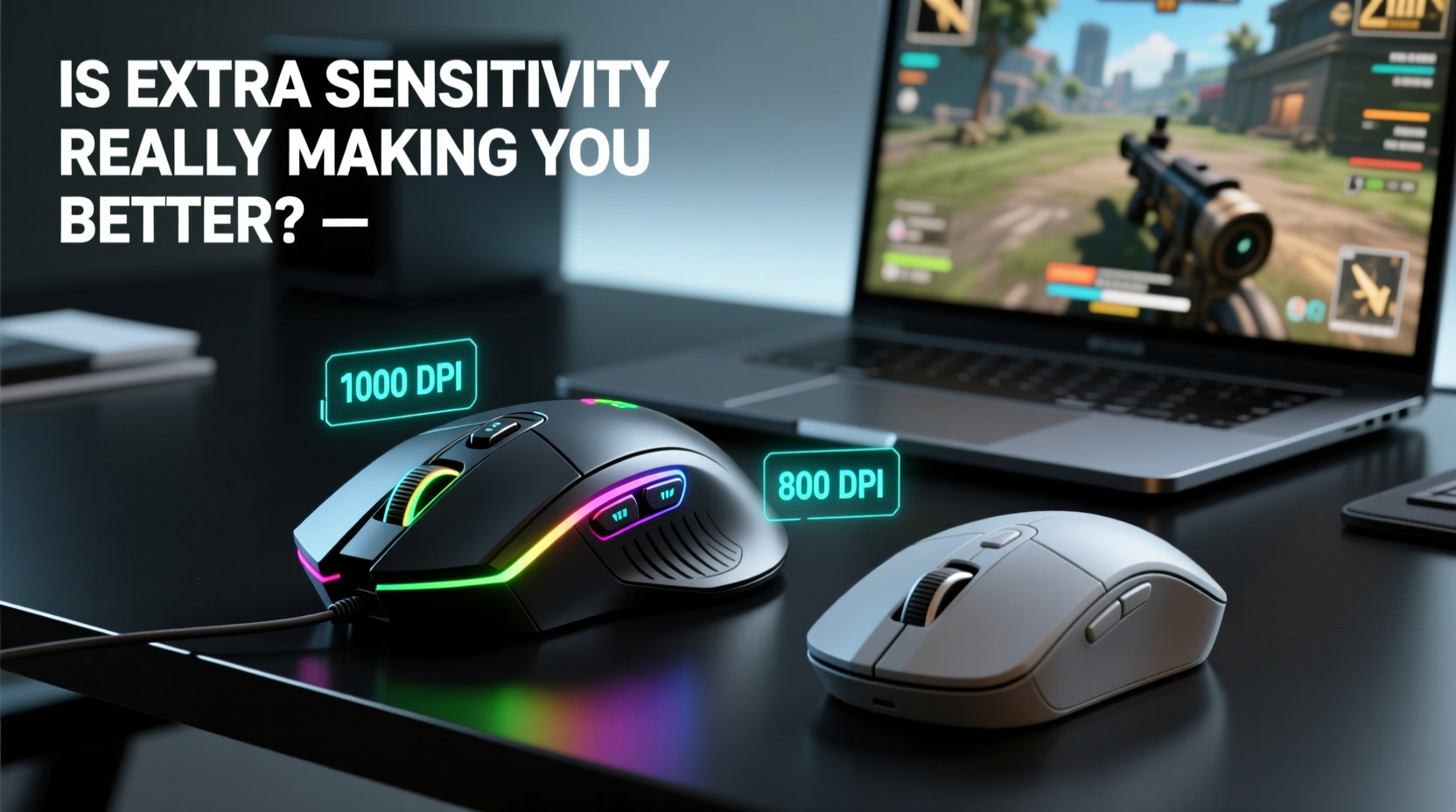
The term “sensitivity” in mouse performance typically refers to DPI (Dots Per Inch) or CPI (Counts Per Inch), which measure how far the cursor moves on screen relative to physical mouse movement. A higher DPI means the cursor travels farther with less hand motion. Standard office mice usually operate between 800 and 1600 DPI, while gaming mice can range from 1600 all the way up to 32,000 DPI.
However, more DPI doesn’t automatically mean better control. In fact, many professional gamers use moderate DPI settings—typically between 400 and 1600—paired with lower in-game sensitivity for greater precision. The key isn't raw speed; it's consistency, responsiveness, and tracking accuracy.
Gaming mice also feature optical or laser sensors with higher polling rates (up to 1000Hz), meaning they report position to the computer more frequently—every 1ms instead of every 8–16ms on standard mice. This reduces input lag and makes movements feel smoother, especially during fast-paced gameplay.
Hardware Differences: What Actually Matters?
It’s easy to assume that a $100 gaming mouse must be superior to a $20 office model, but not all features translate into tangible benefits. Let’s compare core components side by side.
| Feature | Gaming Mouse | Regular Mouse |
|---|---|---|
| DPI Range | 800–32,000 (adjustable) | 800–1600 (fixed or limited adjustment) |
| Polling Rate | 500–1000 Hz | 125 Hz |
| Sensor Type | High-end optical/laser with surface calibration | Basic optical sensor |
| Button Customization | Programmable buttons (6–12+) | Left, right, scroll wheel only |
| Build Quality | Durable materials, ergonomic designs, RGB lighting | Plastic construction, minimal ergonomics |
| Software Support | Firmware updates, macros, profile saving | Limited or none |
While the table shows clear technical advantages for gaming mice, the practical impact depends heavily on usage. For tasks like spreadsheet navigation or web browsing, the difference is negligible. But in first-person shooters (FPS), real-time strategy (RTS), or MOBAs, even slight improvements in tracking accuracy and response time can influence outcomes.
The Role of Muscle Memory and Control
No amount of DPI will compensate for poor technique. Precision in gaming comes from muscle memory—repeating movements until aiming becomes second nature. A high-sensitivity setup might let you turn quickly, but it often sacrifices fine control. Conversely, lower sensitivity requires larger arm movements but enables pixel-perfect targeting.
Consider this: a professional CS:GO player may use 400 DPI with a 0.5 in-game sensitivity, relying on broad swipes from the elbow or shoulder for consistent flick shots. Their control stems not from their mouse, but from thousands of hours refining movement patterns. Swap them to a basic office mouse at the same effective sensitivity, and their performance wouldn’t drop significantly—if the sensor doesn’t skip or stutter.
“Hardware gives you tools, but mastery comes from repetition and awareness. I’ve seen players win tournaments with stock mice because their fundamentals were flawless.” — Adrian Lin, Esports Analyst at GameMeta
This highlights a critical point: the best equipment amplifies skill—it doesn’t create it. A gaming mouse offers cleaner tracking, reduced acceleration artifacts, and more reliable performance across different surfaces, which helps maintain consistency. But if your form is shaky or your reaction timing off, no mouse will fix that.
Real-World Example: From Office Setup to Competitive Play
Take Mark, a casual gamer who primarily used his laptop’s touchpad and a spare USB mouse for work. He decided to get serious about Valorant and invested in a mid-tier gaming mouse (Logitech G502 HERO) along with a cloth mousepad. Initially, he cranked the DPI to 3200, thinking faster cursor movement would help him react quicker. Instead, he found himself overshooting targets and struggling with recoil control.
After researching pro settings, he dialed back to 800 DPI and adjusted in-game sensitivity to match. He began practicing aim drills daily using free training maps. Within three weeks, his kill-death ratio improved by 40%. Was it the mouse? Partially—but only once he used it correctly. The real change came from lowering sensitivity, improving hand positioning, and committing to deliberate practice.
His gaming mouse provided consistent 1:1 tracking and eliminated the jitter he experienced with his old mouse, but the performance leap stemmed from behavioral changes, not hardware alone.
When Does a Gaming Mouse Actually Make You Better?
The answer hinges on context. Here’s a checklist to determine whether upgrading will benefit you:
- You play fast-paced games requiring precise aiming (e.g., FPS, battle royales)
- Your current mouse exhibits cursor skipping, double-clicking, or inconsistent tracking
- You want programmable buttons for macros or quick commands (useful in MMOs or productivity apps)
- You value long-term durability and ergonomic support during extended sessions
- You’re willing to calibrate settings and adapt your technique to maximize the hardware
If most of these apply, a gaming mouse can enhance your experience—and indirectly improve performance by removing technical friction. However, if you're playing turn-based games, editing documents, or casually browsing, the upgrade likely won’t yield noticeable results.
Step-by-Step Guide to Optimizing Your Mouse Settings
Maximizing your mouse’s potential involves more than plugging it in. Follow this timeline to fine-tune your setup:
- Week 1: Baseline Assessment
Test your current mouse in-game. Note any lag, jitter, or inconsistency. Record your average accuracy and reaction time if possible. - Week 2: Install New Mouse & Reset Defaults
Set DPI to 800 (standard baseline). Disable mouse acceleration in OS and game settings. - Week 3: Adjust Sensitivity Gradually
Increase or decrease in-game sensitivity until you find a balance between speed and precision. Aim for full-screen turns within 30–50 cm of desk space. - Week 4: Practice Consistent Technique
Use aim trainers or deathmatch modes to build muscle memory. Focus on smooth tracking and controlled flicks. - Ongoing: Monitor Performance
Re-evaluate every few weeks. Small tweaks may be needed as your skill evolves.
Remember: there is no universal “best” setting. What works for a League of Legends support player won’t suit a Rainbow Six Siege defender. Personalization is key.
Common Misconceptions About Gaming Mice
Several myths persist about what gaming mice can do:
- Myth: Higher DPI = Faster Reflexes
Reality: DPI affects cursor speed, not reaction time. Neural processing and monitor refresh rate play bigger roles. - Myth: All Gaming Mice Are Right-Handed
Reality: Many brands offer ambidextrous or left-handed models (e.g., Razer DeathAdder Left-Handed Edition). - Myth: RGB Lighting Improves Performance
Reality: It doesn’t—but it can aid in identifying profiles or syncing with other devices. - Myth: You Need 16,000 DPI to Be Competitive
Reality: Most pros use under 1600 DPI. Extremely high DPI is useful only for ultra-high-resolution multi-monitor setups.
Marketing often exaggerates capabilities, so approach claims critically. Read independent reviews, check sensor performance charts (like those from Puget Systems or TechPowerUp), and prioritize build quality over flashy specs.
Frequently Asked Questions
Do gaming mice work well for non-gaming tasks?
Absolutely. Features like high polling rates, ergonomic shapes, and customizable buttons can boost productivity. For example, programmers might assign macros to compile code, while graphic designers could map zoom functions to side buttons. Just ensure the weight and size suit prolonged desktop use.
Can a regular mouse keep up in competitive gaming?
Technically, yes—if it has a decent optical sensor and no hardware defects. However, limitations like 125Hz polling rate introduce ~8ms of delay compared to 1ms on 1000Hz gaming mice. Over hundreds of actions, that lag adds up. Also, lack of customization and durability makes regular mice less ideal for intense, long-term gaming.
Does sensor type matter more than DPI?
Yes. A high-quality optical sensor (like the PixArt PMW3389 or HERO 25K) provides accurate, consistent tracking across surfaces with minimal noise or acceleration. Laser sensors, while capable at high DPI, often suffer from \"lift-off distance\" issues and erratic behavior on reflective surfaces. Sensor quality is far more impactful than maximum DPI numbers.
Final Verdict: Is the Extra Sensitivity Making You Better?
The short answer: not directly. Extra sensitivity doesn’t make you better—it enables better performance when combined with proper technique, consistent settings, and deliberate practice. A gaming mouse removes technical barriers: no skipping, no acceleration, no input lag. It gives you a stable foundation to build skill upon.
But hardware alone won’t transform a novice into a pro. The real improvement comes from understanding your playstyle, optimizing sensitivity for control rather than speed, and investing time in training. A gaming mouse is a tool—one that excels when wielded by someone who knows how to use it.
If you're still using a worn-out office mouse with spotty tracking, upgrading will likely feel like a revelation. But if you're chasing wins solely through gear, you’re missing the bigger picture. Skill, not sensitivity, wins matches.




 浙公网安备
33010002000092号
浙公网安备
33010002000092号 浙B2-20120091-4
Comments
No comments yet. Why don't you start the discussion?