
For years, gaming mice have been marketed as precision instruments—high DPI, customizable buttons, RGB lighting, and lightning-fast response times. But what if you're not a gamer? What if your daily routine involves spreadsheets, web browsing, video calls, and document editing? The question arises: Is the extra sensitivity and advanced functionality of a gaming mouse actually beneficial for everyday computing tasks?
The answer isn't a simple yes or no. While gaming mice offer undeniable advantages in responsiveness and customization, those features don’t always translate into tangible benefits outside of gaming environments. In fact, for some users, the heightened sensitivity can be more of a hindrance than a help. Let’s explore the real differences between gaming and regular mice, how sensitivity impacts non-gaming workflows, and whether upgrading is truly worth it.
Understanding Sensitivity: DPI and Polling Rate
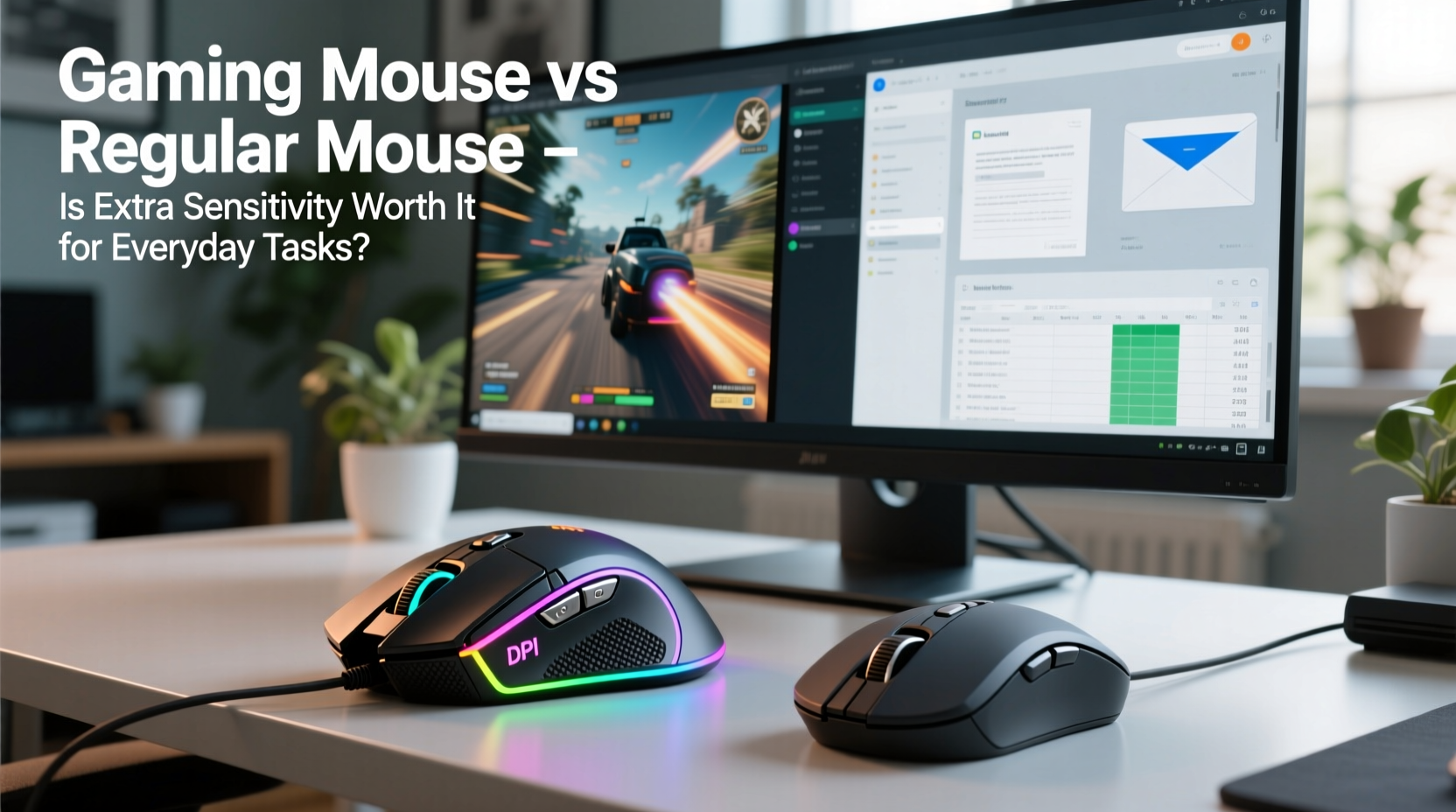
The core difference between gaming and regular mice lies in their technical specifications, particularly DPI (dots per inch) and polling rate. DPI measures how far the cursor moves on-screen relative to physical mouse movement. A higher DPI means less physical motion is needed to move the cursor across the screen. Regular mice typically range from 800 to 1600 DPI, while gaming mice often start at 1600 and go up to 16,000 or even 32,000 DPI.
Polling rate, measured in Hz, refers to how frequently the mouse reports its position to the computer. Standard mice usually operate at 125Hz (once every 8 milliseconds), whereas gaming models can reach 500Hz or 1000Hz (every 2 or 1 millisecond). This results in smoother cursor tracking and reduced input lag.
In fast-paced games like first-person shooters, these specs are critical. A fraction of a second can mean the difference between victory and defeat. But in everyday use—scrolling through emails, clicking links, or dragging files—such microsecond improvements are imperceptible to most users.
Performance in Everyday Tasks: Real-World Impact
Let’s break down common non-gaming activities and assess whether a gaming mouse improves the experience:
- Web Browsing: High DPI may cause the cursor to feel “slippery” or overly sensitive, making precise clicks on small links difficult. Lower sensitivity allows for better control when navigating dense web pages.
- Document Editing: Selecting text, adjusting margins, or formatting tables requires accuracy. Gaming mice with adjustable DPI can be dialed down, but default high settings might lead to overshooting.
- Spreadsheets and Data Entry: Precision matters here. However, excessive sensitivity can make fine adjustments frustrating. A balanced DPI setting is key.
- Video Conferencing: Minimal mouse interaction is involved. Unless you’re sharing your screen and navigating complex UIs, there’s little advantage.
- Graphic Design or Photo Editing: This is one area where a gaming mouse—or at least a high-quality one—can shine. Artists benefit from higher polling rates and programmable buttons for shortcuts.
For the average office worker or student, the marginal gains in speed or responsiveness rarely justify the cost or complexity of a gaming mouse. Comfort, ergonomics, and long-term usability matter far more than raw performance metrics.
Comparative Analysis: Gaming Mouse vs Regular Mouse
| Feature | Gaming Mouse | Regular Mouse |
|---|---|---|
| DPI Range | 1600–32,000 (adjustable) | 800–1600 (fixed or limited adjustment) |
| Polling Rate | 500–1000Hz | 125Hz |
| Buttons | 6–12+ programmable buttons | 2–3 standard buttons |
| Ergonomics | Varies; some models prioritize grip styles over comfort | Generally designed for prolonged use |
| Price Range | $50–$150+ | $10–$40 |
| Battery Life (Wireless) | Shorter due to RGB and high polling | Longer, optimized for efficiency |
| Software Support | Advanced customization suite required | Plug-and-play; minimal setup |
The table highlights a clear trade-off: gaming mice offer superior technical capabilities at the expense of simplicity, battery life, and sometimes comfort. For non-gamers, many of these features remain underutilized.
Real-World Example: Sarah’s Transition to a Gaming Mouse
Sarah, a project manager at a mid-sized tech firm, decided to upgrade her aging optical mouse to a premium gaming model after seeing colleagues rave about their performance. She purchased a top-tier wireless gaming mouse with 16,000 DPI, seven programmable buttons, and customizable lighting.
Within days, she noticed issues. The cursor jumped too quickly across her dual monitors, making window resizing a chore. Accidental right-clicks triggered macros she hadn’t configured, closing tabs unintentionally. The weight of the mouse caused wrist fatigue during long meetings. After two weeks, she reverted to her old mouse, adjusting only the pointer speed in her OS settings to achieve smoother navigation.
“I thought I was upgrading my productivity,” she said. “But all I got was frustration. The extra buttons didn’t help me in Excel, and the sensitivity made everything feel unstable.”
Sarah’s experience is common. Without specific needs—like frequent shortcut usage or multi-monitor navigation—the added complexity outweighs the benefits.
“Most users overestimate the value of high DPI. For productivity, consistency and comfort trump speed.” — Dr. Alan Reyes, Human-Computer Interaction Researcher, MIT Media Lab
When a Gaming Mouse Makes Sense for Non-Gamers
Despite the drawbacks, certain professionals and use cases genuinely benefit from gaming-grade hardware:
- Content Creators: Video editors, 3D modelers, and digital artists often rely on programmable buttons for tool switching, playback control, or layer management. A gaming mouse with macro support can streamline workflows.
- Programmers and Developers: Those working in IDEs with complex keyboard shortcuts can assign frequent commands to mouse buttons, reducing hand movement between mouse and keyboard.
- Multi-Monitor Users: High DPI settings allow faster traversal across large desktop spaces, minimizing arm strain when jumping between screens.
- Accessibility Needs: Users with motor impairments may benefit from adjustable sensitivity and button remapping to accommodate limited dexterity.
In these scenarios, the flexibility of a gaming mouse becomes a productivity tool rather than a luxury. The key is intentional configuration—not just using the mouse out of the box.
Step-by-Step: Optimizing a Gaming Mouse for Productivity
If you’ve already invested in a gaming mouse or plan to use one for mixed purposes, follow this guide to tailor it for everyday tasks:
- Lower the Default DPI: Set your primary DPI stage to 800–1200 for better control during precise tasks.
- Disable Unnecessary Buttons: Use manufacturer software to deactivate side buttons or reassign them to useful functions like copy/paste or browser navigation.
- Adjust Polling Rate: If possible, reduce polling to 500Hz to extend battery life without noticeable lag.
- Turn Off RGB Lighting: Save power and reduce distractions by disabling flashy effects.
- Test Ergonomics: Use the mouse for several hours across different tasks. If discomfort arises, consider a vertical or ergonomic model instead.
- Create Profiles: Set up separate profiles for work (low DPI, muted colors) and gaming (high performance).
This approach ensures you harness the mouse’s strengths without succumbing to its excesses.
Frequently Asked Questions
Can a gaming mouse damage my computer during regular use?
No, a gaming mouse cannot harm your system. It communicates like any other USB input device. However, poorly written driver software could cause minor conflicts, which are easily resolved by updating or uninstalling the app.
Do I need special software to use a gaming mouse normally?
Not necessarily. Most gaming mice function as basic plug-and-play devices without drivers. However, to access customization features like DPI adjustment or button programming, you’ll need the manufacturer’s software (e.g., Logitech G Hub, Razer Synapse).
Is a heavier gaming mouse bad for long-term use?
It can be. Many gaming mice are heavier due to reinforced builds and batteries. Prolonged use may lead to wrist strain. Lightweight models (under 80g) or ergonomic designs are better suited for all-day work.
Final Verdict: Is the Extra Sensitivity Worth It?
For the vast majority of everyday users, the extra sensitivity of a gaming mouse is not worth it. The precision and speed advantages are negligible outside of gaming, and the downsides—higher cost, complexity, potential discomfort—often outweigh the benefits. A well-designed regular mouse offers sufficient accuracy, reliability, and comfort for typical computing tasks.
However, if your workflow involves frequent shortcut usage, multi-application navigation, or creative software, a gaming mouse—with proper configuration—can become a powerful productivity enhancer. The key is intentionality: choosing the right tool for your specific needs, not just the one with the highest specs.
Rather than chasing performance numbers, focus on what truly matters: comfort, durability, and seamless integration into your daily routine. Sometimes, less really is more.




 浙公网安备
33010002000092号
浙公网安备
33010002000092号 浙B2-20120091-4
Comments
No comments yet. Why don't you start the discussion?