
For most people who spend hours each day working at a computer, the mouse is more than just an accessory—it’s a primary tool. Whether you're editing photos, managing spreadsheets, coding, or simply browsing, the accuracy and responsiveness of your mouse can subtly influence your productivity, comfort, and even long-term hand health. While gaming mice are designed with competitive play in mind, many non-gamers wonder: is there a meaningful precision advantage when using one over a standard office mouse? The answer isn’t as simple as “yes” or “no,” but rather depends on how you work, what software you use, and what level of control matters to you.
This article breaks down the technical and practical differences in precision between gaming and regular mice, explores real-world implications for everyday users, and helps you decide if switching makes sense—even if you’ve never installed a game on your PC.
Understanding Precision: DPI, Polling Rate, and Sensor Quality
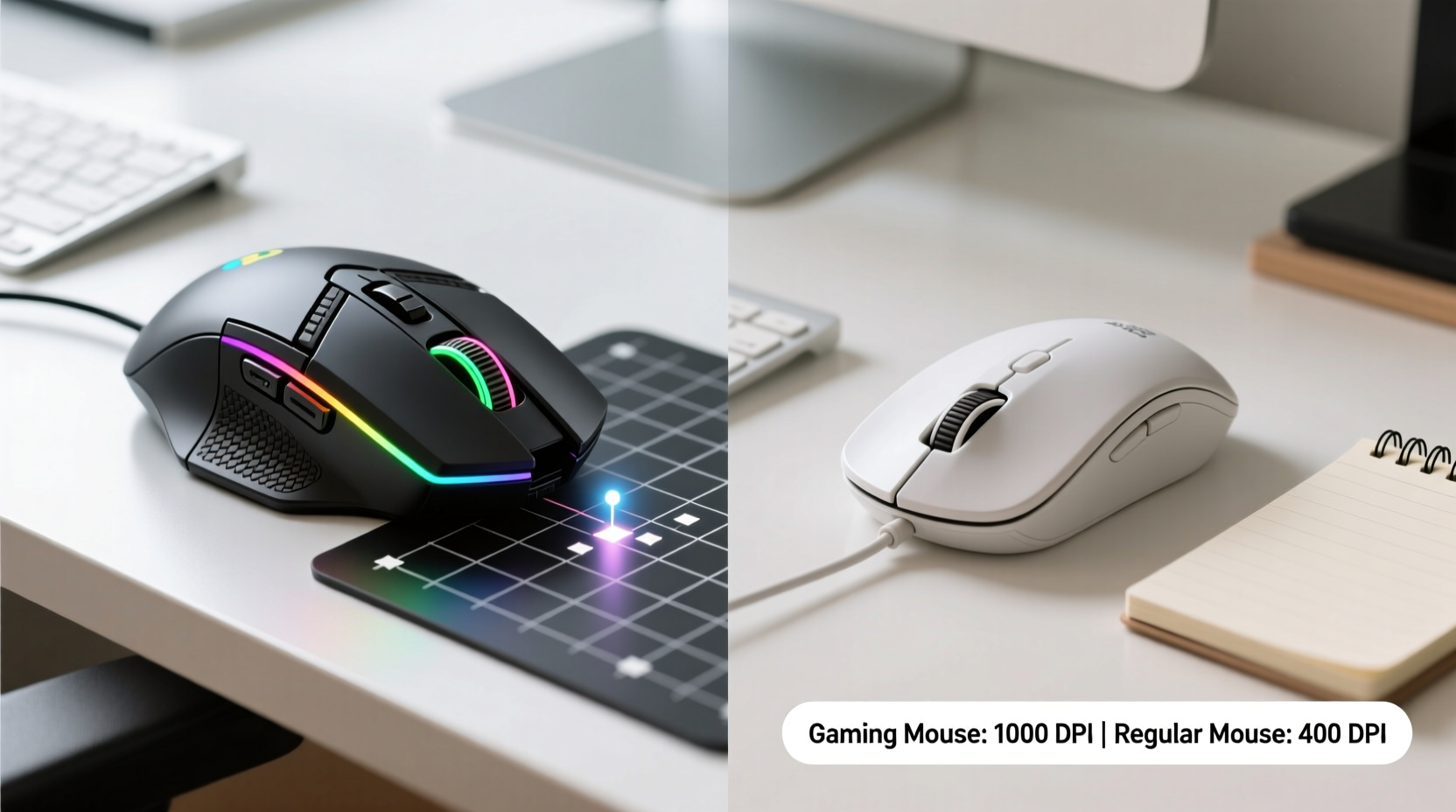
Precision in a mouse refers to how accurately it translates physical movement into on-screen cursor behavior. Three key technical factors determine this: DPI (dots per inch), polling rate, and sensor quality.
DPI measures sensitivity—how far the cursor moves on screen relative to physical mouse movement. A higher DPI means less hand motion is needed to traverse the screen. Regular mice typically range from 800 to 1600 DPI, while gaming models often start at 1600 and go up to 16,000+ DPI. However, high DPI alone doesn’t guarantee better precision; it must be paired with accurate sensor tracking.
The polling rate, measured in Hz, indicates how frequently the mouse reports its position to the computer. Standard mice usually poll at 125Hz (once every 8 milliseconds), whereas gaming mice commonly offer 500Hz or 1000Hz (every 2ms or 1ms). This results in smoother cursor movement and reduced input lag—especially noticeable during fast swipes or detailed maneuvers.
Sensor quality is perhaps the most underrated factor. Gaming mice use advanced optical or laser sensors (such as PixArt’s PMW3389 or newer BM series) that deliver consistent tracking across surfaces, minimal acceleration errors, and no smoothing. In contrast, budget office mice may employ lower-tier sensors that introduce jitter, skipping, or unintended cursor drift—particularly on glossy or uneven desks.
Real-World Precision Differences in Non-Gaming Tasks
While the technical specs favor gaming mice, do these advantages translate into tangible benefits for non-gamers?
In tasks requiring fine motor control—such as photo retouching in Adobe Photoshop, drawing in Illustrator, or CAD modeling—small inconsistencies matter. A regular mouse might exhibit slight cursor wobble or inconsistent line tracking due to inferior sensor calibration. Over time, this forces users to make constant micro-adjustments, increasing cognitive load and slowing workflow.
Consider a graphic designer selecting intricate outlines around hair strands. With a gaming mouse offering true 1-to-1 tracking and zero smoothing, each millimeter of movement is faithfully replicated on screen. This allows for cleaner selections and fewer undo steps. Similarly, video editors scrubbing timelines frame-by-frame benefit from the tighter response curve and lack of latency found in high-polling-rate devices.
Even in less visually intensive roles, such as data entry or document formatting, the cumulative effect of smoother navigation adds up. Clicking small checkboxes, dragging column dividers, or highlighting text without overshooting becomes more intuitive. Users report feeling more “in sync” with their machines after switching to a gaming-grade mouse—despite not engaging in any gaming activity.
“Precision isn’t just about speed; it’s about predictability. When your tools respond exactly as expected, mental fatigue decreases.” — Dr. Lena Torres, Human-Computer Interaction Researcher, MIT Media Lab
Comparative Analysis: Gaming Mouse vs Regular Mouse
| Feature | Gaming Mouse | Regular Mouse |
|---|---|---|
| DPI Range | 400 – 16,000+ (adjustable) | 800 – 1600 (fixed or limited adjustment) |
| Polling Rate | 500Hz – 4000Hz | 125Hz (standard) |
| Sensor Type | High-end optical/laser (e.g., PixArt) | Basic optical sensor |
| Tracking Accuracy | No smoothing, no acceleration | May include software smoothing |
| Build Materials | Durable plastics, metal reinforcements | Standard plastic, lightweight design |
| Button Durability | 50M+ clicks | 3M–10M clicks |
| Customization | Software profiles, button remapping | Limited or none |
| Price Range | $40 – $150+ | $10 – $40 |
The table above highlights why gaming mice outperform regular ones in precision-critical environments. But performance isn’t everything—ergonomics, weight, and personal preference also shape user experience.
Mini Case Study: From Office Worker to Precision Workflow
Sarah Kim, a freelance accountant based in Portland, spent years using a basic wireless mouse bundled with her laptop. She noticed frequent double-clicks, missed menu selections, and occasional freezing during client calls involving screen sharing. After researching ergonomic tools, she invested in a mid-tier gaming mouse known for its high-precision sensor and adjustable DPI.
Within days, Sarah observed improvements. Selecting cells in Excel became faster and more accurate. Scrolling through tax forms felt smoother. Most surprisingly, her wrist discomfort decreased—likely due to reduced grip tension from needing fewer corrective movements. Though she didn’t edit images or play games, the enhanced tracking stability made daily tasks feel less taxing.
“I thought gaming mice were overkill,” Sarah said. “But once I realized how much tiny inaccuracies were adding up, the switch made perfect sense. It’s like going from reading a blurry page to clear print.”
When a Gaming Mouse Makes Sense for Non-Gamers
Not every non-gamer needs a gaming mouse. However, certain professionals and usage patterns benefit significantly from the precision edge:
- Creative professionals: Photographers, illustrators, UI/UX designers, and video editors rely on pixel-level accuracy.
- Technical workers: Engineers, architects, and programmers navigating complex interfaces appreciate responsive, lag-free input.
- Remote presenters: Those frequently sharing screens during meetings need reliable pointer control to avoid awkward fumbling.
- Users with large or multi-monitor setups: Higher DPI settings allow efficient traversal across expansive desktop spaces.
- People experiencing repetitive strain: Smoother tracking reduces the need for repeated corrections, lowering physical stress.
If your work involves frequent zooming, precise clicking, or extended computer use, the investment in a gaming mouse may pay off in both efficiency and comfort—even without touching a single game.
Step-by-Step Guide: Testing Mouse Precision Yourself
You don’t need specialized equipment to assess mouse precision. Follow this simple process to compare devices objectively:
- Set up a controlled environment: Use the same surface, lighting, and mousepad for both mice.
- Standardize DPI: Adjust both mice to 800 DPI (or as close as possible).
- Open a blank document: Use a word processor or graphics program with a plain white canvas.
- Draw slow, straight lines: Move the mouse slowly from left to right. Look for jitter, skipping, or unnatural curves.
- Test diagonal movements: Draw diagonals at 45° angles. Inconsistent tracking will show as wavering lines.
- Click small targets: Create 10x10 pixel boxes and attempt to click them repeatedly. Count misses.
- Evaluate acceleration: Flick the mouse quickly and stop abruptly. The cursor should stop instantly—not glide or stutter.
- Compare polling smoothness: Watch cursor movement during fast sweeps. Gaming mice typically appear more fluid.
This test reveals subtle differences invisible during casual use but impactful over time.
Common Misconceptions About Gaming Mice
Several myths deter non-gamers from considering gaming mice:
- Myth: They’re too heavy. While some gaming mice are bulkier, many modern models prioritize ergonomics and come in lightweight variants (e.g., under 70g).
- Myth: RGB lighting means poor functionality. Flashy aesthetics don’t negate performance. You can disable lights or choose minimalist designs.
- Myth: Only useful for high-speed actions. Precision matters just as much in slow, deliberate tasks as in fast reactions.
- Myth: They wear out faster. Actually, gaming mice use higher-grade components rated for tens of millions of clicks.
The stigma around gaming peripherals as “over-the-top” gear overlooks their engineering rigor. Many are built to withstand eight-hour daily use—making them ideal for professional environments.
Checklist: Is a Gaming Mouse Right for You?
Answer the following to determine if upgrading aligns with your needs:
- ☐ Do you work with detailed visuals (photos, designs, charts)?
- ☐ Do you use multiple monitors or a 4K display?
- ☐ Have you experienced frustration with missed clicks or erratic cursor movement?
- ☐ Do you spend more than 4 hours daily using a mouse?
- ☐ Are you looking to reduce physical strain or improve workflow efficiency?
- ☐ Do you value customization (button mapping, DPI switching)?
If three or more apply, a gaming mouse could enhance your computing experience beyond mere novelty.
Frequently Asked Questions
Do I need special software to use a gaming mouse?
Most gaming mice function as plug-and-play USB devices. However, to unlock full potential—like adjusting DPI, setting custom buttons, or saving profiles—you’ll need the manufacturer’s software (e.g., Logitech G Hub, Razer Synapse). These are optional and don’t interfere with basic operation.
Can a gaming mouse improve my typing or writing speed?
Not directly. However, faster and more accurate navigation between documents, menus, and tools can streamline overall workflow, indirectly boosting productivity.
Are wireless gaming mice as precise as wired ones?
Modern wireless gaming mice (using technologies like Logitech LIGHTSPEED or Razer HyperSpeed) offer near-identical polling rates and latency to wired models. Some even surpass standard Bluetooth mice in reliability and battery life. Interference-free performance is now achievable without cables.
Conclusion: Precision That Pays Off Beyond the Game
The precision gap between gaming and regular mice is real, measurable, and increasingly relevant outside gaming circles. For non-gamers whose livelihoods depend on digital accuracy, consistency, and endurance, a gaming mouse isn’t a luxury—it’s a tool optimized for performance. The improved sensor fidelity, faster reporting, and durable construction contribute to a more seamless, less fatiguing interaction with your computer.
You don’t need to be a pro gamer to benefit from pro-grade hardware. If your work demands attention to detail, rapid navigation, or prolonged mouse use, consider testing a gaming mouse side-by-side with your current one. The difference may surprise you—not in flashiness, but in quiet, confident control.




 浙公网安备
33010002000092号
浙公网安备
33010002000092号 浙B2-20120091-4
Comments
No comments yet. Why don't you start the discussion?