
For years, the gaming mouse has been seen as a tool built exclusively for high-octane gameplay—featuring hyper-responsive sensors, customizable buttons, and flashy RGB lighting. But what if that same precision could enhance everyday work? As remote work blurs the line between personal and professional setups, more people are asking: can a gaming mouse actually improve productivity?
The short answer is yes—but with caveats. While a gaming mouse isn’t necessary for everyone, its advanced features can offer tangible benefits for certain workflows. The real question isn’t whether it works, but whether the advantages justify the cost, complexity, and potential ergonomic trade-offs.
Precision Beyond the Game: How DPI Affects Daily Tasks
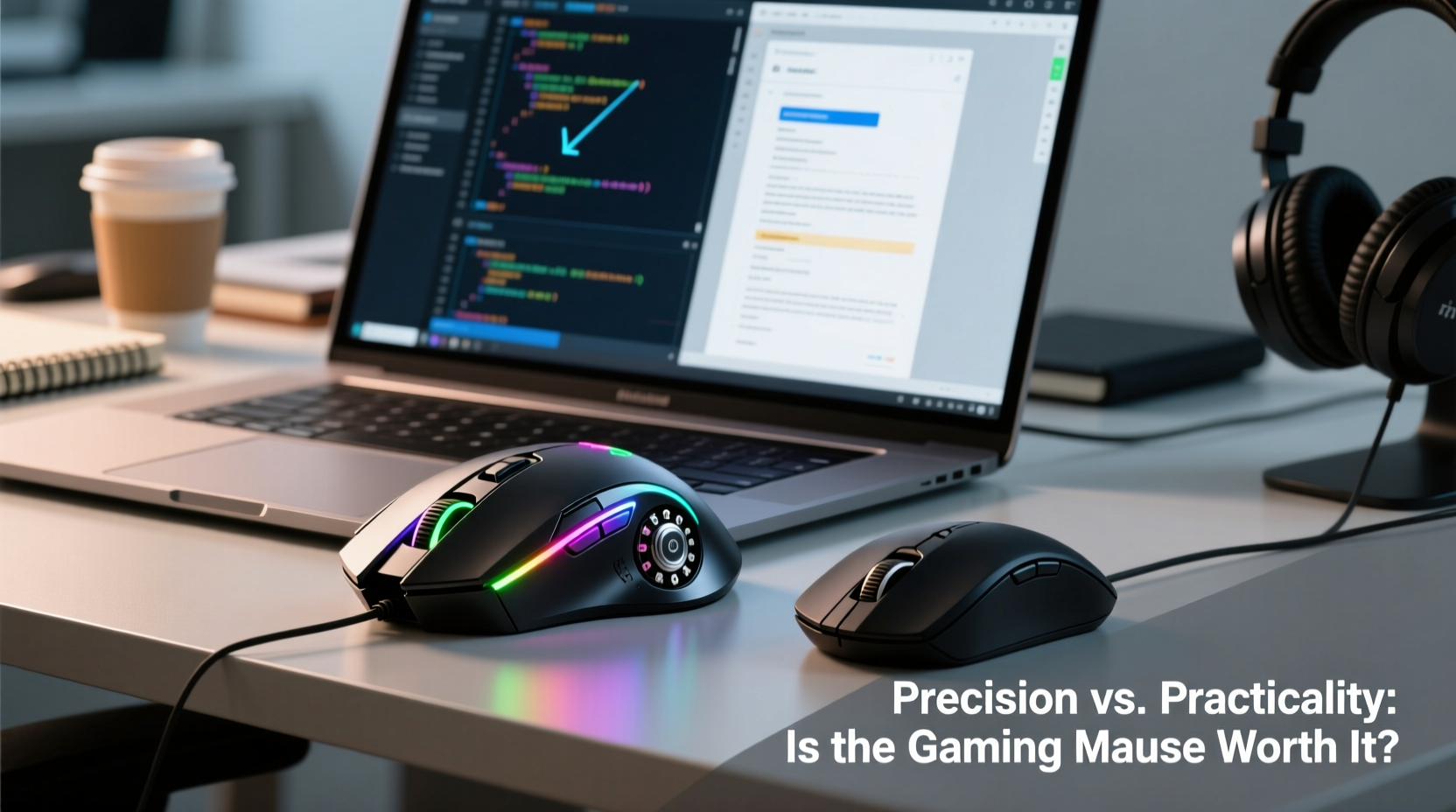
DPI (dots per inch) measures how far your cursor moves in response to physical mouse movement. Standard office mice typically range from 800 to 1600 DPI. Gaming mice, by contrast, often start at 1600 and go up to 16,000 or higher. At first glance, this might seem excessive for spreadsheet navigation or email management. But precision matters in subtle ways across common productivity scenarios.
Consider working with high-resolution monitors. On a 4K display, fine cursor control becomes essential when selecting text, adjusting timeline markers in video editing software, or manipulating layers in design tools like Photoshop. A higher DPI allows for smoother tracking across large screen real estate without constant repositioning of the mouse.
Moreover, many gaming mice feature adjustable DPI on-the-fly via dedicated buttons. This lets users switch between ultra-precise modes (for detailed work) and faster tracking (for general browsing), offering flexibility a standard mouse simply can't match.
Ergonomics and Long-Term Comfort: Design Differences That Matter
Comfort over extended periods is critical in any productivity environment. Here, the differences between gaming and standard mice become more nuanced. Gaming mice are often larger and heavier, designed to support palm grip styles during long sessions. However, this bulk can cause fatigue for users who prefer lighter, compact designs typical of office mice.
That said, not all gaming mice follow the same blueprint. Some models, like the Logitech MX Master series (marketed as productivity-focused but technically \"gaming-grade\"), blend ergonomic excellence with high-end sensor technology. Others, such as the Razer Pro Click or SteelSeries Aerox 3 Wireless, prioritize lightweight construction and portability—features increasingly valued in hybrid work environments.
A 2022 study published in *Applied Ergonomics* found that users performing repetitive digital tasks reported less wrist strain when using contoured, ambidextrous mice with programmable buttons—even outside gaming contexts. The key wasn’t the brand or purpose label, but the fit to hand size and natural movement patterns.
“Ergonomic efficiency isn’t about aesthetics—it’s about reducing micro-movements and minimizing muscular load over time.” — Dr. Lena Torres, Human Factors Researcher at MIT AgeLab
Programmable Buttons: Hidden Productivity Powerhouses
One of the most underrated advantages of gaming mice is their array of programmable side buttons. Where a standard mouse offers two clicks and a scroll wheel, gaming variants often include thumb buttons, DPI shifters, and even gesture-triggered macros.
In practice, these extra inputs can streamline workflows significantly. For example:
- Assign a button to switch between virtual desktops (Windows + Tab)
- Map one to mute/unmute in Zoom or Teams
- Use another to copy formatting in Excel or duplicate layers in Figma
- Trigger clipboard history or screenshot tools instantly
These small efficiencies compound throughout the day. According to research from the University of California, Irvine, frequent context switching costs knowledge workers an average of 20 minutes per interruption. Reducing keystrokes and menu navigation helps maintain flow state—something programmable mice directly support.
Mini Case Study: From Developer to Data Analyst
Mark, a former game developer turned financial data analyst, switched to a Logitech G502 after years of using basic plug-and-play mice. His daily routine involves toggling between SQL editors, dashboards, and pivot tables across three monitors.
Initially skeptical, he programmed his mouse’s thumb buttons to execute common shortcuts: one for “Ctrl+Shift+L” (apply filter in Google Sheets), another for “Alt+Tab” cycling, and a third to launch his terminal. Within two weeks, he estimated saving over 15 minutes per day in manual input.
“It felt like upgrading from a flip phone to a smartphone,” Mark said. “Same functions, but entirely different speed and control.”
Sensor Technology and Surface Tracking: Why It Matters Off the Battlefield
Gaming mice use optical or laser sensors calibrated for pixel-perfect accuracy and minimal input lag. These sensors perform consistently across various surfaces—from glass desks to fabric pads—without jitter or acceleration artifacts.
Standard mice, especially budget models, often rely on lower-tier sensors prone to surface dependency and inconsistent tracking. This may not matter much during casual web browsing, but it becomes noticeable when doing pixel-level alignment in design apps or scrolling through lengthy documents.
To illustrate, consider the difference between editing a PDF annotation or cropping an image. With a precise sensor, you can place selection boxes exactly where needed. With a lower-grade sensor, slight drift or acceleration can force repeated adjustments—adding friction to otherwise simple tasks.
| Feature | Gaming Mouse | Standard Office Mouse |
|---|---|---|
| Typical DPI Range | 1600–16,000+ | 800–1600 |
| Adjustable DPI | Yes (on-the-fly) | Rarely |
| Programmable Buttons | 5–12+ | 0–2 (usually none) |
| Polling Rate | 500–8000 Hz | 125 Hz |
| Battery Life (Wireless) | Varies widely (20–100 hrs) | Often longer (up to 18 months) |
| Ergonomic Options | Wide variety (palm, claw, fingertip) | Limited (mostly symmetric) |
Note: Polling rate refers to how often the mouse reports position to the computer. Higher rates reduce latency—critical in games, beneficial in fast-paced multitasking.
When a Gaming Mouse Falls Short: The Trade-Offs
Despite their strengths, gaming mice aren’t universally better for productivity. Several drawbacks must be weighed before making the switch.
Battery life is a major concern with wireless gaming mice. High-performance sensors and RGB lighting drain power quickly. While some models last 70 hours on a charge, others require weekly top-ups—compared to office mice that run for months on a single AA battery.
Size and weight can also hinder comfort. Larger mice may not suit smaller hands, leading to grip strain during prolonged use. Users accustomed to feather-light travel mice may find gaming models cumbersome.
Software bloat is another issue. Many gaming brands require proprietary drivers to unlock full functionality. These applications often run in the background, consuming system resources and occasionally conflicting with other tools.
Finally, **cost** remains a barrier. A quality office mouse ranges from $30–$80. Gaming equivalents start around $60 and climb past $150 for premium models. Unless the added features directly serve your workflow, the investment may not pay off.
Step-by-Step Guide: Choosing the Right Mouse for Your Workflow
Follow this sequence to determine whether a gaming mouse makes sense for your productivity needs:
- Assess your primary tasks: Do you edit visuals, manage complex spreadsheets, code, or handle frequent window-switching? If so, precision and macros add value.
- Check your monitor setup: Are you using 1440p, 4K, or multiple displays? High resolution increases demand for accurate tracking.
- Measure your hand size: Try holding different mouse shapes. A proper fit prevents long-term discomfort.
- Review existing pain points: Are you frequently reaching for keyboard shortcuts? Struggling with cursor drift? These signal potential gains.
- Compare total cost of ownership: Factor in battery replacement, durability, and expected lifespan. Some office mice outlast two or three gaming models.
- Test before committing: Use trial periods or borrow devices to evaluate real-world performance over several days.
Frequently Asked Questions
Can a gaming mouse damage my computer or software?
No. Gaming mice operate within standard USB/HID protocols and pose no risk to hardware or operating systems. They cannot “overload” your PC with input data under normal conditions.
Do I need special software to use a gaming mouse for work?
Basic functions work plug-and-play. However, to customize buttons, adjust DPI, or save profiles, you’ll need the manufacturer’s software (e.g., Logitech G Hub, Razer Synapse).
Are there quiet gaming mice suitable for office environments?
Yes. Models like the Logitech MX Vertical, Razer Pro Click Quiet, and Zowie EC2-CW are designed for silent clicking and professional settings, blending gaming-grade sensors with discreet acoustics.
Checklist: Is a Gaming Mouse Right for You?
- ☑ I work with high-resolution displays or multiple monitors
- ☑ My job involves precise cursor control (design, coding, data analysis)
- ☑ I frequently use keyboard shortcuts I could map to buttons
- ☑ I experience discomfort with my current mouse
- ☑ I’m willing to install and manage configuration software
- ☑ I value customization and long-term adaptability over simplicity
Conclusion: Precision Has Its Place—But Not Everywhere
The leap from a standard mouse to a gaming model isn’t just about performance—it’s about intentionality. Precision is worth it when it removes friction, reduces errors, and accelerates meaningful work. For creative professionals, developers, analysts, and anyone navigating complex digital environments, that edge can translate into real-time savings and improved focus.
Yet for general users—those primarily handling emails, word processing, and light browsing—a standard mouse remains sufficient, reliable, and often more comfortable. The key is aligning tool capability with actual need, not chasing specs.
If you’re considering the switch, start by identifying where your current setup slows you down. Then test a few options with real tasks. Let utility guide your decision—not marketing hype.




 浙公网安备
33010002000092号
浙公网安备
33010002000092号 浙B2-20120091-4
Comments
No comments yet. Why don't you start the discussion?