
When working or gaming on a laptop, many users rely solely on the built-in trackpad. It's convenient, always available, and requires no extra gear. But when it comes to tasks demanding high precision—like competitive gaming, photo editing, or CAD design—people often reach for a gaming mouse. The assumption is clear: mice offer better accuracy. But is that difference in precision real, measurable, and meaningful in everyday use?
The answer isn't as simple as “yes” or “no.” It depends on the task, the user’s skill, hardware quality, and even software settings. To understand whether switching from a trackpad to a gaming mouse makes a tangible difference, we need to examine how each input device works, what factors influence precision, and how those translate into real-world performance.
How Precision Is Measured in Input Devices
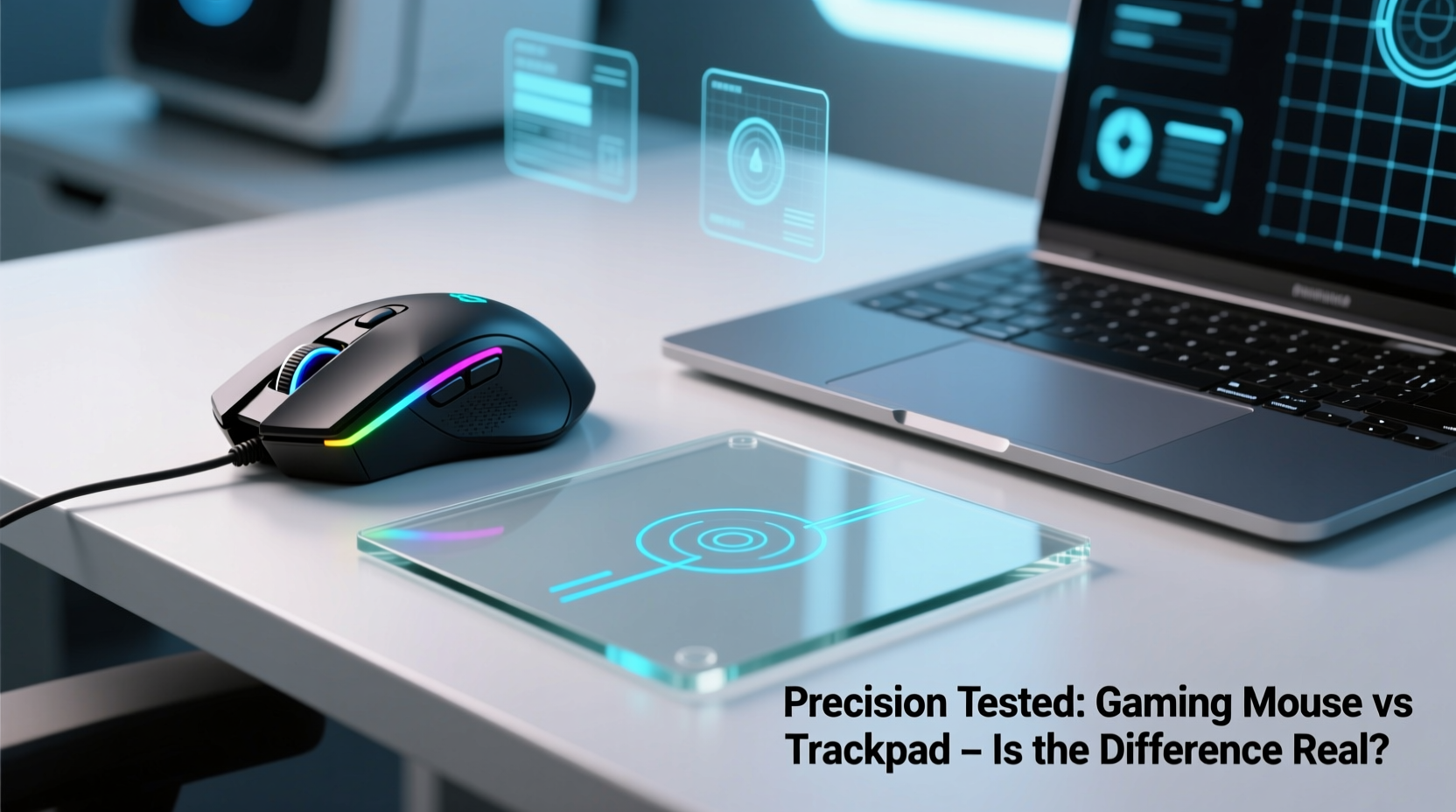
Precision in pointing devices refers to the ability to control cursor movement with accuracy and consistency. Key metrics include:
- DPI (Dots Per Inch): Measures sensitivity—how far the cursor moves relative to physical hand movement.
- Polling Rate: How often the device reports its position to the computer (measured in Hz).
- Acceleration & Smoothing: Whether the system modifies cursor speed based on movement velocity.
- Lift-off Distance: How high you can lift the device before tracking stops—critical for repositioning.
Gaming mice typically feature adjustable DPI (up to 32,000), high polling rates (up to 8000Hz), and minimal acceleration by default. Trackpads, especially integrated ones, usually operate at fixed sensitivity levels with software-based smoothing, which can interfere with fine control.
“Input precision isn’t just about hardware—it’s the synergy between sensor technology, surface interaction, and driver behavior.” — Dr. Lena Torres, Human-Computer Interaction Researcher, MIT Media Lab
Technical Differences: Mouse vs Trackpad
At their core, gaming mice and trackpads function differently. A mouse uses optical or laser sensors to detect movement across a surface, translating physical displacement directly into cursor motion. A trackpad, meanwhile, detects finger position and gesture input via capacitive sensing, interpreting swipes, taps, and pressure changes.
This fundamental distinction affects responsiveness and control fidelity. Consider the following comparison:
| Feature | Gaming Mouse | Laptop Trackpad |
|---|---|---|
| Sensor Type | Optical/Laser (high-resolution) | Capacitive (touch-based) |
| DPI Range | 400–32,000 (adjustable) | Fixed (~400–1000 effective DPI) |
| Polling Rate | 125Hz to 8000Hz | 60Hz to 125Hz (often limited) |
| Motion Prediction | Minimal (configurable) | Aggressive (OS-driven smoothing) |
| Surface Dependency | High (needs consistent texture) | None (built-in surface) |
| Lift-off Detection | Precise (1–2mm typical) | N/A (continuous touch) |
The table highlights why gaming mice are favored in precision-critical environments. Their hardware is designed for low latency, high repeatability, and minimal input lag. Trackpads, while excellent for navigation and multitasking gestures, introduce layers of abstraction that reduce direct control.
Real-World Performance: Gaming and Beyond
In competitive gaming, milliseconds and millimeters matter. First-person shooters like *CS:GO*, *Valorant*, or *Overwatch* demand pixel-perfect aiming under pressure. Here, the advantages of a gaming mouse become evident.
A player using a high-DPI mouse set to 800–1600 DPI with a 1000Hz polling rate can make micro-adjustments that are nearly impossible on a trackpad. The tactile feedback from physical buttons and the ability to pivot the wrist freely allow for faster flick shots and smoother target tracking.
Consider this mini case study:
Mini Case Study: Competitive FPS Player Transitioning to Laptop Use
Jamal, a semi-professional *Valorant* player, had to travel for work and relied only on his ultrabook with no external peripherals. During two weeks of trackpad-only play, his K/D ratio dropped from 1.8 to 1.1. He struggled with over-aiming, inconsistent recoil control, and missed flick shots. Upon returning home and reconnecting his gaming mouse, his performance rebounded within days.
“It wasn’t just about speed,” Jamal explained. “The trackpad felt ‘slippery’—I couldn’t trust small movements. I’d nudge my finger slightly and the crosshair would jump three times farther than expected.”
This experience reflects a common issue: trackpads apply software smoothing and palm rejection algorithms that distort intentional input. While helpful for casual browsing, these features hinder consistent muscle memory development crucial in gaming.
But precision matters beyond gaming. Graphic designers using Adobe Photoshop or video editors in DaVinci Resolve also benefit from high-fidelity input. Selecting a single pixel, adjusting bezier curves, or scrubbing timelines frame-by-frame demands stability and predictability—areas where a mouse excels.
When a Trackpad Might Be Good Enough
Not every task requires military-grade precision. For general productivity—writing emails, managing spreadsheets, browsing the web—a trackpad performs admirably. Modern trackpads, especially Apple’s Force Touch or Microsoft Precision models, support multi-touch gestures, haptic feedback, and pressure sensitivity that enhance usability.
For example, pinching to zoom, swiping between desktops, or right-clicking with a two-finger tap streamline workflows without needing external hardware. In mobile scenarios—working from a café, giving a presentation, or traveling—a trackpad eliminates clutter and setup time.
Moreover, some users develop exceptional trackpad skills through repetition. With optimized settings and disciplined technique, experienced users can achieve surprising accuracy. However, this requires deliberate practice and acceptance of inherent limitations.
Step-by-Step: Optimizing Input Precision on Laptops
Whether you're sticking with a trackpad or adding a mouse, follow this sequence to maximize precision:
- Assess Your Primary Use Case: Determine if your work involves fast-paced interaction (e.g., gaming, design) or general productivity.
- Evaluate Built-in Hardware: Check your laptop’s trackpad model. Does it support Precision drivers (Windows) or Force Touch (macOS)? Older resistive pads offer inferior tracking.
- Adjust Pointer Settings: Reduce cursor speed, disable acceleration (\"Enhance pointer precision\" in Windows), and increase touch sensitivity if available.
- Test with Targeted Tasks: Try drawing tight circles, selecting small UI elements, or dragging windows across screens. Note inconsistencies.
- Add a Gaming Mouse (if needed): Choose one with adjustable DPI, ergonomic fit, and reliable sensor (e.g., PixArt PMW3389). Use a portable mousepad for consistent surface contact.
- Calibrate Sensitivity: Find a DPI setting (800–1600 recommended) that balances speed and control. Match in-game sensitivity to maintain muscle memory.
- Maintain Clean Surfaces: Dust and oils degrade both mouse sensor accuracy and trackpad responsiveness. Wipe regularly.
This process helps identify whether perceived imprecision stems from hardware limits or misconfiguration.
Expert Recommendations and Long-Term Usability
While short-term tests reveal immediate differences, long-term comfort and health also factor into precision. Ergonomics play a major role in sustained accuracy.
Extended trackpad use often forces users into awkward wrist angles, increasing strain on tendons. This fatigue leads to shaky inputs over time. Mice, particularly ergonomic or vertical designs, promote neutral wrist posture, reducing tremor and improving consistency during long sessions.
“After six hours of graphic design work, I notice significant hand drift on the trackpad due to fatigue. With my mouse, my lines stay steady until the end.” — Sofia Reyes, Freelance Illustrator
Additionally, dedicated macro buttons and on-board profiles on gaming mice allow faster access to tools and commands—another indirect boost to effective precision by reducing menu navigation.
FAQ: Common Questions About Mouse vs Trackpad Precision
Can a high-end laptop trackpad match a budget gaming mouse?
In basic navigation, yes. But for pixel-level control, rapid directional changes, or drag-and-drop accuracy, even premium trackpads fall short due to software processing and lack of physical buttons.
Does Bluetooth affect mouse precision on laptops?
Potentially. Wireless mice using standard 2.4GHz dongles typically perform on par with wired ones. Bluetooth introduces higher latency and lower polling rates unless using advanced protocols like Bluetooth LE Audio or proprietary low-latency modes.
Why does my cursor jump when I type on the trackpad?
This is caused by accidental palm contact. Most systems have palm rejection, but it’s not perfect. Adjust the palm rejection threshold in settings or disable tapping while typing.
Checklist: Choosing the Right Input Method for You
- ☐ Identify primary tasks: gaming, creative work, office use?
- ☐ Test current trackpad with precision-demanding actions.
- ☐ Adjust OS pointer settings to minimize acceleration.
- ☐ Consider portability needs—will carrying a mouse be practical?
- ☐ Invest in a lightweight gaming mouse with high sensor quality.
- ☐ Use a small fabric mousepad for consistent tracking surface.
- ☐ Regularly clean both trackpad and mouse lens to maintain responsiveness.
Conclusion: Precision Isn’t Just About Hardware—It’s About Control
The difference between a gaming mouse and a laptop trackpad in precision is real, measurable, and impactful—especially in high-stakes environments like competitive gaming or professional design. While modern trackpads are impressively capable for daily tasks, they rely on interpretation rather than direct translation of movement, introducing variability that undermines fine motor control.
A gaming mouse offers superior sensor accuracy, customizable sensitivity, physical button layout, and ergonomic stability—elements that collectively enhance precision and reduce user fatigue. For anyone serious about performance, investing in an external mouse is one of the most cost-effective upgrades available.
That said, context matters. If you’re mostly checking emails, attending video calls, or reading documents, the trackpad remains a perfectly viable option. But when accuracy, speed, and repeatability count, the gaming mouse isn’t just better—it’s essential.




 浙公网安备
33010002000092号
浙公网安备
33010002000092号 浙B2-20120091-4
Comments
No comments yet. Why don't you start the discussion?