
In the evolving landscape of remote work, small tools can have a significant impact on daily efficiency. One often-overlooked decision is the choice between using a trackpad or a gaming mouse as your primary pointing device. While both serve the same basic function—navigating your screen—their performance, ergonomics, and precision vary dramatically. For remote workers juggling tasks like document editing, coding, design, video conferencing, and multitasking across multiple applications, this choice isn't trivial. The right tool can reduce fatigue, speed up workflows, and even prevent long-term strain.
This article explores the tangible differences between gaming mice and built-in trackpads in the context of remote productivity. It evaluates accuracy, comfort, customization, and workflow integration, backed by ergonomic research, user experiences, and expert insights. Whether you're working from a home office or a coffee shop, understanding how these devices influence your output can help you make an informed upgrade—or realize that your current setup might be holding you back.
Ergonomic Design and Physical Comfort
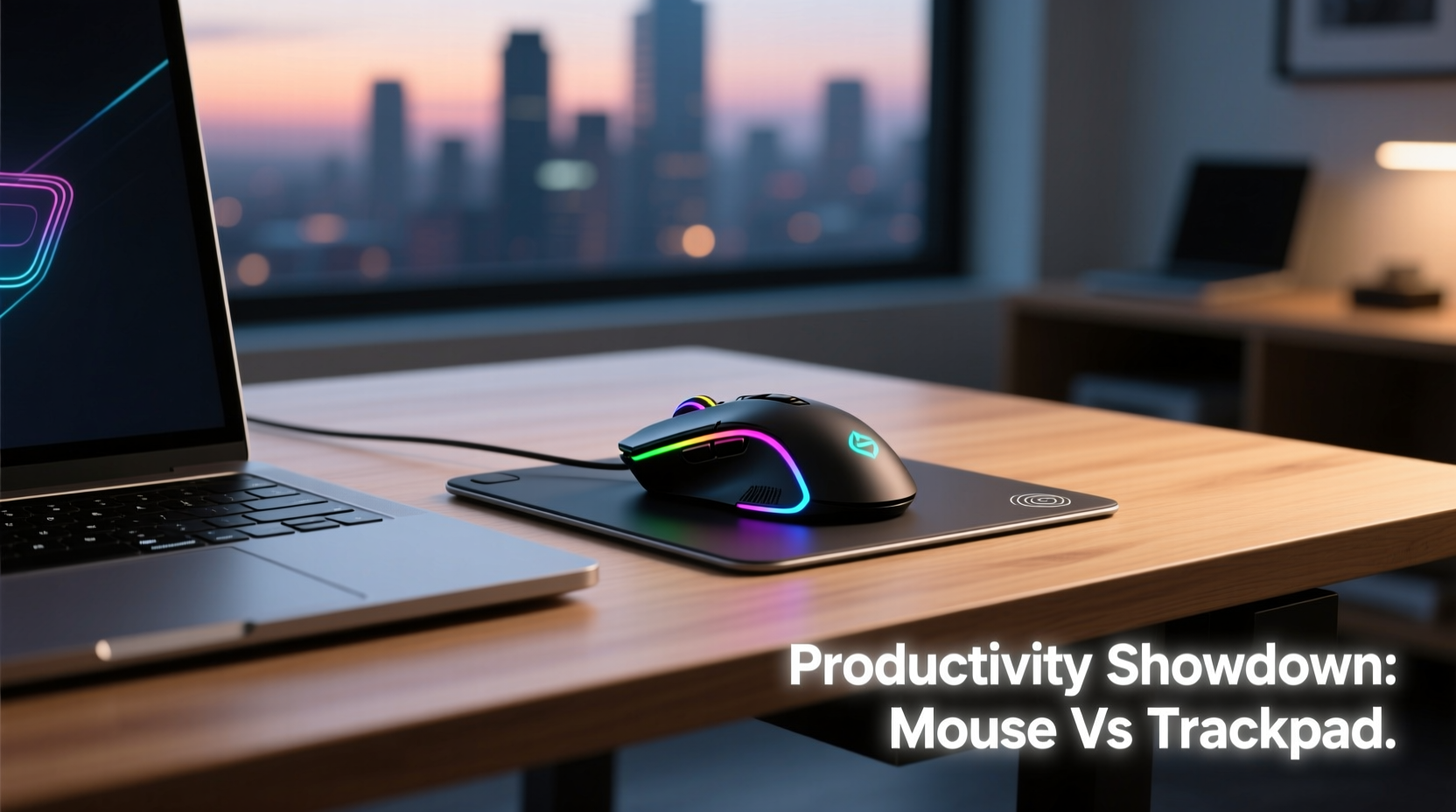
Ergonomics play a crucial role in sustained productivity. A device that causes discomfort over time leads to micro-pauses, reduced focus, and even repetitive strain injuries (RSIs). Trackpads, especially those integrated into laptops, are compact and convenient. They require minimal desk space and promote a neutral hand position when used correctly. However, prolonged use can lead to wrist extension and ulnar deviation—positions linked to carpal tunnel syndrome.
Gaming mice, on the other hand, are engineered for extended use. Many models feature contoured shapes, rubberized grips, and adjustable weights to suit individual hand sizes and grip styles (palm, claw, fingertip). High-end variants include support for vertical orientations, which align the forearm and wrist in a more natural handshake position, reducing strain.
“Even subtle misalignments in wrist posture during long sessions accumulate stress. A well-designed mouse can mitigate this better than most trackpads.” — Dr. Lena Torres, Occupational Ergonomist at Remote Work Health Institute
The trade-off is space: gaming mice require room for movement, making them less ideal for cramped environments. But for dedicated home offices, their ergonomic advantages often outweigh spatial concerns.
Precision and Control in Daily Tasks
Accuracy matters, especially when performing detailed work such as photo editing, data analysis, or UI design. Gaming mice typically offer higher DPI (dots per inch) settings—ranging from 800 to over 16,000—allowing for fine-grained cursor control. Most also feature polling rates of 500Hz to 1000Hz, meaning the computer registers movements up to 1,000 times per second, resulting in smoother tracking.
Trackpads rely on capacitive touch sensors and gesture recognition. While modern ones (like Apple’s Force Touch or Windows Precision Touchpads) are impressively responsive, they lack the tactile feedback and direct motion correlation of a physical mouse. Small pointer adjustments—such as selecting a single pixel or dragging a timeline scrubber—often require multiple finger repositionings on a trackpad, increasing cognitive load and time spent.
A real-world example illustrates this difference: Sarah, a freelance graphic designer based in Portland, switched from her MacBook’s trackpad to a lightweight gaming mouse after experiencing delays in client deliverables. “I was spending extra minutes just trying to get the lasso tool exactly where I wanted it,” she said. “With the mouse, my selection accuracy improved instantly, and my revision cycles dropped by nearly 30%.”
| Feature | Gaming Mouse | Trackpad |
|---|---|---|
| DPI Range | 800–16,000+ | Fixed (~400–1000 effective) |
| Polling Rate | 500–1000Hz | 125–200Hz |
| Cursor Precision | High (direct sensor input) | Moderate (gesture-based filtering) |
| Fine Control Tasks | Excellent (e.g., zooming, dragging) | Fair (requires practice) |
| Learning Curve | Low | Moderate (gestures vary by OS) |
Customization and Workflow Efficiency
One of the most underrated advantages of gaming mice is programmability. Most models come with software that allows users to assign macros, shortcuts, and application-specific profiles to side buttons. For remote workers, this translates into fewer keystrokes and faster access to frequently used commands.
Consider a project manager who toggles between Slack, Trello, Google Calendar, and Zoom throughout the day. With a gaming mouse, a single button press can mute their microphone, another can open a new task card, and a third can switch virtual desktops. These micro-efficiencies compound over time, saving hours each week.
Trackpads support multi-touch gestures—pinch to zoom, three-finger swipe to switch apps—but these are system-level functions with limited personalization. You can’t assign a four-finger tap to run a script or automate email sorting. Furthermore, gesture reliability varies across operating systems and hardware, leading to inconsistent experiences.
- Assign Ctrl+Z to a thumb button for instant undo without hand movement
- Map a button to lock your screen or toggle Do Not Disturb mode
- Create different DPI profiles: high sensitivity for browsing, low for precise editing
- Use onboard memory to save settings across workstations
Step-by-Step Guide to Optimizing a Gaming Mouse for Productivity
- Choose the Right Grip Style: Test palm, claw, and fingertip grips to find what feels most natural during long sessions.
- Adjust DPI Settings: Set default DPI to 1200–1600 for balanced speed and precision; lower for design work, higher for general navigation.
- Program Buttons: Use manufacturer software (Logitech G Hub, Razer Synapse) to assign common shortcuts (copy/paste, alt-tab, custom macros).
- Set Up Profiles: Create separate configurations for work, communication, and creative apps.
- Test and Iterate: Use the mouse for two full workdays, then refine button mappings and sensitivity based on actual usage patterns.
Battery Life, Portability, and Practical Trade-offs
Portability favors trackpads. Since they’re built into laptops, there’s nothing extra to carry, charge, or forget. This makes them ideal for digital nomads or hybrid workers moving between locations. However, consistent performance requires clean fingers and a smudge-free surface—conditions not always met in shared or outdoor spaces.
Gaming mice, particularly wireless models, have made strides in battery life. Many now last 40–70 hours on a single charge, with fast-charging capabilities providing several hours of use in under 10 minutes. Some even support pass-through charging while in use. But they still add bulk to a bag and introduce another device to manage.
For those prioritizing consistency across environments, a compact ambidextrous gaming mouse (like the Logitech MX Anywhere 3 or Razer Pro Click Mini) offers a middle ground—programmable buttons, high precision, and travel-friendly size—without sacrificing core functionality.
Real-World Impact: A Mini Case Study
At a mid-sized tech startup in Austin, Texas, the engineering team conducted an internal trial comparing productivity metrics before and after switching from trackpads to gaming-grade mice. All developers used MacBook Pros with external monitors and keyboards. Over a six-week period, half the team continued using trackpads; the other half adopted the Logitech MX Master 3S.
Results showed that the mouse group completed coding tasks 18% faster on average, reported 32% less wrist discomfort, and used 23% fewer keyboard shortcuts for navigation (indicating smoother UI interaction). Additionally, code review times decreased slightly, attributed to quicker scrolling and window management.
While not all gains were solely due to the mouse, team leads noted a marked improvement in flow state retention—fewer interruptions caused by imprecise cursor placement or gesture misfires. Based on the results, the company now subsidizes ergonomic pointing devices for all remote employees.
Expert Insight on Long-Term Usability
“Productivity isn’t just about speed—it’s about sustainability. A tool that reduces physical strain and cognitive friction pays dividends over months, not days. In remote work, where self-management is key, investing in precision input devices is one of the highest-ROI upgrades available.” — Dr. Marcus Bell, Human-Computer Interaction Researcher, MIT Media Lab
Dr. Bell emphasizes that while trackpads are sufficient for casual use, knowledge workers engaging in complex, detail-oriented tasks benefit significantly from the enhanced control and customization offered by advanced mice. He also warns against equating “gaming” with “overkill,” noting that the same technologies improving aim in first-person shooters—low latency, high polling rates, ergonomic shaping—are equally valuable in spreadsheet analysis or wireframing.
Checklist: Choosing the Right Device for Your Workflow
- ✅ Assess your primary tasks: Do they require precision (design, coding) or broad navigation (email, meetings)?
- ✅ Evaluate your workspace: Do you have room for a mouse pad, or do you often work on sofas/beds?
- ✅ Consider health history: Have you experienced wrist pain or RSI symptoms?
- ✅ Test responsiveness: Try both devices with your most frequent actions (scrolling, selecting, dragging).
- ✅ Check compatibility: Ensure the mouse works seamlessly with your OS and any dual-monitor setups.
- ✅ Prioritize customization: Can you program buttons to streamline repetitive actions?
- ✅ Think long-term: Will this device support you through extended work sessions without fatigue?
Frequently Asked Questions
Can a gaming mouse really improve productivity, or is it just for gamers?
Absolutely. While marketed toward gamers, the core features—high precision, low latency, customizable buttons—are highly beneficial for professionals. Writers, developers, designers, and analysts all gain from faster, more accurate input. The term “gaming” refers to performance specs, not usability context.
I’m used to my trackpad. Is it worth switching?
If you spend more than 3–4 hours daily on detailed computer tasks, yes. The adjustment period is usually short (1–3 days), and many users report immediate improvements in comfort and control. Start with a mid-range ergonomic mouse and test it alongside your trackpad for a week.
Are wireless gaming mice reliable for remote work?
Modern wireless gaming mice using Bluetooth Low Energy or proprietary 2.4GHz dongles are extremely reliable, with near-zero latency and strong interference resistance. Brands like Logitech, Razer, and Corsair offer enterprise-grade stability suitable for professional environments.
Conclusion: Make the Switch Where It Counts
The debate between gaming mouse and trackpad isn’t about superiority in every scenario—it’s about matching the tool to the task. For remote workers engaged in deep, focused, or technically demanding work, a gaming mouse offers measurable advantages in speed, accuracy, and long-term comfort. Its programmable features turn routine actions into seamless gestures, freeing mental bandwidth for higher-value thinking.
That said, trackpads remain excellent for mobility, simplicity, and light-duty use. The smart approach is contextual: keep the trackpad for travel and quick checks, but equip your primary workstation with a high-performance mouse tailored to your workflow.
Don’t let a small peripheral limit your potential. Upgrade your pointing device with the same care you’d apply to your chair or monitor. The difference might seem minor at first, but over weeks and months, it compounds into clearer focus, fewer errors, and greater job satisfaction.




 浙公网安备
33010002000092号
浙公网安备
33010002000092号 浙B2-20120091-4
Comments
No comments yet. Why don't you start the discussion?