
In the evolving world of PC gaming and digital productivity, the gaming mouse has transformed from a simple click-and-scroll device into a highly specialized instrument. One of the most debated features in this evolution is the addition of extra buttons—some mice now come with as many as 12 programmable inputs. While manufacturers market these as performance boosters, users are divided: Are these additional controls genuinely useful, or do they contribute to an unnecessarily cluttered design?
This question isn't just about aesthetics—it touches on functionality, ergonomics, user experience, and even long-term comfort. For competitive gamers, streamers, and power users, extra buttons can mean faster command execution. But for casual users or those with smaller hands, they may feel like an awkward afterthought. The truth lies somewhere in between, shaped by individual use cases and thoughtful design.
The Functional Value of Extra Buttons
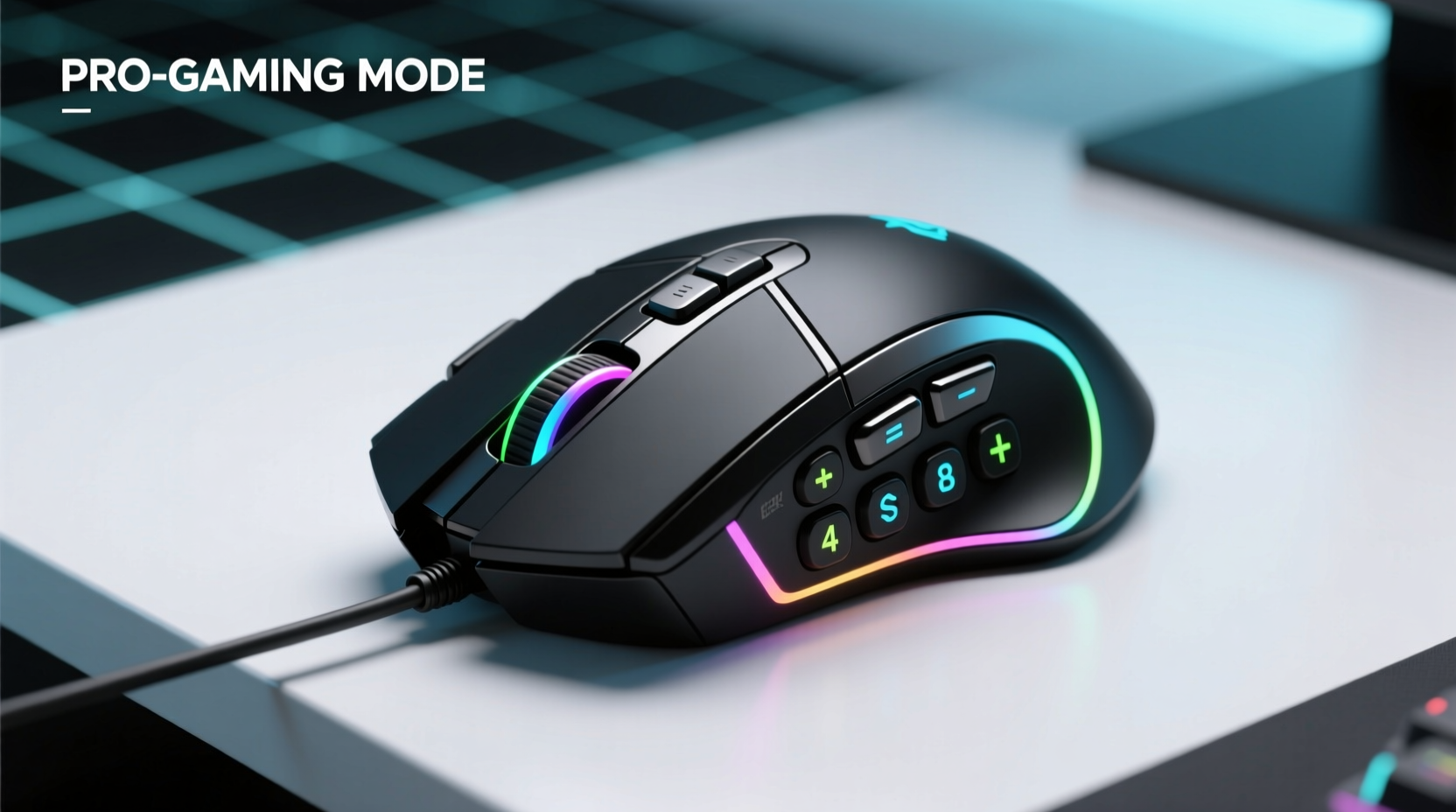
Extra buttons on a gaming mouse are typically programmable, meaning users can assign macros, shortcuts, or in-game commands to them. This capability becomes particularly powerful in genres that demand rapid responses and complex input sequences. For example, in MMORPGs (Massively Multiplayer Online Role-Playing Games), players often manage dozens of spells or abilities. Having quick-access side buttons eliminates the need to shift hands from the mouse to the keyboard mid-combat.
First-person shooter (FPS) players also benefit. Assigning weapon swaps, crouch toggles, or communication pings to thumb buttons keeps gameplay fluid. A study by the University of Waterloo found that reducing hand movement between peripherals improved reaction times by up to 15% in high-pressure scenarios. In professional esports, such margins matter.
Outside gaming, professionals in video editing, 3D modeling, or programming environments can reprogram these buttons to trigger timeline scrubbing, layer selection, or debugging commands. Adobe Premiere Pro and Blender, for instance, support customizable input schemes that integrate well with multi-button mice.
Ergonomic Trade-offs and Design Challenges
While functionality is important, it cannot override comfort. A mouse crammed with buttons risks becoming unwieldy, especially for users with smaller or medium-sized hands. Poorly placed buttons can lead to accidental presses, muscle strain, or unnatural hand positioning over time. Repetitive strain injuries (RSIs) are a real concern when devices force users into suboptimal postures.
Some manufacturers prioritize button count over form, resulting in bulky side grips or awkward protrusions. These designs may look aggressive but fail in daily usability. A well-placed button should be reachable with minimal thumb movement—ideally without shifting the entire hand off its natural rest position.
Ergonomic experts emphasize balance. Dr. Lena Torres, an occupational therapist specializing in tech-related musculoskeletal health, notes:
“An extra button only enhances performance if it reduces physical strain. If users have to stretch, twist, or grip tighter to reach it, the trade-off isn’t worth it.” — Dr. Lena Torres, Occupational Ergonomics Specialist
The placement, shape, and tactile feedback of each button play crucial roles. Tactile differentiation—such as ridges, textures, or varying button heights—helps prevent misfires during intense sessions.
Who Actually Benefits From Extra Buttons?
Not all users gain equal value from additional inputs. The usefulness depends largely on usage patterns and software environment. Consider the following profiles:
- MMORPG Players: High benefit. Managing multiple abilities makes extra buttons essential.
- FPS Gamers: Moderate to high. Useful for utility actions, though many prefer minimalist setups for precision.
- MOBA Players: Low to moderate. Most rely on keyboard combos; fewer need dedicated mouse commands.
- Casual Gamers: Minimal benefit. Often find extra buttons confusing or unused.
- Content Creators & Developers: High potential. Can streamline workflows in DAWs, CAD tools, or IDEs.
- Office Workers: Situational. Only beneficial if integrated into productivity macros.
A mini case study illustrates this divergence. Mark, a graphic designer and weekend gamer, upgraded to a 12-button mouse hoping to improve efficiency. Initially overwhelmed, he spent weeks customizing inputs. Eventually, he assigned zoom, brush size adjustment, and layer navigation in Photoshop to his thumb buttons. His workflow accelerated noticeably. However, during FPS matches, he accidentally activated a macro instead of reloading—highlighting the risk of over-customization without context-aware mapping.
The lesson: Utility is not inherent in the hardware itself, but in how thoughtfully it’s configured to match actual tasks.
Comparing Mouse Types: Button Count vs. Usability
| Mouse Type | Avg. Button Count | Best For | Potential Drawbacks |
|---|---|---|---|
| Standard Office Mouse | 2–3 | General browsing, document work | Limited customization |
| Basic Gaming Mouse | 5–6 | Casual gaming, light productivity | Slight learning curve |
| MMORPG-Focused Mouse | 10–12+ | Games with many abilities, macro-heavy tasks | Bulky, steep setup, prone to misclicks |
| Ergonomic Vertical Mouse | 3–5 | All-day comfort, RSI prevention | Fewer programmable options |
| Programmable Productivity Mouse | 6–8 | Designers, coders, multitaskers | Requires software setup |
This comparison shows that higher button counts correlate with niche applications rather than universal improvement. The ideal choice aligns with primary use, hand size, and willingness to invest time in configuration.
How to Maximize Value Without Adding Clutter
Adding buttons doesn’t automatically improve performance. To extract real value while avoiding clutter, follow a structured approach:
- Assess Your Needs: Identify repetitive actions in your workflow or gameplay. Do any require frequent keyboard shifts?
- Start Simple: Begin with 1–2 essential macros. Avoid assigning every button immediately.
- Test Placement: Ensure buttons are reachable without tension. Adjust grip and wrist angle during testing.
- Use Context-Sensitive Profiles: Many mice support per-application profiles. Set different mappings for games, browsers, and creative software.
- Review Regularly: Remove unused or problematic bindings every few weeks to maintain clarity.
Software integration is key. Mice from brands like Logitech (via G Hub), Razer (Synapse), and Corsair (iCUE) offer robust customization suites. These allow not only button remapping but also sensitivity adjustments, lighting effects, and cloud sync across devices. However, bloatware can slow systems or conflict with other drivers—always download official software and keep it updated.
Common Pitfalls and How to Avoid Them
Despite their potential, extra-button mice often fall short due to poor implementation or misuse. Here are common issues and solutions:
- Accidental Activation: Thumb brushes against a button during fast movements. Solution: Increase actuation force if possible, or disable unused buttons.
- Over-Reliance on Macros: Complex chains become hard to remember. Solution: Limit macros to single, high-frequency actions.
- Inconsistent Feedback: Buttons feel mushy or unresponsive. Solution: Choose mice with mechanical switches (e.g., Omron) for durability and crisp response.
- Driver Conflicts: Custom settings don’t apply in certain apps. Solution: Run the configuration tool as administrator and check app-specific permissions.
Additionally, consider ambidextrous models if you switch hand positions. However, most high-button-count mice are designed for right-handed users, limiting options for left-handed individuals.
FAQ
Do extra buttons affect gaming performance?
They can enhance performance by reducing input latency through quicker access to commands. However, if poorly placed or overly numerous, they may cause errors or discomfort that degrade overall performance.
Can I disable extra buttons I don’t use?
Yes, most modern gaming mice allow full reprogramming or deactivation of unused buttons via companion software. Disabling them prevents accidental presses and simplifies the user experience.
Are more expensive mice always better for extra buttons?
Not necessarily. Price often reflects build quality, sensor accuracy, and brand reputation—not button usefulness. Some mid-range models offer excellent ergonomics and reliable switches at a fraction of premium costs.
Conclusion: Purpose Over Quantity
The debate over extra buttons on gaming mice ultimately comes down to purpose. When thoughtfully integrated into a well-designed device and paired with intentional customization, these inputs can significantly elevate both gaming and productivity experiences. They reduce reliance on keyboard shortcuts, minimize hand travel, and streamline complex workflows.
But when added purely for marketing appeal—without regard for ergonomics, accessibility, or real-world utility—they become nothing more than visual noise and physical clutter. The goal shouldn’t be to own the mouse with the most buttons, but the one that best serves your specific needs.
Before upgrading, ask yourself: Will I actually use these buttons? Do they fit my hand and my tasks? Can they simplify rather than complicate? Answer honestly, and you’ll avoid falling into the trap of feature overload.




 浙公网安备
33010002000092号
浙公网安备
33010002000092号 浙B2-20120091-4
Comments
No comments yet. Why don't you start the discussion?