
Images in GitHub repositories—especially within README.md files—are essential for documentation, project demos, and visual clarity. When they fail to load, it can make a project appear broken or unprofessional. The good news: most image display problems stem from predictable causes. Whether you're using relative paths, external links, or embedding assets directly, understanding the root issues leads to faster fixes.
This guide walks through the most frequent reasons GitHub images don’t appear, how to diagnose them, and what to do next—whether you’re managing a personal project or collaborating on open-source software.
1. Check Your Image URL Structure
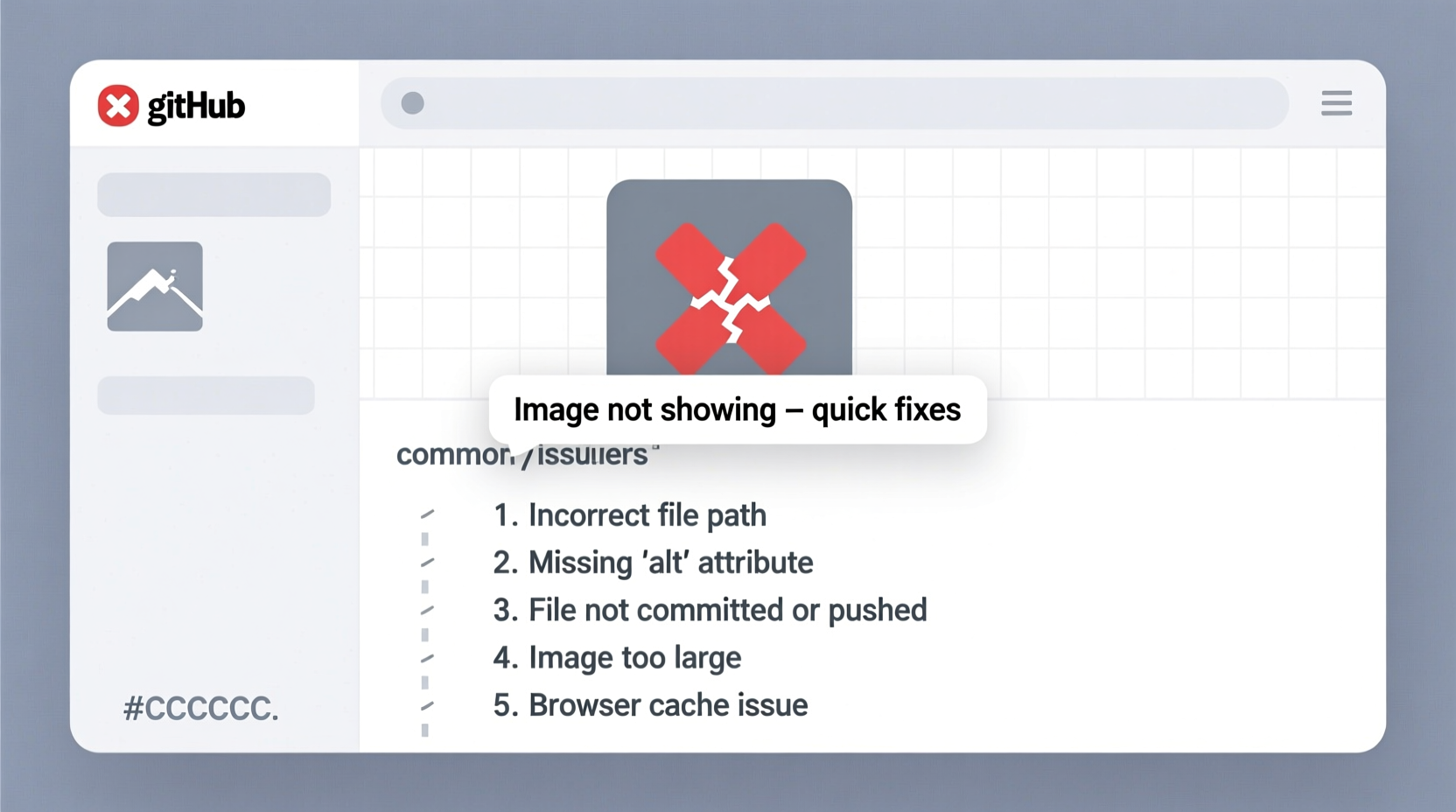
The foundation of any working image is a correct and accessible URL. GitHub renders Markdown using standard HTML <img> syntax under the hood, so if the path is wrong, the image won’t load.
Common URL formats used in GitHub include:
- Relative paths:
./images/screenshot.png - Absolute repository paths:
/docs/assets/diagram.jpg - Raw GitHub URLs:
https://raw.githubusercontent.com/username/repo/main/folder/image.png - External hosting:
https://example.com/cdn/photo.svg
If your image isn’t showing, start by verifying that the link points to an actual file. Click on the image path in your Markdown file (if it's clickable in preview) or manually reconstruct the raw URL.
2. Use Raw GitHub URLs for Internal Files
One of the most common mistakes is linking to the GitHub web interface URL instead of the raw file. For example:
Wrong:https://github.com/user/repo/blob/main/images/logo.png
Correct:https://raw.githubusercontent.com/user/repo/main/images/logo.png
GitHub’s blob URLs are meant for viewing code in the browser, not for embedding assets. Only raw URLs serve the actual file content over HTTP, which browsers and Markdown renderers require.
To get the correct raw URL:
- Navigate to the image file in your repo.
- Click “View raw” or right-click the \"Download\" button and copy the link address.
- Use that full
raw.githubusercontent.comURL in your Markdown.
Note: This only works for public repositories. Private repos require authentication, making raw links inaccessible to the general public—even in embedded form.
3. Verify File Paths and Case Sensitivity
GitHub runs on Linux-based servers, where file paths are case-sensitive. A mismatch between your Markdown reference and the actual filename will break the image.
For instance:
- Your file:
Screenshot.PNG - Your Markdown:

This will fail—even though the name is logically the same—because PNG ≠ png and Screenshot ≠ screenshot.
Additionally, ensure your relative paths reflect the correct directory structure. If your README is in the root and the image is in /assets/img/, the correct syntax is:
Double-check slashes, spelling, and nesting levels. A single typo can silently break rendering.
4. Common Issues and Fixes at a Glance
| Issue | Signs | Solution |
|---|---|---|
| Incorrect URL format | Image shows as broken icon, alt text visible | Use raw.githubusercontent.com link instead of github.com/blob |
| Case mismatch | Works locally but not on GitHub | Match exact filename casing |
| File not committed | 404 error when testing URL | Commit and push image to repo |
| Special characters in filename | URL encoding issues | Rename file: use letters, numbers, hyphens |
| Large file size | Slow loading or timeout | Compress image; use CDN for large assets |
5. Step-by-Step Troubleshooting Guide
Follow this sequence to systematically resolve image visibility issues:
- Confirm the image is in the repository. Navigate to the folder in GitHub’s UI. If you don’t see it, commit and push the file first.
- Get the correct raw URL. Open the image file on GitHub, click “View raw,” and copy the browser address bar URL.
- Test the raw URL in a new tab. It should display the image directly. If it shows a GitHub login prompt or 404, the file isn’t publicly accessible.
- Update your Markdown syntax. Use
with the raw link. - Commit changes and refresh. Wait a few seconds, then reload the page. GitHub may cache previews briefly.
- Check locally if possible. Use a Markdown previewer to simulate rendering before pushing.
my-feature-screenshot.png.
Mini Case Study: Fixing a Broken Project Demo
Jamal maintains an open-source CLI tool with a detailed README. After a contributor added a new workflow diagram, the image failed to appear. The team initially assumed the file wasn’t pushed—but it was visible in the /docs folder.
The issue? The contributor used:
Instead of the raw version. Jamal replaced it with:
The image loaded instantly. The fix took less than a minute once the URL format was corrected—a reminder that even experienced developers overlook raw vs. blob distinctions.
Expert Insight: Why Images Fail Behind the Scenes
GitHub’s Markdown rendering engine relies on secure, direct access to static assets. Unlike local previews, GitHub doesn’t execute scripts or allow relative references outside the repository context.
“Many users assume GitHub interprets paths like a local file system. But it’s a web server—it needs absolute, public URLs for external resources.” — Lin Zhao, Open Source Infrastructure Engineer
This means symbolic links, parent-directory traversals (../ beyond root), and local-only references will never work. The asset must be either in the repo (via raw URL) or hosted externally with CORS support.
When to Use External Hosting
While raw GitHub links work, they aren’t optimized for performance. Large images or high-traffic repos benefit from CDNs like Cloudinary, Imgur, or GitHub Releases.
For example, attaching an image to a GitHub Release generates a persistent, cache-friendly URL:
https://github.com/user/repo/releases/download/v1.0/screenshot.pngThis method avoids raw domain throttling and improves load times. It’s especially useful for projects with many visuals or documentation sites.
FAQ
Why does my image show locally but not on GitHub?
You’re likely using a relative path that works in your local Markdown previewer but doesn’t match GitHub’s directory structure or case sensitivity. Also, local tools may not enforce HTTPS or raw URL requirements.
Can I use images from GitHub Discussions or Issues?
Yes, but only if they were uploaded as attachments. GitHub auto-hosts those with permanent links. However, avoid relying on ephemeral issue uploads for critical documentation—they can be deleted.
Do GitHub Pages affect image rendering?
If you’re using GitHub Pages, yes. Pages uses Jekyll, which processes assets differently. Store images in /assets and use relative paths like /repo-name/assets/img.png to account for subdirectory hosting.
Final Checklist Before Publishing
- ✅ Image file is committed and pushed to the repository
- ✅ Using raw.githubusercontent.com URL (not github.com/blob)
- ✅ Filename matches exactly, including case
- ✅ No spaces or special characters in filename
- ✅ Tested the raw link in a private browser window
- ✅ Markdown syntax is correct:
 - ✅ Considered CDN or Releases for large or frequently updated images
Conclusion
Images not showing on GitHub is a frustrating but solvable problem. Most issues come down to URL formatting, case sensitivity, or missing files—small oversights with outsized impact. By following the steps above, you can ensure your project’s visuals render correctly every time.




 浙公网安备
33010002000092号
浙公网安备
33010002000092号 浙B2-20120091-4
Comments
No comments yet. Why don't you start the discussion?