
Seeing your Gmail messages stuck in \"Queued\" status can be frustrating—especially when you're trying to send an urgent email. Instead of delivering instantly, the message remains in limbo, marked as unsent, often accompanied by a small clock or airplane icon. This issue affects users across Android, iOS, and desktop platforms, but the good news is that most cases are solvable with straightforward fixes. Understanding the root causes and knowing the right steps to take can get your emails back on track in minutes.
Why Gmail Messages Get Stuck in Queue
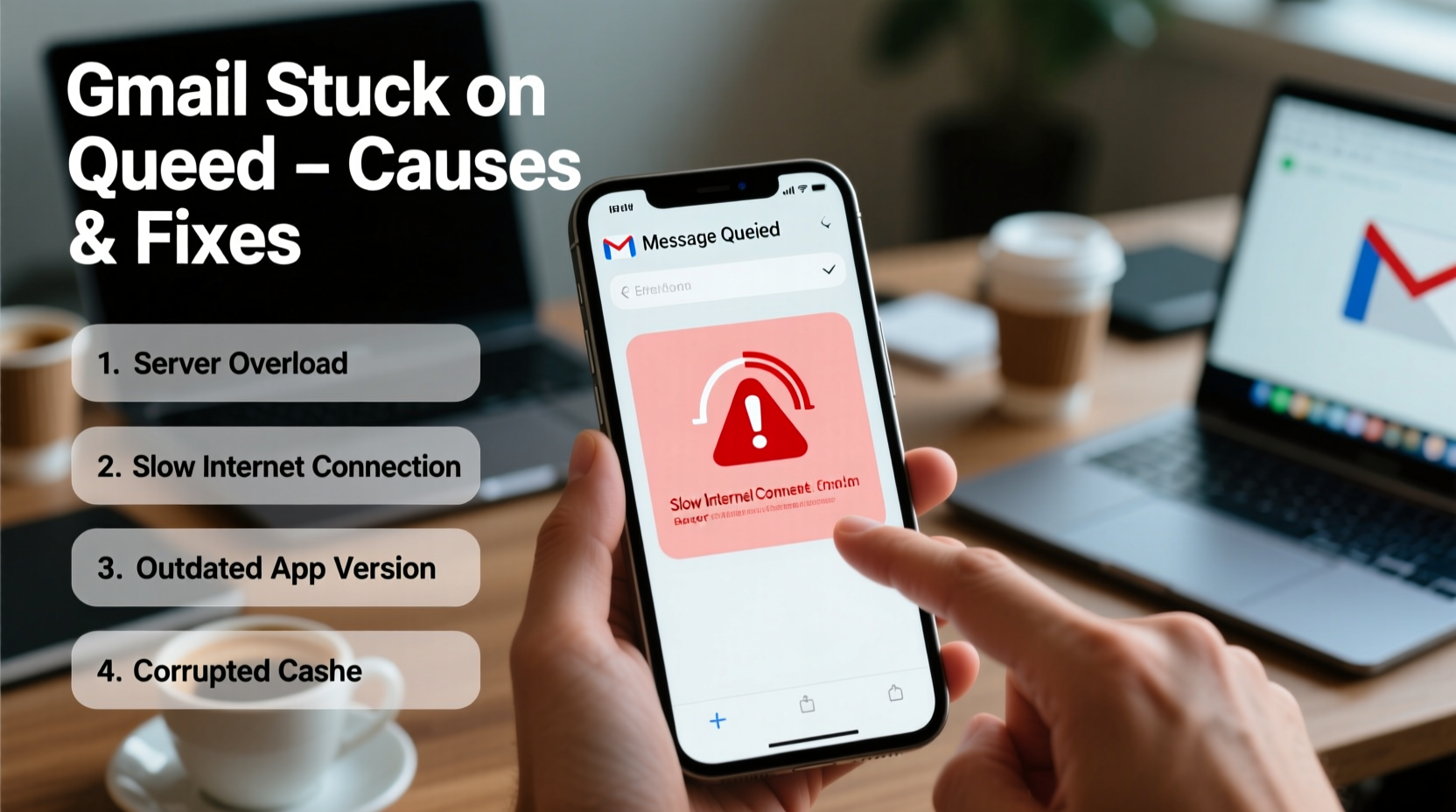
Gmail queues messages when it cannot immediately send them due to connectivity issues, app glitches, server problems, or account restrictions. The \"queued\" status is essentially a temporary holding state—Gmail saves the draft locally and attempts to send it later when conditions improve. While this feature prevents data loss, it becomes problematic when delivery never resumes.
Common reasons include:
- Poor or unstable internet connection: Without a stable network, Gmail can't reach its servers.
- App cache corruption: Accumulated cache data may interfere with normal operations.
- Outdated Gmail app: Older versions may have bugs affecting message delivery.
- Account sync issues: Problems authenticating or syncing with Google’s servers.
- Large attachments: Files over 25 MB can delay or block sending.
- Security restrictions: Suspicious login activity may temporarily limit sending privileges.
“Email queuing is a fail-safe mechanism, not a flaw. But when the system fails to recover automatically, user intervention is required.” — David Lin, Senior Systems Engineer at CloudMail Solutions
Step-by-Step Guide to Fix Queued Gmail Messages
Follow this structured approach to resolve queued emails efficiently. Start with basic checks and progress to more advanced solutions if needed.
- Check Your Internet Connection
Ensure you’re connected to a working Wi-Fi or mobile data network. Try loading a website or using another app that requires internet. If other apps fail, restart your router or toggle airplane mode on and off. - Force Close and Reopen Gmail App
On Android: Go to Settings > Apps > Gmail > Force Stop, then reopen.
On iOS: Swipe up (or double-click home button) and close the Gmail app, then relaunch. - Verify Account Sync Settings
Open device Settings > Accounts (or Users & Accounts) > Google.
Select your account and ensure “Sync Gmail” is enabled. Tap “Sync Now” to trigger manual synchronization. - Clear Gmail App Cache
Android: Settings > Apps > Gmail > Storage > Clear Cache.
iOS: Offload the app (Settings > General > iPhone Storage > Gmail > Offload App), then reinstall. - Update the Gmail App
Visit Google Play Store (Android) or App Store (iOS) and check for updates. Outdated versions often contain unresolved bugs. - Restart Your Device
A simple reboot clears temporary system errors and resets network settings. - Check for Large Attachments
If your email includes files near or exceeding 25 MB, compress them or use Google Drive links instead. - Sign Out and Back Into Your Google Account
In extreme cases, sign out of your Google account from device settings, restart, then sign back in.
Troubleshooting Table: Do’s and Don’ts
| Action | Do | Don’t |
|---|---|---|
| Internet Check | Test with browser or video stream | Assume Wi-Fi signal strength equals connectivity |
| Attachment Size | Use Google Drive for files >10MB | Attach high-res videos directly |
| App Maintenance | Update regularly; clear cache monthly | Ignore update notifications for weeks |
| Account Access | Re-authenticate after long idle periods | Delete and re-add account unnecessarily |
| Sending Test | Send a plain text email first | Keep resending the same failed message repeatedly |
Real Example: Resolving Queued Emails After Travel
Sarah, a freelance writer, returned from a remote cabin trip where she drafted several client emails offline. Once back in range, she opened Gmail expecting automatic sends—but all five messages remained stuck in \"queued.\" She tried tapping each one, only to see a spinning wheel.
Following the steps above, Sarah first confirmed her phone had full LTE signal. She force-closed the Gmail app and reopened it—no change. Then she checked her account sync settings and noticed Gmail was disabled under auto-sync. After enabling it and tapping \"Sync Now,\" three messages sent immediately. The remaining two contained large photo attachments. She removed them, replaced with Google Drive links, and resent successfully within 90 seconds.
This case illustrates how multiple factors—offline drafting, sync misconfiguration, and oversized files—can combine to create a queuing bottleneck.
Essential Checklist to Prevent Future Issues
Use this checklist weekly or after any major software update to maintain smooth Gmail performance:
- ✅ Confirm internet connection before sending
- ✅ Compress or link large files instead of attaching directly
- ✅ Update the Gmail app at least once a month
- ✅ Clear app cache every 4–6 weeks
- ✅ Verify sync settings after OS updates
- ✅ Monitor for unusual login alerts or security warnings
- ✅ Avoid sending emails during known network instability
Frequently Asked Questions
Will queued emails eventually send on their own?
In most cases, yes—if the underlying issue resolves (e.g., you regain internet). Gmail retries periodically for up to several days. However, if the problem persists beyond 24 hours, manual intervention is recommended.
Can I delete a queued email?
Yes. Open the draft, make any edit (even adding a space), save, then delete. Alternatively, go to the \"Drafts\" folder and remove it from there. Note: Deleting doesn’t guarantee immediate removal from the queue until the app fully processes the action.
Does using third-party email clients cause queuing issues?
Sometimes. Clients like Outlook or Apple Mail that connect via IMAP may experience delays due to polling intervals or configuration errors. For real-time delivery, use the official Gmail app or web interface.
Final Steps and Long-Term Prevention
While occasional queuing is normal during poor connectivity, persistent issues signal deeper problems. Beyond immediate fixes, adopt habits that reduce risk: keep your apps updated, avoid sending large attachments natively, and periodically verify account health through Google’s Security Checkup tool.
If none of the above steps work, consider accessing Gmail via a different device or browser. Persistent queuing across all platforms may indicate a compromised or restricted account—contact Google Support directly for assistance.




 浙公网安备
33010002000092号
浙公网安备
33010002000092号 浙B2-20120091-4
Comments
No comments yet. Why don't you start the discussion?