
Recording a Google Meet session can be essential for training, documentation, or sharing key information with team members who couldn’t attend. But when the record button is missing or the process fails mid-call, it disrupts workflows and creates frustration. The good news: most recording issues are preventable or solvable with the right troubleshooting steps. This guide breaks down the root causes behind Google Meet recording failures and provides actionable solutions to restore functionality fast.
Why Google Meet Recording Fails: Core Causes
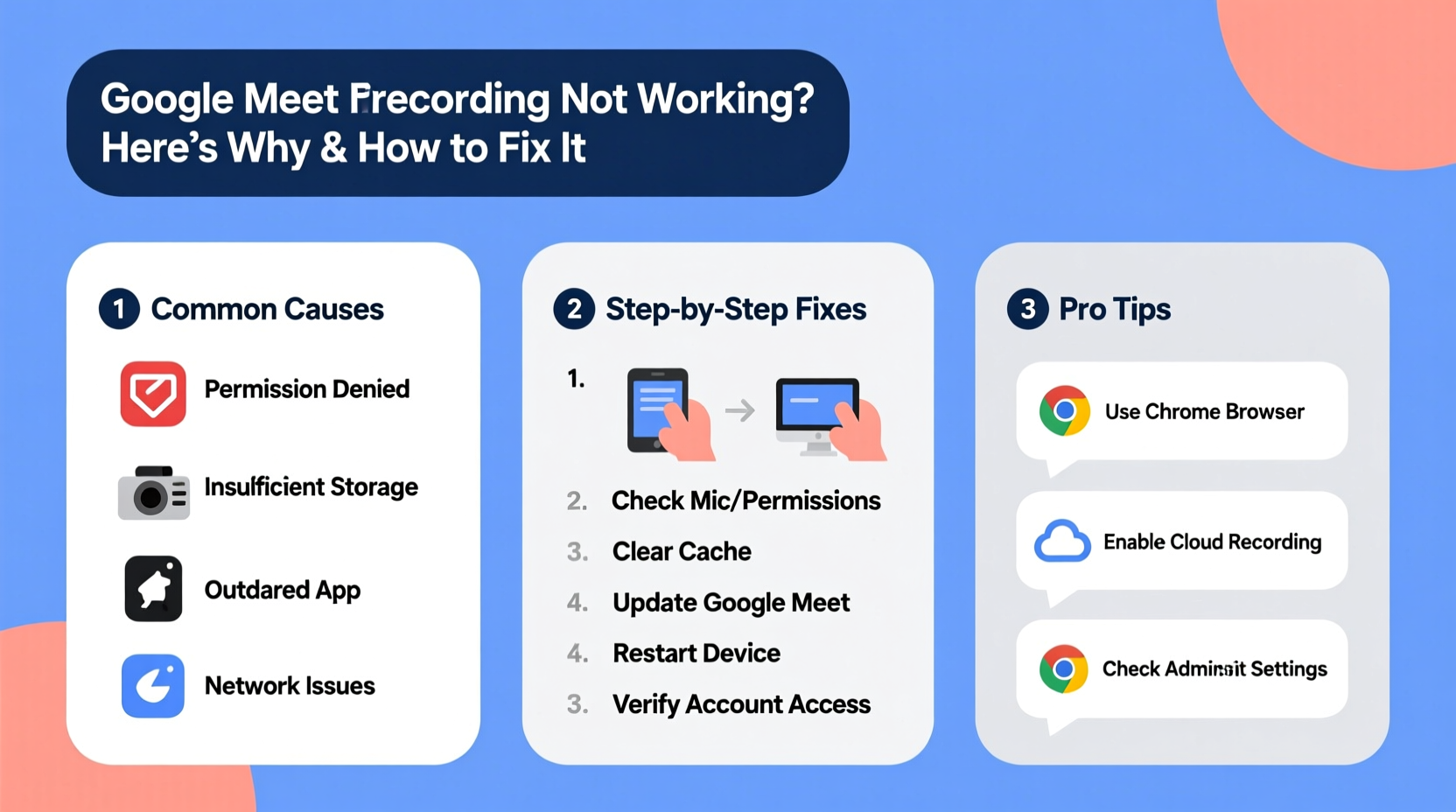
Before diving into fixes, it’s important to understand why Google Meet recording might not work. Unlike standalone apps, Google Meet operates within Google Workspace's ecosystem, meaning permissions, device compatibility, and administrative settings all play critical roles.
- Lack of proper permissions: Only meeting organizers with specific admin rights can start recordings in most organizational setups.
- Browser or app limitations: Some browsers disable certain features due to outdated versions or unsupported extensions.
- Device constraints: Low storage, poor internet, or incompatible hardware may interrupt recording initiation.
- Workspace plan restrictions: Not all Google Workspace editions support Meet recording—legacy or free accounts often lack this feature.
- Admin policies: IT departments may disable recording for compliance or security reasons.
“Over 70% of reported Meet recording issues stem from permission misconfigurations at the organizational level.” — Google Workspace Support Team, 2023 Enterprise Report
Step-by-Step Troubleshooting Guide
If you're unable to record your Google Meet, follow this structured approach to isolate and resolve the issue efficiently.
- Verify your role in the meeting: Only the meeting organizer (the person who started or scheduled the call) can initiate a recording. Joining participants cannot start one, even if they have elevated access elsewhere.
- Check your Google Workspace edition: Recording is available only in Google Workspace Business Standard, Business Plus, Enterprise, Education, and Nonprofit editions. Users on legacy G Suite Free or personal Gmail accounts do not have access.
- Ensure recording is enabled by your admin: In organizational accounts, administrators must enable recording under Apps > Google Workspace > Meet > Settings. If disabled, no user—even with full permissions—can record.
- Use a supported browser: Google Chrome is the most reliable option. Avoid using Safari, Firefox, or Edge unless updated to the latest version. Clear cache and disable ad blockers temporarily.
- Confirm stable internet connection: A minimum upload speed of 3 Mbps is recommended for HD video recording. Use tools like Fast.com to test your connection before starting.
- Wait for the recording indicator: After clicking “Record,” it may take up to 30 seconds for the red “Recording” dot to appear. Don’t assume failure immediately.
- Check post-meeting access: Recordings are saved to the organizer’s Google Drive folder Meet Recordings and shared via email. Allow up to 24 hours for processing in large meetings.
Common Scenarios and Real Fixes
Scenario: \"The Record Button Is Missing\"
This is one of the most frequent complaints. If the three-dot menu doesn’t show “Start recording,” consider these factors:
- You’re not the meeting organizer.
- Your administrator has disabled recording globally.
- You're using a personal Gmail account without Workspace privileges.
- The meeting is in a breakout room (recordings aren't supported).
To fix: Contact your Google Workspace admin to verify that Meet recording is enabled under organizational policies. If you're the admin, navigate to the Admin Console > Apps > Google Workspace > Meet > Meeting settings, and ensure “Allow participants to record meetings” is toggled on.
Scenario: \"Recording Starts but Stops Unexpectedly\"
Sudden stops usually point to network instability or resource exhaustion. Check the following:
- Close unused browser tabs and applications to free up bandwidth.
- Avoid screen sharing high-resolution videos while recording.
- Switch from Wi-Fi to wired Ethernet if possible.
- Restart your router and reconnect before resuming.
Mini Case Study: Remote Training Session Failure
A marketing team lead scheduled a live product training for 15 new hires via Google Meet. She clicked “Record,” saw the confirmation message, but later found no file in her Drive. After investigation, she discovered that her organization had recently migrated to a new Workspace license tier—but the admin hadn’t re-enabled recording in the updated policy settings. Once the admin restored the setting, future recordings worked flawlessly. The lesson? Always confirm backend configurations after system changes.
Do’s and Don’ts of Google Meet Recording
| Do’s | Don’ts |
|---|---|
| Always start the meeting yourself if you need to record. | Assume any participant can initiate a recording. |
| Use Chrome in incognito mode with extensions disabled for clean runs. | Run multiple video calls or downloads simultaneously during recording. |
| Notify all participants when recording begins (required in many regions). | Forget GDPR or local privacy laws—inform attendees upfront. |
| Check your Drive storage; recordings require space. | Expect instant availability—processing can take hours for long meetings. |
| Test settings weekly if you rely on recordings regularly. | Ignore admin update emails about policy changes affecting Meet. |
Expert Tips for Preventing Future Issues
Proactive maintenance reduces downtime and ensures reliability when it matters most.
- Designate a backup recorder: Have a co-organizer ready to start recording in case the primary host has technical issues.
- Monitor Google’s Status Dashboard: Visit Google Workspace Status to check for ongoing outages affecting Meet.
- Update devices regularly: Ensure operating systems, browsers, and plugins are current to avoid compatibility errors.
- Train team members: Educate staff on who can record, how to find recordings, and legal obligations around consent.
Frequently Asked Questions
Where do Google Meet recordings go?
Recordings are automatically saved to the organizer’s Google Drive in a folder named “Meet Recordings.” A link is also emailed to the organizer once processing completes, typically within a few minutes to several hours depending on length.
Can I recover a lost or failed recording?
If the recording stopped prematurely or never appeared, first check the Meet Recordings folder manually. If it’s missing, review whether the session exceeded time limits (up to 8 hours per recording), or if your Drive was full at the time. Unfortunately, once a recording fails to generate, it cannot be recovered retroactively—only re-recorded.
Why does my organization block Google Meet recording?
Organizations may disable recording for data privacy, regulatory compliance (e.g., HIPAA, GDPR), or internal security policies. Employees should consult their IT department to understand specific rules and request exceptions if justified.
Final Steps: Ensuring Long-Term Success
Google Meet recording problems are rarely random—they reflect gaps in configuration, awareness, or infrastructure. By understanding the ecosystem of permissions, technology, and policy, users and admins alike can eliminate most obstacles before they impact productivity. Whether you're an individual host or part of a larger enterprise, taking control of your recording setup empowers consistent, reliable documentation of virtual collaboration.




 浙公网安备
33010002000092号
浙公网安备
33010002000092号 浙B2-20120091-4
Comments
No comments yet. Why don't you start the discussion?