
Choosing an action camera isn’t just about durability or image quality—it’s also about what happens after you press stop. For beginners, the editing process can be a make-or-break factor in whether they continue creating content. Two leading brands dominate the space: GoPro and Insta360. While both produce high-quality footage, their post-production experiences differ significantly. Understanding these differences helps new users pick a system that supports smooth, intuitive editing without a steep learning curve.
The real question isn’t just which camera shoots better—but which one makes it easier to turn raw clips into shareable videos with minimal effort. This article breaks down the editing experience offered by each brand, focusing on software accessibility, automation features, mobile integration, and overall user-friendliness for those just starting out.
Software Experience: GoPro Quik vs Insta360 Studio
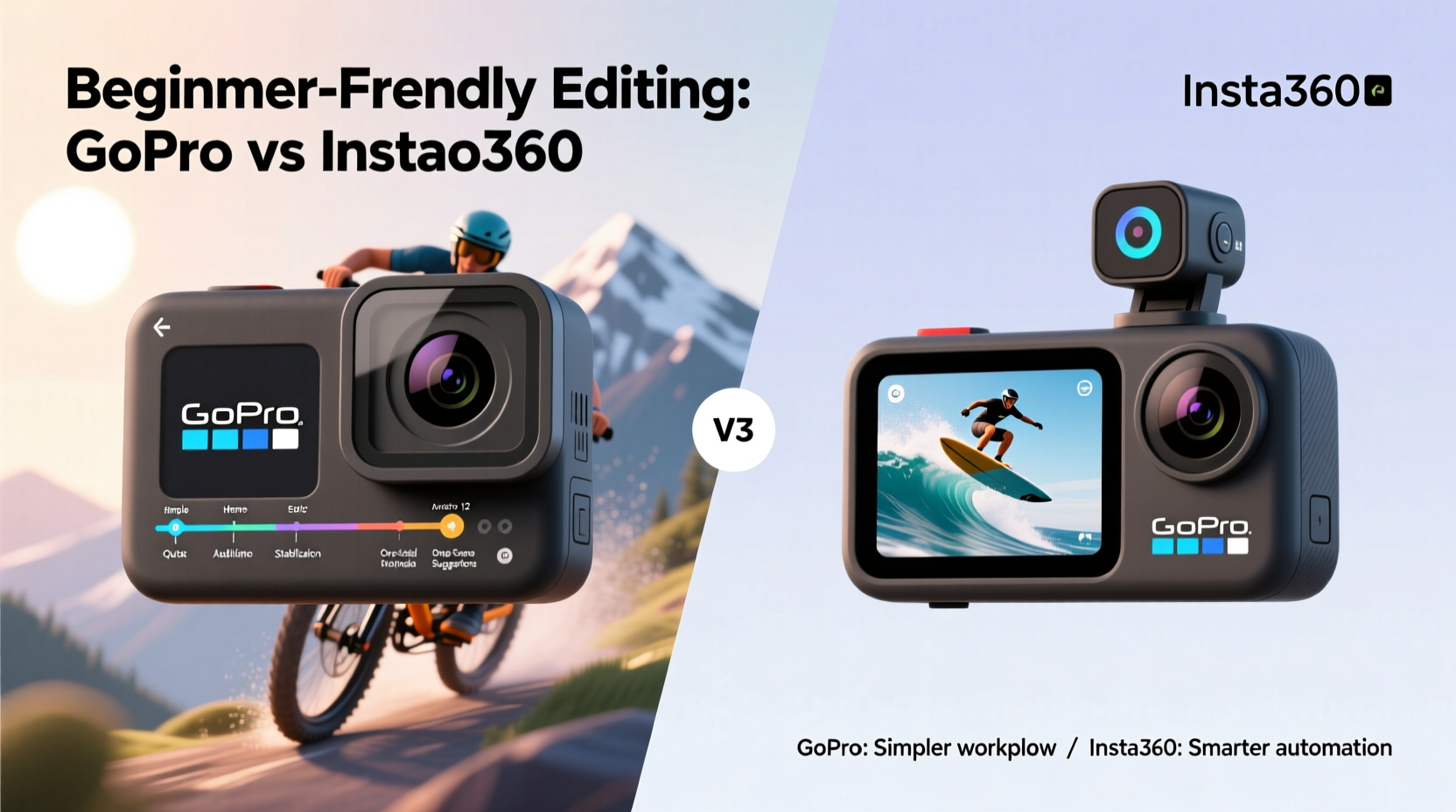
Both GoPro and Insta360 provide proprietary software designed to streamline editing, but they take different approaches. GoPro’s ecosystem centers around Quik, available as both a desktop application and a mobile app. Insta360 relies on its own Insta360 Studio (desktop) and Insta360 App (mobile), which are tightly integrated with AI-driven tools.
Quik offers a clean interface with automated editing templates, music syncing, and one-tap sharing. It's built for simplicity, allowing users to import clips, apply themes, and generate polished videos in under five minutes. However, while Quik is straightforward, it sometimes lacks fine control over transitions, speed ramps, or stabilization settings—features that may matter less to absolute beginners but become limitations over time.
Insta360 Studio, on the other hand, emphasizes smart editing powered by artificial intelligence. The standout feature is Auto Edit, which analyzes your footage, detects highlights (like jumps, fast movement, or smiles), and automatically compiles them into dynamic short-form videos. You simply select a music track and theme, and the software does the rest. This level of automation gives beginners a powerful head start, especially when working with long 360-degree recordings where finding key moments manually would be tedious.
Mobile Editing: Real-World Usability for New Users
Most beginners edit on smartphones, not computers. In this context, ease of use, loading speed, and touch-based navigation are critical. Both companies offer robust mobile apps, but their strengths vary.
The Insta360 App shines here. Its interface is modern, responsive, and built around gesture-based controls ideal for 360 video. Once you've captured a clip, you can reframe the shot after recording—meaning you can change the perspective during editing without needing multiple takes. This “shoot now, aim later” capability reduces pressure during filming and simplifies post-production since framing errors can be corrected in-app.
For example, if you're filming yourself biking through a forest using a chest mount, you don’t need to worry about keeping the horizon level. During editing, you can drag the view to stabilize the path ahead, even if the camera was bouncing wildly. This flexibility dramatically lowers the barrier to producing stable, cinematic results without advanced skills.
GoPro’s Quik app has improved over the years but still lags slightly behind in creative freedom. While it supports basic trimming, filters, and voiceovers, reframing options are limited unless you’re using specific modes like HyperSmooth or Max Lens Mod. Additionally, Quik’s automatic scene detection isn’t as aggressive or accurate as Insta360’s AI tagging system, meaning users often spend more time scrubbing through footage to find usable segments.
“Insta360’s post-capture reframing changes how beginners approach shooting. They can focus on capturing the moment, not perfect angles.” — Daniel Reyes, Action Media Educator
Workflow Comparison: Step-by-Step Editing Process
To understand which platform is truly easier for beginners, consider a typical editing session from start to finish.
Timeline: Creating a 60-Second Adventure Clip
- Transfer Footage: Both cameras support direct Wi-Fi transfer to smartphones. Insta360 tends to complete transfers faster due to optimized compression protocols, especially for 360 files.
- Select Clips: Insta360 automatically tags exciting moments (“adrenaline detected,” “fast motion”), making selection quicker. GoPro requires manual previewing unless using Smart Highlights (available only on newer models).
- Edit Sequence: Insta360’s Auto Edit generates a draft instantly. GoPro’s Quik creates timelines based on duration preferences but offers fewer stylistic variations.
- Reframe & Stabilize: Only Insta360 allows full directional control over 360 footage. GoPro edits are largely locked into the original field of view.
- Add Music & Text: Both platforms include royalty-free music libraries and preset text animations. Insta360 integrates TikTok-style effects; GoPro leans toward traditional vlog aesthetics.
- Export & Share: Export times are comparable, though Insta360 gives more resolution/format choices tailored to social platforms.
In practice, a beginner using Insta360 can go from raw footage to a publish-ready video in under ten minutes with near-zero manual input. With GoPro, the same task typically takes longer due to the need for more hands-on decisions and less intelligent curation.
Feature Comparison Table: Beginner-Focused Tools
| Feature | GoPro (HERO10+) | Insta360 (One X3 / Ace Pro) |
|---|---|---|
| AI-Powered Auto Editing | Limited (Smart Highlights) | Yes (Auto Edit + Highlight Tags) |
| Post-Capture Reframing | Partial (narrow FOV only) | Full 360-degree control |
| Stabilization Quality | Excellent (HyperSmooth) | Excellent (FlowState + AI Horizon Lock) |
| Mobile App Responsiveness | Good | Excellent |
| Voice Control During Edit | No | Yes (e.g., “Hey Insta, make me look cool”) |
| Preset Templates | 5–7 standard themes | 15+ trendy templates (TikTok, Reels, YouTube Shorts) |
| Learning Curve | Moderate | Gentle (guided setup & tips) |
This table highlights why Insta360 holds an edge for novice editors. Features like voice commands (\"add slow motion,\" \"use this part\") and guided tutorials within the app reduce friction at every stage. GoPro assumes some baseline familiarity with video concepts, whereas Insta360 actively coaches users through decisions.
Real Example: Sarah’s First Ski Trip Video
Sarah, a college student and first-time action cam owner, bought a GoPro HERO11 for her ski trip. She recorded several runs but felt overwhelmed trying to edit on her phone afterward. Despite following online tutorials, she struggled to sync music properly, couldn't fix tilted shots, and spent two hours cutting clips only to end up with a shaky final product.
Her friend Alex used an Insta360 One X3 on the same trip. Within 15 minutes of getting back to the lodge, Alex had transferred footage via Bluetooth, let the app auto-detect his three best jumps, applied a winter-themed template, added background music, and posted a smooth, leveled video to Instagram—without touching a timeline or adjusting a single keyframe.
The difference wasn’t skill level. It was tool design. Insta360’s emphasis on autonomous editing allowed Alex to focus on storytelling rather than technical precision. Sarah eventually achieved good results, but only after investing significant time learning the basics—a hurdle many beginners never overcome.
Hardware Integration and Format Simplicity
Another often-overlooked factor is file compatibility. GoPro records in standard flat formats (like MP4 with H.264/H.265), which work universally across devices and third-party editors like iMovie or CapCut. That’s beneficial for users who plan to grow into advanced editing.
However, Insta360 uses proprietary stitching algorithms for its 360 videos. While exported files are compatible with most platforms, the native project files require Insta360 Studio to reopen and modify. This lock-in might seem restrictive, but for beginners, it actually simplifies things: there’s only one recommended path, reducing confusion about which software to use.
Moreover, Insta360’s ability to export traditional flat videos *from* 360 footage means users aren’t forced to share spherical content. They can extract a stabilized 1080p or 4K clip oriented any way they choose—ideal for vertical formats on social media. This dual-use nature increases versatility without complicating the initial learning phase.
Checklist: Choosing the Right Camera for Easy Editing
- ✅ Does the camera offer AI-assisted editing?
- ✅ Can I reframe my shots after recording?
- ✅ Is the mobile app intuitive and fast-loading?
- ✅ Are stabilization and horizon leveling automatic?
- ✅ Does the software suggest music and cuts based on pacing?
- ✅ Can I export directly to TikTok, YouTube, or Instagram?
- ✅ Is voice control or tap-to-edit available?
If you answered “yes” to most of these, you're likely looking at an Insta360 model. GoPro meets about half of these criteria natively, though power users can achieve similar outcomes with additional tools and knowledge.
Frequently Asked Questions
Can I edit Insta360 footage in Adobe Premiere?
Yes, Insta360 provides free plugins for Premiere Pro and After Effects that allow full control over 360 reframing, stabilization, and color grading. However, beginners rarely need this—most prefer the all-in-one solution offered by the Insta360 App.
Is GoPro harder to learn because of its software?
Not necessarily. GoPro Quik is still user-friendly, especially for linear storytelling. But if your goal is quick, engaging shorts with minimal effort, Insta360’s automation gives a noticeable advantage.
Do I need a powerful phone to edit Insta360 videos?
Modern mid-range phones handle Insta360 editing well, thanks to efficient encoding. Very long 360 clips (over 5 minutes) may lag on older devices, but the app intelligently proxies lower-resolution previews during editing.
Final Verdict: Which Is Easier for Beginners?
While both brands deliver excellent hardware, **Insta360 wins decisively for beginner-friendly editing**. Its combination of AI-powered automation, post-capture reframing, intuitive mobile interface, and social-first templates removes the complexity that deters new creators. Where GoPro excels in rugged reliability and linear filmmaking, Insta360 lowers the entry barrier for anyone who wants impressive results quickly.
Beginners shouldn’t have to master video theory before sharing their adventures. Insta360 understands this and builds tools that anticipate user needs—from detecting a jump before you do, to correcting your camera tilt after the fact. These small conveniences compound into a far smoother onboarding experience.
That said, if you value future scalability and plan to transition into professional editing workflows, GoPro’s open format and broad software support remain appealing. But for day-one usability, minimal learning curve, and instant gratification, Insta360 sets the standard.




 浙公网安备
33010002000092号
浙公网安备
33010002000092号 浙B2-20120091-4
Comments
No comments yet. Why don't you start the discussion?