
Choosing between a GoPro and an Insta360 isn’t just about image quality or durability—it’s also about what happens after you hit stop. For beginners, the editing process can make or break the entire experience. A camera that captures stunning footage but requires hours of technical work in post-production might discourage new users before they even share their first video. GoPro and Insta360 take very different approaches to editing, especially when it comes to user-friendliness, automation, and accessibility. Understanding these differences is essential for anyone stepping into the world of action videography without prior editing experience.
The Editing Experience: Why It Matters for Beginners
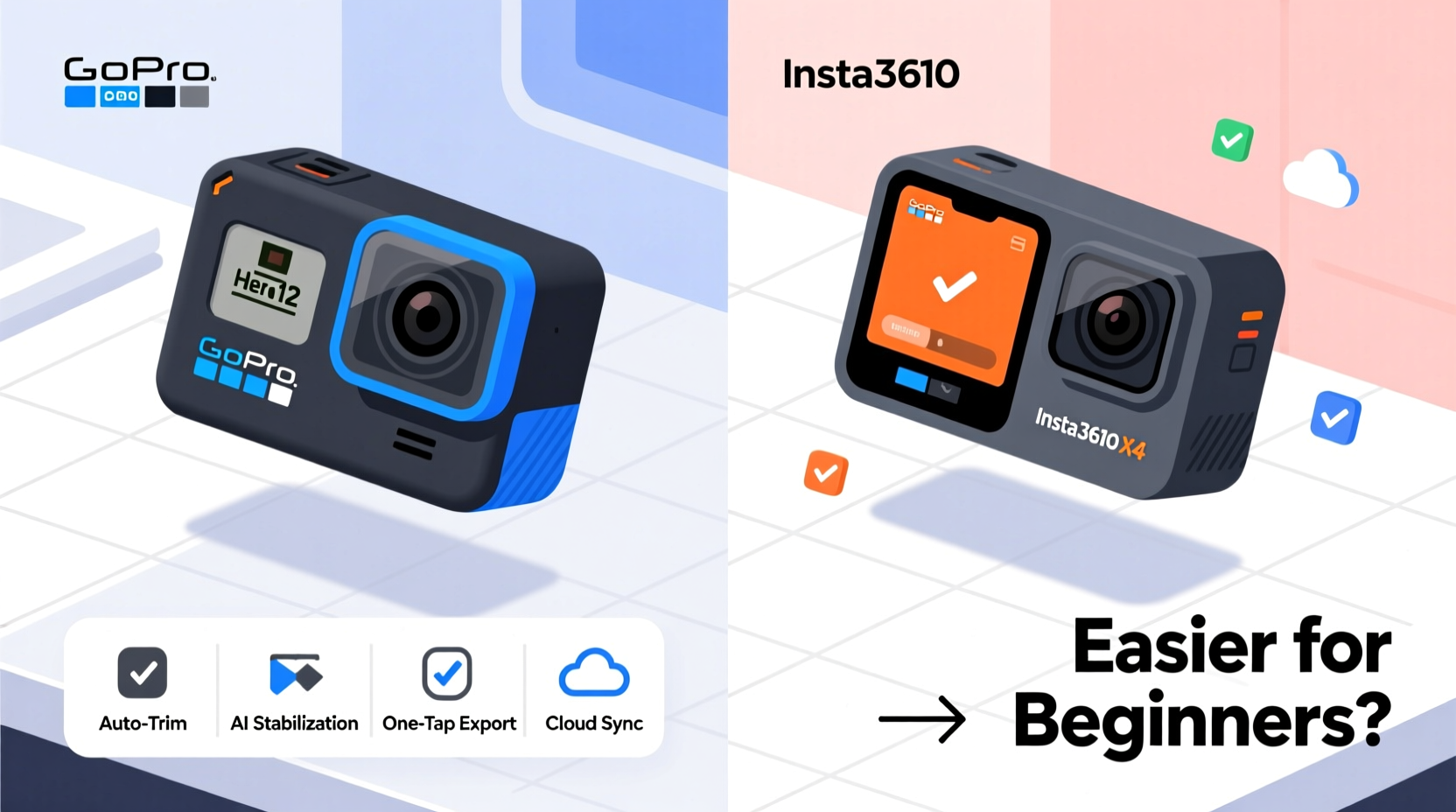
For new creators, the excitement of capturing adventures quickly fades if editing feels overwhelming. Unlike professionals who may spend hours fine-tuning color grading and stabilization, beginners want results fast—preferably with minimal effort. The ideal action camera for a beginner doesn’t just record well; it simplifies the journey from raw footage to shareable content.
This is where software ecosystems become critical. Both GoPro and Insta360 offer companion apps and desktop programs, but their philosophies differ significantly. One leans on AI-driven automation, while the other emphasizes manual control and high-end performance. These design choices directly impact how easy—or difficult—it is for someone with little to no editing background to produce polished videos.
GoPro: Power and Precision, But at a Learning Curve
GoPro has long been the gold standard in action cameras, known for its rugged build, reliable stabilization (HyperSmooth), and sharp 5.3K video. Its editing suite, particularly GoPro Quik and the newer GoPro Player + Cloud workflow, aims to streamline post-production. However, the path from recording to final cut isn't always smooth for beginners.
Quik, available as both a mobile and desktop app, automatically syncs footage from your camera and suggests edits based on music tempo and scene detection. While this sounds promising, the results can be inconsistent. Auto-generated videos often include unnecessary clips, awkward transitions, or miss key moments entirely. Users frequently need to manually adjust cuts, trim sections, or re-sync audio—tasks that assume some familiarity with editing concepts like timelines and layering.
Moreover, GoPro’s reliance on cloud-based workflows in recent models (like HERO11 and MAX) means you’ll need a stable internet connection to access smart editing features. This adds friction for users who expect plug-and-play simplicity. While GoPro offers excellent raw file quality, that quality demands more processing power and longer render times—another hurdle for novice editors using older laptops or smartphones.
“GoPro gives you professional-grade tools, but you still need to know how to use them. The learning curve is steeper than most marketing materials suggest.” — Jordan Lee, Video Production Instructor at Creative Edge Academy
Insta360: Built for Simplicity and Speed
Insta360 takes a fundamentally different approach. Instead of focusing solely on linear video, it embraces the full potential of 360-degree capture—even on non-360 models like the X3 and Ace Pro. This flexibility translates into a much smoother editing experience for beginners.
The Insta360 app and desktop editor are designed around automation and guided workflows. When you import footage, the software instantly analyzes motion, detects highlights (like jumps, spins, or fast movement), and suggests dynamic shots using AI-powered “FlowState” stabilization. More importantly, Insta360’s “AI Editing” tools allow users to generate complete videos with just a few taps—select a template, choose music, pick a duration, and let the system assemble a cinematic clip.
One standout feature is “FreeCapture,” which lets you reframe 360 footage after shooting. This means shaky handheld clips can be transformed into smooth tracking shots simply by dragging a frame in the editor. No complex keyframing or stabilization settings required. For beginners, this eliminates the fear of missing the perfect angle during recording.
The mobile app is particularly effective. It runs smoothly on mid-tier smartphones, processes footage quickly, and includes social media presets for TikTok, Instagram Reels, and YouTube Shorts. You can export vertical videos optimized for platforms without needing to understand aspect ratios or cropping.
Real Example: Sarah’s First Ski Trip Edit
Sarah, a college student and first-time action cam user, bought an Insta360 X3 for her ski trip. She recorded several runs but had never edited a video before. Using the Insta360 app on her iPhone, she selected her favorite clips, enabled “Auto-Highlight,” and chose an upbeat track from the built-in library. Within four minutes, the app generated a 60-second reel with smooth transitions, slow-motion effects on jumps, and dynamic reframing that followed her path down the slope. She added text, exported in vertical format, and posted it to Instagram—all without touching a timeline or adjusting a single setting manually.
When a friend tried the same with a GoPro HERO11, the process took over an hour. Footage needed manual syncing, stabilization settings were confusing, and exporting for Instagram required multiple format adjustments. Despite better raw resolution, the final video felt less engaging due to rigid framing and fewer automated enhancements.
Feature Comparison: GoPro vs Insta360 for Beginner Editors
| Feature | GoPro (HERO11/12) | Insta360 (X3/Ace Pro) |
|---|---|---|
| Auto-Editing Quality | Moderate – requires manual tweaking | High – consistent, platform-ready output |
| Mobile App Usability | Good, but cluttered interface | Excellent – intuitive, gesture-friendly |
| Post-Shot Reframing | Limited (only on MAX 360 model) | Full 360° freedom on all models |
| AI-Powered Highlights | Basic scene detection | Advanced motion & activity recognition |
| Social Media Export Presets | Available, but limited formats | Extensive – TikTok, Reels, Shorts, Stories |
| Learning Curve | Steeper – assumes some editing knowledge | Gentle – designed for total beginners |
| Cloud Dependency | Required for AI features (GoPro Sub) | Optional – local editing fully supported |
Step-by-Step: Creating Your First Video with Insta360
If you’re starting from zero, here’s how easy it is to go from unboxing to sharing with an Insta360:
- Charge and Mount: Attach the camera securely to your helmet, chest strap, or selfie stick.
- Record Your Adventure: Press the button or use voice control to start filming. No need to worry about framing—everything is captured.
- Transfer to Phone: Use the Insta360 app to connect via Wi-Fi and download clips wirelessly.
- Launch AI Editor: Tap “Create” > “Quick Edit” and select your favorite moments.
- Pick a Template: Choose from cinematic, vlog, sports, or travel themes with matching music.
- Customize (Optional): Add voiceover, text, or adjust speed. Most users skip this step and still get great results.
- Export and Share: Select your platform (e.g., Instagram Reels), tap export, and post directly from the app.
The entire process, from import to upload, can take under 10 minutes. No rendering delays, no compatibility issues, and no technical jargon.
Checklist: Choosing the Right Camera for Easy Editing
- ✅ Does the camera offer one-touch auto-editing with music and transitions?
- ✅ Can you reframe or change angles after recording?
- ✅ Is the mobile app optimized for smartphones (not just desktop)?
- ✅ Are there built-in templates for TikTok, Reels, or YouTube Shorts?
- ✅ Does AI detect highlights like jumps, tricks, or fast motion?
- ✅ Can you edit offline without a subscription?
- ✅ Is the export process simple and fast?
Insta360 scores highly across all these points. GoPro meets some criteria but falls short in areas like post-shot reframing and offline usability, especially without a subscription.
Frequently Asked Questions
Do I need a computer to edit Insta360 or GoPro footage?
No. Both brands offer robust mobile apps that handle most editing tasks. However, Insta360’s mobile experience is more complete and beginner-friendly. You can create and share professional-looking videos entirely from your phone. GoPro’s desktop software (Quik) offers more control, but the mobile version lacks some features and consistency.
Is GoPro’s subscription worth it for beginners?
Not usually. GoPro’s $4.99/month subscription unlocks cloud storage, AI tagging, and automatic chapter creation. While helpful, these features don’t compensate for the steeper learning curve and inconsistent auto-edits. Beginners get more value from Insta360’s free AI tools and offline functionality.
Can I use third-party editors like Adobe Premiere with both cameras?
Yes. Both support MP4 files compatible with Premiere, Final Cut, and DaVinci Resolve. However, Insta360’s 360 workflow integrates seamlessly with plugins like Mistica, and its reframing data transfers easily. GoPro files are simpler to import but lack spatial flexibility unless you’re using the MAX model.
Conclusion: Simplicity Wins for New Creators
While GoPro remains a powerhouse for high-resolution capture and advanced users, Insta360 delivers a far more accessible editing experience for beginners. Its intelligent automation, flexible reframing, and mobile-first design remove the intimidation factor that often discourages new creators. You don’t need to understand bitrate, codecs, or keyframes to make a compelling video with an Insta360—the system does the heavy lifting.
For those just starting out, the ability to focus on the adventure rather than the edit is invaluable. Insta360 turns every moment into editable content, regardless of skill level. GoPro rewards technical proficiency, but Insta360 rewards spontaneity.




 浙公网安备
33010002000092号
浙公网安备
33010002000092号 浙B2-20120091-4
Comments
No comments yet. Why don't you start the discussion?