
Upgrading your PC can be exciting, but without clear insight into where performance bottlenecks lie, you risk overspending on components that won’t deliver meaningful gains. Among all hardware upgrades, the GPU—graphics processing unit—is often the most expensive and emotionally charged choice. Gamers and creators alike want smoother frame rates, higher resolutions, and faster rendering times. But before reaching for a new graphics card, ask: is your current GPU really the limiting factor?
Many users assume that low frame rates or stuttering gameplay automatically mean their GPU needs replacing. In reality, system performance is a chain—one link weakens the whole. A high-end GPU paired with an outdated CPU or insufficient RAM will underperform, wasting money and delivering frustration. Understanding when your graphics card is *actually* the bottleneck requires careful observation, benchmarking, and context about your workload.
How Bottlenecks Work in Modern PCs
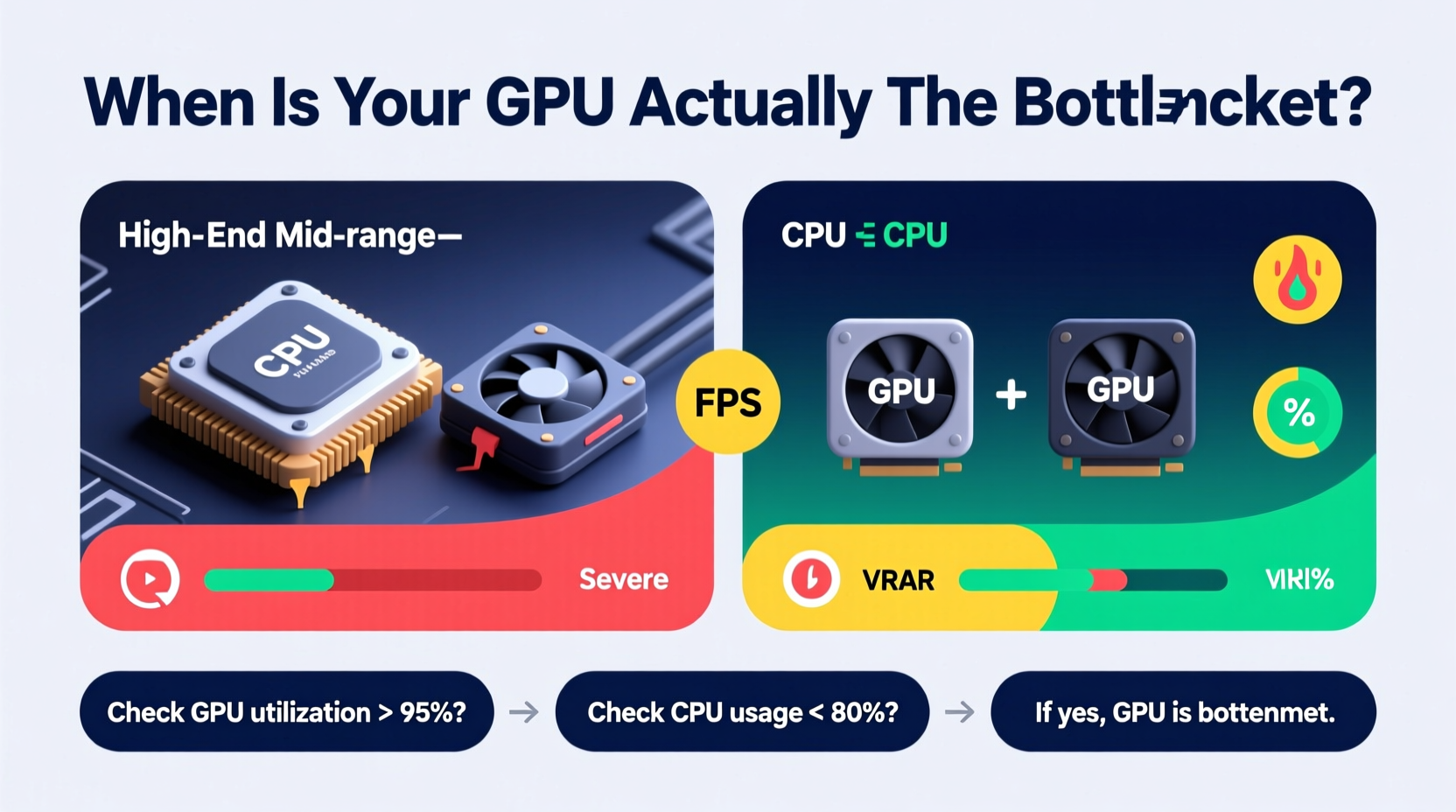
A performance bottleneck occurs when one component limits the potential of others. In gaming and creative applications, the GPU handles rendering visuals, while the CPU manages game logic, physics, AI, and data flow. If either lags behind, the other can’t operate at full capacity. For example, a powerful RTX 4090 may render frames quickly, but if the CPU takes too long calculating scene updates, the GPU sits idle—wasting resources.
Bottlenecks aren’t inherently bad; they’re natural in any system. The key is identifying whether the GPU is the primary constraint or merely reacting to limitations elsewhere. A balanced system ensures both CPU and GPU are utilized efficiently—typically between 70% and 95% usage during demanding tasks.
“True GPU bottlenecks reveal themselves not just in low FPS, but in high GPU utilization under consistent load.” — Jordan Lee, Hardware Performance Analyst at TechSignal Labs
Signs Your GPU Is the Real Bottleneck
Not every performance issue stems from the graphics card. However, several indicators strongly suggest your GPU is holding back your system:
- GPU utilization consistently exceeds 90% during gameplay or rendering, while frame rates remain low.
- FPS increases significantly when lowering graphical settings (e.g., from Ultra to Medium), indicating the GPU struggles with rendering complexity.
- Performance scales predictably with resolution—higher resolutions (1440p, 4K) cause major FPS drops, typical of GPU-limited systems.
- No stutters or hitching related to asset loading, which would point to storage or RAM issues.
- CPU usage remains below 80% during gameplay, suggesting it’s not the limiting factor.
When Other Components Are to Blame
Before upgrading your GPU, rule out other culprits. A slow CPU, inadequate RAM, or aging storage can mimic GPU limitations. Consider these red flags:
- Micro-stuttering or inconsistent frame pacing despite high average FPS—often caused by CPU bottlenecks.
- Long texture pop-in or asset loading delays even after level loads—common with HDDs or full SSDs.
- System freezes or crashes under multitasking—could indicate insufficient RAM or thermal throttling.
- Low GPU usage (below 70%) during gameplay—this suggests the GPU isn’t being fed data fast enough.
For instance, pairing a mid-tier Ryzen 5 3600 with a modern RTX 4070 in CPU-intensive titles like Microsoft Flight Simulator or CS2 can result in suboptimal performance, not because the GPU is weak, but because the CPU caps its throughput.
Step-by-Step: Diagnose Your True Bottleneck
Follow this structured process to determine if your GPU is the actual bottleneck:
- Baseline Performance Check: Run your most demanding games or applications at current settings. Record average FPS using tools like FRAPS or NVIDIA FrameView.
- Monitor Component Usage: Use MSI Afterburner + RivaTuner to overlay real-time CPU, GPU, VRAM, and RAM usage during gameplay.
- Adjust Graphics Settings: Lower settings (textures, shadows, anti-aliasing) and observe FPS changes. If FPS jumps dramatically, the GPU was likely constrained.
- Vary Resolution: Test performance at 1080p vs. 1440p. A large drop (e.g., 120 FPS to 60 FPS) indicates GPU limitation.
- Check CPU Utilization: If CPU usage hits 95–100% while GPU hovers around 70%, the CPU is likely the bottleneck.
- Update Drivers & OS: Ensure GPU drivers, chipset drivers, and OS are up to date. Outdated software can artificially cap performance.
- Run Synthetic Benchmarks: Tools like 3DMark (Time Spy, Fire Strike) isolate GPU performance and provide comparative scores.
This methodical approach eliminates guesswork and prevents unnecessary spending.
Real-World Case: The Overlooked Upgrade
Mark, a freelance video editor and casual gamer, upgraded from a GTX 1060 to an RTX 3060 Ti, expecting dramatic improvements. While 1080p gaming improved, his 1440p editing in DaVinci Resolve remained sluggish. He assumed the GPU wasn’t powerful enough and considered another upgrade.
After monitoring his system, he discovered GPU usage rarely exceeded 65% during rendering. CPU usage, however, spiked to 100%. His aging Intel i5-8400 couldn’t keep up with decode demands. Instead of buying a new GPU, Mark upgraded to a Ryzen 5 5600X. The result? Rendering times dropped by 40%, and GPU utilization climbed to 88–92%. The real bottleneck wasn’t the graphics card—it was the processor.
This case underscores a critical truth: performance perception doesn’t always align with technical reality.
Comparison Table: GPU vs. CPU vs. RAM Bottlenecks
| Symptom | GPU Bottleneck | CPU Bottleneck | RAM/Storage Bottleneck |
|---|---|---|---|
| GPU Usage | 90–100% | 60–80% | Varies |
| CPU Usage | 60–80% | 90–100% | High during loading |
| Frame Rate Behavior | Improves sharply with lower settings | Inconsistent frame pacing | Stutters during scene transitions |
| Resolution Impact | Large FPS drop at higher res | Minimal change with resolution | No direct correlation |
| VRAM Usage | Near or at limit | Normal | May spike intermittently |
| Solution | Upgrade GPU | Upgrade CPU or reduce in-game CPU load | Add RAM, switch to NVMe SSD |
When Should You Actually Upgrade Your GPU?
Knowing when to pull the trigger on a new graphics card comes down to three factors: capability, compatibility, and cost-effectiveness.
1. Capability Gap
If your GPU cannot meet minimum requirements for modern titles at your preferred resolution and settings, it’s time. For example, playing AAA games at 1080p with acceptable frame rates (50+ FPS) on High settings is reasonable. If you're stuck on Low settings or experiencing sub-30 FPS, an upgrade makes sense.
2. Technological Obsolescence
Older GPUs lack support for modern features like ray tracing, DLSS/FSR, AV1 encoding, or DirectX 12 Ultimate. If you’re creating content or want future-proofing, these matter. A GTX 1080, while once flagship, lacks dedicated AI cores and efficient encoders found in RTX 30/40 series.
3. Diminishing Returns Elsewhere
If you’ve already upgraded your CPU, added 32GB of DDR4, and installed a PCIe 4.0 NVMe drive—but still see GPU usage maxed out—then the GPU is clearly the last frontier.
Checklist: Is It Time for a GPU Upgrade?
- ✅ GPU usage consistently above 90% in target applications
- ✅ Frame rates below 50 FPS at native monitor resolution
- ✅ Inability to use desired settings (e.g., ray tracing, high textures)
- ✅ No significant improvement after optimizing drivers and settings
- ✅ Other components (CPU, RAM, PSU) are modern and sufficient
- ✅ Power supply has adequate wattage and PCIe connectors
- ✅ New GPU fits physically in your case
- ✅ You’ve ruled out thermal throttling or driver issues
Frequently Asked Questions
Can a GPU bottleneck a CPU?
No—the relationship works the other way. A slow GPU can leave the CPU waiting for rendered frames, but this doesn’t “bottleneck” the CPU in the traditional sense. Instead, it leads to underutilization. True bottlenecks occur when a faster component is held back by a slower one.
Does more VRAM always mean better performance?
Not necessarily. VRAM stores textures and assets. If your usage stays below 80% of available VRAM, extra memory won’t boost FPS. However, exceeding VRAM capacity forces data swapping to system RAM, causing severe stutters. Aim for sufficient, not excessive, VRAM based on your resolution and settings.
Should I upgrade my GPU if I’m satisfied with 1080p gaming?
If you’re happy with performance and don’t plan to move to higher resolutions or newer games, there’s no urgent need. GPU upgrades should solve specific problems—not chase benchmarks. Wait until your current card fails to meet your evolving needs.
Conclusion: Upgrade with Purpose, Not Hype
Graphics cards are powerful, but they’re only as effective as the system they run in. Blindly upgrading based on marketing or forum trends leads to wasted investment. True performance gains come from understanding your system’s weakest link—not assuming it’s the GPU.
By monitoring usage, analyzing performance patterns, and testing variables systematically, you gain clarity. Whether you’re a competitive gamer, streamer, or creative professional, informed decisions lead to smarter builds and longer-lasting satisfaction.




 浙公网安备
33010002000092号
浙公网安备
33010002000092号 浙B2-20120091-4
Comments
No comments yet. Why don't you start the discussion?