
A sudden appearance of a black half on your screen can be alarming, especially when you're in the middle of work or entertainment. Whether it's affecting your laptop, external monitor, or tablet, this issue disrupts usability and raises concerns about hardware failure. The good news is that many cases are not permanent and can be resolved with targeted troubleshooting. This guide explores the most common causes behind half your screen turning black and provides practical, step-by-step solutions to restore full functionality.
Common Causes of Half a Black Screen
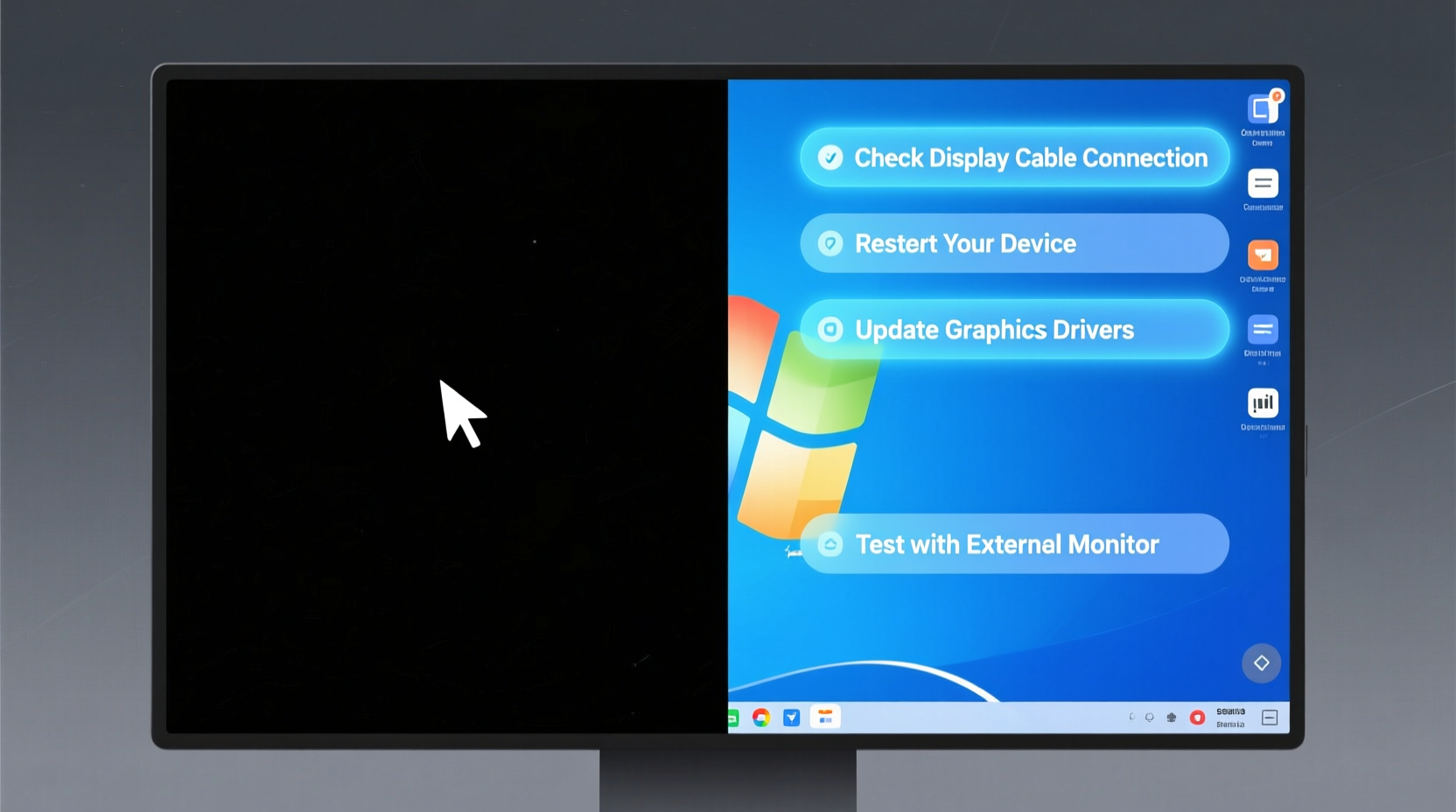
The root cause of a partially black screen varies depending on device type, age, and usage patterns. Understanding these underlying factors helps narrow down the diagnosis and avoid unnecessary repairs.
- Loose or damaged display cable: In laptops and some monitors, internal video cables (like LVDS or eDP) connect the screen to the motherboard. If one side of the cable fails, only part of the display may receive data.
- Graphics driver issues: Outdated, corrupted, or incompatible drivers can lead to improper rendering, causing visual anomalies including split-screen darkness.
- Hardware backlight failure: Some LCD panels use dual backlight systems. A failure in one strip can darken half the screen while the other remains lit.
- Physical screen damage: Impacts or pressure on the display can crack the LCD matrix or damage internal layers, often resulting in dark vertical or horizontal bands.
- Software or OS glitches: Full-screen applications, incorrect scaling settings, or bugs in operating system updates may mimic hardware failure.
- Graphics card problems: Integrated or dedicated GPUs experiencing thermal stress or memory errors might output incomplete signals.
“Over 40% of partial screen failures in consumer devices stem from connection issues rather than panel damage.” — Dr. Alan Zhou, Display Systems Engineer at TechView Diagnostics
Troubleshooting Steps to Fix a Half-Black Screen
Before assuming hardware failure, follow a methodical approach to isolate the problem. Many fixes require no technical expertise and can be completed in under 15 minutes.
Step 1: Restart Your Device
A simple reboot clears temporary software glitches. Hold the power button for 10 seconds to force shutdown, wait 30 seconds, then restart. Observe if the issue persists.
Step 2: Check External Displays
If using an external monitor, disconnect it and switch back to the built-in display. If the external screen shows the same symptom, the issue likely lies in the source (laptop or PC), not the monitor.
Step 3: Boot into Safe Mode
Safe Mode loads only essential drivers, helping determine if third-party software is interfering.
- Restart and press F8 (Windows) or Shift (Mac) during boot.
- Select Safe Mode with Networking.
- Check if the screen displays normally.
If the screen appears correct in Safe Mode, suspect a driver or application conflict.
Step 4: Update or Reinstall Graphics Drivers
Outdated drivers are a frequent culprit. Navigate to Device Manager (Windows) or System Information (Mac), locate your GPU under \"Display adapters,\" and update the driver. Alternatively, download the latest version directly from NVIDIA, AMD, or Intel’s website.
Step 5: Test with Live OS or Another Device
Boot from a USB drive with a Linux live OS (e.g., Ubuntu). If the screen works correctly, the issue is likely software-related within your primary operating system.
Do’s and Don’ts When Dealing With Display Issues
| Do’s | Don’ts |
|---|---|
| Back up your data immediately if the issue appears suddenly | Ignore early warning signs like flickering or discoloration |
| Use manufacturer-recommended tools for driver updates | Apply excessive pressure when inspecting the screen |
| Try connecting to an external monitor to test GPU output | Open the device unless under warranty or trained to do so |
| Document symptoms (e.g., when it occurs, after updates) | Assume it’s purely software-related without verification |
Real-World Example: Recovering a Work Laptop
Jessica, a remote project manager, noticed her laptop screen had gone completely black on the left half during a client call. Initially fearing hardware failure, she connected her laptop to a TV via HDMI. The full desktop appeared normally on the TV, indicating the GPU was functional. She restarted in Safe Mode—both halves displayed correctly. After uninstalling a recently updated graphics driver and reinstalling the previous stable version, the issue resolved. Jessica saved over $300 in potential repair costs by isolating the software origin first.
When Hardware Repair Is Necessary
If software troubleshooting fails, the issue may be physical. Common hardware faults include:
- Fractured flex cables in hinge areas due to repeated opening/closing
- Failed backlight inverters in older CCFL-based screens
- Cracked LCD panels from impact or manufacturing defects
- Loose ribbon connectors between motherboard and display
In such cases, professional repair is advised. For laptops, technicians can open the chassis, reseat display cables, or replace the panel. Cost varies: cable reseating may cost $50–$100, while full panel replacement ranges from $150–$400 depending on model.
Frequently Asked Questions
Can a virus cause half my screen to go black?
No, malware cannot physically disable half of your display. However, malicious software could alter display settings, install fake drivers, or trigger system crashes that mimic hardware issues. Always run a security scan if you suspect compromise.
Is it safe to continue using my device with a half-black screen?
Yes, but with caveats. If the issue is software-related, continued use is generally safe. If caused by physical damage, further stress (like closing the lid forcefully) may worsen the tear. Avoid prolonged use in extreme temperatures, which can accelerate degradation.
Why does the black half appear only when I open the laptop fully?
This typically points to a damaged flex cable in the hinge. As the angle changes, the internal connection becomes intermittent. You may also notice flickering or color distortion. Reseating or replacing the cable usually resolves this.
Final Checklist: Quick Actions to Take Now
- Restart the device to rule out temporary glitches.
- Connect to an external monitor to test GPU output.
- Boot into Safe Mode and observe screen behavior.
- Update or roll back graphics drivers using official sources.
- Check for recent software or OS updates that may have triggered the issue.
- Inspect for physical damage or pressure marks on the screen.
- Contact a certified technician if all else fails.
Conclusion
A blacked-out half of your screen doesn’t automatically mean costly replacement. Often, the fix lies in simple software corrections or driver management. By systematically eliminating potential causes—from settings and drivers to external hardware—you can save time, money, and frustration. If the problem persists despite thorough troubleshooting, seek professional diagnostics to prevent further damage. Early action increases the chances of recovery and extends your device’s lifespan.




 浙公网安备
33010002000092号
浙公网安备
33010002000092号 浙B2-20120091-4
Comments
No comments yet. Why don't you start the discussion?