
A malfunctioning headset microphone can be more than an annoyance—it can disrupt work meetings, online classes, gaming sessions, or important calls. Whether you're using a USB or 3.5mm headset on Windows or macOS, audio input issues are common but often solvable without replacing hardware. This guide walks through proven troubleshooting steps, identifies frequent causes, and provides clear solutions to restore your mic functionality quickly.
Step 1: Confirm the Basics Are Correct
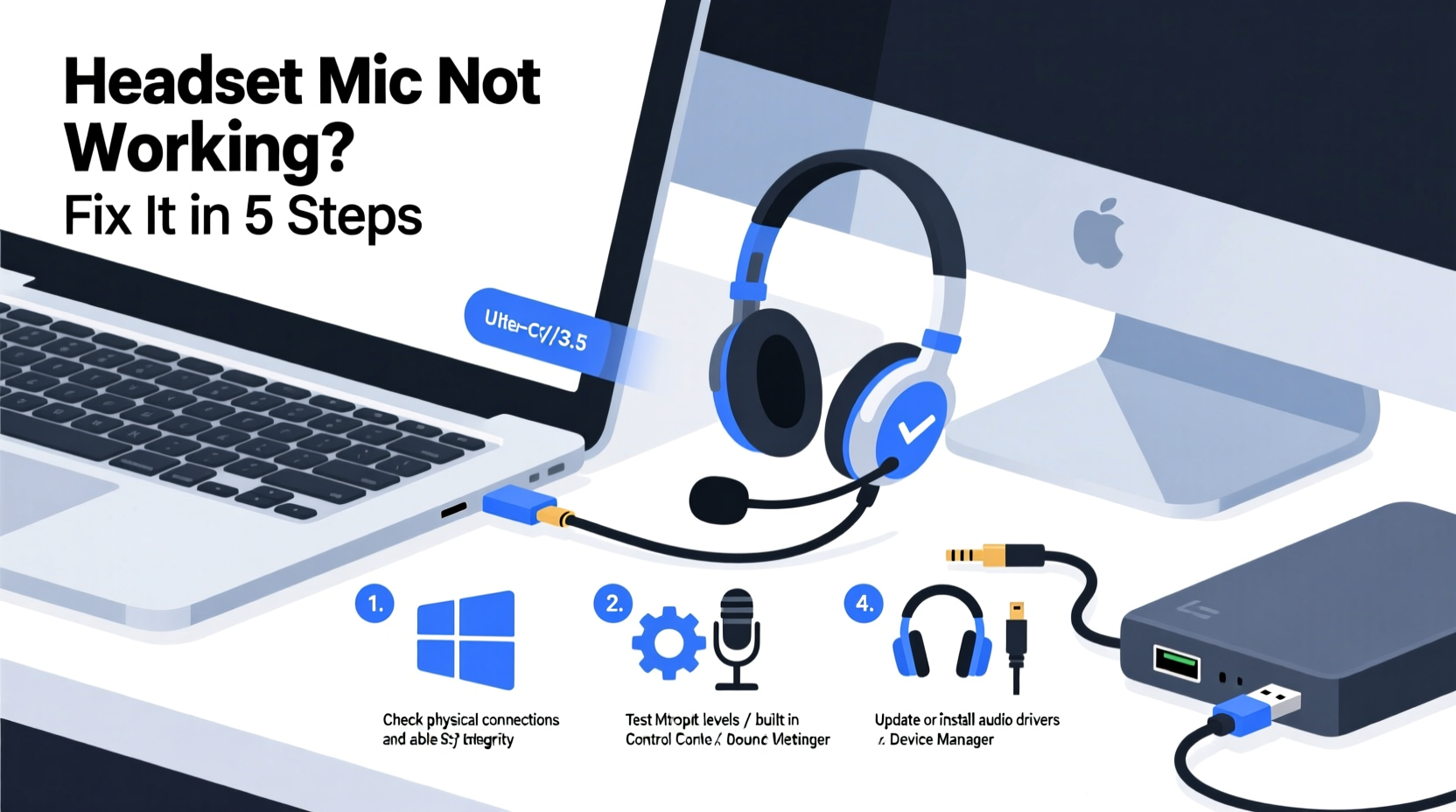
Before diving into complex diagnostics, rule out simple oversights that account for over half of reported mic failures.
- Check physical connections: Ensure your headset is fully plugged in. For 3.5mm jacks, push firmly until you hear a click. For USB headsets, try a different port—preferably one directly on the motherboard, not a hub.
- Verify mute status: Look for a physical mute switch on the headset or inline remote. Many users unknowingly leave their mic muted after a previous call.
- Test volume levels: Increase both system input volume and any application-specific mic settings.
- Listen for feedback: Speak into the mic while monitoring the input level indicator in your OS or app (e.g., Zoom, Discord). If the bars move, the mic is active but may be too quiet.
Step 2: Verify Microphone Settings by Operating System
Different operating systems handle audio devices uniquely. Follow the correct path based on your setup.
For Windows Users
Navigate to Settings > System > Sound > Input. Confirm your headset is selected as the default input device. Click “Test your microphone” and speak clearly. If no green bars appear, proceed to advanced settings.
Right-click the speaker icon in the taskbar, choose Sound settings, then go to More sound settings. Under the Recording tab:
- Ensure your headset mic is not disabled (right-click to enable if grayed out).
- Double-click the device to access properties.
- In the Levels tab, confirm the microphone boost is set appropriately (try +10.0 dB if voice is faint).
- In the Advanced tab, uncheck “Allow applications to take exclusive control” to prevent conflicts.
For macOS Users
Go to System Settings > Sound > Input. Select your headset from the list. Watch the input level meter as you speak. If it doesn’t respond:
- Confirm the headset appears in the device list—absence suggests a connection or driver issue.
- Adjust the input volume slider manually.
- Restart apps like FaceTime or Teams to refresh device detection.
“Over 60% of ‘dead mic’ reports resolve at the OS settings level. Always verify input selection before assuming hardware failure.” — Jordan Lee, Senior Support Engineer at AudioTech Solutions
Step 3: Run Built-in Troubleshooters and Update Drivers
Modern operating systems include diagnostic tools designed to detect and fix audio problems automatically.
Windows Audio Troubleshooter
- Open Settings > System > Sound.
- Scroll down and click Input > Troubleshoot.
- Follow prompts to detect issues with drivers, permissions, or configuration.
- If a problem is found, apply recommended fixes and restart your PC.
Update or Reinstall Audio Drivers
Outdated or corrupted drivers frequently cause mic failures.
- Press Win + X and select Device Manager.
- Expand Audio inputs and outputs and Sound, video and game controllers.
- Right-click your headset or audio controller (e.g., Realtek, Intel SST) and choose Update driver.
- Select “Search automatically for updated driver software.”
- If no update is found, choose Uninstall device, then restart your computer to trigger a fresh driver install.
For branded headsets (e.g., Logitech, SteelSeries), visit the manufacturer’s website to download the latest firmware and companion software.
Step 4: Application-Specific Fixes
Sometimes, the mic works system-wide but fails in specific programs. This usually stems from permission or configuration errors.
| Application | Common Issue | Solution |
|---|---|---|
| Zoom | Mic not detected despite system recognition | Go to Settings > Audio > Microphone and manually select your headset. Test there. |
| Discord | No input even when speaking loudly | Disable \"Automatically determine input sensitivity\" and set threshold manually. |
| Microsoft Teams | Mic works elsewhere but not in calls | Check Teams settings under Devices > Microphone. Restart Teams after plugging in headset. |
| Web Browsers (Chrome, Edge) | Site denies mic access | Click the lock icon in the address bar and ensure microphone permission is allowed. |
Step 5: Diagnose Hardware and Connection Issues
If software fixes fail, focus shifts to physical components.
Check Cable and Connector Integrity
Inspect the headset cable for fraying, kinks, or bent connectors. For 3.5mm headsets, debris in the jack can prevent proper contact. Use compressed air or a soft brush to clean the port. Avoid metal tools to prevent short circuits.
Try a different cable if your headset supports detachable ones (common in gaming models).
Adapter and Port Compatibility
If using a 3.5mm headset with a laptop that combines headphone/mic into one TRRS jack, ensure your headset uses a compatible plug standard (CTIA or OMTP). Mismatches cause the mic to be ignored.
When using USB-C to 3.5mm adapters, confirm they support microphone input—not all do. Prefer branded adapters from trusted manufacturers.
Real Example: The Case of the Intermittent Mic
A freelance voice actor reported his headset mic cutting out during recordings. He tested multiple apps and rebooted several times. After ruling out software, he noticed the mic worked only when holding the cable at a certain angle. Upon inspection, the internal wiring near the plug was damaged. Replacing the cable resolved the issue instantly. This highlights how intermittent faults often point to physical wear rather than system errors.
Troubleshooting Checklist
Use this concise checklist to methodically resolve mic issues:
- ✅ Ensure headset is securely connected (USB or 3.5mm)
- ✅ Check for physical mute switches or buttons
- ✅ Confirm headset is selected as default input device
- ✅ Test mic in OS sound settings or a voice recorder app
- ✅ Run OS audio troubleshooter (Windows) or reset coreaudiod (macOS)
- ✅ Update or reinstall audio drivers
- ✅ Grant microphone permissions to relevant apps
- ✅ Try the headset on another device to isolate hardware failure
- ✅ Clean audio ports and inspect cables for damage
- ✅ Install manufacturer software or firmware updates
Frequently Asked Questions
Why does my headset mic work on my phone but not my PC?
This typically indicates a compatibility or driver issue. Phones often auto-detect TRRS configurations, while PCs may require manual input selection or lack support for certain plug standards. Also, check if your PC has separate mic and headphone jacks—if so, you’ll need a splitter.
Can a BIOS or firmware update fix mic problems?
Rarely, but yes. Some motherboards have outdated audio firmware that misreports device capabilities. Check your PC or motherboard manufacturer’s support site for BIOS updates related to audio subsystems. Proceed with caution and follow instructions precisely.
My USB headset isn’t showing up at all—what now?
First, test the headset on another computer. If it still isn’t detected, the device may be faulty. If it works elsewhere, the issue could be a blocked USB driver, power management setting, or failing port. In Device Manager, look under “Universal Serial Bus controllers” for errors. Disable “Allow the computer to turn off this device to save power” for each USB Root Hub.
Final Steps and When to Replace
If every troubleshooting step has been exhausted and the mic remains unresponsive, consider replacement—especially if the headset is older than two years or shows signs of physical damage. However, many users prematurely replace gear that could be fixed with a driver update or port cleaning.
Before purchasing new equipment, invest time in testing with multiple devices and configurations. High-quality headsets often justify repair attempts or professional diagnosis.




 浙公网安备
33010002000092号
浙公网安备
33010002000092号 浙B2-20120091-4
Comments
No comments yet. Why don't you start the discussion?