
When you take a photo on your iPhone, chances are it’s being saved in HEIF (High Efficiency Image Format) if you’ve kept Apple’s default settings since iOS 11. Designed to cut file sizes nearly in half without sacrificing visible quality, HEIF promises smarter storage use. But does it deliver in real-world use? And what happens when you share those photos with friends on Android or upload them to older software? The debate between HEIF and JPEG isn’t just technical—it affects how easily you can access, share, and preserve your memories.
Understanding the practical implications of this behind-the-scenes choice helps determine whether Apple’s push toward efficiency is genuinely beneficial or an inconvenience masked as innovation.
What Is HEIF and How Does It Differ From JPEG?
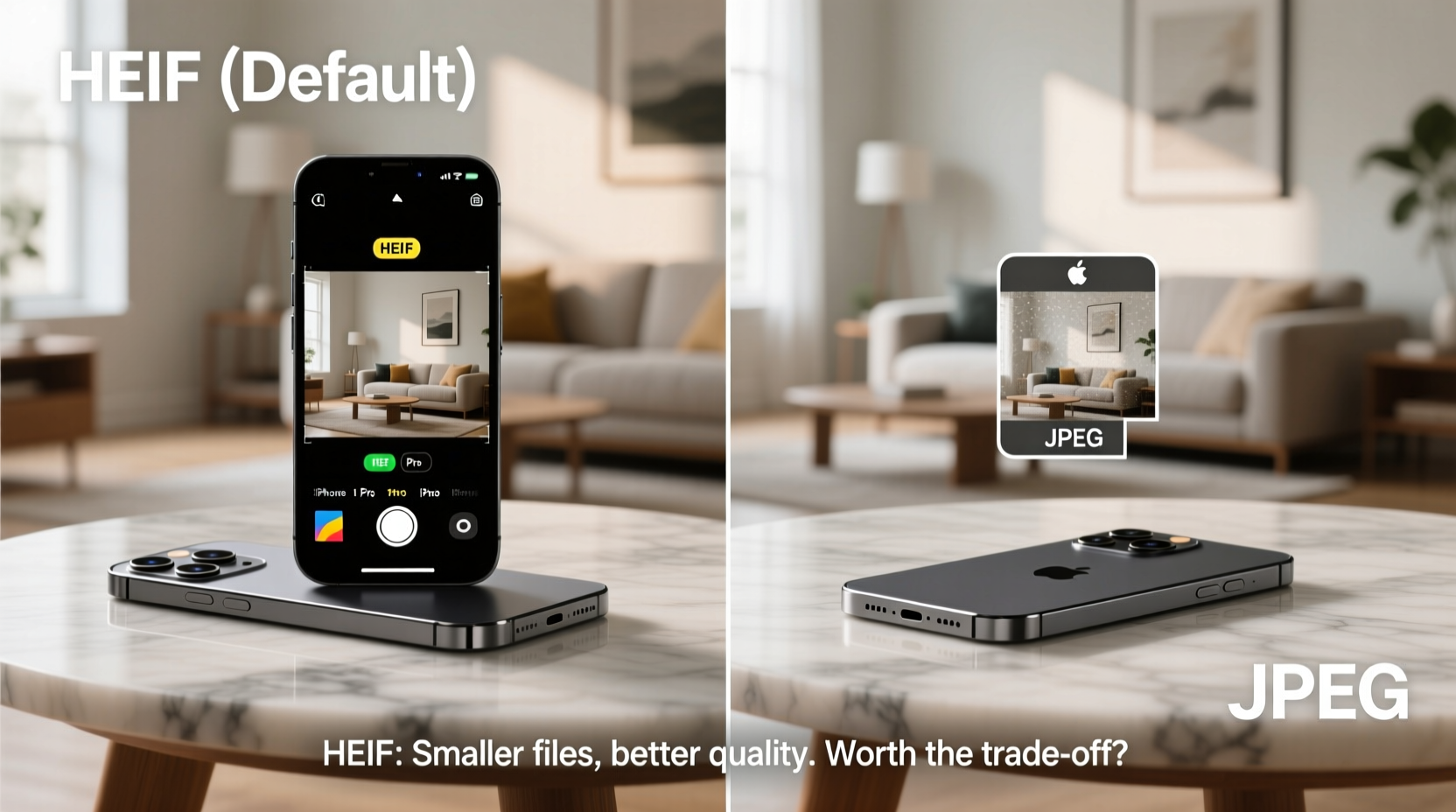
HEIF, or High Efficiency Image File Format, was introduced by Apple in 2017 alongside iOS 11. It uses advanced compression based on the HEVC (H.265) video codec, allowing images to maintain higher quality at significantly smaller file sizes—typically 40–50% smaller than equivalent JPEGs.
JPEG, developed in 1992, remains the most universally supported image format. While it compresses well for its age, it lacks support for modern features like 16-bit color depth, transparency, and burst photo sequences stored efficiently in one file.
HEIF supports:
- Higher dynamic range (HDR) and deeper color (up to 16-bit vs JPEG’s 8-bit)
- Transparency (like PNG, but compressed)
- Multiple images in a single container (e.g., Live Photos, burst shots)
- Better preservation of editing data and metadata
Despite these advantages, HEIF’s adoption outside Apple’s ecosystem has been slow. Many Windows PCs, web platforms, and third-party apps still don’t natively support it, forcing automatic conversions or failed uploads.
“HEIF represents a generational leap in image efficiency, but backward compatibility remains its Achilles’ heel.” — Dr. Lin Wei, Digital Imaging Researcher at MIT Media Lab
Storage Savings: Real Benefits vs Hidden Trade-offs
The primary appeal of HEIF is reduced storage consumption. For users with 64GB iPhones—who quickly fill up their devices with photos and apps—this can mean hundreds of megabytes saved per month.
A typical 12MP photo from an iPhone 15 takes about 3–4MB as a JPEG but only 1.5–2MB in HEIF under normal conditions. Over 1,000 photos, that’s roughly 1.5–2GB of space reclaimed—equivalent to several hours of HD video.
However, the savings come with caveats. When sharing via Messages, Mail, or social media, iPhones automatically convert HEIF files to JPEG. This conversion happens silently in the background—but it defeats the purpose of storing the original efficiently if every share triggers recompression.
Moreover, cloud services like Google Drive, Dropbox, or older versions of Adobe Lightroom may not recognize .HEIC files (the file extension for HEIF on iOS), leading to preview failures or import errors.
Compatibility Challenges Across Devices and Platforms
While macOS and recent versions of Windows 10/11 support HEIF with optional codecs, many users aren’t aware they need to install additional software. Even then, compatibility isn’t guaranteed across all programs.
Consider this scenario:
Mini Case Study: The Family Photo Mix-Up
Sarah took over 300 vacation photos using her iPhone 14 in HEIF mode. She shared an iCloud link with her parents, who use a Windows 10 laptop. They could see thumbnails but couldn’t open any images in Windows Photos without installing a separate HEIF plugin from the Microsoft Store. Her brother, using an older version of Photoshop, found the files wouldn’t import at all. Eventually, Sarah had to re-export everything as JPEG manually—a process that took over an hour.
This is a common experience. Despite Apple’s seamless internal handling of HEIF, friction emerges the moment files leave the ecosystem.
Should You Keep HEIF Enabled? A Practical Checklist
Whether HEIF is right for you depends on your workflow, device usage, and sharing habits. Use this checklist to decide:
- ✅ Do you mostly use Apple devices (iPhone, iPad, Mac)? → Favor HEIF
- ✅ Do you frequently share photos with Android users or non-tech-savvy relatives? → Favor JPEG
- ✅ Are you running low on iPhone storage? → Favor HEIF
- ✅ Do you edit photos professionally in software like Photoshop or Lightroom? → Check HEIF support first; otherwise, stick with JPEG or convert early
- ✅ Do you back up to a NAS or legacy cloud service? → Verify HEIF compatibility before committing
Converting Between HEIF and JPEG: A Step-by-Step Guide
If you want flexibility without changing global settings, here’s how to convert individual photos:
- Open the Photos app and select the image(s) you want to export.
- Tap Share > “Save to Files” or “Copy to PC/Mac.”
- Before exporting, tap Options (if available).
- Set Automatic to “Convert to JPEG” or choose “Most Compatible” under Transfer Settings.
- Export the file—it will now be in JPEG format and universally readable.
To change your iPhone’s default format:
- Go to Settings > Camera > Formats.
- Select “Most Compatible” instead of “High Efficiency.”
- All new photos will now be saved as JPEG.
Note: Existing HEIF photos remain unchanged unless manually converted.
Comparison Table: HEIF vs JPEG on iPhone
| Feature | HEIF (High Efficiency) | JPEG (Most Compatible) |
|---|---|---|
| File Size | ~50% smaller | Larger |
| Image Quality | Slightly better (16-bit, HDR-ready) | Good (8-bit standard) |
| iOS/macOS Support | Full native support | Universal |
| Windows/Android Support | Limited (requires plugins) | Universal |
| Editing Flexibility | Better for non-destructive edits | Standard editing support |
| Cloud & Email Sharing | Auto-converted to JPEG when shared | No conversion needed |
| Best For | Apple-only users, limited storage | Mixed-device households, simplicity |
Frequently Asked Questions
Does HEIF actually look better than JPEG?
Under most viewing conditions, no—not noticeably. However, HEIF retains more detail in shadows and highlights, especially in HDR scenes. Professionals may benefit from the extra data during post-processing, but casual viewers won’t see a difference on screen.
Can I switch back to JPEG later?
Yes. Go to Settings > Camera > Formats and select “Most Compatible.” All new photos will be saved as JPEG. Your old HEIF photos stay as-is and can be converted individually when sharing.
Why does my computer not recognize HEIF files?
Windows doesn’t include HEIF support by default. You’ll need to install the “HEIF Image Extensions” from the Microsoft Store. On older systems or unsupported software, conversion to JPEG is the simplest fix.
Final Verdict: Is HEIF Worth the Hassle?
For users deeply embedded in Apple’s ecosystem—with a Mac, iPad, and perhaps an Apple TV—HEIF makes sense. It saves space, preserves richer image data, and operates seamlessly across devices. The automation around sharing also minimizes friction in daily use.
But if you regularly collaborate with Android users, upload to third-party websites, or rely on legacy software, the compatibility headaches outweigh the benefits. In those cases, switching to “Most Compatible” mode and using JPEG avoids unexpected issues down the line.
Ultimately, HEIF is a forward-looking format that arrived slightly ahead of its time. As cross-platform support improves, it may become the standard. Until then, treating it as an optional tool rather than a default setting gives you the best balance of efficiency and reliability.




 浙公网安备
33010002000092号
浙公网安备
33010002000092号 浙B2-20120091-4
Comments
No comments yet. Why don't you start the discussion?