
Mobile hotspots have become essential for staying connected on the go—whether you're working remotely, traveling, or simply away from Wi-Fi. But when your hotspot fails to connect, shares no internet, or won’t turn on at all, it can bring your day to a halt. The good news: most hotspot issues are fixable with systematic troubleshooting. This guide walks you through practical, tested solutions across Android, iPhone, and Windows devices to get your personal hotspot running smoothly again.
Common Causes of Hotspot Failure
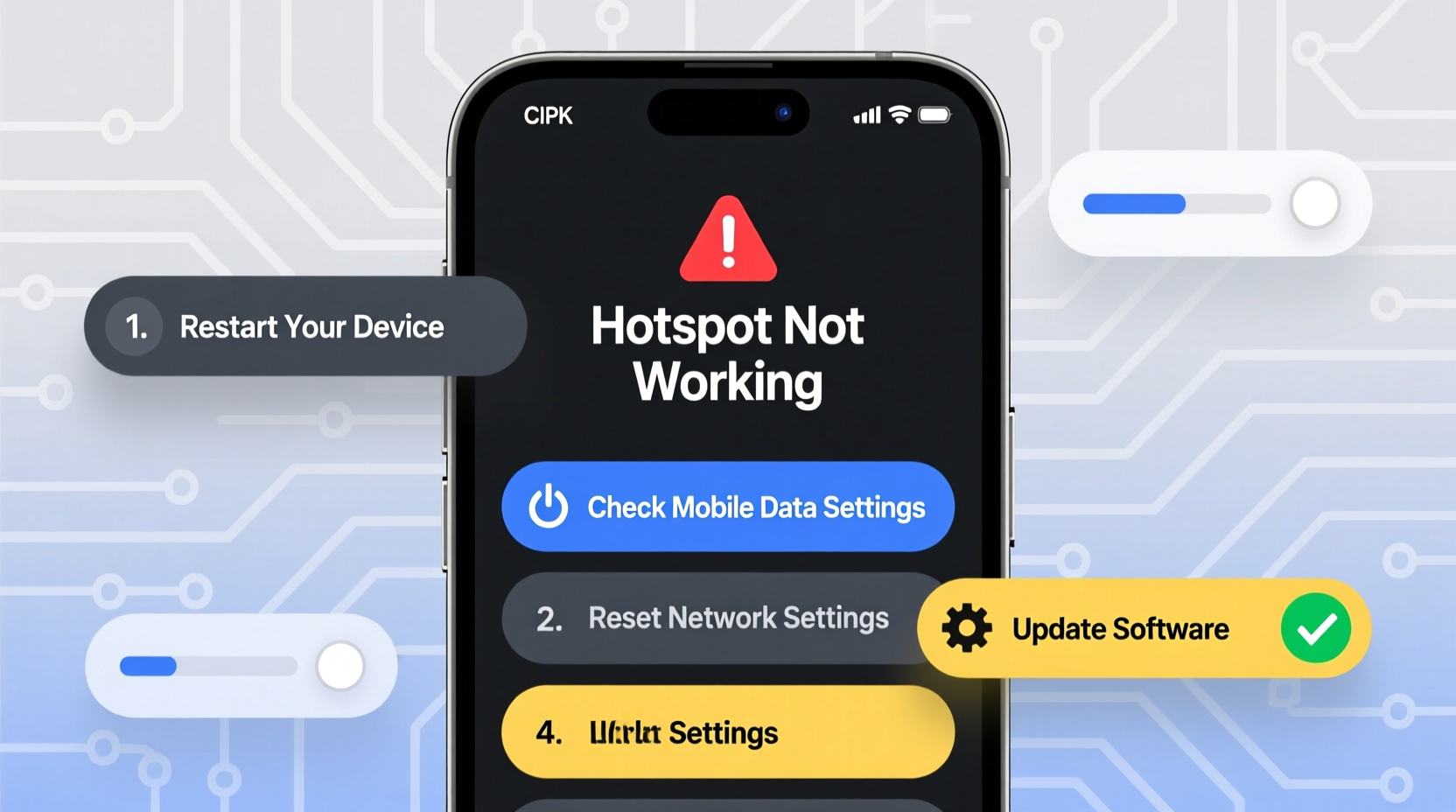
Before diving into fixes, it helps to understand what might be going wrong. Hotspot problems typically stem from one of several root causes:
- Network congestion or weak signal – If your cellular signal is poor, the hotspot may not function properly.
- Incorrect settings – Misconfigured APN (Access Point Name), tethering limits, or security settings can block connectivity.
- Software bugs or glitches – Operating system updates sometimes introduce bugs that interfere with hotspot functionality.
- Device compatibility issues – Some older routers or client devices struggle to connect to certain hotspot frequencies.
- Data cap reached – Many carriers throttle or disable hotspot use after a certain data threshold.
Step-by-Step Troubleshooting Guide
Follow this logical sequence to isolate and fix the issue efficiently.
- Verify Cellular Signal Strength
Check if your phone has strong signal bars. Try moving near a window or outside. No signal means no hotspot. - Toggle Airplane Mode On/Off
This resets all wireless connections. Turn on Airplane Mode for 10 seconds, then disable it. - Restart the Device
A full reboot clears memory and reloads network services. Hold power button and restart. - Ensure Hotspot Is Enabled
Double-check that the hotspot toggle is actually on in Settings > Network & Internet > Hotspot. - Forget and Reconnect on Client Device
On the laptop or tablet trying to connect, \"Forget\" the network and reconnect using the correct password. - Change Hotspot Band (2.4 GHz vs 5 GHz)
Some older devices only support 2.4 GHz. In Android, go to Hotspot settings > Advanced > AP Band and switch. - Update Carrier Settings and OS
Install pending updates. Outdated firmware can break hotspot features. - Reset Network Settings
If nothing works, reset network settings (note: this erases saved Wi-Fi passwords).
For iPhone Users: Specific Fixes
iOS hotspot issues often relate to carrier settings or Personal Hotspot restrictions:
- Go to Settings > Cellular > Personal Hotspot and ensure it’s enabled.
- If “Personal Hotspot” doesn’t appear, contact your carrier—they may need to activate it on their end.
- Try resetting network settings via Settings > General > Transfer or Reset iPhone > Reset > Reset Network Settings.
- Use a different USB cable or Bluetooth connection method if sharing via tethering.
For Android Devices: Deep Dive
Android offers more granular control, but misconfigurations are common.
| Issue | Possible Fix |
|---|---|
| Hotspot turns on but no internet | Check if mobile data is enabled; test browsing on the phone itself. |
| Clients see network but can't connect | Change security type to WPA2 PSK; avoid open networks. |
| Connection drops frequently | Switch from 5 GHz to 2.4 GHz band for better range. |
| “Hotspot disabled due to battery saver” | Turn off Battery Saver mode or allow exceptions for hotspot. |
“We’ve seen a 30% increase in hotspot-related support tickets after major OS updates—always check known issues before assuming hardware failure.” — Raj Mehta, Senior Network Technician at MobileConnect Solutions
Checklist: Quick Hotspot Recovery Steps
Print or save this checklist for rapid response when your hotspot fails:
- ✅ Confirm cellular signal strength (at least 2 bars)
- ✅ Toggle Airplane Mode on/off
- ✅ Restart host device
- ✅ Verify mobile data is active and working
- ✅ Ensure hotspot feature is turned on
- ✅ Test with another device to isolate the problem
- ✅ Change Wi-Fi channel or band (2.4 GHz recommended)
- ✅ Reset network settings as last resort
- ✅ Contact carrier if hotspot option is missing
Real-World Example: Road Warrior Regains Connectivity
Mark, a freelance graphic designer, relied on his Android phone’s hotspot during a week-long trip to rural Colorado. One morning, his laptop could see the hotspot but wouldn’t connect. He tried restarting both devices with no success. After checking signal strength (three bars), he realized his phone was set to 5 GHz hotspot mode. His aging laptop didn’t support that frequency. By switching to 2.4 GHz in the hotspot advanced settings, he restored the connection within minutes. The fix took less than two minutes—but without knowing about band compatibility, he might have wasted hours.
This scenario underscores how small configuration details can make or break your connectivity, especially in low-infrastructure areas.
When to Suspect Carrier Restrictions
Not all hotspot issues are device-based. Carriers often impose limitations that users aren’t aware of:
- Limited or throttled hotspot data: Even with “unlimited” plans, many carriers reduce speeds after 15–50 GB of hotspot use.
- No hotspot included: Some budget plans exclude tethering entirely.
- APN misconfiguration: Rare, but possible after carrier switches. Verify APN settings match your provider’s specs.
To rule out carrier-side blocks:
- Contact customer service and confirm your plan includes hotspot/tethering.
- Ask if any throttling policies apply.
- Request an APN reset or profile update if needed.
Frequently Asked Questions
Why does my hotspot show “Saved” but not connect on my laptop?
This usually means the password is correct but there’s a handshake failure. Try forgetting the network on the laptop, disabling IPv6 temporarily, or switching to 2.4 GHz. Also ensure the host device isn’t blocking the MAC address.
Can antivirus software block hotspot connections?
Yes. Some aggressive firewalls or security suites (like McAfee or Norton) may interfere with ad-hoc networks. Temporarily disable the firewall to test. Add the hotspot as a trusted network if the connection works afterward.
Does using a hotspot drain the battery quickly?
Yes—tethering uses significant power due to constant radio transmission. Keep your device plugged in while using hotspot mode, or use a portable charger. Enabling battery saver may automatically disable hotspot on some phones.
Final Tips for Reliable Hotspot Performance
Prevention is better than repair. To minimize future hotspot failures:
- Keep your operating system and carrier settings up to date.
- Use strong, unique passwords to prevent unauthorized access that could slow performance.
- Limit connected devices—most phones handle 5–10 connections, but speed degrades with each added device.
- Monitor data usage closely to avoid hitting soft caps.
- Carry a backup method (like a dedicated MiFi device) for mission-critical tasks.
Conclusion: Stay Connected With Confidence
A malfunctioning hotspot doesn’t have to mean lost productivity or disconnection. Most issues stem from simple oversights—misconfigured bands, forgotten toggles, or outdated software—that are easily corrected. By following the structured approach outlined here, you can diagnose and resolve hotspot problems across platforms quickly and effectively. Whether you’re on a business trip, camping in the woods, or just dealing with a spotty home router, your mobile internet lifeline should work when you need it most.




 浙公网安备
33010002000092号
浙公网安备
33010002000092号 浙B2-20120091-4
Comments
No comments yet. Why don't you start the discussion?