
In today’s connected world, your smartphone is often the primary device for accessing the internet—whether at home, in the office, or on the go. Wi-Fi plays a crucial role in maintaining fast, stable, and cost-effective connectivity. Knowing how to efficiently access and manage Wi-Fi networks from your mobile device ensures seamless browsing, streaming, and communication without relying solely on cellular data.
This guide walks you through everything you need to know: connecting to new networks, switching between saved ones, troubleshooting connection issues, securing your connection, and optimizing performance across both Android and iOS devices.
Connecting to a Wi-Fi Network
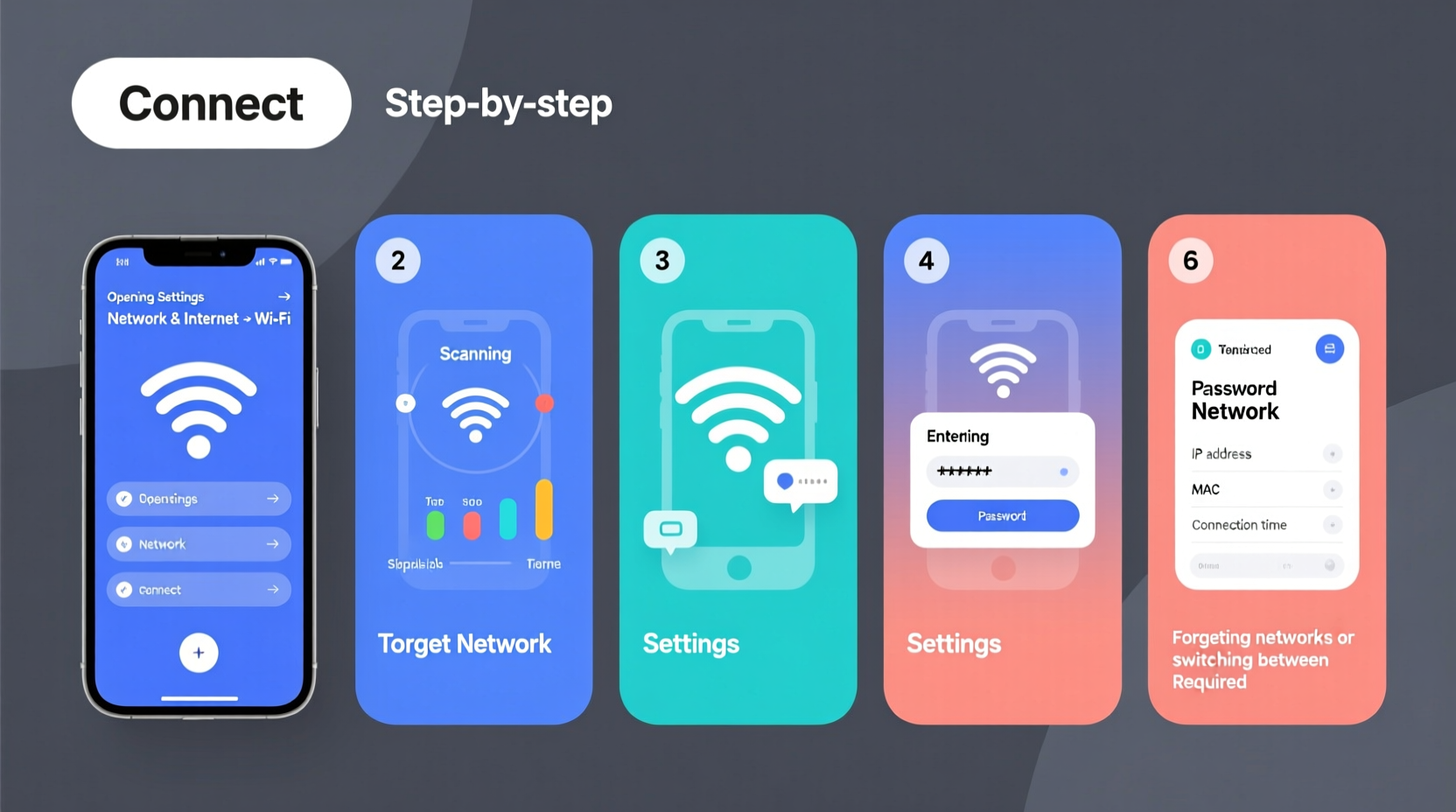
The first step in managing Wi-Fi on your phone is knowing how to connect to available networks. The process is straightforward but varies slightly depending on your operating system.
For Android Devices:
- Open the Settings app.
- Tap Network & Internet > Wi-Fi.
- Ensure Wi-Fi is turned on; your phone will scan for nearby networks.
- Select the network you want to join from the list.
- Enter the password when prompted and tap Connect.
For iPhone (iOS):
- Go to Settings > Wi-Fi.
- Turn on Wi-Fi if it's off.
- Wait for available networks to appear under “Choose a Network…”
- Tap the network name and enter the password.
- Your iPhone connects automatically once credentials are verified.
Managing Saved and Preferred Networks
Once connected, your phone saves the network credentials for automatic reconnection whenever you're in range. Over time, you may accumulate outdated or insecure networks that can interfere with performance.
To manage saved networks:
- Android: Go to Settings > Network & Internet > Wi-Fi > Saved Networks. Tap any entry to forget it or adjust auto-connect settings.
- iOS: Navigate to Settings > Wi-Fi, tap the ⓘ icon next to a network, then select \"Forget This Network.\"
Removing unused networks reduces background scanning and improves battery efficiency. It also enhances security by preventing accidental connections to compromised public hotspots.
| Action | Android Path | iOS Path |
|---|---|---|
| View Available Networks | Settings > Wi-Fi | Settings > Wi-Fi |
| Forget a Network | Wi-Fi > Saved Networks > [Network Name] > Forget | Wi-Fi > ⓘ next to network > Forget This Network |
| Reorder Priority (Android only) | Wi-Fi > Advanced > Wi-Fi Preferences > Saved Networks (drag to reorder) | Not supported natively |
Troubleshooting Common Wi-Fi Issues
Even with correct setup, problems like weak signal, slow speeds, or failed connections can occur. Here’s how to diagnose and fix them directly from your phone.
Step-by-Step Troubleshooting Guide
- Verify Airplane Mode is off. Accidentally enabling Airplane Mode disables all wireless connections.
- Toggle Wi-Fi off and back on. This resets the wireless interface and often resolves temporary glitches.
- Restart your phone. A reboot clears memory conflicts and refreshes network services.
- Check router status. Ensure the router is powered on and other devices can connect.
- Forget and reconnect to the network. Removes corrupted profile data.
- Update your OS. Security patches and driver updates often resolve connectivity bugs.
“Over 70% of reported Wi-Fi issues on mobile devices are resolved by simply forgetting the network and reconnecting.” — David Lin, Senior Network Support Engineer at NetSecure Inc.
Real Example: Office Connectivity Problem
Sarah uses her Android phone daily at work but started experiencing intermittent disconnections despite being near the router. After checking settings, she found her phone was still trying to connect to an old guest network from six months prior. By going into Wi-Fi settings and forgetting all previous office-related networks, then reconnecting to the current one, her connection stabilized immediately. The issue stemmed from conflicting saved profiles competing for priority.
Enhancing Security When Using Public Wi-Fi
Public Wi-Fi in cafes, airports, and hotels offers convenience but poses significant risks. Unsecured networks allow attackers to intercept data such as passwords, messages, or banking details.
Security Checklist for Public Use
- ✅ Avoid logging into sensitive accounts (e.g., banking) on open networks.
- ✅ Turn off “Auto-Join” for public networks to prevent automatic reconnection.
- ✅ Enable a trusted Virtual Private Network (VPN) service before connecting.
- ✅ Confirm the official network name with staff—fake hotspots mimic real ones.
- ✅ Use websites with HTTPS encryption (look for padlock icon in browser).
Frequently Asked Questions
Why does my phone not remember a Wi-Fi network?
This can happen due to software glitches, insufficient storage, or corrupted network profiles. Try forgetting the network and reconnecting. If the problem persists, restart your device or check for system updates.
Can I share Wi-Fi passwords between phones?
Yes. On iPhones running iOS 11 or later, bring two devices close together while one is connected—the other will prompt to “Share Password.” Android users can use QR code sharing (available on Samsung, Google Pixel, and other OEMs via Wi-Fi settings > Share). Note: The receiving device must support the same feature.
Does leaving Wi-Fi on drain my battery?
Modern smartphones are optimized to minimize power usage when scanning for networks. However, in areas with no signal, constant searching can impact battery life. Use adaptive Wi-Fi features (like Android’s “Wi-Fi optimization”) or disable scanning in Battery Saver mode if needed.
Optimizing Performance and Automation
Beyond basic connectivity, advanced users can leverage built-in tools to automate Wi-Fi behavior based on location, time, or routine.
- Android: Use Google’s Adaptive Wi-Fi or third-party apps like Tasker to turn Wi-Fi on/off when arriving at home or work.
- iOS: Create automations in the Shortcuts app—e.g., “When I connect to ‘Home Wi-Fi,’ launch Spotify.”
You can also prioritize networks by manually connecting to preferred ones first. Devices typically favor recently used networks, so reconnecting deliberately helps maintain optimal routing.
Conclusion
Mastering Wi-Fi management on your cell phone empowers you to stay securely connected wherever you are. From initial setup to ongoing maintenance and security awareness, these practices enhance speed, reliability, and privacy. Whether you're navigating crowded urban hotspots or setting up smart home devices, understanding your phone’s Wi-Fi capabilities gives you control over your digital experience.




 浙公网安备
33010002000092号
浙公网安备
33010002000092号 浙B2-20120091-4
Comments
No comments yet. Why don't you start the discussion?