
When your Windows system behaves unexpectedly—be it slow performance, application crashes, or unexpected reboots—the answers are often hidden in plain sight. The Windows Event Viewer is a powerful diagnostic tool that records detailed logs about system activity, software operations, and security events. While it may seem daunting at first, mastering Event Viewer can transform the way you troubleshoot and maintain your computer.
This guide walks through practical steps to access, interpret, and use Event Viewer effectively. Whether you're an IT professional or a power user, understanding this built-in utility empowers you to diagnose problems before they escalate.
Understanding Event Viewer: What It Is and Why It Matters
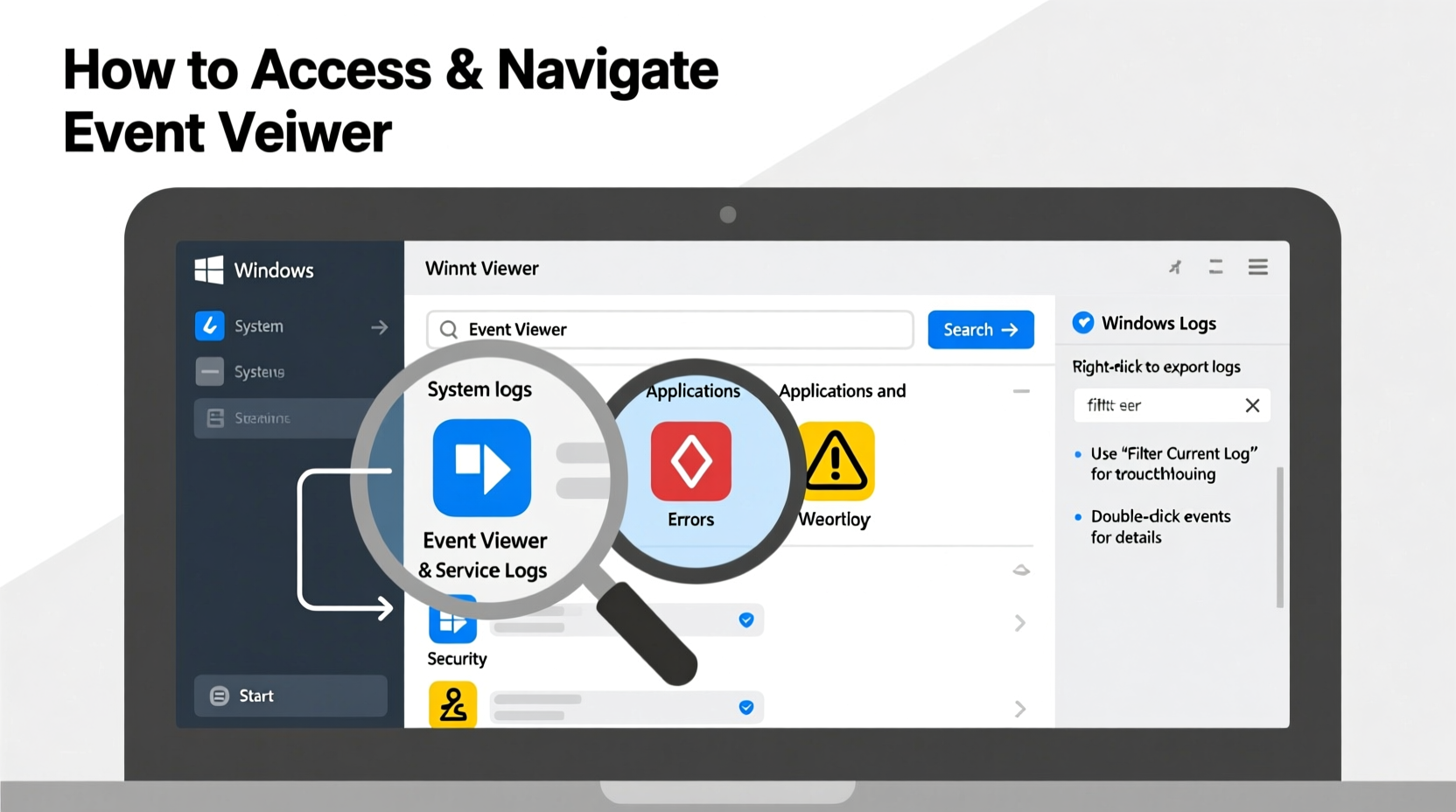
Event Viewer is a Microsoft Management Console (MMC) snap-in that displays event logs from various sources within Windows. These logs are categorized by type and severity, helping users pinpoint issues such as driver failures, service interruptions, login attempts, and more.
The core logs include:
- Application Log: Events logged by installed programs.
- System Log: Events related to Windows system components and drivers.
- Security Log: Records of logon attempts, policy changes, and other security-related actions (requires appropriate permissions).
Each entry contains metadata like event ID, source, level (error, warning, informational), date, and description. Over time, these entries form a timeline of system behavior—essential for forensic analysis after a crash or breach.
“Event Viewer is the first place I check when diagnosing unexplained system instability. It’s like a black box for your PC.” — David Lin, Senior Systems Administrator
How to Access Event Viewer on Any Windows Version
Accessing Event Viewer is straightforward across modern Windows versions (Windows 7 through Windows 11). Below are multiple reliable methods:
- Using Run Command (Fastest Method): Press Win + R, type
eventvwr.msc, then press Enter. - Through Start Menu Search: Click Start, type “Event Viewer,” and select the app from results.
- Via Control Panel: Go to Control Panel > System and Security > Administrative Tools > Event Viewer.
- Using Command Prompt or PowerShell: Run
eventvwrin either terminal with administrative rights. - Computer Management Shortcut: Right-click This PC > Manage > expand “System Tools” > click Event Viewer.
Navigating the Interface: A Practical Walkthrough
Once open, Event Viewer presents a three-pane interface:
- Left Pane: Tree view of logs organized by category (Windows Logs, Applications and Services Logs, etc.).
- Middle Pane: List of events with columns including Date and Time, Source, Event ID, Level, and User.
- Right Pane: Actions menu offering options like filtering, exporting, and refreshing logs.
Key Areas to Monitor Regularly
| Log Location | Purpose | Common Issues Detected |
|---|---|---|
| Windows Logs > Application | Software-specific errors | App crashes, failed updates, .NET exceptions |
| Windows Logs > System | Driver and OS component events | Blue screen precursors, service startup failures |
| Windows Logs > Security | Audit trails for access and authentication | Suspicious logins, privilege escalations |
| Applications and Services Logs | Detailed logs from specific apps (e.g., SQL Server, IIS) | Database timeouts, web server errors |
To drill into an issue, double-click any event to see its full details. Pay close attention to the General tab for a summary and the Details tab, which may show XML-formatted data useful for advanced troubleshooting or support tickets.
Step-by-Step Guide to Diagnose Common Problems
Follow this sequence when investigating system anomalies:
- Identify the symptom timeframe. Note when the problem occurred (e.g., yesterday at 3 PM).
- Open Event Viewer and navigate to Windows Logs > System.
- Filter the log by time range: Right-click “System,” choose “Filter Current Log,” set the date/time range, and apply.
- Sort by Level: Focus first on “Error” and “Warning” entries.
- Analyze high-priority events: Look for recurring Event IDs or sources like “Disk,” “WHEA-Logger,” or “Service Control Manager.”
- Search online using Event ID and source. For example, searching “Event ID 7023 Service Control Manager” reveals known causes and fixes.
- Take corrective action: Restart services, update drivers, or run system scans based on findings.
Mini Case Study: Resolving Random Reboots
A small business user reported their workstation rebooted randomly every few days without warning. No error message appeared.
Using Event Viewer, they filtered the System log for critical events around the last reboot time. They found repeated entries under WHEA-Logger with Event ID 18: “A corrected hardware error has occurred.” Further investigation revealed unstable memory. Running Windows Memory Diagnostic confirmed faulty RAM, which was replaced—ending the reboots.
This case illustrates how Event Viewer can uncover root causes invisible to casual observation.
Best Practices and Pro Tips
Maximize the value of Event Viewer with these strategies:
- Don’t ignore warnings. While not critical, repeated warnings often precede major failures.
- Use custom views. Create filters for specific event types (e.g., all disk-related errors) under “Custom Views” > “New Custom View.”
- Monitor forward. Set up scheduled checks weekly if managing mission-critical machines.
- Avoid clearing logs unnecessarily. Preserving history helps track patterns over time.
“Most users only look at Event Viewer after a failure. Proactive monitoring turns it into a prevention tool.” — Lisa Tran, IT Operations Lead
Essential Checklist for Effective Troubleshooting
Use this checklist each time you investigate an issue:
- ✅ Open Event Viewer via
eventvwr.msc - ✅ Navigate to relevant log (usually Application or System)
- ✅ Filter by time range matching the incident
- ✅ Sort by Level to isolate Errors and Warnings
- ✅ Examine top 5–10 problematic events
- ✅ Record Event ID, Source, and Description
- ✅ Research Event ID online or in knowledge bases
- ✅ Take action (restart service, update driver, scan hardware)
- ✅ Recheck logs post-fix to confirm resolution
Frequently Asked Questions
Can Event Viewer fix problems automatically?
No, Event Viewer is a diagnostic tool—it identifies issues but does not repair them. However, the information it provides guides precise manual fixes or automated scripts.
Is it safe to clear the Event logs?
Yes, but only if you’ve reviewed and saved important data. Clearing logs removes historical context, which can hinder future diagnosis. Use “Clear Log” sparingly and only after backing up critical entries.
Why can’t I see the Security log?
Access to the Security log requires administrative privileges and proper audit policies enabled. Standard users typically cannot view these entries unless explicitly granted access via Group Policy.
Conclusion: Turn Logs Into Action
Event Viewer isn't just for IT departments—it's a vital resource for anyone serious about maintaining a stable, secure Windows environment. By learning to access and interpret its logs, you shift from reactive frustration to informed control. Every error code, warning sign, and informational note brings you closer to understanding your system’s true behavior.
Start small: open Event Viewer today, browse your System log, and look for anything marked “Error.” Chances are, you’ll discover something worth addressing. Make it part of your routine maintenance, and you’ll catch issues before they become emergencies.




 浙公网安备
33010002000092号
浙公网安备
33010002000092号 浙B2-20120091-4
Comments
No comments yet. Why don't you start the discussion?